> For the complete documentation index, see [llms.txt](https://help.listly.io/llms.txt). Markdown versions of documentation pages are available by appending `.md` to page URLs; this page is available as [Markdown](https://help.listly.io/docs/es/getting-started/databoard-features/folders.md).
# Carpetas
## Cómo usar
{% stepper %}
{% step %}
#### Crear carpeta
**A. Extracción Tabs**
Al ejecutar la extracción Tabs, se crea automáticamente una carpeta donde puedes verificar la lista de páginas individuales extraídas dentro de la carpeta.
**B. Crear carpeta arbitraria**
{% stepper %}
{% step %}
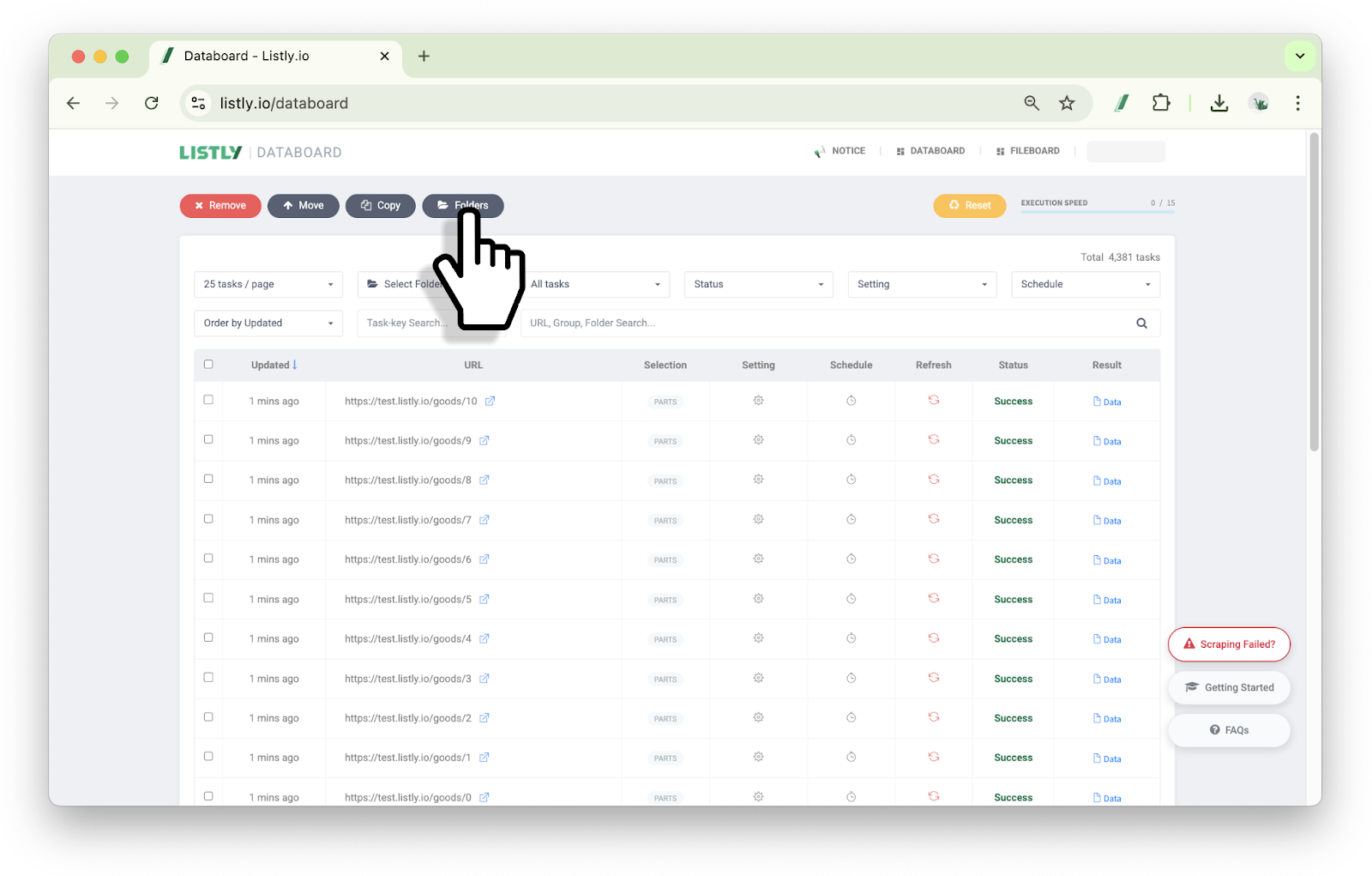
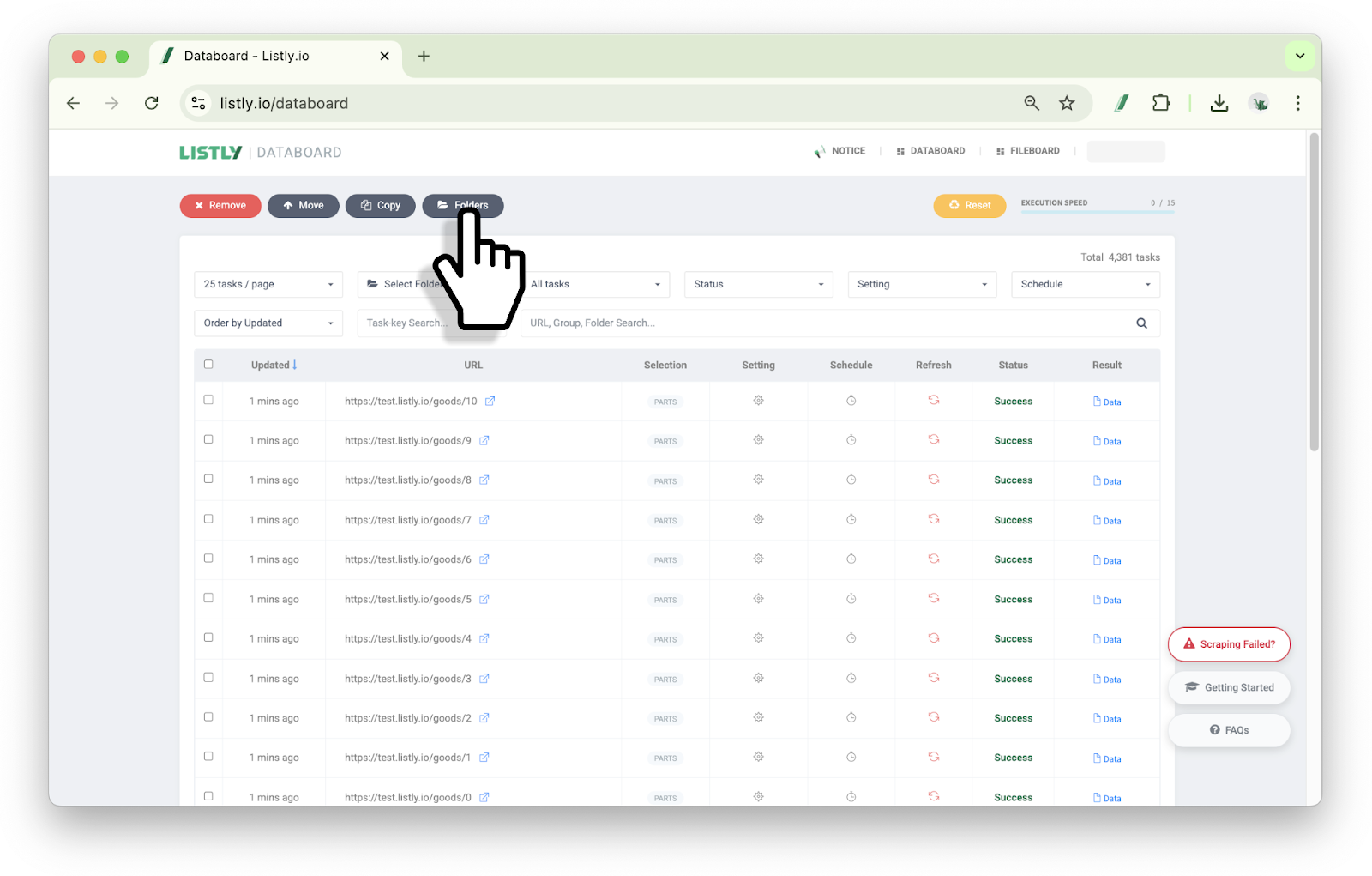
Haz clic en **\[Lista de carpetas]** en la parte superior del panel de datos.
{% endstep %}
{% step %}
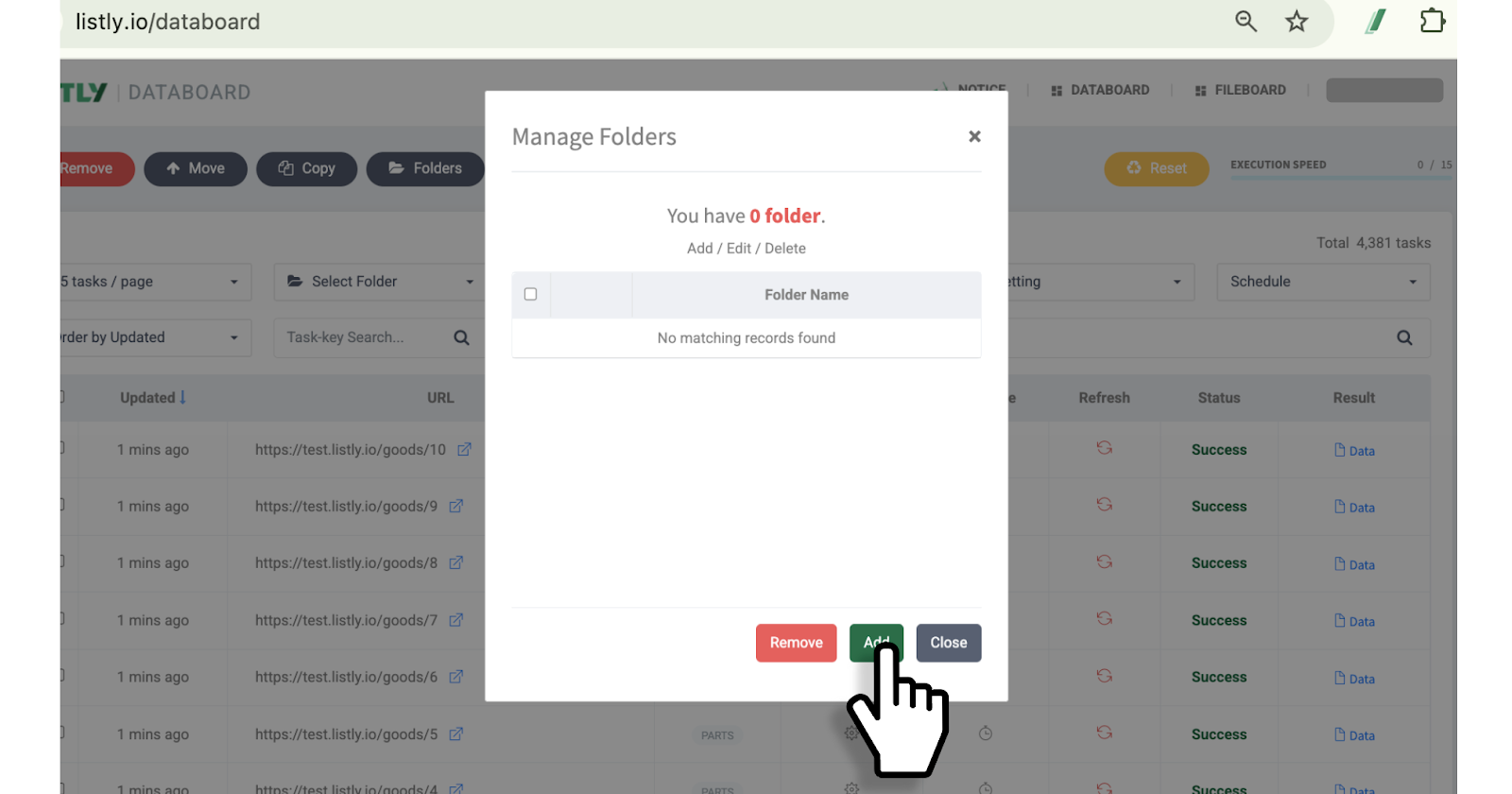
Haz clic en **\[Agregar]**.
{% endstep %}
{% step %}
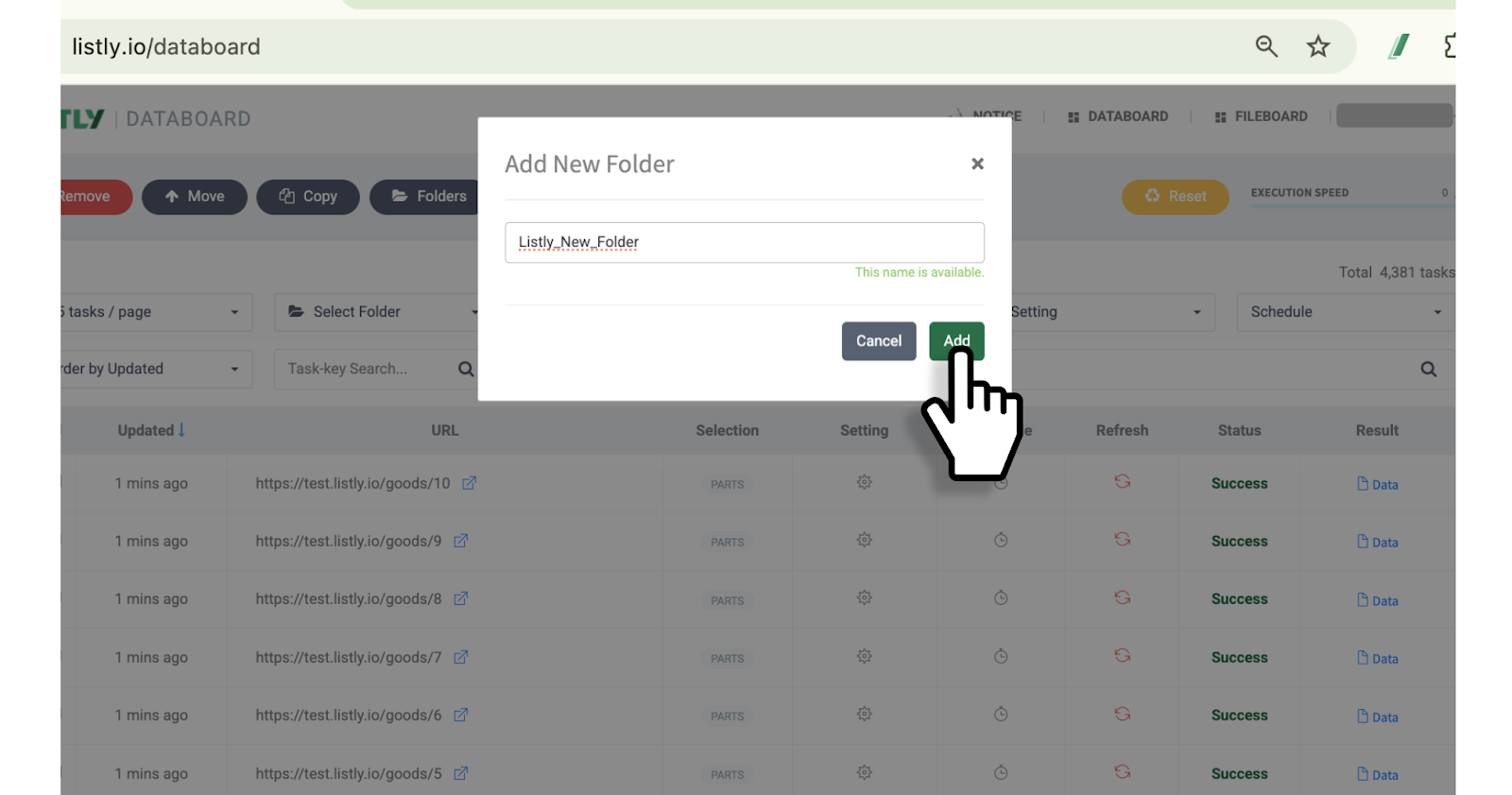
Ingresa el nombre de la carpeta y luego haz clic en el botón **\[Agregar]** una vez más.
{% endstep %}
{% endstepper %}
{% hint style="warning" %}
La nueva carpeta no se mostrará en el panel de datos hasta que se le agregue una tarea. Aparecerá cuando le agregues una tarea.
{% endhint %}
{% endstep %}
{% step %}
#### Mover tarea
{% stepper %}
{% step %}
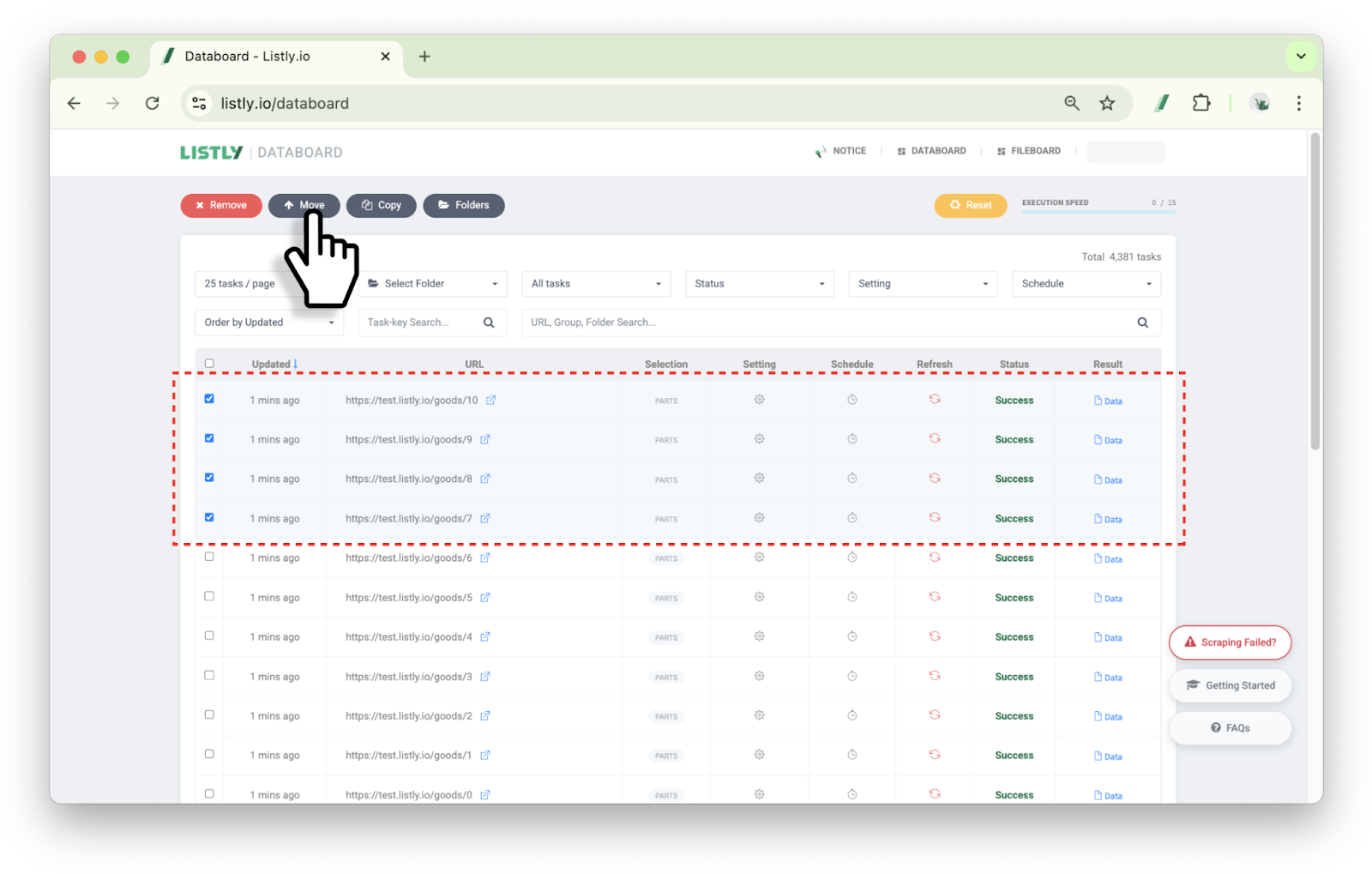
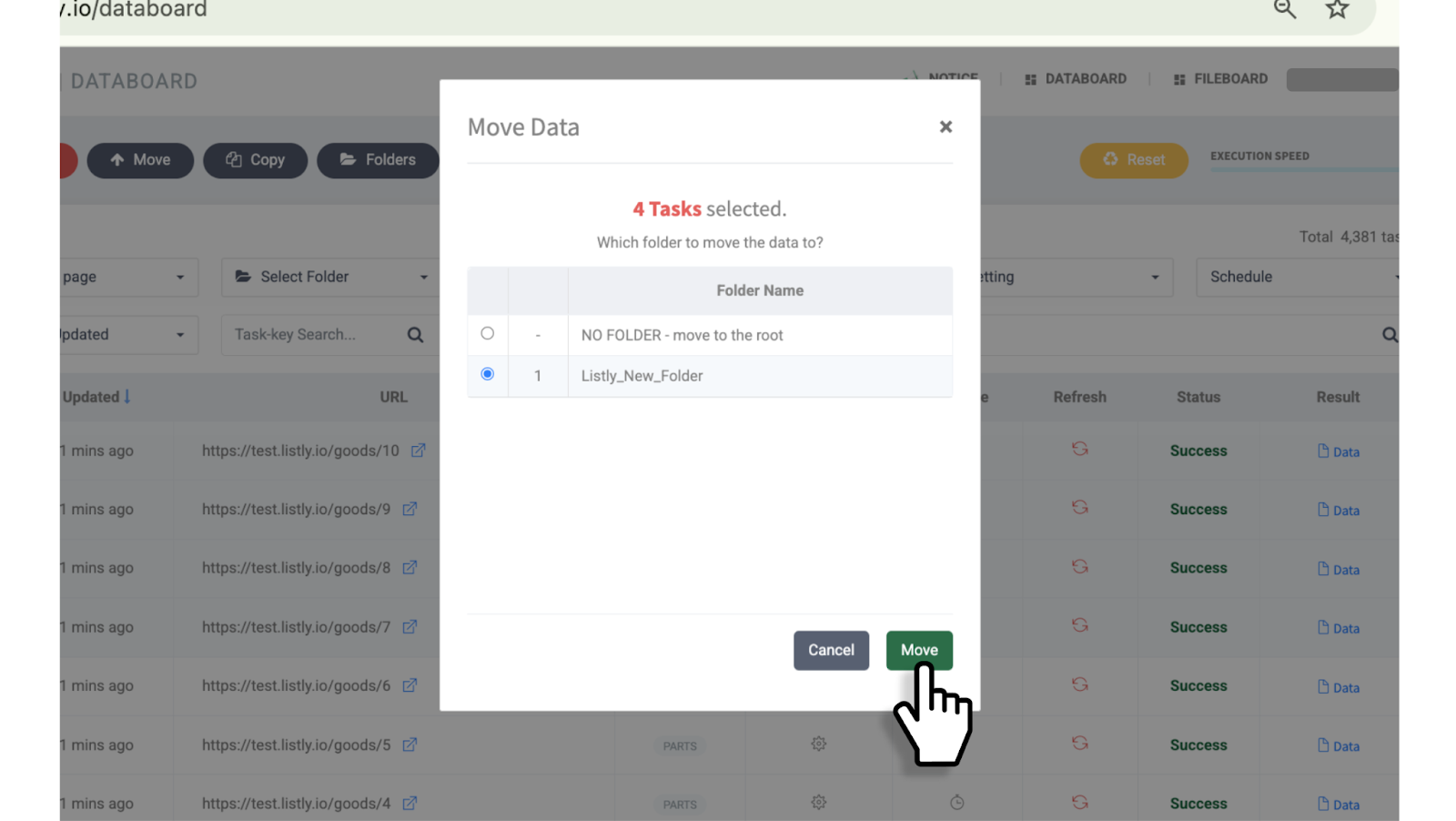
Selecciona la tarea que deseas mover a una carpeta y luego haz clic en el botón **\[Mover]** en la parte superior del panel de datos.
{% endstep %}
{% step %}
Selecciona la carpeta a la que deseas mover la tarea y luego haz clic en el botón **\[Mover]**.
{% endstep %}
{% endstepper %}
{% endstep %}
{% step %}
#### Modificar nombre de carpeta
{% stepper %}
{% step %}
Haz clic en **\[Lista de carpetas]** en la parte superior del panel de datos.
{% endstep %}
{% step %}
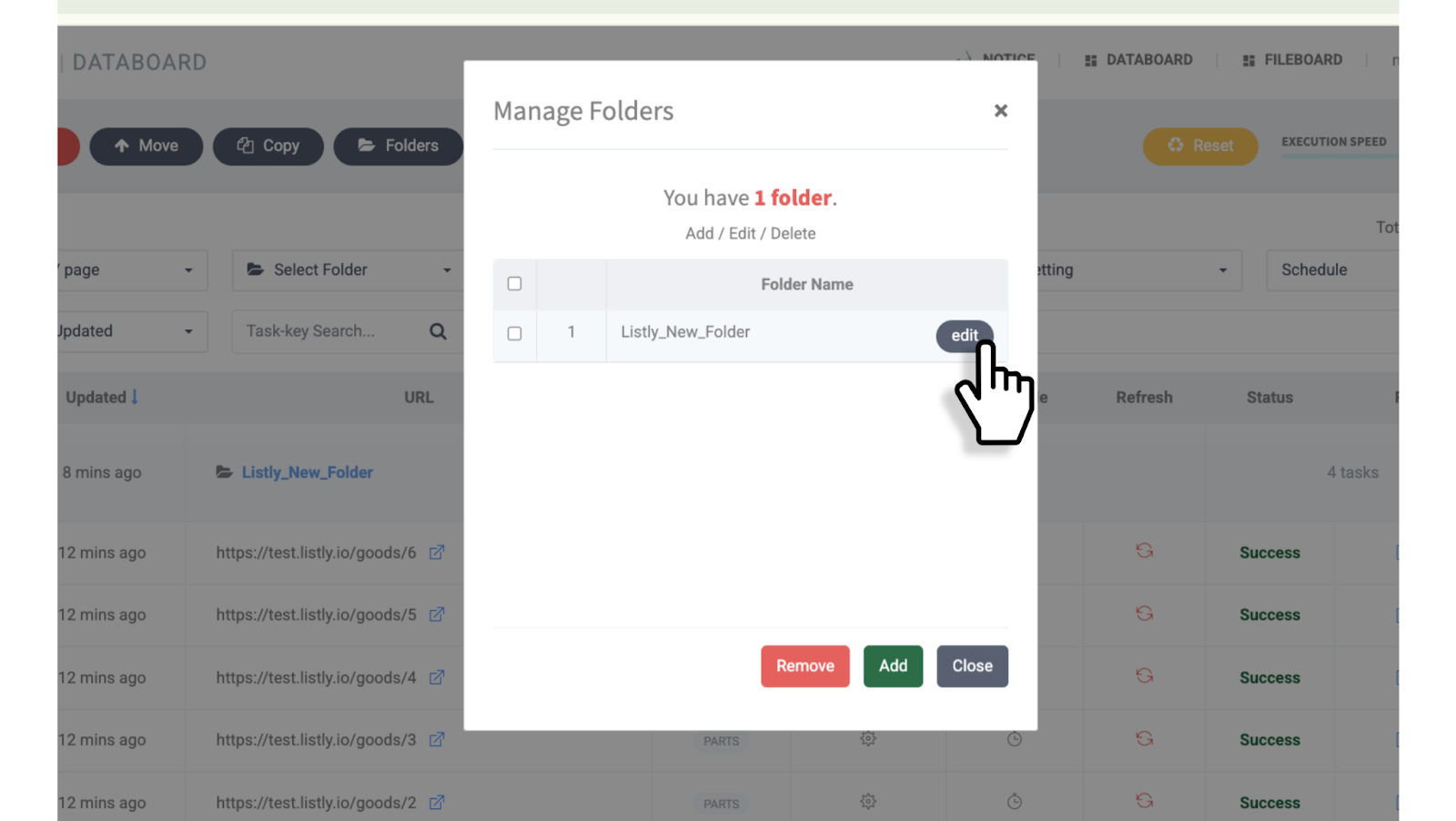
Al pasar el mouse sobre la carpeta que deseas modificar, aparecerá el botón **\[Modificar]**. Haz clic en ese botón.
{% endstep %}
{% step %}
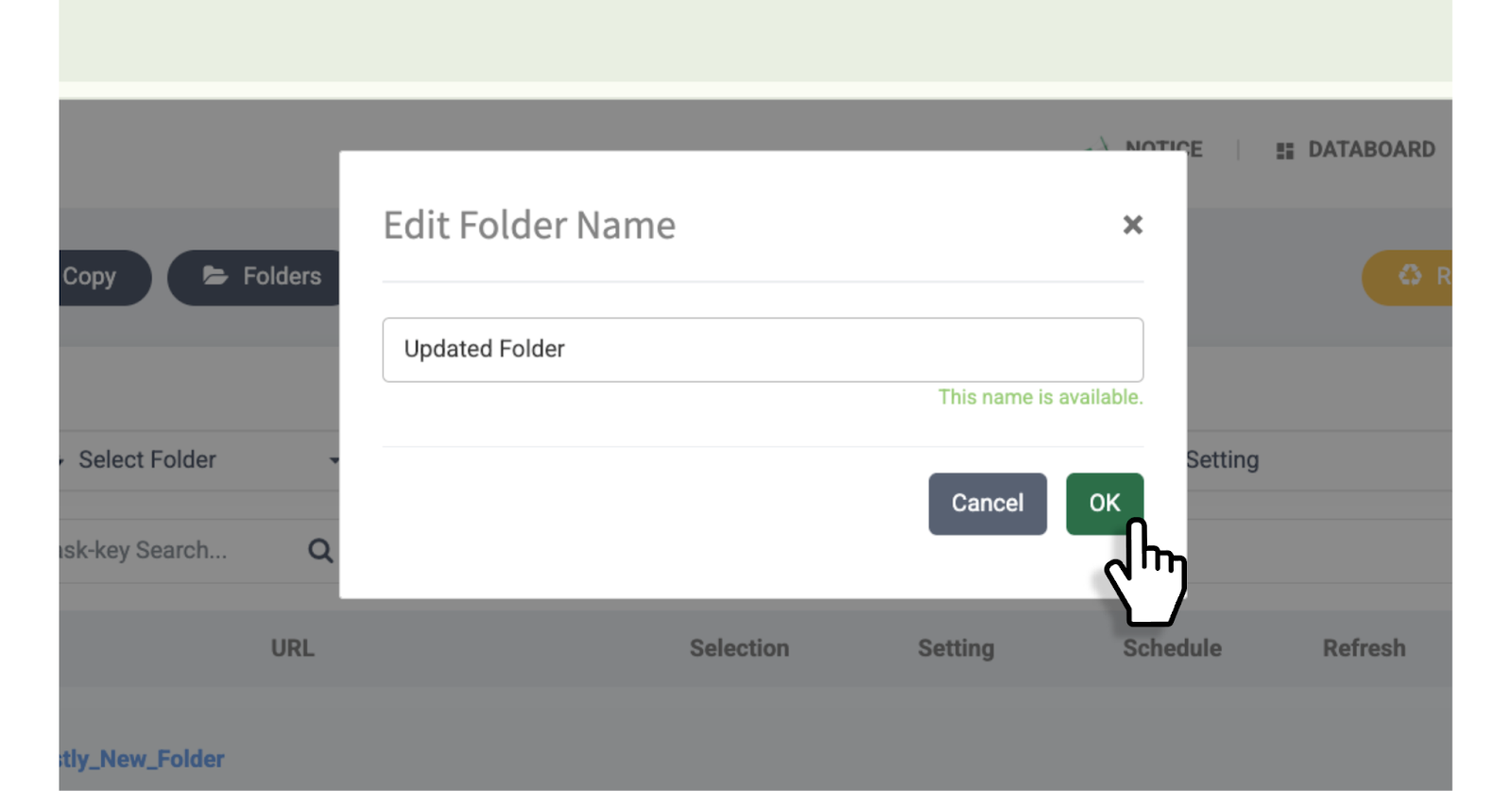
Ingresa el nuevo nombre y luego haz clic en el botón **\[Confirmar]**.
{% endstep %}
{% endstepper %}
{% endstep %}
{% step %}
#### Eliminar carpeta
{% hint style="danger" %}
Las carpetas no se pueden eliminar con el botón de eliminar tareas.
{% endhint %}
{% stepper %}
{% step %}
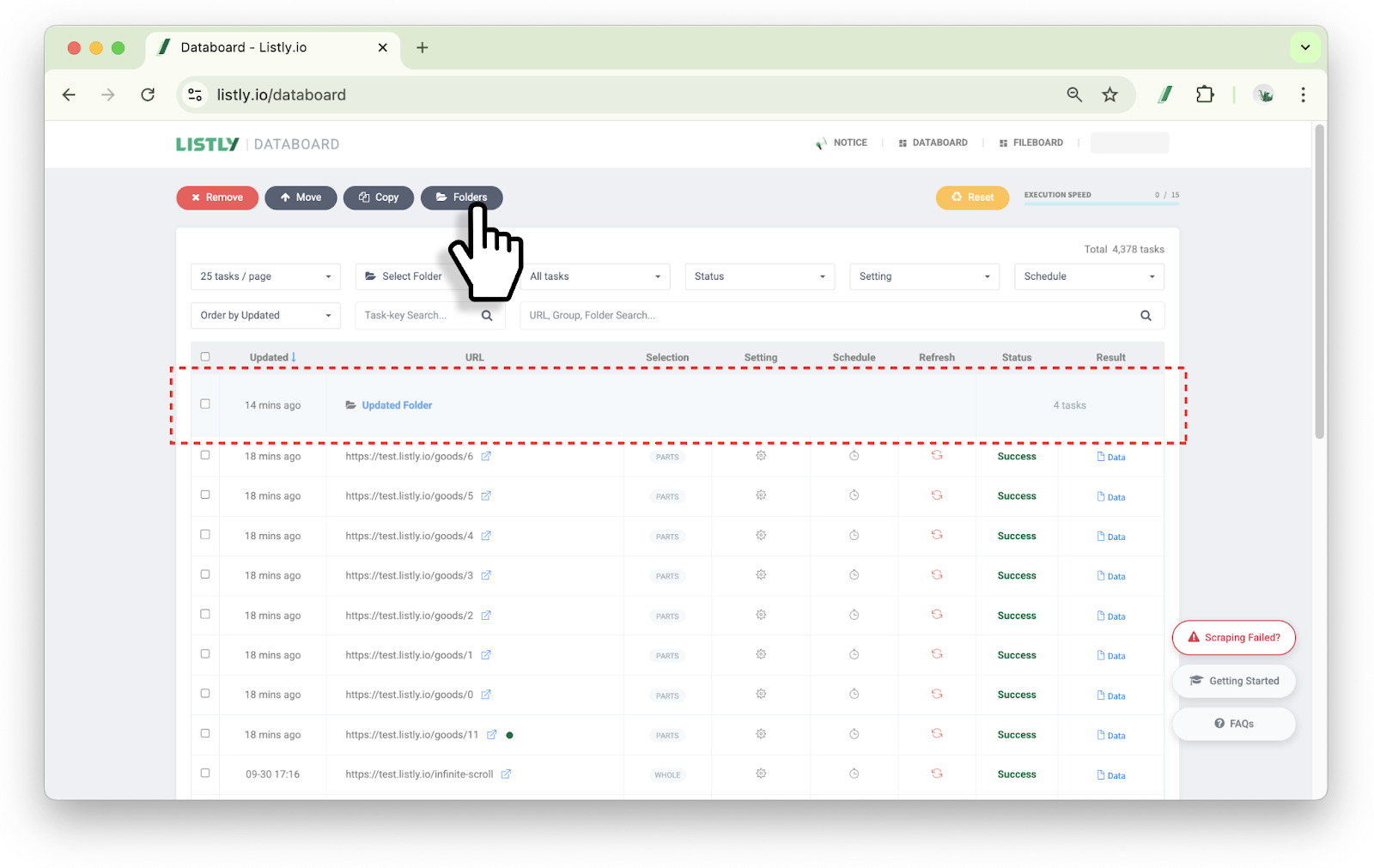
Haz clic en **\[Lista de carpetas]** en la parte superior del panel de datos.
{% endstep %}
{% step %}
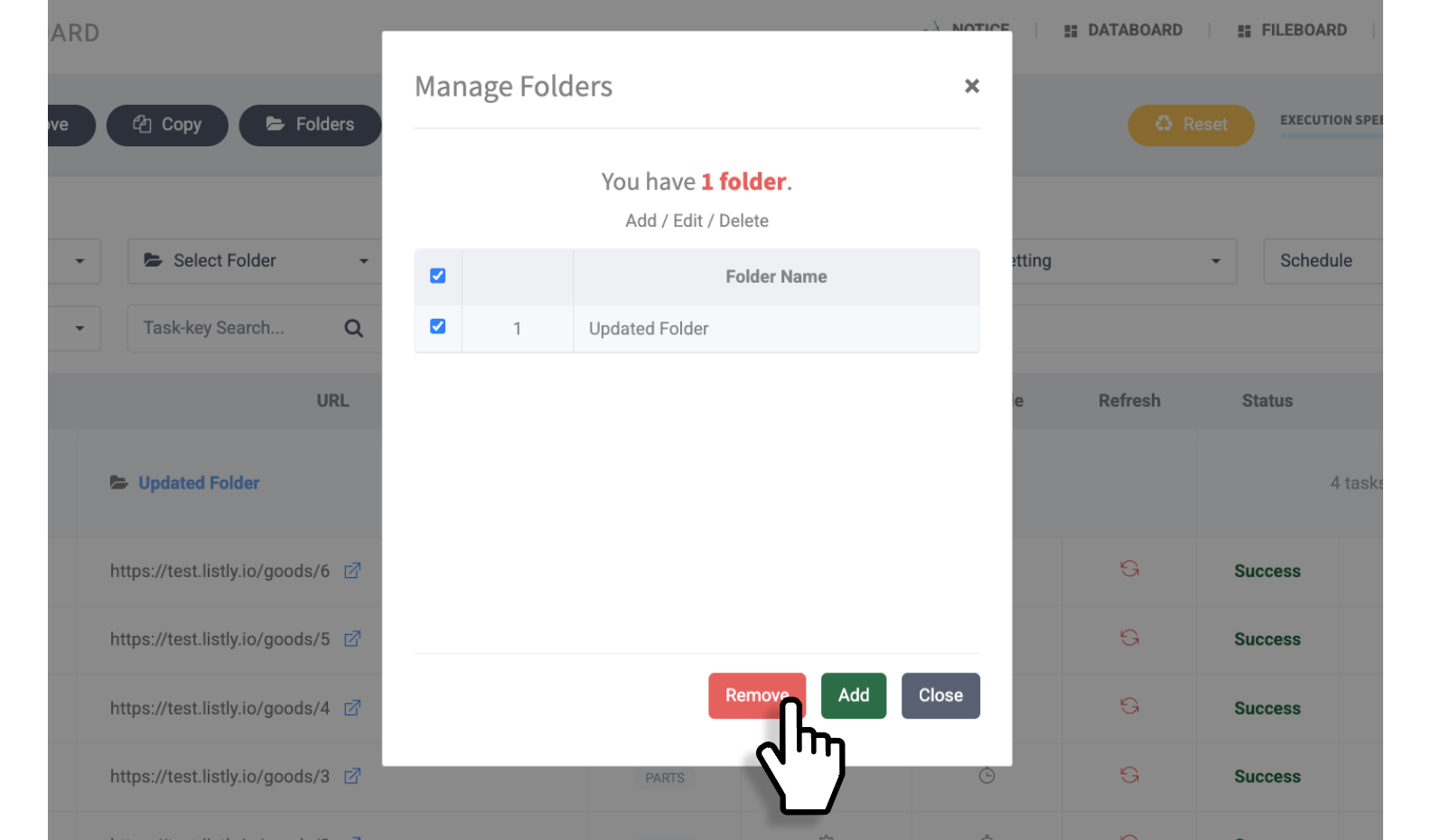
Selecciona la carpeta que deseas eliminar y luego haz clic en el botón **\[Eliminar]** en la parte inferior.
{% endstep %}
{% step %}
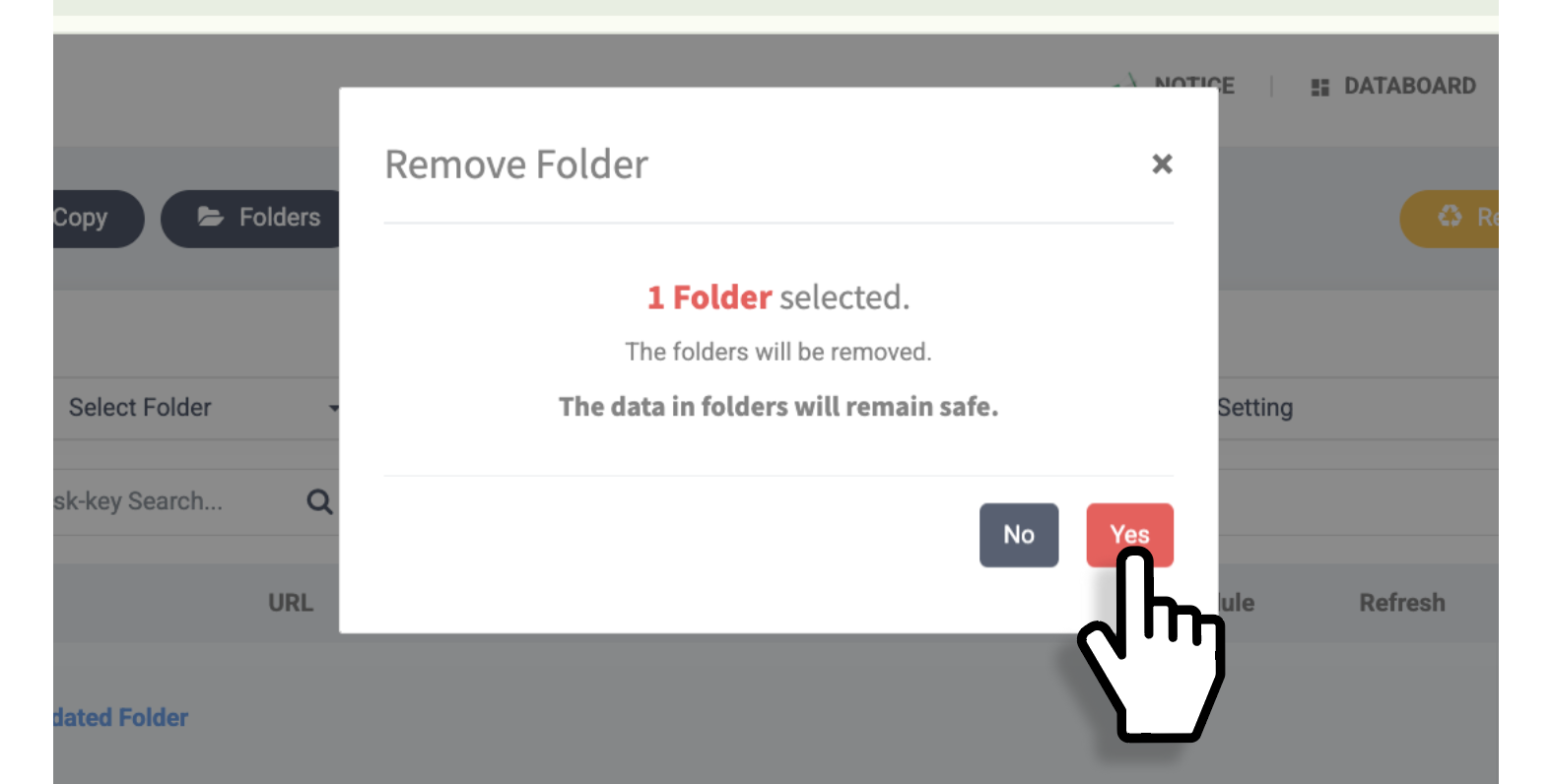
Selecciona **\[Sí]** en la ventana de confirmación para eliminar la carpeta.
{% endstep %}
{% step %}
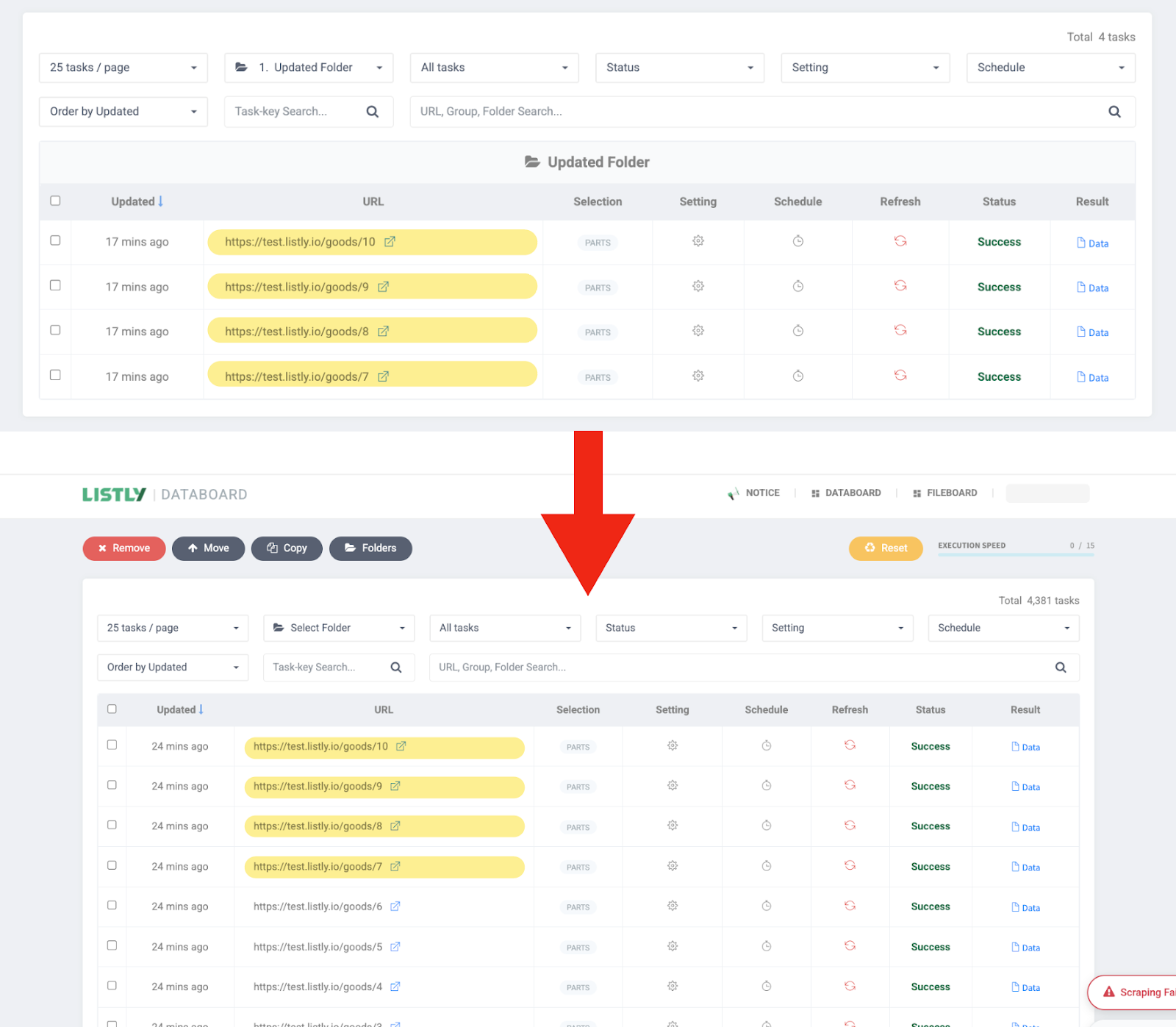
Incluso si eliminas la carpeta, las tareas que estaban dentro de ella no se eliminan juntas. Todas las tareas se separan en tareas individuales y se muestran nuevamente en el panel de datos.
{% endstep %}
{% endstepper %}
{% endstep %}
{% endstepper %}
---
# Agent Instructions
This documentation is published with GitBook. GitBook is the documentation platform designed so that both humans and AI agents can read, navigate, and reason over technical content effectively. Learn more at gitbook.com.
## Querying This Documentation
If you need additional information that is not directly available in this page, you can query the documentation dynamically by asking a question.
Perform an HTTP GET request on the current page URL with the `ask` query parameter, and the optional `goal` query parameter:
```
GET https://help.listly.io/docs/es/getting-started/databoard-features/folders.md?ask=&goal=
```
`ask` is the immediate question: it should be specific, self-contained, and written in natural language.
`goal` is optional and describes the broader end goal you are ultimately trying to accomplish on behalf of the user. GitBook uses it to tailor the answer towards what is most useful for that goal.
The response will contain a direct answer to the question and relevant excerpts and sources from the documentation.
Use this mechanism when the answer is not explicitly present in the current page, you need clarification or additional context, or you want to retrieve related documentation sections.