> For the complete documentation index, see [llms.txt](https://help.listly.io/llms.txt). Markdown versions of documentation pages are available by appending `.md` to page URLs; this page is available as [Markdown](https://help.listly.io/docs/es/getting-started/databoard-features/settings-auto-click.md).
# Configuración - clic automático
## ¿Qué es el Clic Automático?
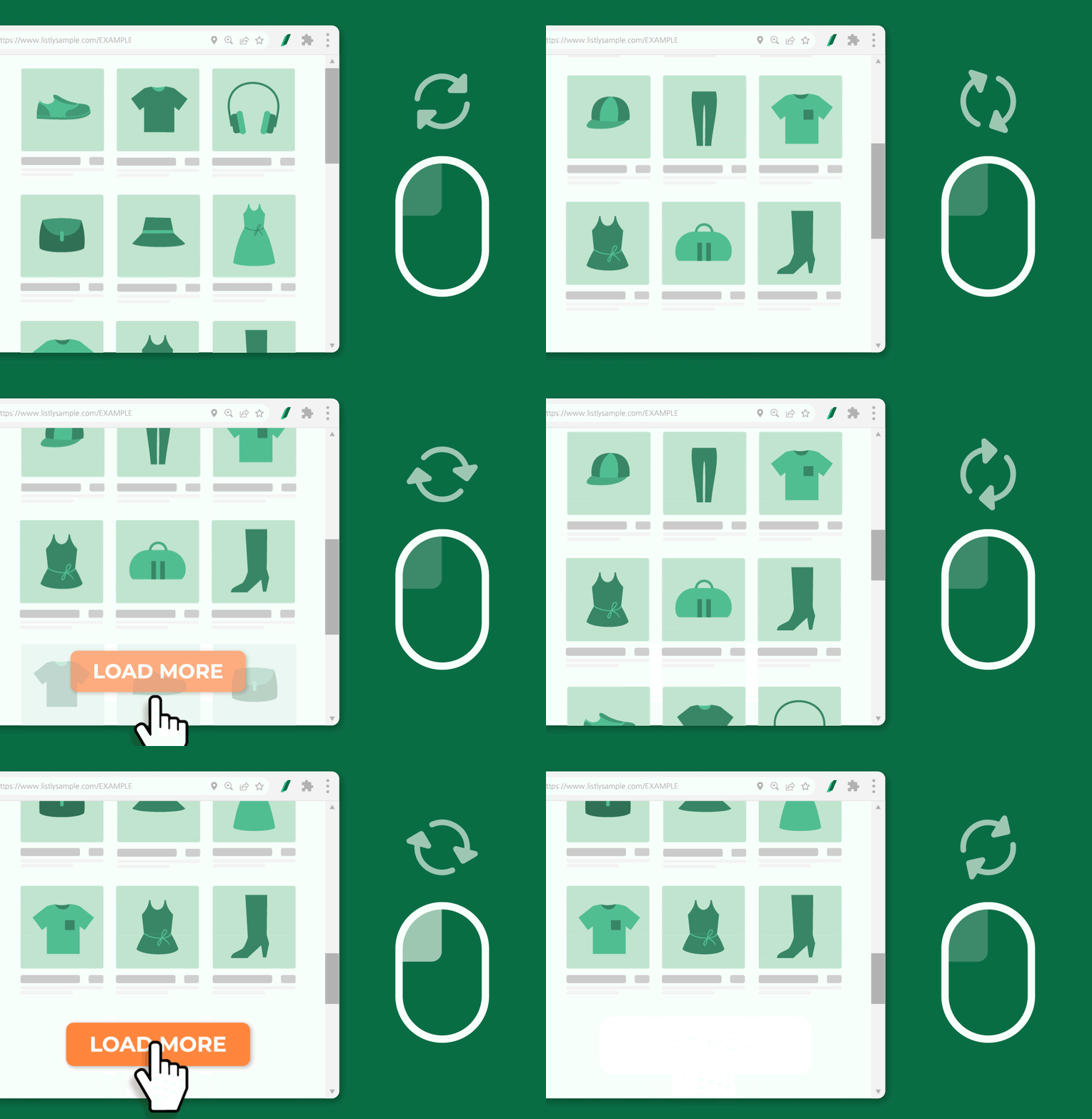
Es una función que se utiliza **cuando necesita seguir haciendo clic en un botón** para ver más información de productos en la página que desea extraer.
{% hint style="info" %}
**Guía Rápida**
➡️ Extraer datos ➡️ Configuración ➡️ Ingresar elemento para clic automático (Selector CSS) ➡️ Seleccionar opciones de clic automático ➡️ Guardar ➡️ Reextraer datos
{% endhint %}
***
## Método de Uso
{% stepper %}
{% step %}
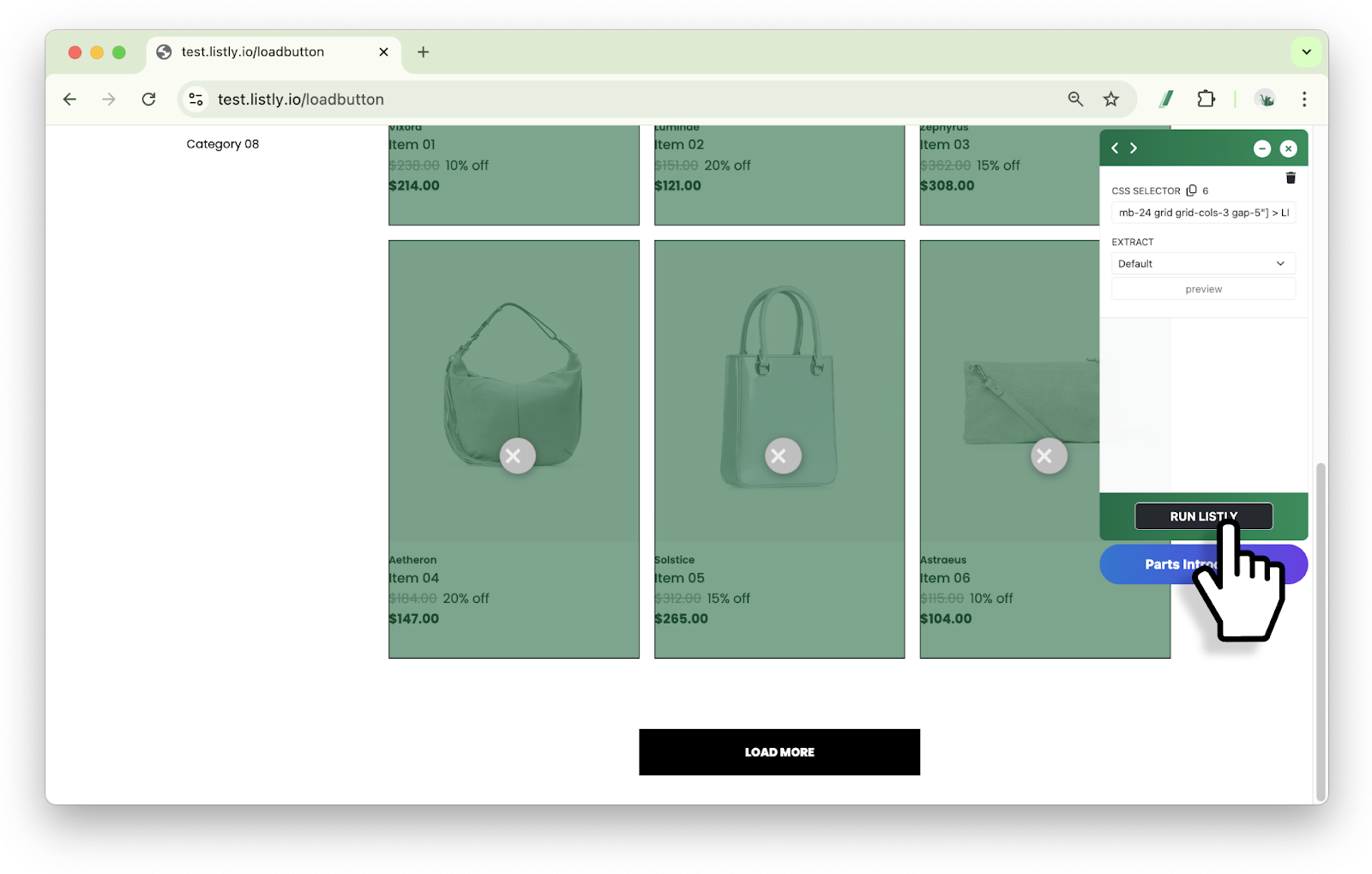
#### Extraiga la página deseada.
{% endstep %}
{% step %}
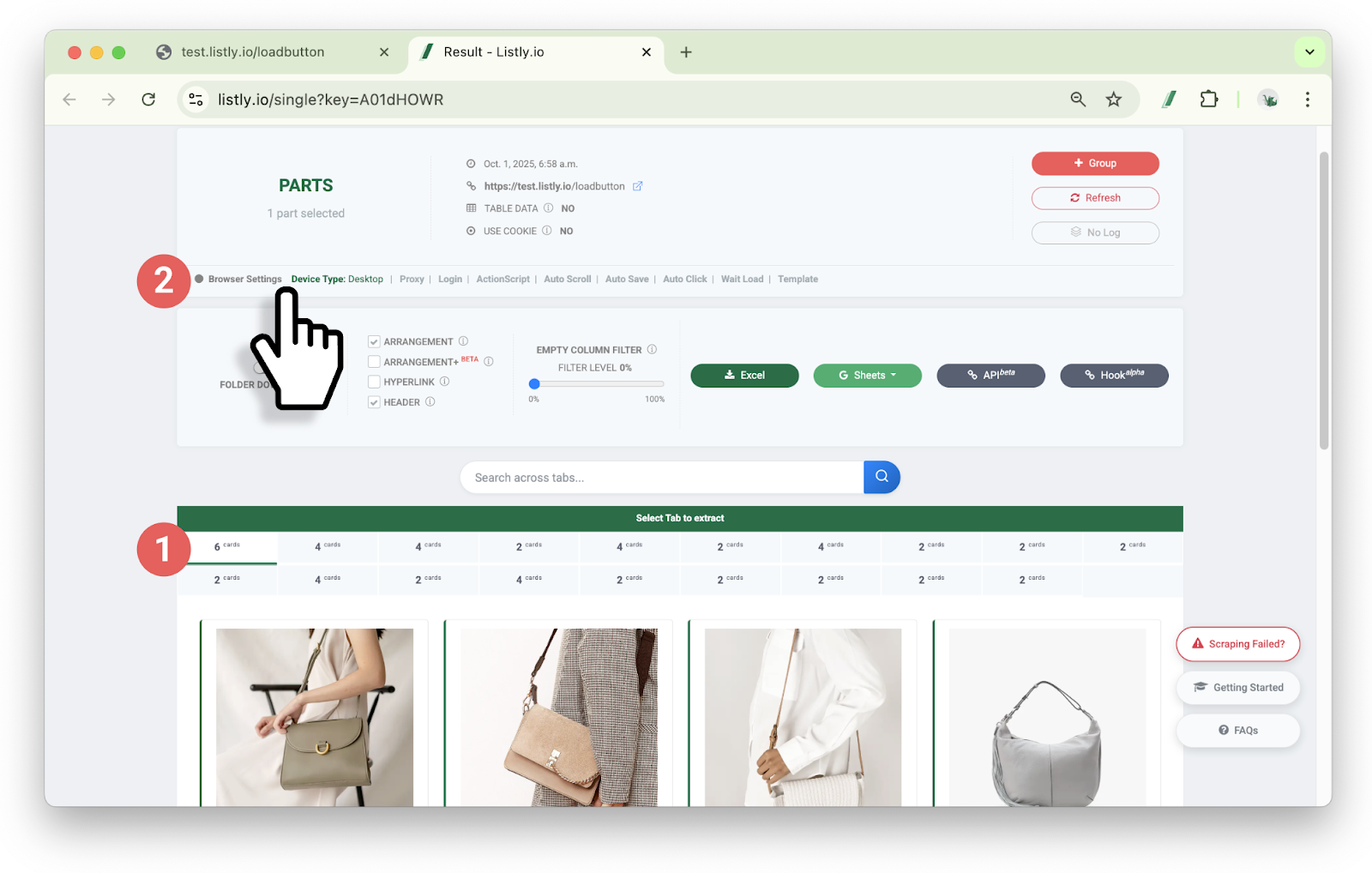
#### En la ventana de resultados, ➊ seleccione el área de datos que desea extraer y luego ➋ haga clic en el área de configuración del navegador.
{% endstep %}
{% step %}
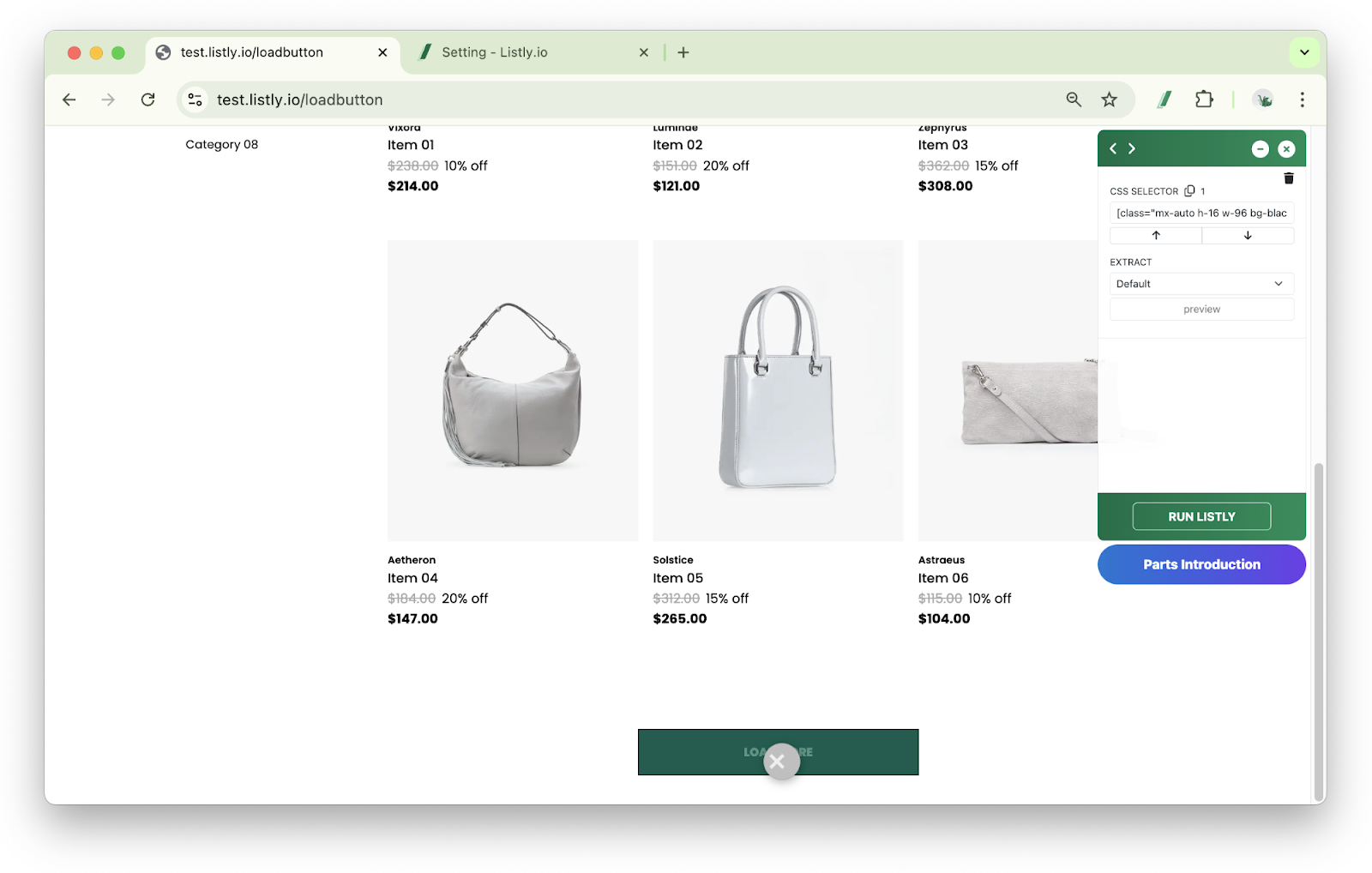
#### Copie el valor del selector CSS del botón \[Ver más] de la página web extraída.
{% hint style="info" %}
**Referencia**: [Obtener valor de selector CSS](https://help.listly.io/docs/ko/getting-started/listly-basics/css-selector)
{% endhint %}
{% endstep %}
{% step %}
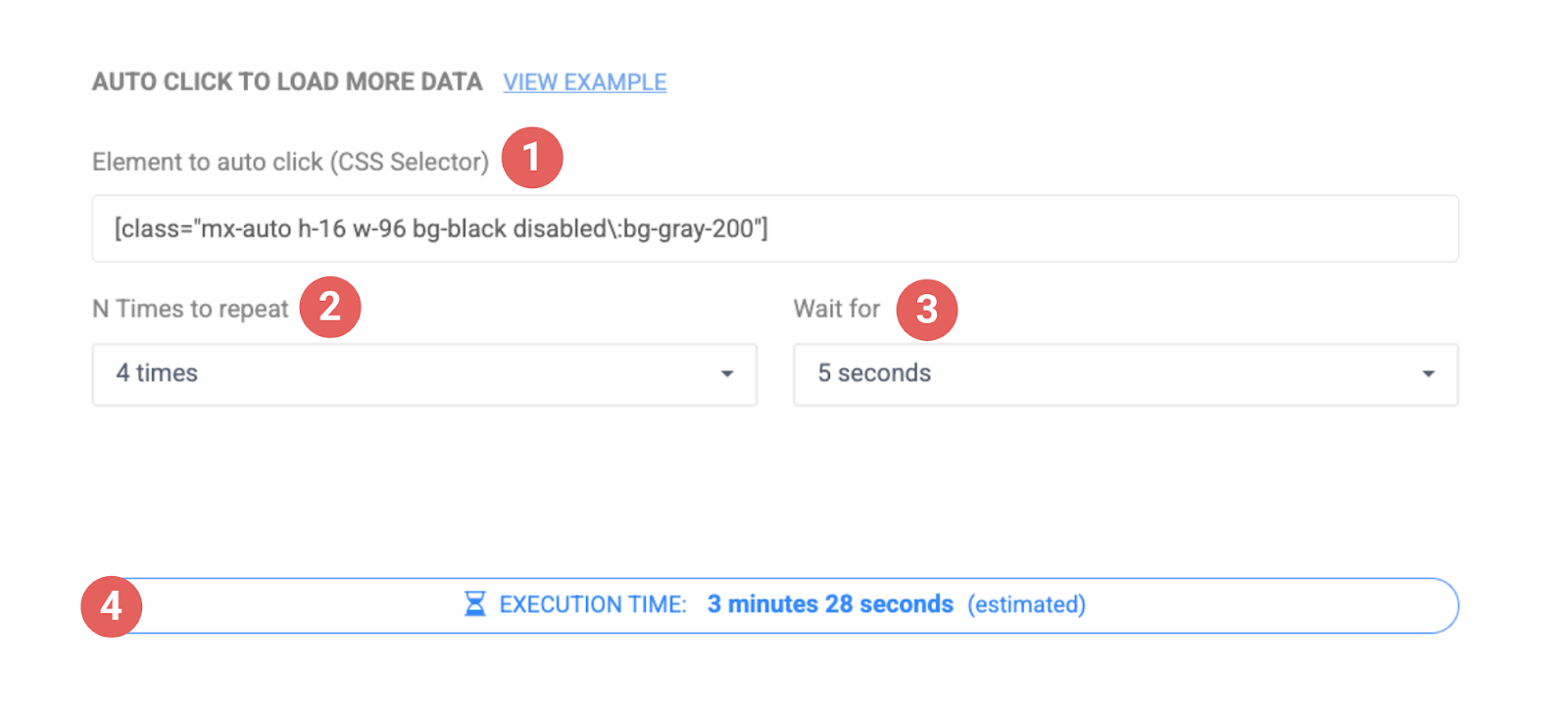
#### Pegue el valor del selector CSS en el elemento para clic automático dentro de la ventana de configuración, seleccione otras opciones y **guarde**.
**➊** **Elemento para clic automático (Selector CSS)**: Campo para ingresar el valor del selector CSS del botón Ver más.
**➋** **Número de repeticiones**: Establece cuántas veces se hará clic en ese botón. Por ejemplo, si se especifica '10 veces', obtendrá la cantidad de datos equivalente a hacer clic 10 veces en el botón 'Ver más'.
**➌** **Esperar brevemente**: Determina cuántos segundos esperar después de hacer clic en el botón. Configure generosamente de acuerdo con la velocidad de carga de la página.
**➍** **Tiempo de ejecución**: Muestra el tiempo de extracción estimado basado en los valores de configuración anteriores. Sin embargo, el tiempo máximo de ejecución es de 10 minutos, y si se excede, la extracción puede detenerse automáticamente, así que configure el número de repeticiones apropiadamente para que termine dentro de 10 minutos.
{% endstep %}
{% step %}
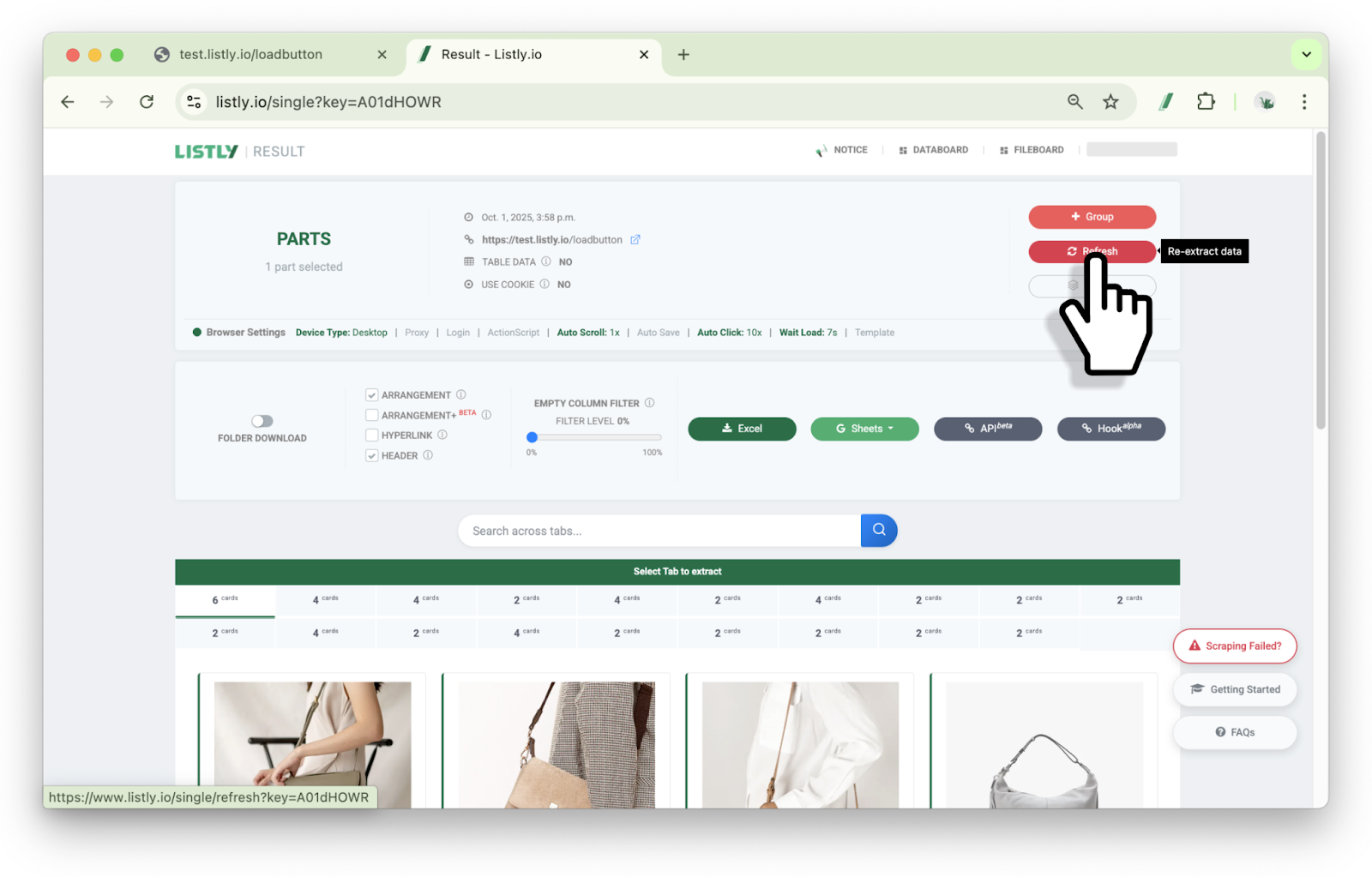
#### Haga clic en el botón **Reextraer**.
{% endstep %}
{% endstepper %}
---
# Agent Instructions
This documentation is published with GitBook. GitBook is the documentation platform designed so that both humans and AI agents can read, navigate, and reason over technical content effectively. Learn more at gitbook.com.
## Querying This Documentation
If you need additional information that is not directly available in this page, you can query the documentation dynamically by asking a question.
Perform an HTTP GET request on the current page URL with the `ask` query parameter, and the optional `goal` query parameter:
```
GET https://help.listly.io/docs/es/getting-started/databoard-features/settings-auto-click.md?ask=&goal=
```
`ask` is the immediate question: it should be specific, self-contained, and written in natural language.
`goal` is optional and describes the broader end goal you are ultimately trying to accomplish on behalf of the user. GitBook uses it to tailor the answer towards what is most useful for that goal.
The response will contain a direct answer to the question and relevant excerpts and sources from the documentation.
Use this mechanism when the answer is not explicitly present in the current page, you need clarification or additional context, or you want to retrieve related documentation sections.