> For the complete documentation index, see [llms.txt](https://help.listly.io/llms.txt). Markdown versions of documentation pages are available by appending `.md` to page URLs; this page is available as [Markdown](https://help.listly.io/docs/es/getting-started/result-page-features/webhooks.md).
# WebHooks
## ¿Qué es un Webhook?
Es **una función que le permite recibir notificaciones en tiempo real** cuando se completa algún trabajo o cuando ocurre un evento específico en una aplicación web. Si lo integra con aplicaciones de mensajería empresarial como Slack después de la extracción de datos en Listly, puede recibir notificaciones en tiempo real cuando se complete la extracción de datos.
***
## Método de Uso
### Integración de Webhook de Slack
{% hint style="info" %}
**Guía Rápida**
➡️ Agregar aplicación de mensajes entrantes a Slack ➡️ Agregar webhook a tarea de Listly ➡️ Reextracción de datos o usar programador\
para recibir notificaciones en el canal de Slack deseado
{% endhint %}
{% stepper %}
{% step %}
**Después de iniciar sesión en Slack, haga clic en el nombre del espacio de trabajo (ejemplo: Acme Inc.) en la barra lateral izquierda.**
Cuando aparezca el **`menú de herramientas y configuración`**, haga clic en **`configuración de administración de aplicaciones`** para abrir el directorio de aplicaciones.
{% endstep %}
{% step %}
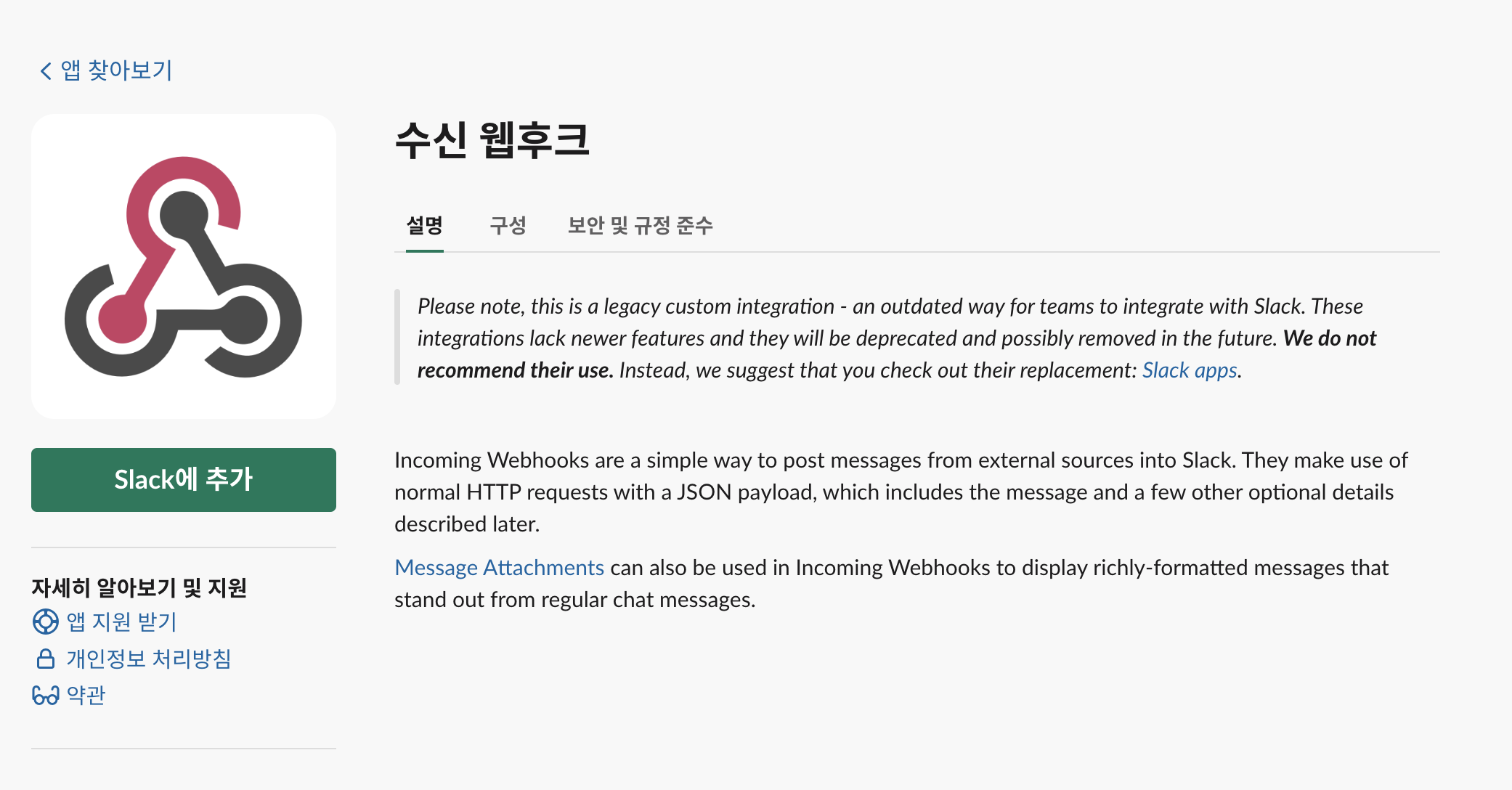
**Busque 'Incoming Webhooks' o 'webhooks entrantes' en la página del directorio de aplicaciones de Slack y agréguelo a Slack.**
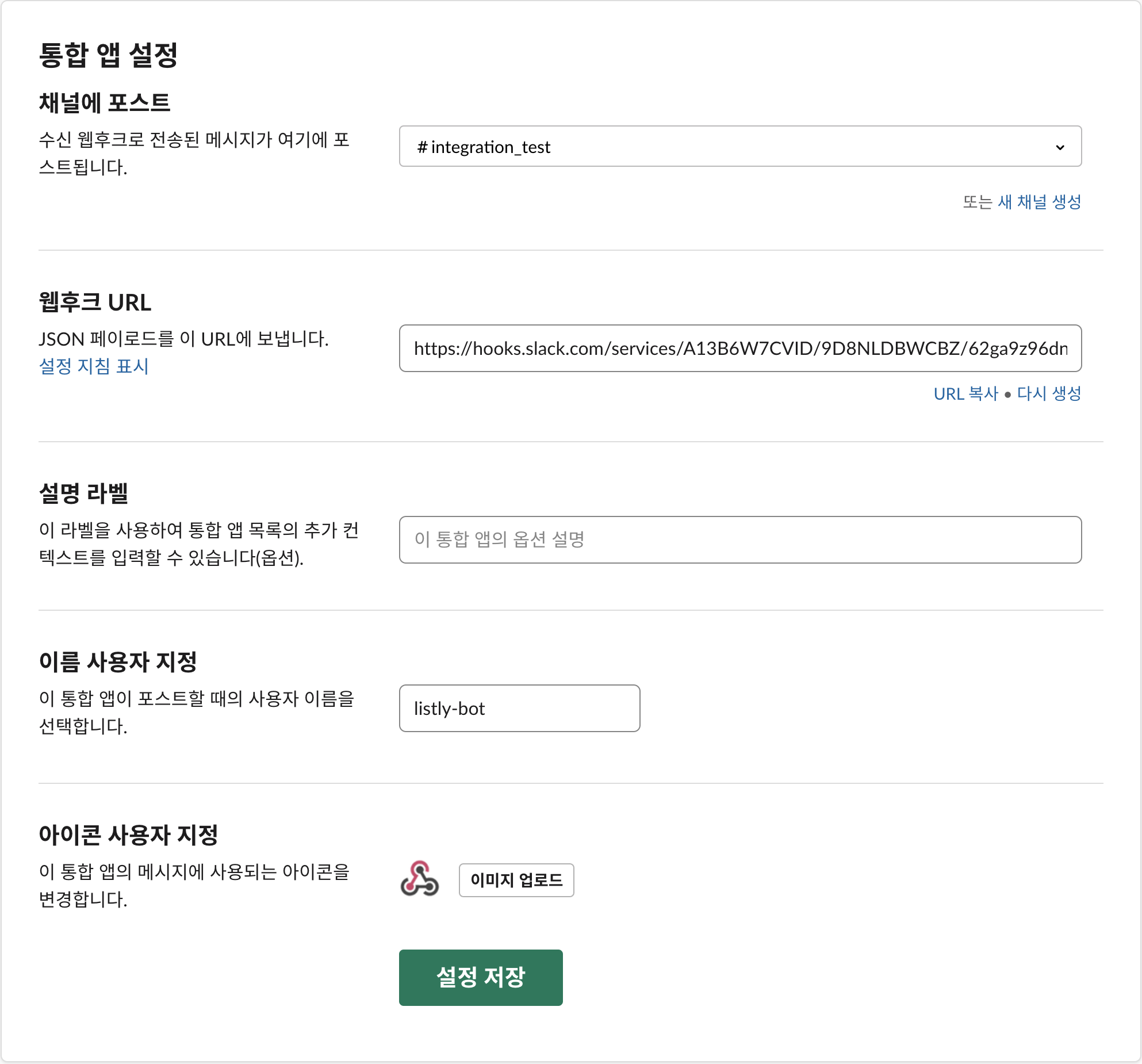
Después de agregar a Slack, puede seleccionar en qué canal recibir notificaciones. En este paso, también puede agregar un nuevo canal donde desea recibir notificaciones y establecer el nombre del bot que envía el mensaje de resultado de extracción. Después de copiar la **`URL del webhook`** necesaria para la integración del servicio de Listly, haga clic en guardar configuración.
{% endstep %}
{% step %}
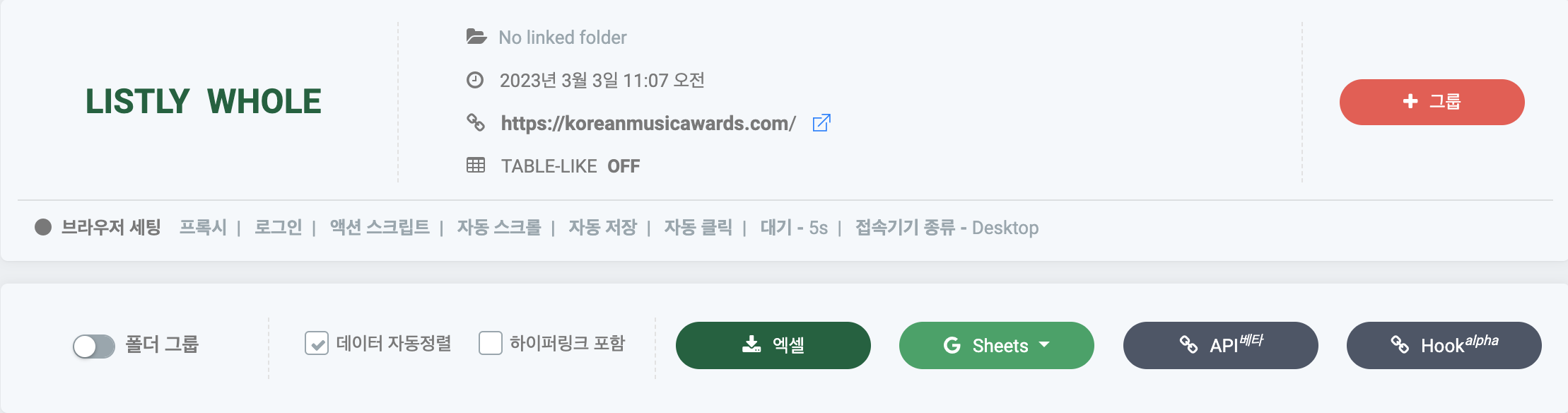
Encuentre la tarea de la que desea recibir notificaciones de resultados en el [panel de datos](https://www.listly.io/databoard) de Listly y haga clic en el botón **`Datos`** a la derecha. Luego, como se muestra en la imagen a continuación, haga clic en el botón **`Hook`** a la derecha del menú superior para abrir la ventana de configuración de webhook.
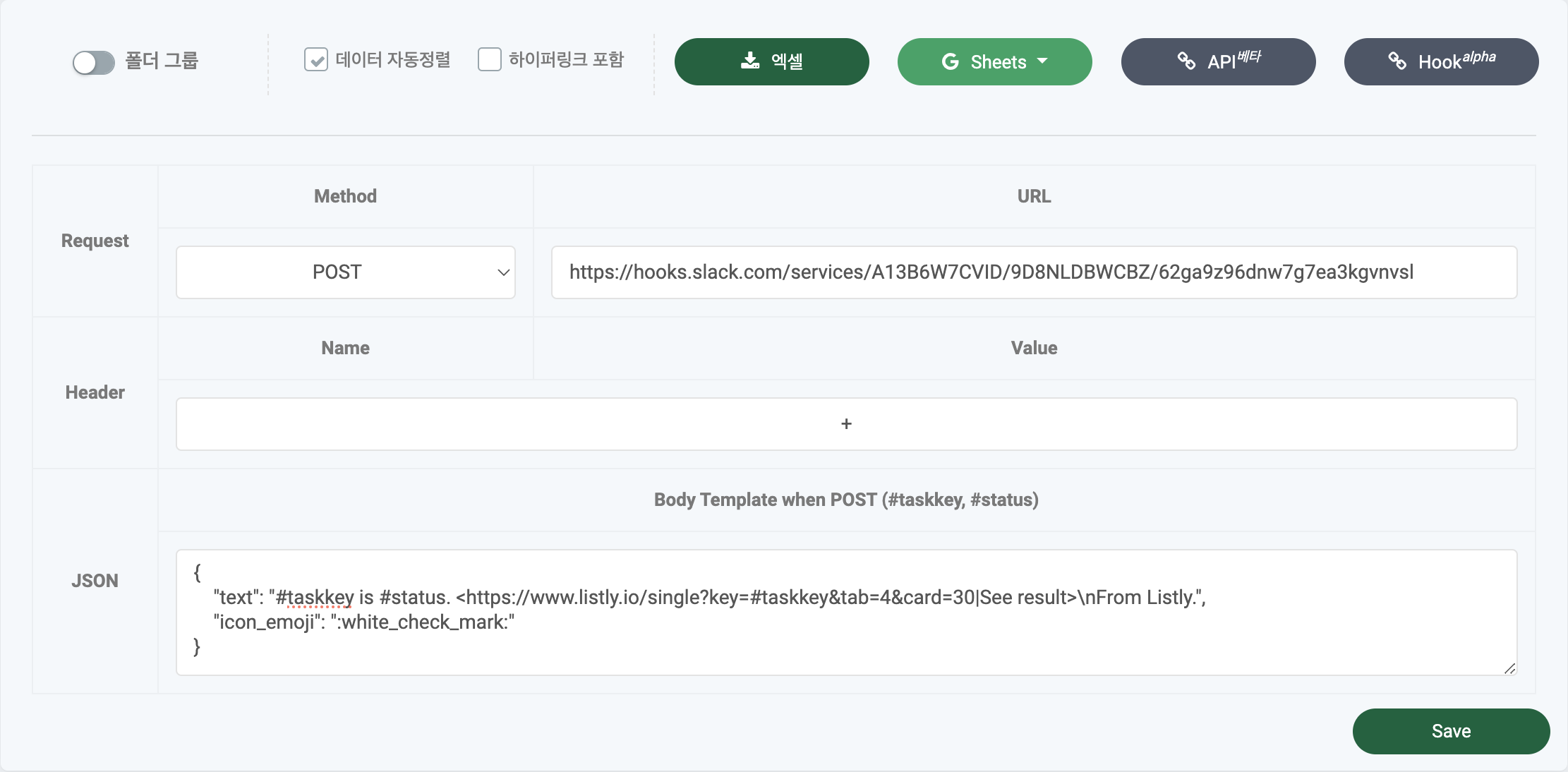
Cuando vea la ventana de configuración de webhook, ingrese el Request Method y el valor JSON como se muestra a continuación. En el campo de entrada de URL, ingrese la **`URL del webhook`** que copió en el paso anterior.
| Method | POST |
| ------ | ---- |
{% code title="JSON" %}
```json
{
"text": "#taskkey is #status. <[https://www.listly.io/single?key=#taskkey&tab=4&card=30|See](https://www.listly.io/single?key=#taskkey&tab=4&card=30%7CSee) result>\nFrom Listly.",
"icon_emoji": ":white_check_mark:"
}
```
{% endcode %}
{% endstep %}
{% step %}
Si reextrae los datos de esa tarea usando reextracción o el programador, puede recibir un mensaje de notificación de extracción de datos en Slack como se muestra a continuación.
{% endstep %}
{% endstepper %}
### Otras Configuraciones
* Si está familiarizado con el formato JSON, puede cambiar el canal/usuario que recibe notificaciones agregando **`channel: #nombredelcanal`** o **`user: @nombredeusuario`** al JSON ingresado arriba. Si agrega **`username: nombredelbot`**, también puede cambiar el nombre del bot que envía la notificación.
* Si desea saber más sobre los webhooks entrantes de Slack, consulte la documentación proporcionada por Slack ([link](https://api.slack.com/legacy/custom-integrations/messaging/webhooks)).
---
# Agent Instructions
This documentation is published with GitBook. GitBook is the documentation platform designed so that both humans and AI agents can read, navigate, and reason over technical content effectively. Learn more at gitbook.com.
## Querying This Documentation
If you need additional information that is not directly available in this page, you can query the documentation by asking a question.
Perform an HTTP GET request on the following URL with the `ask` and `goal` query parameters:
```
GET https://help.listly.io/docs/es/getting-started/result-page-features/webhooks.md?ask=&goal=
```
`ask` is the immediate question: it should be specific, self-contained, and written in natural language.
`goal` is what the user is ultimately trying to achieve, the reason they need the answer. Sharing it helps GitBook give you a better, more relevant answer. A goal is most helpful when it describes the outcome the user wants rather than restating the question. For example, with `ask=how do I create an API token`, a goal like `automate deployments from our CI pipeline` lets GitBook tailor the answer to that use case.
The response will contain a direct answer to the question and relevant excerpts and sources from the documentation.
Use this mechanism when the answer is not explicitly present in the current page, you need clarification or additional context, or you want to retrieve related documentation sections.