> For the complete documentation index, see [llms.txt](https://help.listly.io/llms.txt). Markdown versions of documentation pages are available by appending `.md` to page URLs; this page is available as [Markdown](https://help.listly.io/docs/ja/getting-started/databoard-features/folder-group-extraction.md).
# フォルダーグループ抽出
## フォルダグループ抽出とは?
**個別ページで抽出したデータを1つのフォルダにまとめ、1つのExcelファイルにエクスポートする機能**です。ログインが必要だったり、URLを入力してそのページに直接アクセスできない場合、グループ抽出が難しい場合にも活用できます。
例えば、一般的な公開ページはグループ抽出を通じて抽出できますが、**ログインしなければアクセスできなかったり、URLでアクセスできない非公開ページ**の場合は、一般的なグループ抽出で抽出できません。この場合、フォルダグループ抽出機能を利用してデータを抽出できます。
{% hint style="success" %}
**代表的な活用事例**
* **非公開ページ ⇒ フォルダグループ抽出**:Listlyが直接訪問できる公開ページ(一般グループ抽出)とは異なり、非公開ページはListlyがユーザーの代わりに直接訪問することができません。そのため、ユーザーご自身が直接そのページに訪問してデータを抽出した後、グループにまとめて抽出できます。
* [**タブス抽出**](https://help.listly.io/docs/ja/~/revisions/ECtzxIK14zDMtRdjeTaY/getting-started/extension-features/tabs-parts):複数のタブから同時に抽出したデータを自動的にフォルダにまとめて抽出できます。
{% endhint %}
{% hint style="info" %}
**超簡単チュートリアル**\
➡️ 直接データ抽出 ➡️ フォルダグループを作成 ➡️ 抽出したデータをフォルダに移動 ➡️ フォルダグループをダウンロード
{% endhint %}
***
## 使い方
{% stepper %}
{% step %}
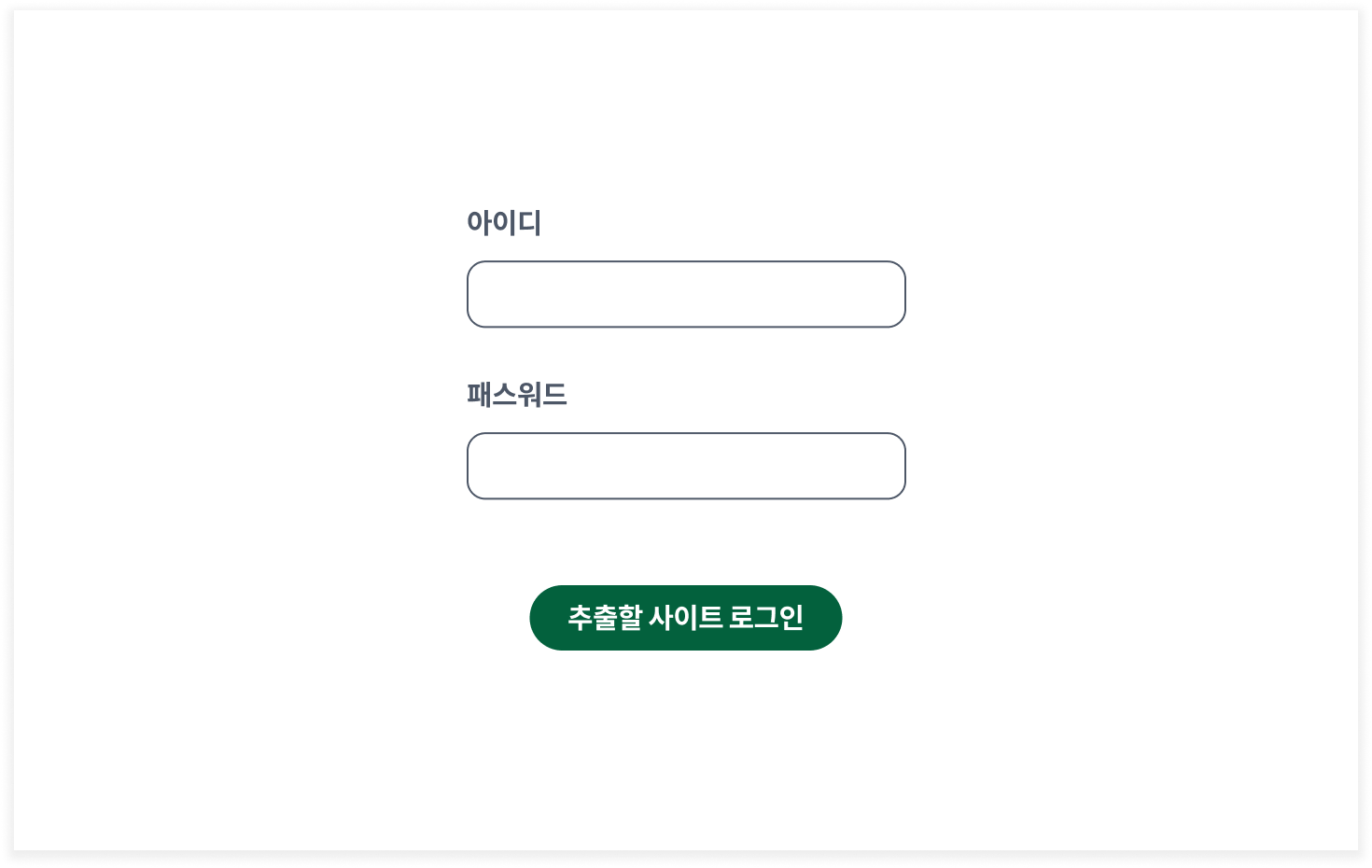
#### ログイン後、最初のページを抽出してください。
{% endstep %}
{% step %}
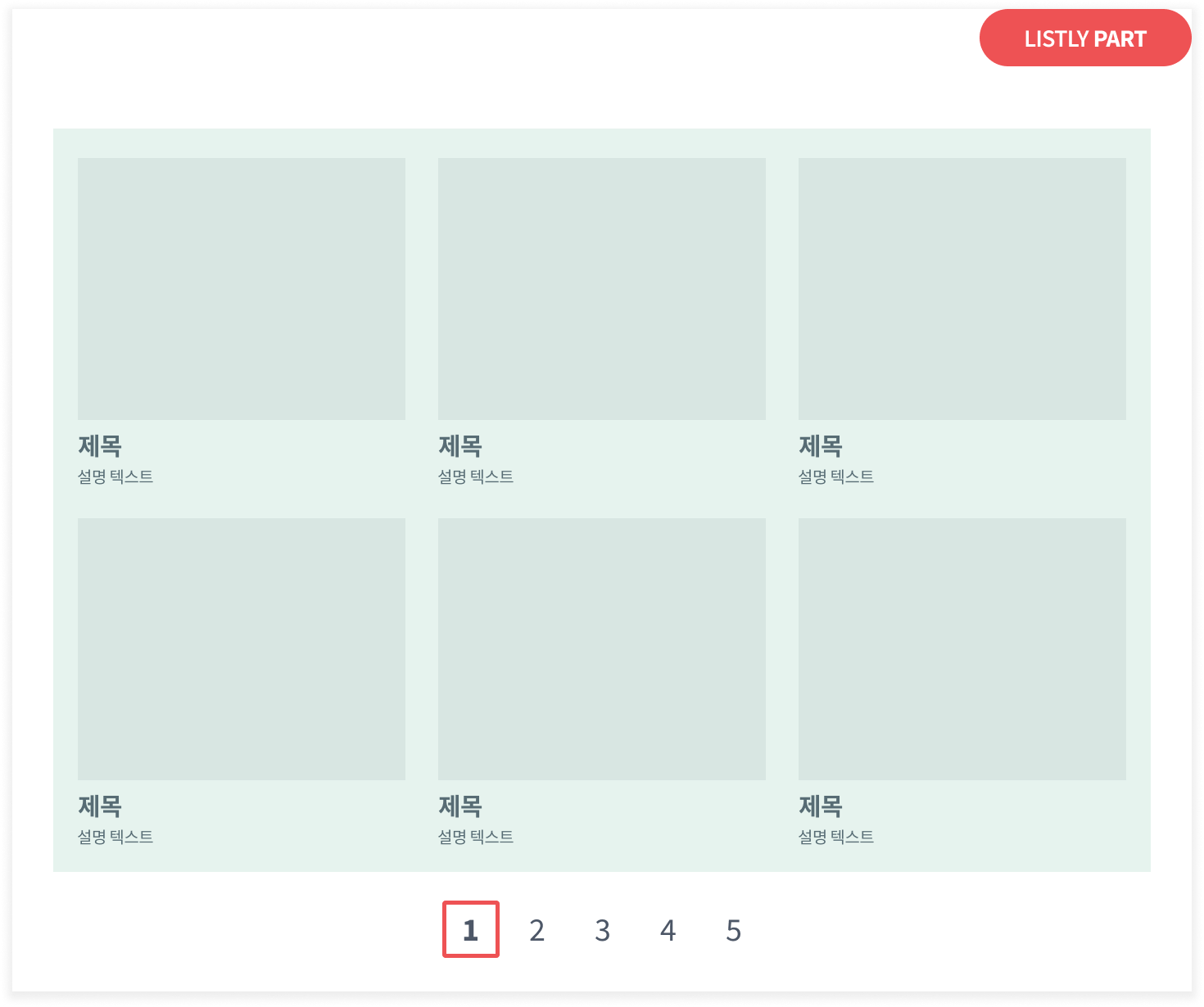
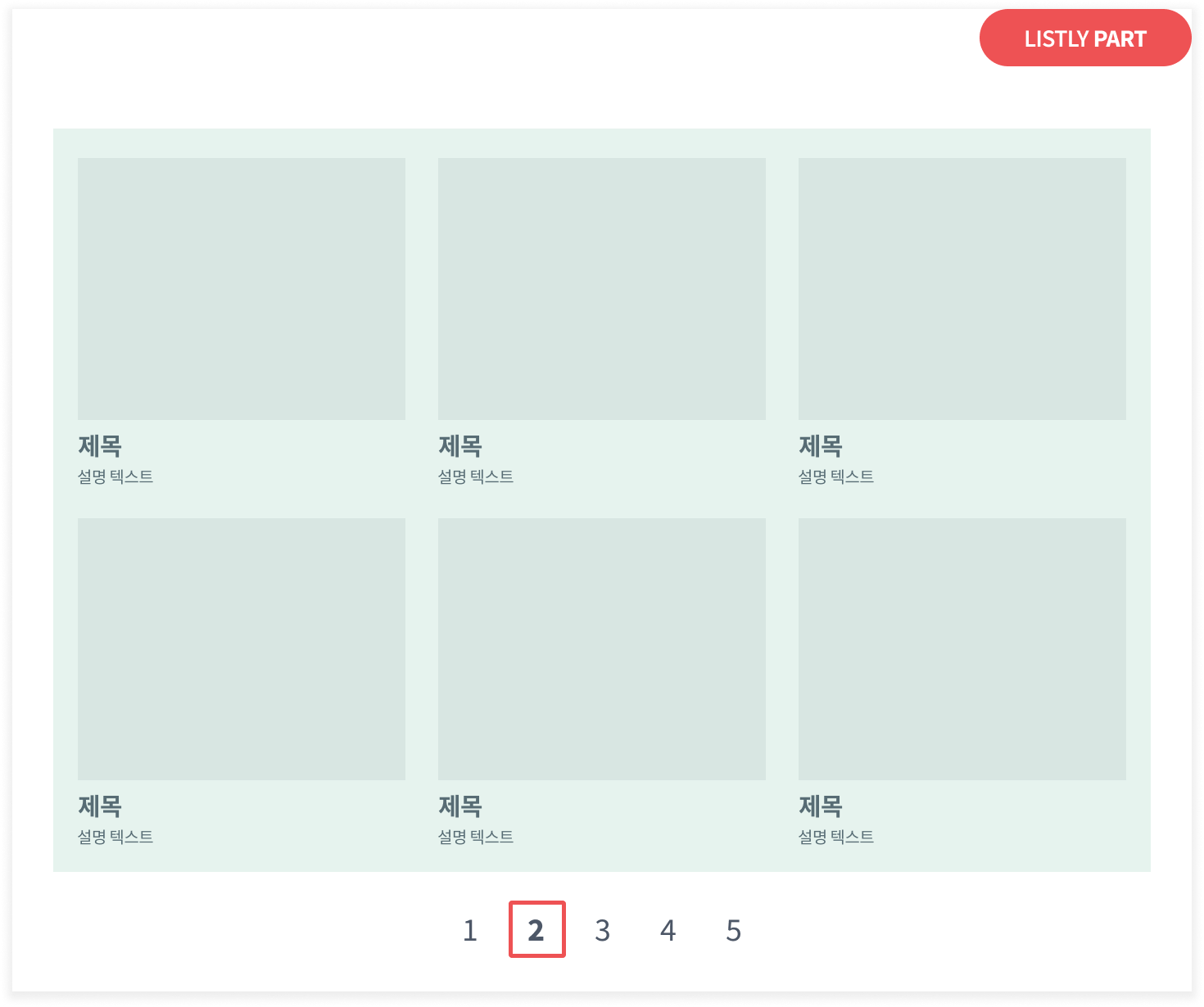
#### 2番目、3番目、4番目...このように目的のページまで一度に1ページずつ抽出してください。
{% endstep %}
{% step %}
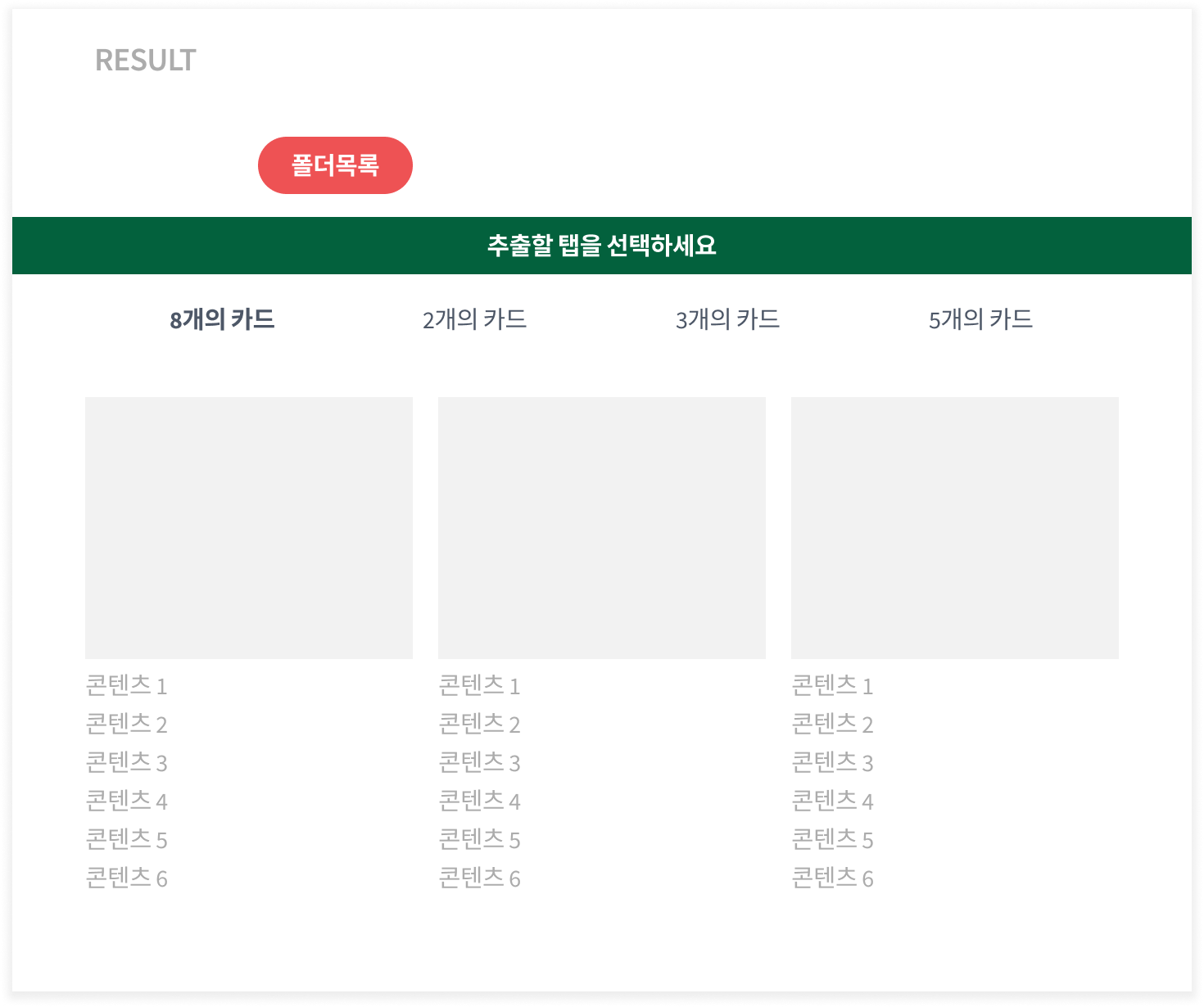
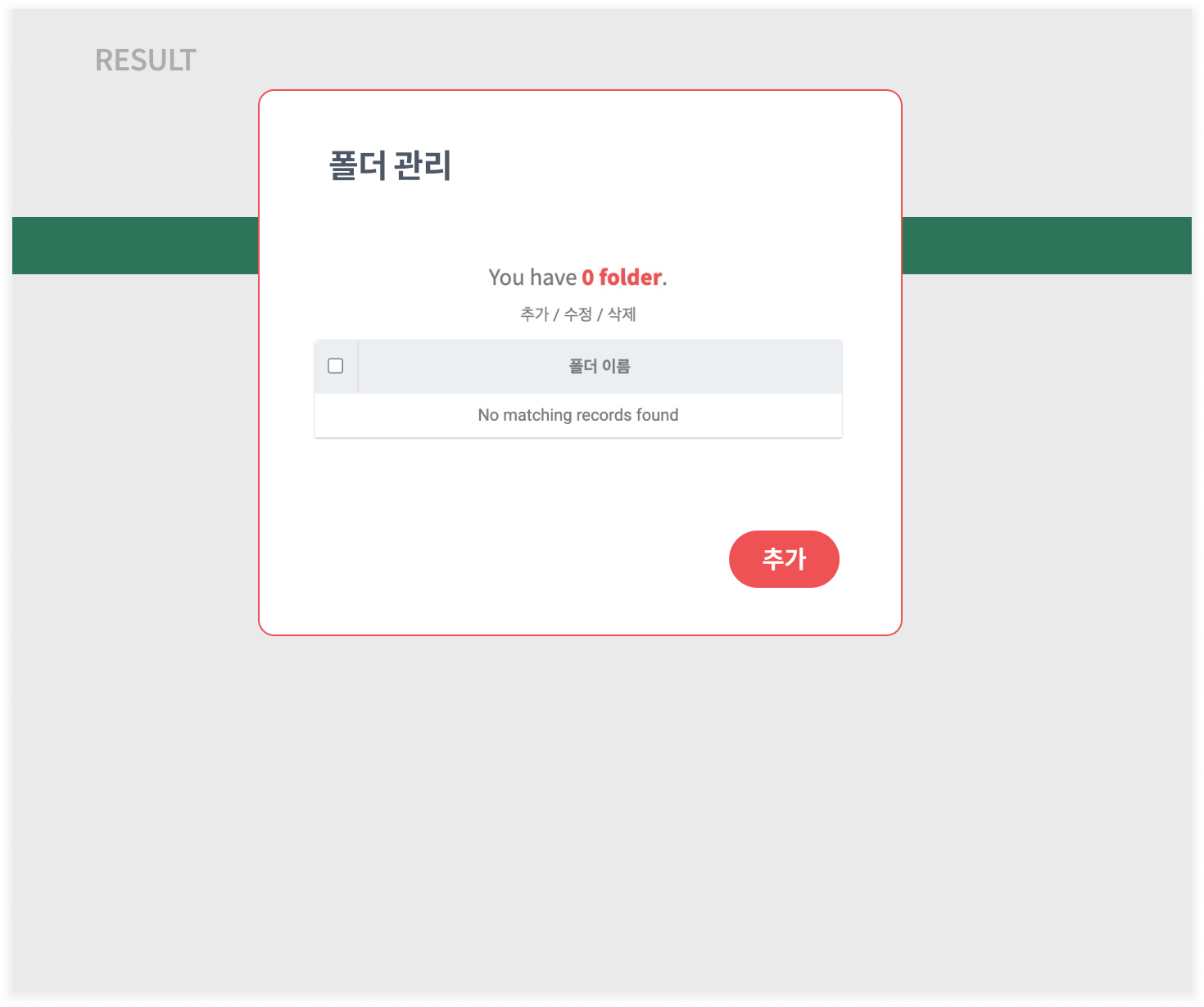
#### フォルダリスト → 追加 を押して新しいフォルダを作成してください。
{% endstep %}
{% step %}
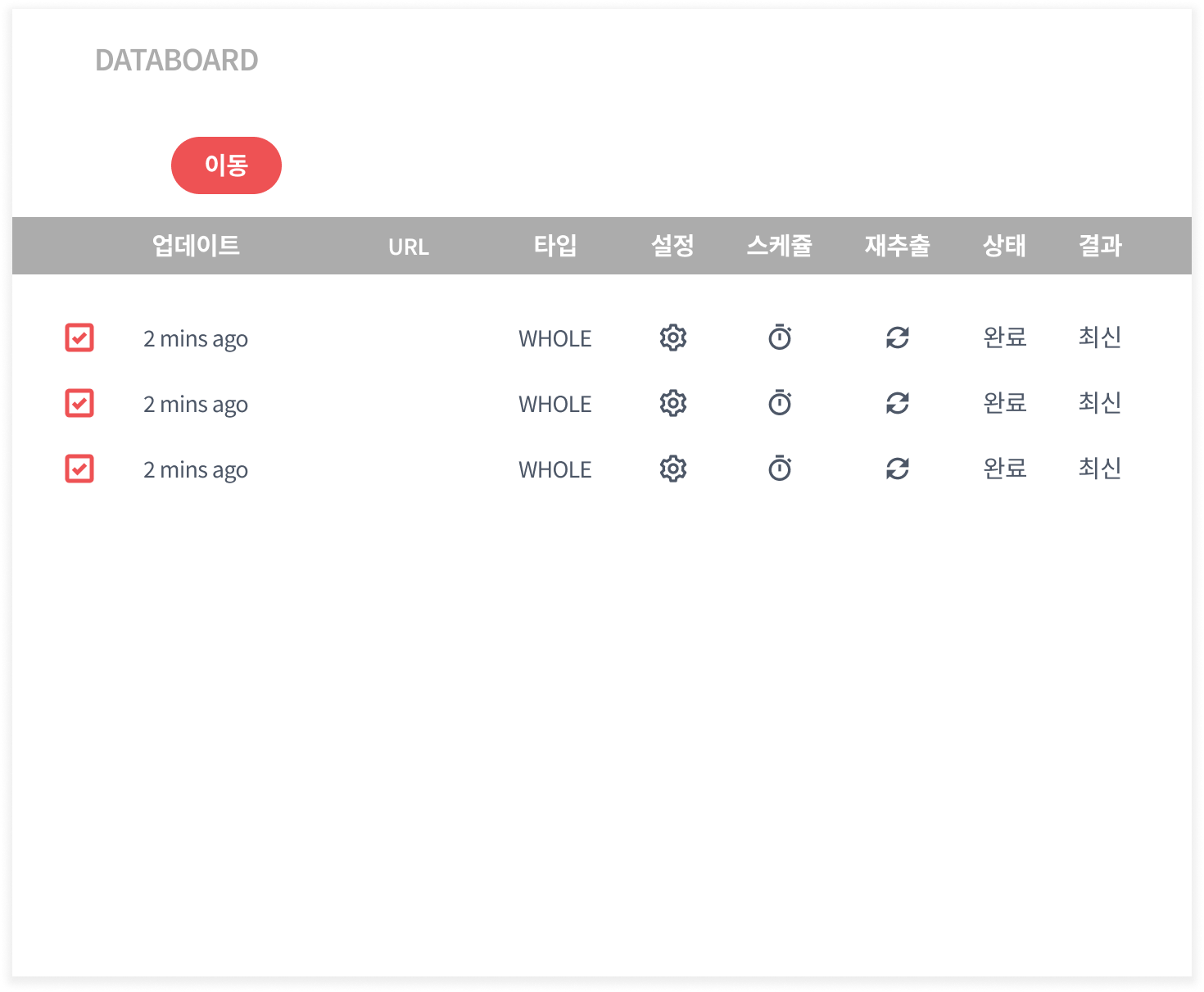
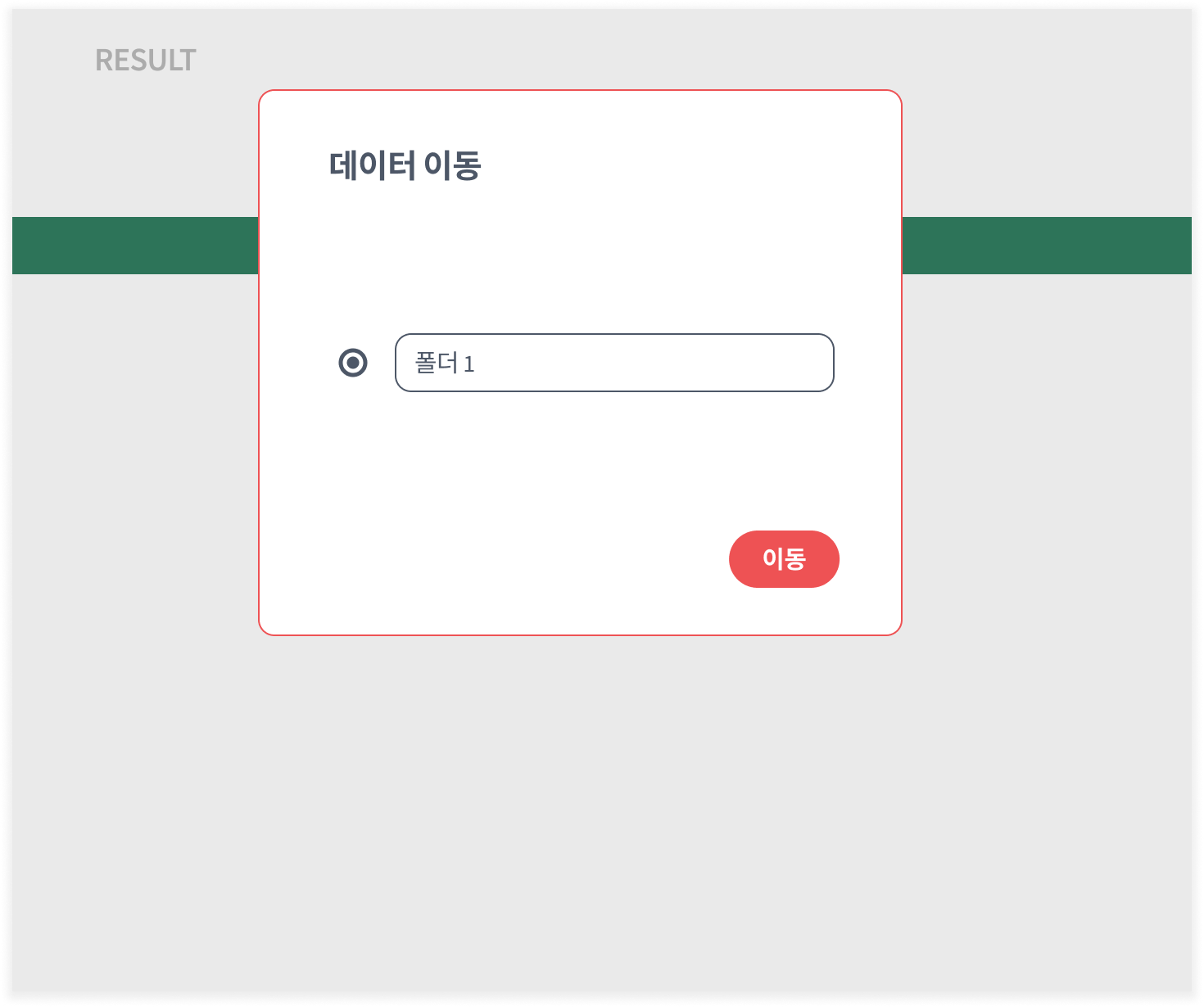
#### 先ほど抽出したデータを選択後、移動 を押して新しく作ったフォルダに移動してください。
{% endstep %}
{% step %}
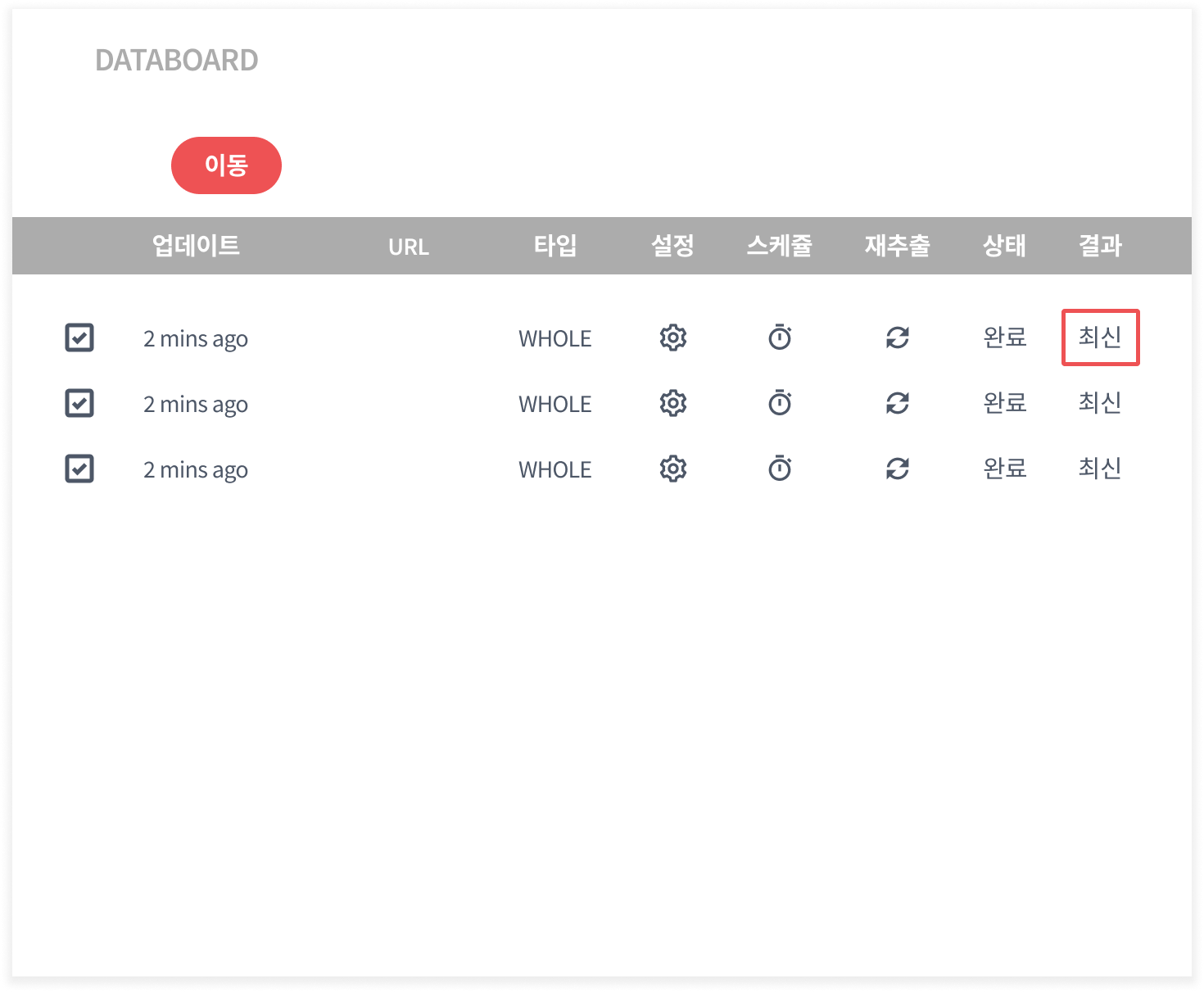
#### 抽出した結果の1つを開いてください。
{% endstep %}
{% step %}
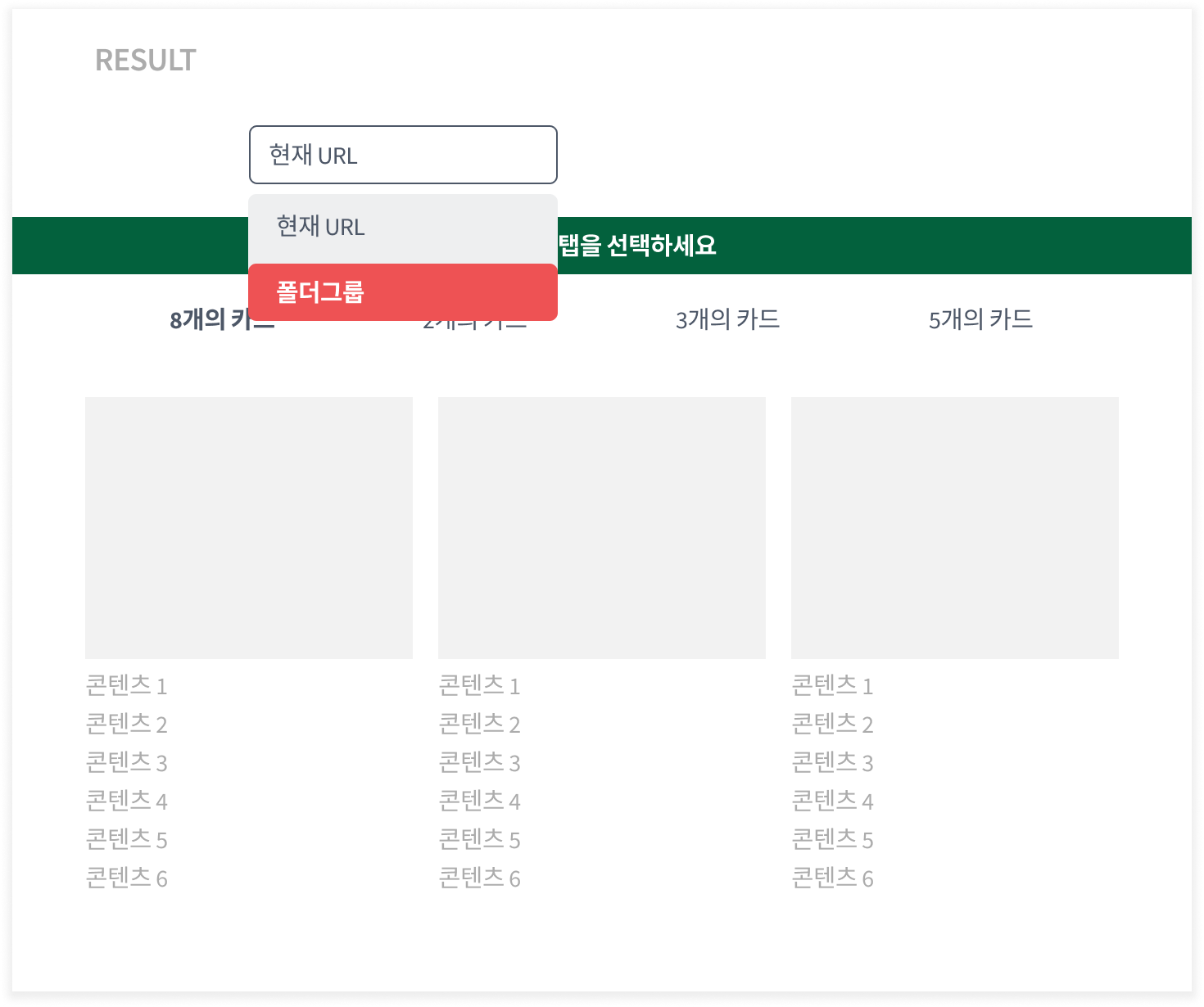
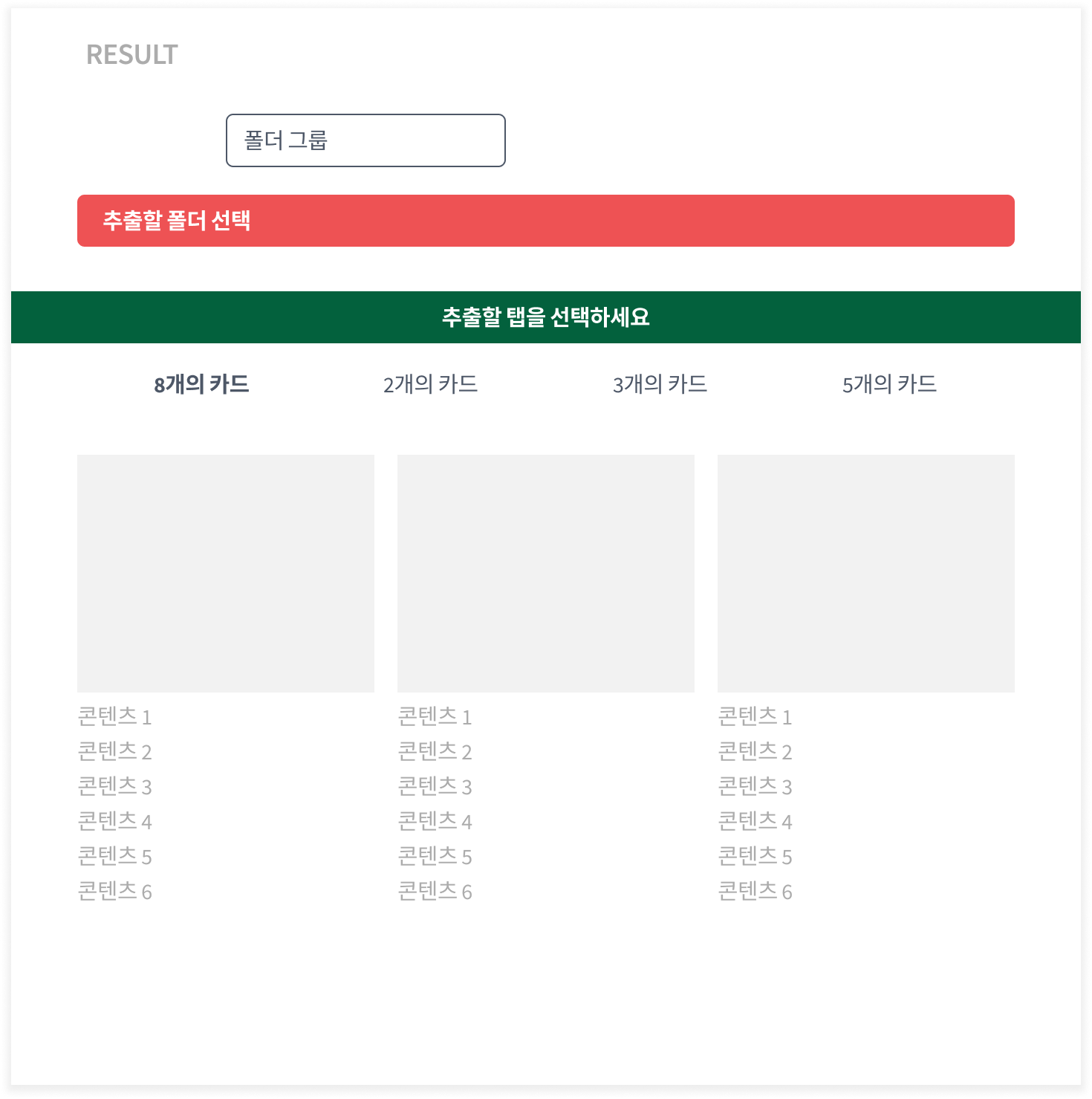
#### 現在のURL というオプションを フォルダグループ に変更後、抽出した結果の1つを開いてください。
{% endstep %}
{% step %}
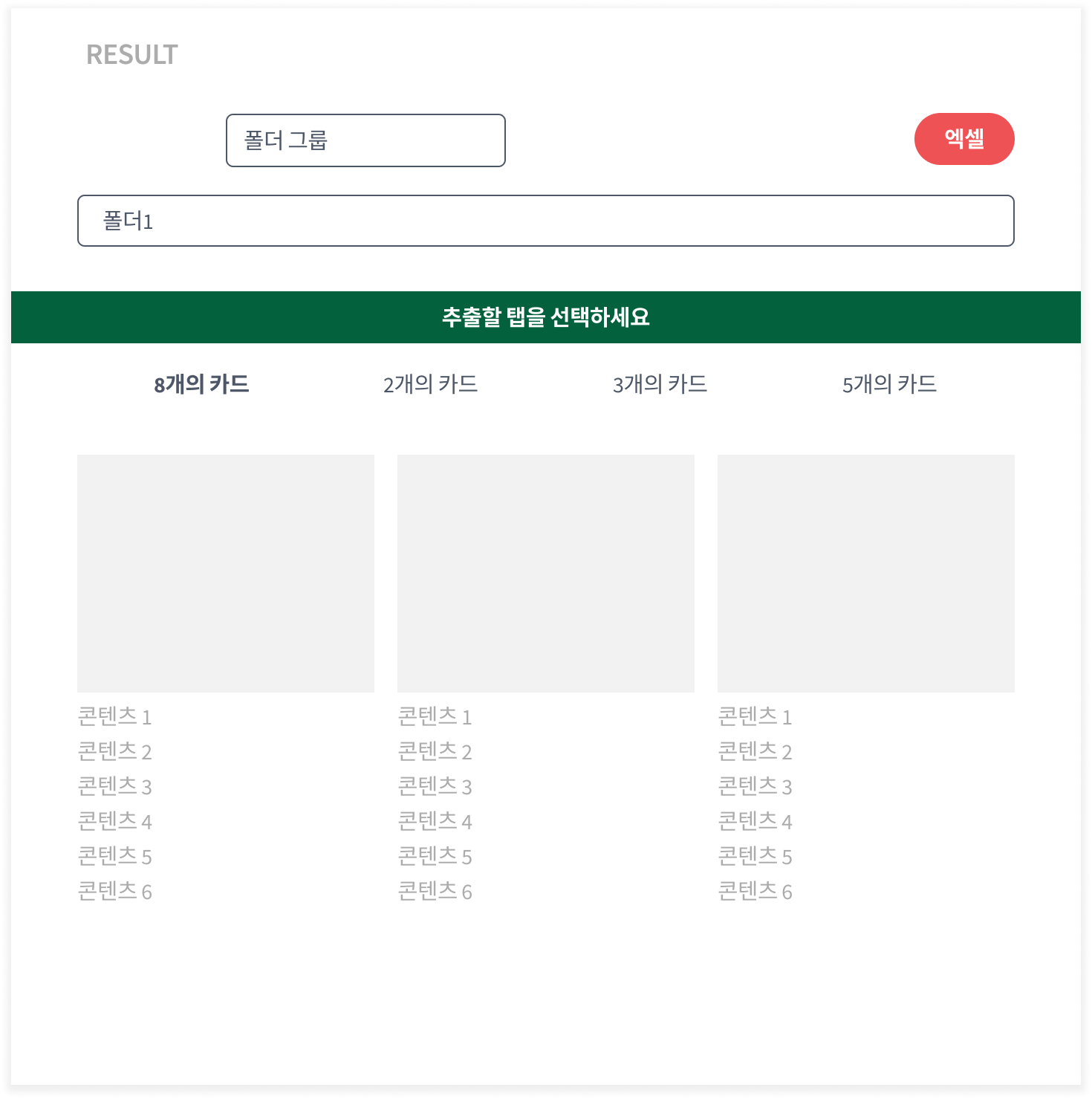
#### 目的のフォルダを選択後、Excel ボタンを押してダウンロードしてください。
{% endstep %}
{% endstepper %}
{% hint style="warning" %}
**注意事項**
* **異なる構造**のタスクが混在している場合、**Excelファイルが正しく生成されません**。フォルダ内に含まれるすべてのタスクは必ず**同じ構造**でなければなりません。
* フォルダはダウンロード用だけでなく、**データボードの整理用**としても活用できます。
{% endhint %}
---
# Agent Instructions
This documentation is published with GitBook. GitBook is the documentation platform designed so that both humans and AI agents can read, navigate, and reason over technical content effectively. Learn more at gitbook.com.
## Querying This Documentation
If you need additional information that is not directly available in this page, you can query the documentation dynamically by asking a question.
Perform an HTTP GET request on the current page URL with the `ask` query parameter, and the optional `goal` query parameter:
```
GET https://help.listly.io/docs/ja/getting-started/databoard-features/folder-group-extraction.md?ask=&goal=
```
`ask` is the immediate question: it should be specific, self-contained, and written in natural language.
`goal` is optional and describes the broader end goal you are ultimately trying to accomplish on behalf of the user. GitBook uses it to tailor the answer towards what is most useful for that goal.
The response will contain a direct answer to the question and relevant excerpts and sources from the documentation.
Use this mechanism when the answer is not explicitly present in the current page, you need clarification or additional context, or you want to retrieve related documentation sections.