> For the complete documentation index, see [llms.txt](https://help.listly.io/llms.txt). Markdown versions of documentation pages are available by appending `.md` to page URLs; this page is available as [Markdown](https://help.listly.io/docs/ja/getting-started/databoard-features/screenshot.md).
# スクリーンショット
## スクリーンショットとは?
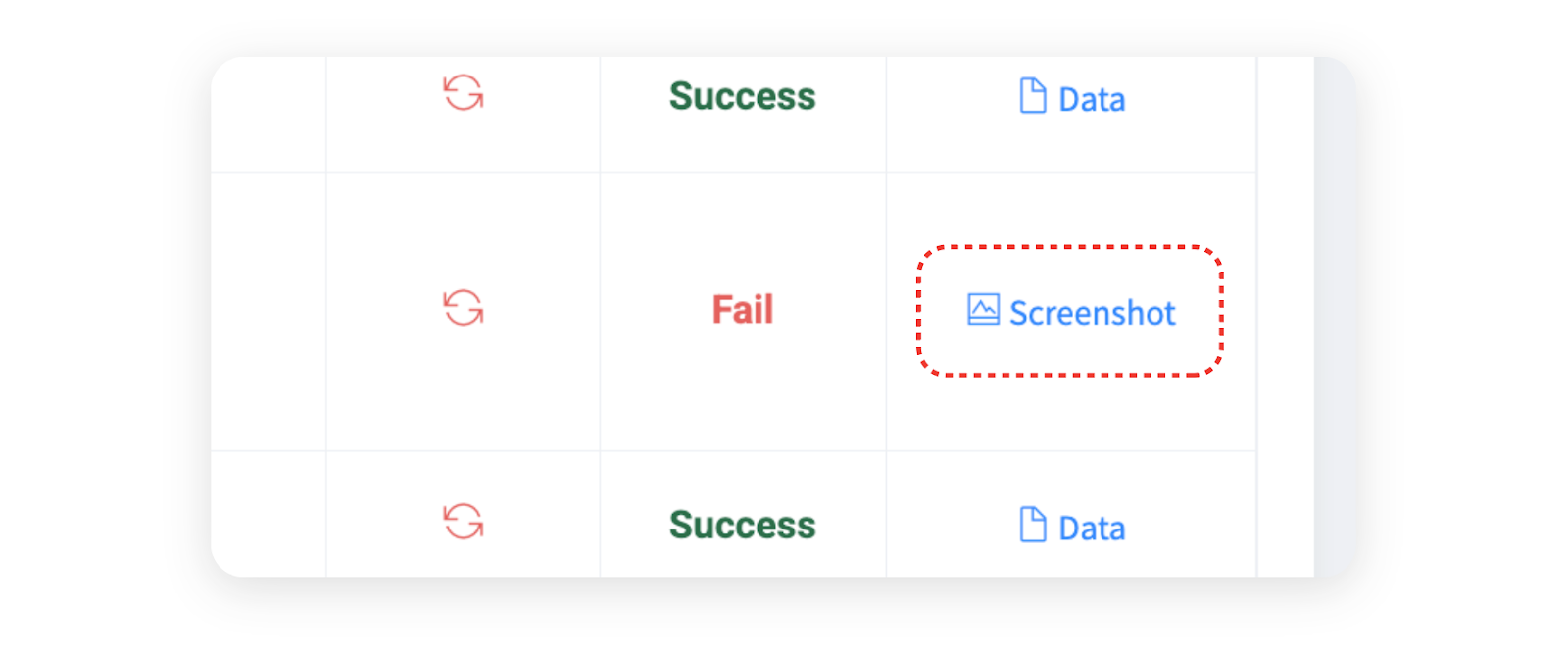
データ抽出が失敗すると、原因を確認できるように**スクリーンショットが自動生成**されます。失敗時点のページ状態とエラーコードが一緒に提供されるため、問題の原因を把握するのに大きく役立ちます。
***
## スクリーンショットページの構成
{% columns %}
{% column %}
{% endcolumn %}
{% column %} ➊ URL:抽出を試みたウェブサイトのアドレスです。
➋ エラー内容:発生したエラーコードが表示されます。
➌ 日付時刻:エラーが発生した時点を意味します。
➍ スクリーンショット:失敗当時の画面をそのままキャプチャしたもので、原因を把握できる最も重要な手がかりです。上記の例示画面では、該当ウェブサイトへのアクセスがブロックされて正常なページに接続されなかったため、抽出に失敗したことを確認できます。
{% endcolumn %}
{% endcolumns %}
***
## スクリーンショットを活用する
{% hint style="success" %}
**スクリーンショット活用法**
スクリーンショットは、抽出失敗の原因を迅速に診断できるようサポートする機能です。データ抽出失敗時、スクリーンショット確認後、適切な措置をすぐに取りましょう。よく発生する失敗原因と解決方法は以下のヘルプでご確認いただけます。
**参考ヘルプ**:[抽出失敗メッセージ別解決方法](https://help.listly.io/docs/ja/~/revisions/ECtzxIK14zDMtRdjeTaY/support/solutions-by-error-message)
{% endhint %}
---
# Agent Instructions
This documentation is published with GitBook. GitBook is the documentation platform designed so that both humans and AI agents can read, navigate, and reason over technical content effectively. Learn more at gitbook.com.
## Querying This Documentation
If you need additional information that is not directly available in this page, you can query the documentation dynamically by asking a question.
Perform an HTTP GET request on the current page URL with the `ask` query parameter, and the optional `goal` query parameter:
```
GET https://help.listly.io/docs/ja/getting-started/databoard-features/screenshot.md?ask=&goal=
```
`ask` is the immediate question: it should be specific, self-contained, and written in natural language.
`goal` is optional and describes the broader end goal you are ultimately trying to accomplish on behalf of the user. GitBook uses it to tailor the answer towards what is most useful for that goal.
The response will contain a direct answer to the question and relevant excerpts and sources from the documentation.
Use this mechanism when the answer is not explicitly present in the current page, you need clarification or additional context, or you want to retrieve related documentation sections.