> For the complete documentation index, see [llms.txt](https://help.listly.io/llms.txt). Markdown versions of documentation pages are available by appending `.md` to page URLs; this page is available as [Markdown](https://help.listly.io/docs/ja/getting-started/databoard-features/settings-auto-click.md).
# 設定 - 自動クリック
## 自動クリックとは?
抽出したいページでより多くの商品情報を表示するために、**ボタンを繰り返しクリックする必要がある場合**に使用する機能です。
{% hint style="info" %}
**クイックガイド**
➡️ データ抽出 ➡️ 設定 ➡️ 自動クリックする要素(CSSセレクタ)を入力 ➡️ 自動クリックオプションを選択 ➡️ 保存 ➡️ データ再抽出
{% endhint %}
***
## 使い方
{% stepper %}
{% step %}
#### 目的のページを抽出します。
{% endstep %}
{% step %}
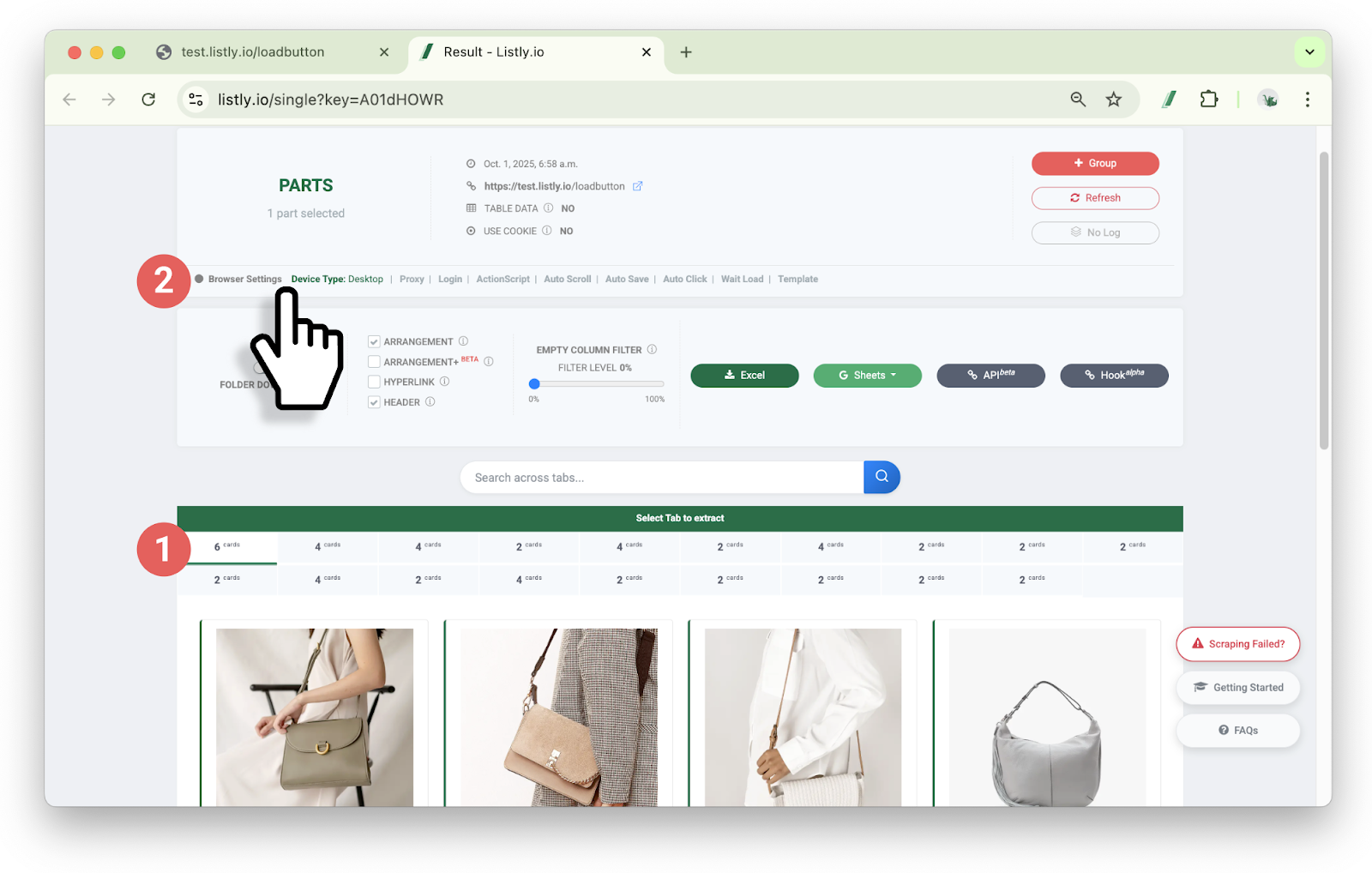
#### 結果画面で 抽出するデータ領域を選択した後、ブラウザ設定エリアをクリックします。
{% endstep %}
{% step %}
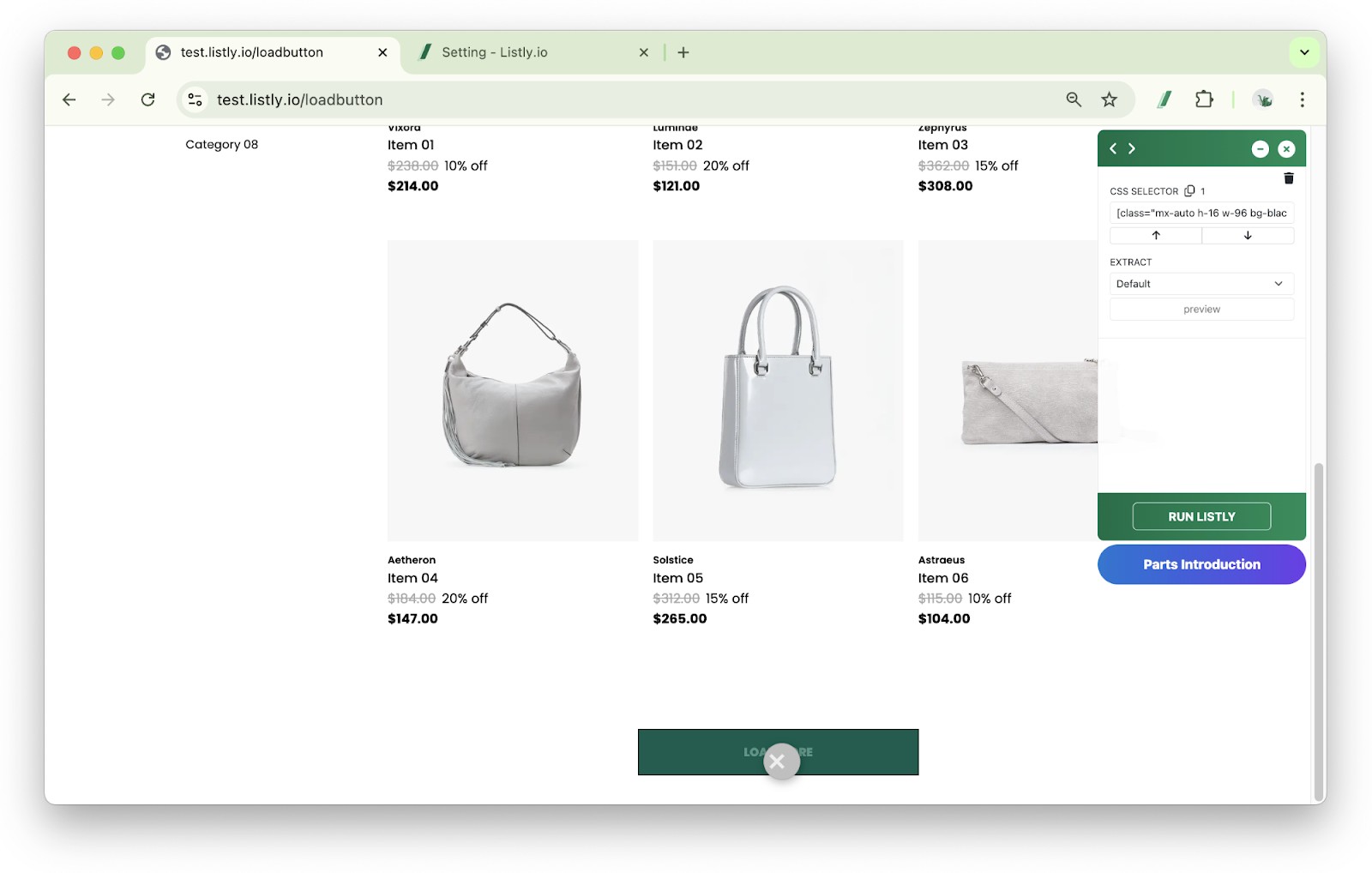
#### 抽出したWebページから[もっと見る]ボタンのCSSセレクタ値をコピーします。
{% hint style="info" %}
**参考**:[CSSセレクタ値の取得方法](https://help.listly.io/docs/ja/~/revisions/wORv0XBMBG67fxRViYaJ/getting-started/extension-features/css-selector)
{% endhint %}
{% endstep %}
{% step %}
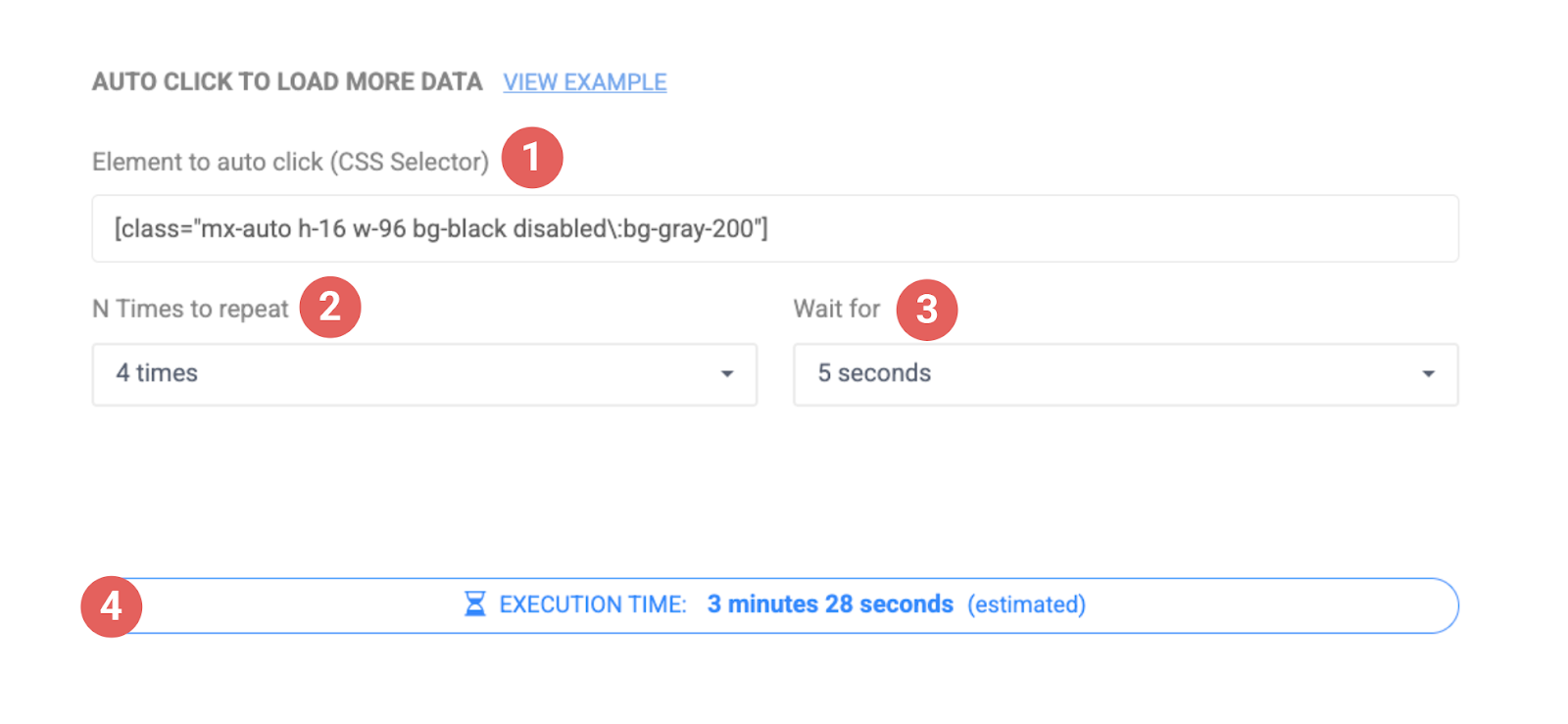
#### 設定画面の自動クリックする要素にCSSセレクタ値を貼り付け、その他のオプションを選択した後、**保存**してください。
**➊ 自動クリックする要素(CSSセレクタ)**:もっと見るボタンのCSSセレクタ値を入力する欄です。
**➋ 繰り返し回数**:該当ボタンを何回クリックするか設定します。例えば「10回」に指定すると、「もっと見る」ボタンを10回クリックした分のデータを取得します。
**➌ 待機時間**:ボタンクリック後、何秒待つか設定します。ページの読み込み速度に合わせて余裕を持って設定してください。
**➍ 実行時間**:上記の設定値を基準に予想される抽出時間を表示します。ただし、最大実行時間は10分で、これを超えると抽出が自動的に中断される場合がありますので、10分以内に終わるよう繰り返し回数を適切に設定してください。
{% endstep %}
{% step %}
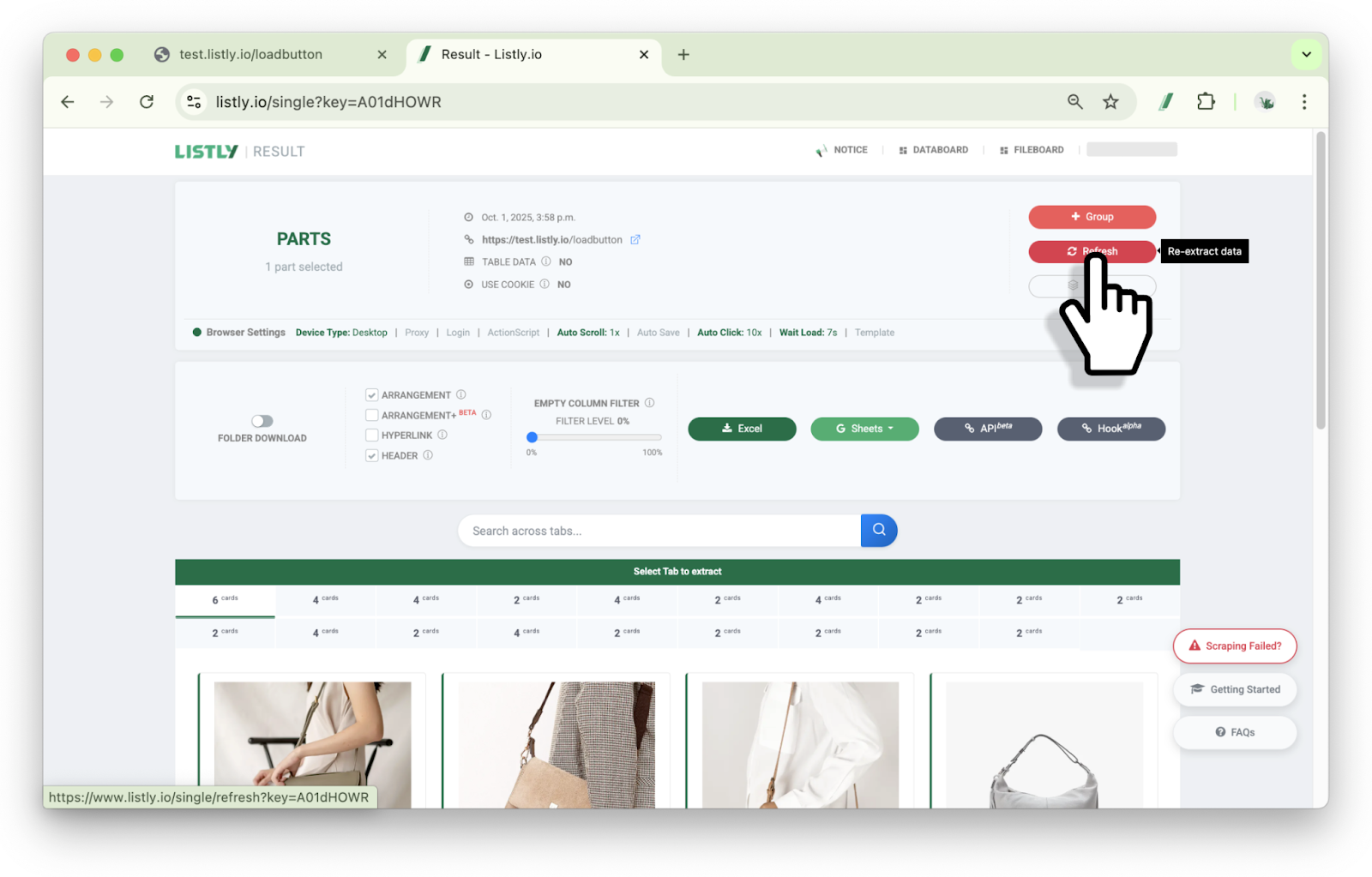
#### **再抽出**ボタンをクリックします。
{% endstep %}
{% endstepper %}
---
# Agent Instructions
This documentation is published with GitBook. GitBook is the documentation platform designed so that both humans and AI agents can read, navigate, and reason over technical content effectively. Learn more at gitbook.com.
## Querying This Documentation
If you need additional information that is not directly available in this page, you can query the documentation dynamically by asking a question.
Perform an HTTP GET request on the current page URL with the `ask` query parameter, and the optional `goal` query parameter:
```
GET https://help.listly.io/docs/ja/getting-started/databoard-features/settings-auto-click.md?ask=&goal=
```
`ask` is the immediate question: it should be specific, self-contained, and written in natural language.
`goal` is optional and describes the broader end goal you are ultimately trying to accomplish on behalf of the user. GitBook uses it to tailor the answer towards what is most useful for that goal.
The response will contain a direct answer to the question and relevant excerpts and sources from the documentation.
Use this mechanism when the answer is not explicitly present in the current page, you need clarification or additional context, or you want to retrieve related documentation sections.