> For the complete documentation index, see [llms.txt](https://help.listly.io/llms.txt). Markdown versions of documentation pages are available by appending `.md` to page URLs; this page is available as [Markdown](https://help.listly.io/docs/ja/getting-started/databoard-features/settings-auto-save.md).
# 設定 - 自動保存
## スクロール中の自動保存とは?
抽出しようとしているページで**スクロールすると**データが消えることがあります。自動保存機能は、**スクロール中に自動的に消える情報をすべて漏れなくキャプチャ**するのに役立ちます。
{% hint style="info" %}
**クイックステップ** ➡️ データを抽出 ➡️ Databoard設定 ➡️ 自動スクロール + 自動保存
{% endhint %}
***
## 使い方
{% stepper %}
{% step %}
#### 目的のページからデータを抽出
{% endstep %}
{% step %}
#### Databoardに移動し、 **`設定`** アイコンをクリック
{% endstep %}
{% step %}
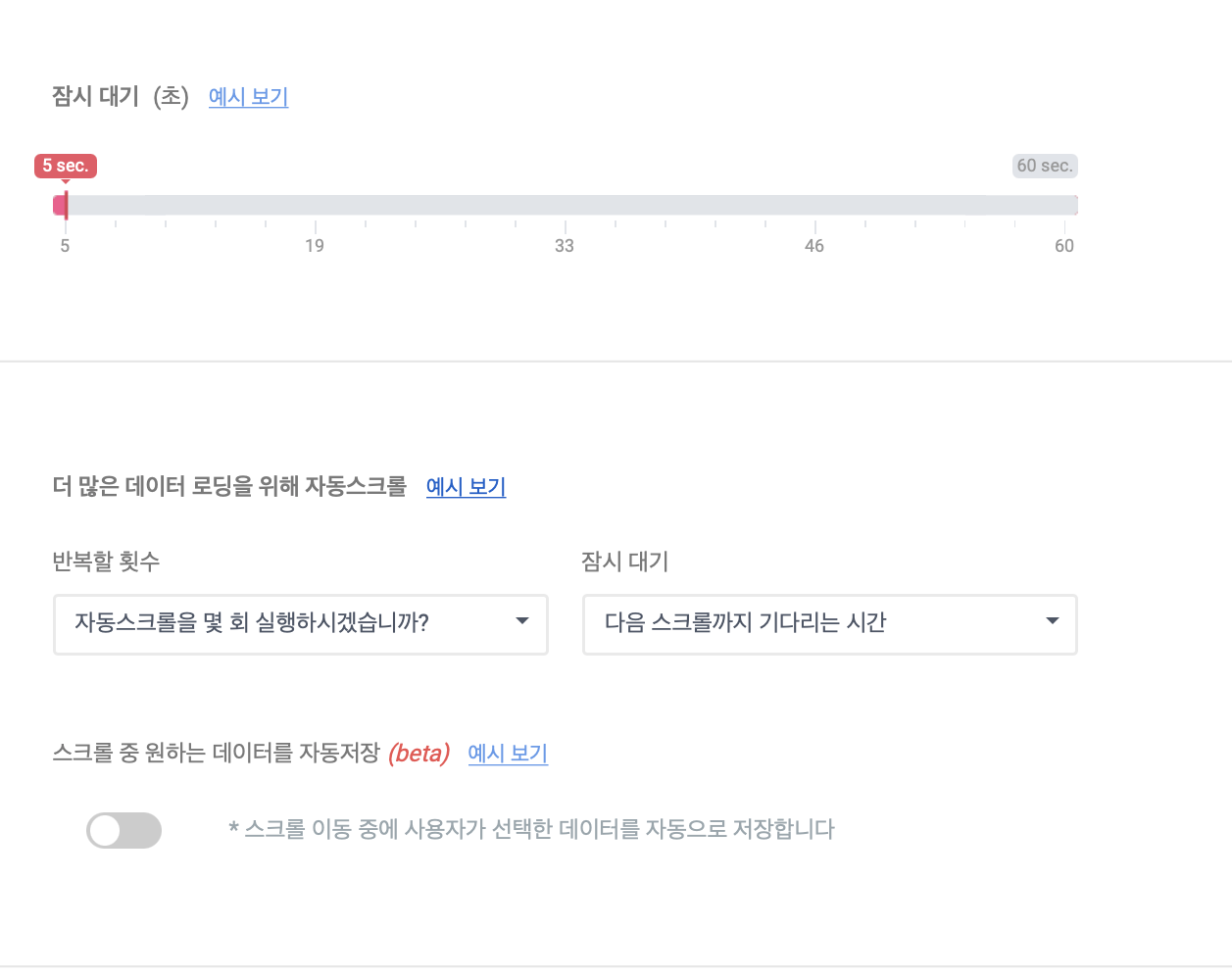
#### **`自動スクロールと自動保存`** セクションまでスクロール
スクロール中の自動保存機能は、最初に自動スクロール機能を設定した後にのみ変更できます。
{% hint style="success" %}
抽出したいウェブページがスクロール中にデータをクリアしない場合:
**`自動保存`**機能なしで**`自動スクロール`**のみが必要です。
{% endhint %}
{% endstep %}
{% step %}
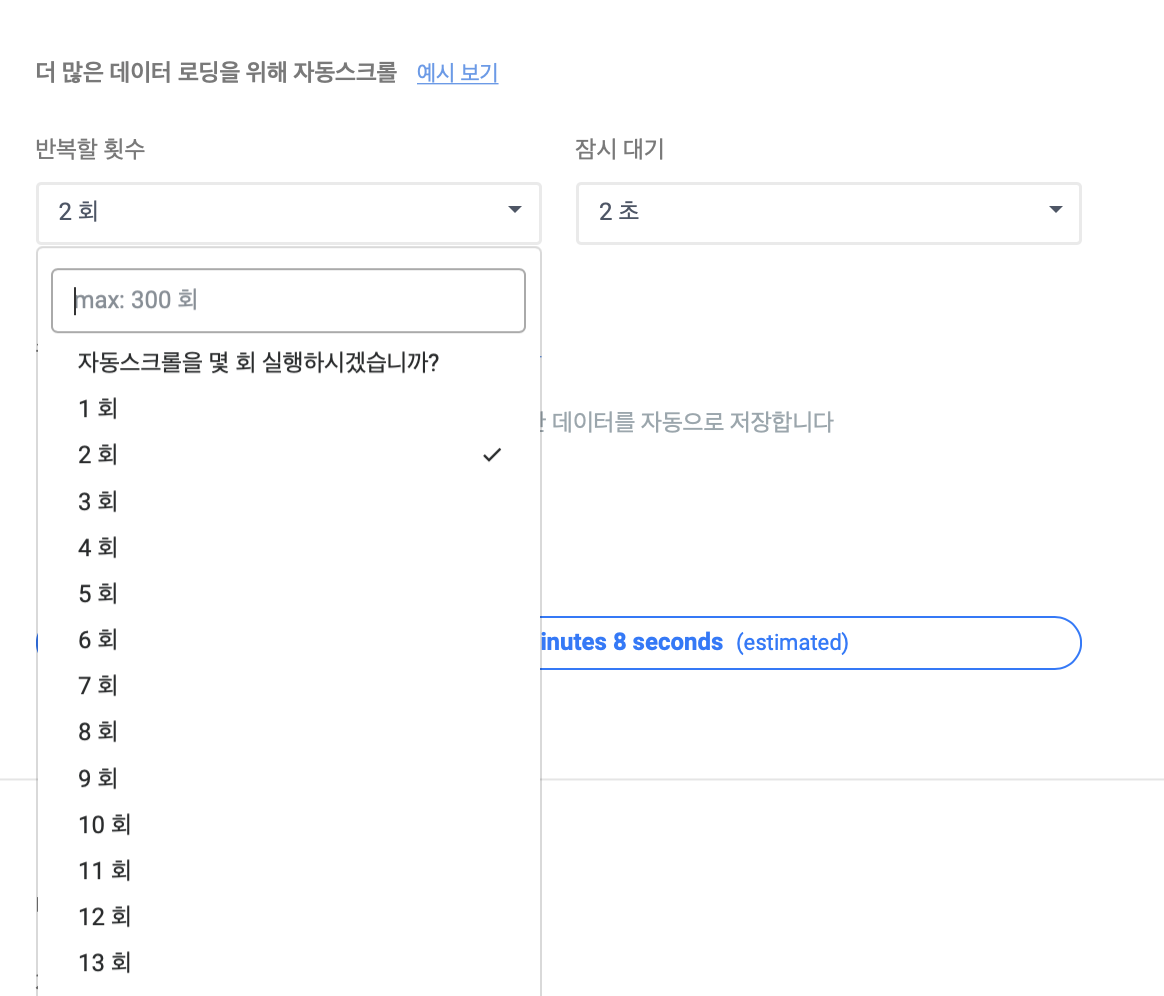
#### 自動スクロール設定を変更
**`自動スクロール`**は最大300回まで設定できます。
**スクロールを自動化したい回数だけ繰り返すように設定します。** **`待機`**は最大10秒まで待機でき、データを自動的に保存する間隔を指定します。
{% endstep %}
{% step %}
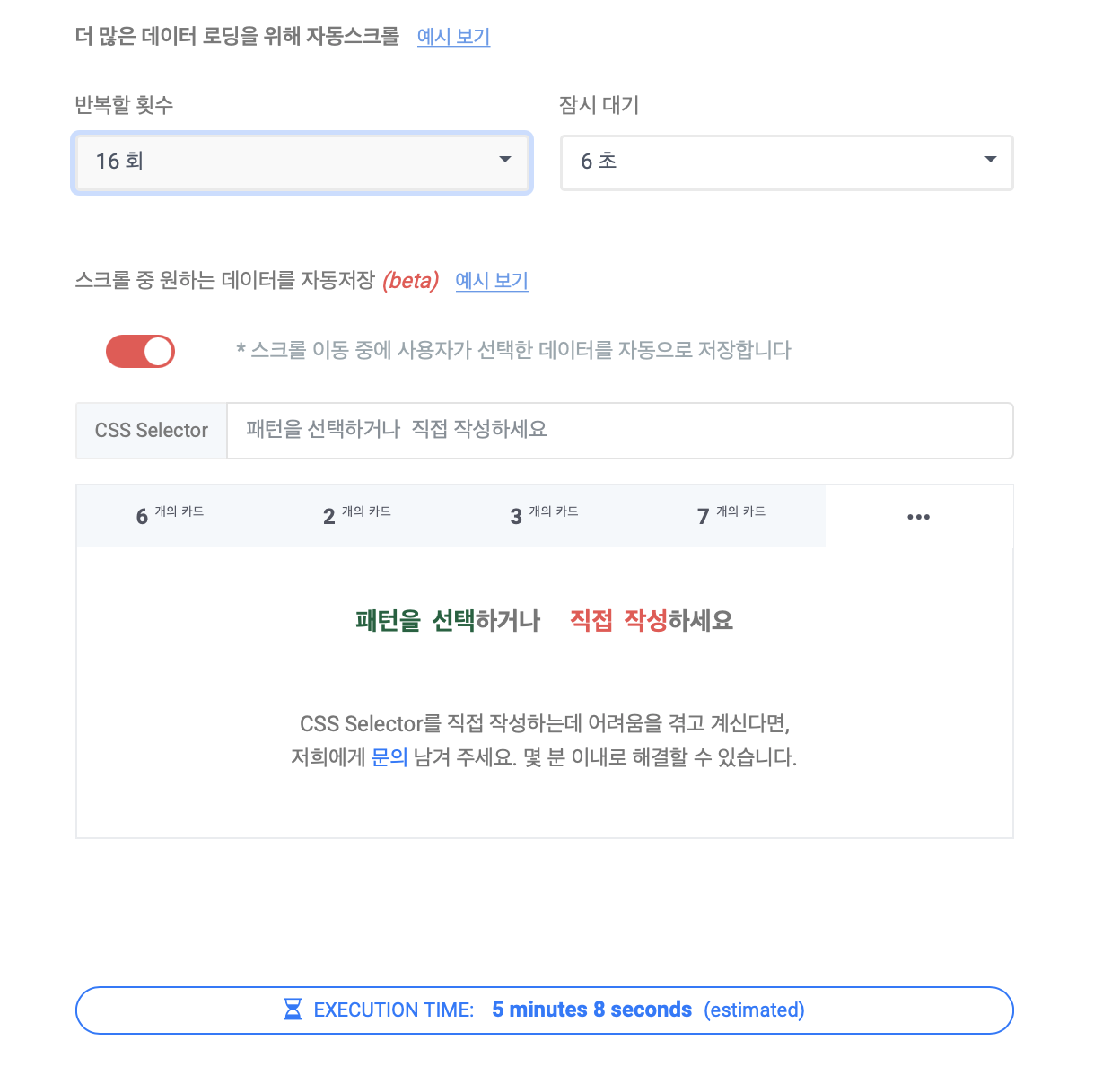
#### 必要に応じて、抽出したい **`CSSセレクター値`** を選択または入力
**`自動スクロール`**の繰り返し回数と**`待機`**時間を増やすと、下の**`実行時間`**が比例して増加します。
必要に応じて、抽出したい**`CSSセレクター値`**を選択または入力します。**`CSSセレクター値`**を使用して、保存したいデータパターンを選択できます。
{% endstep %}
{% step %}
#### 変更した設定を保存
完了したら、ページ下部の**保存**ボタンをクリックします。
次にDataboardに戻り、**`再抽出`**ボタンをクリックします。
{% endstep %}
{% endstepper %}
{% hint style="danger" %}
**実行時間(EXECUTION TIME)が合計10分を超えると、抽出タスクは失敗します。**
したがって、スクロールの繰り返し回数を多すぎると自動化できないことに注意してください。
{% endhint %}
---
# Agent Instructions
This documentation is published with GitBook. GitBook is the documentation platform designed so that both humans and AI agents can read, navigate, and reason over technical content effectively. Learn more at gitbook.com.
## Querying This Documentation
If you need additional information that is not directly available in this page, you can query the documentation dynamically by asking a question.
Perform an HTTP GET request on the current page URL with the `ask` query parameter, and the optional `goal` query parameter:
```
GET https://help.listly.io/docs/ja/getting-started/databoard-features/settings-auto-save.md?ask=&goal=
```
`ask` is the immediate question: it should be specific, self-contained, and written in natural language.
`goal` is optional and describes the broader end goal you are ultimately trying to accomplish on behalf of the user. GitBook uses it to tailor the answer towards what is most useful for that goal.
The response will contain a direct answer to the question and relevant excerpts and sources from the documentation.
Use this mechanism when the answer is not explicitly present in the current page, you need clarification or additional context, or you want to retrieve related documentation sections.