> For the complete documentation index, see [llms.txt](https://help.listly.io/llms.txt). Markdown versions of documentation pages are available by appending `.md` to page URLs; this page is available as [Markdown](https://help.listly.io/docs/ja/getting-started/databoard-features/settings-device-type.md).
# 設定 - デバイスタイプ
> モバイルページを繰り返し抽出したい場合に使用します。
{% hint style="info" %}
**超簡単ガイド**
**基本的なモバイルページ抽出**\
Chrome F12(開発者モード)➡️ Ctrl+Shift+M ➡️ 左上のResponsiveをモバイルデバイスに変更 ➡️ アドレスバーにモバイルURLを入力して接続 ➡️ WHOLE抽出
**繰り返しモバイルページ抽出の場合**\
DATABOARD ➡️ 設定アイコンをクリック ➡️ デバイスタイプをモバイルに変更 ➡️ スケジューラーを設定
{% endhint %}
***
## 使い方
### <例1> モバイルページにアクセスしてLISTLYで抽出
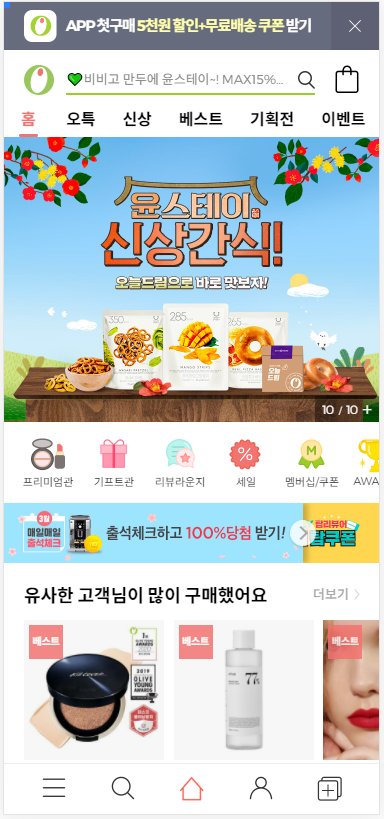
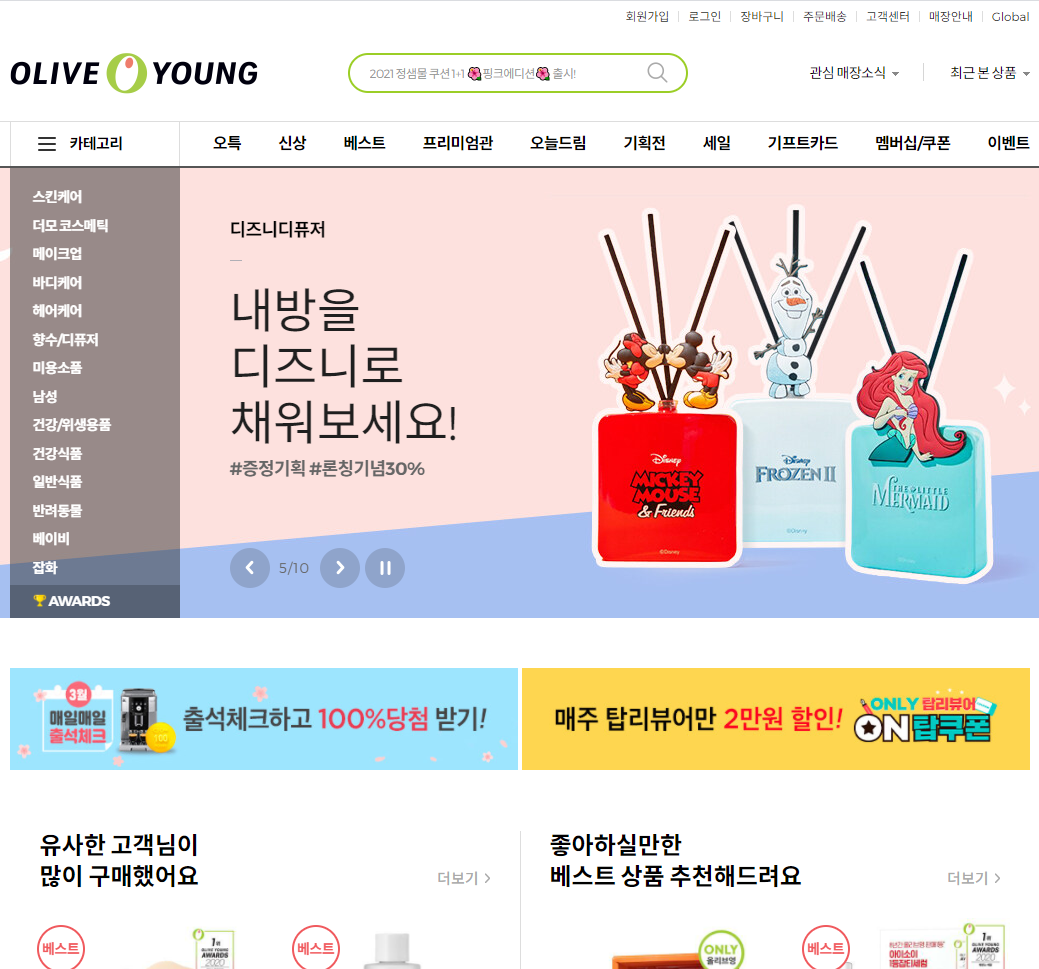
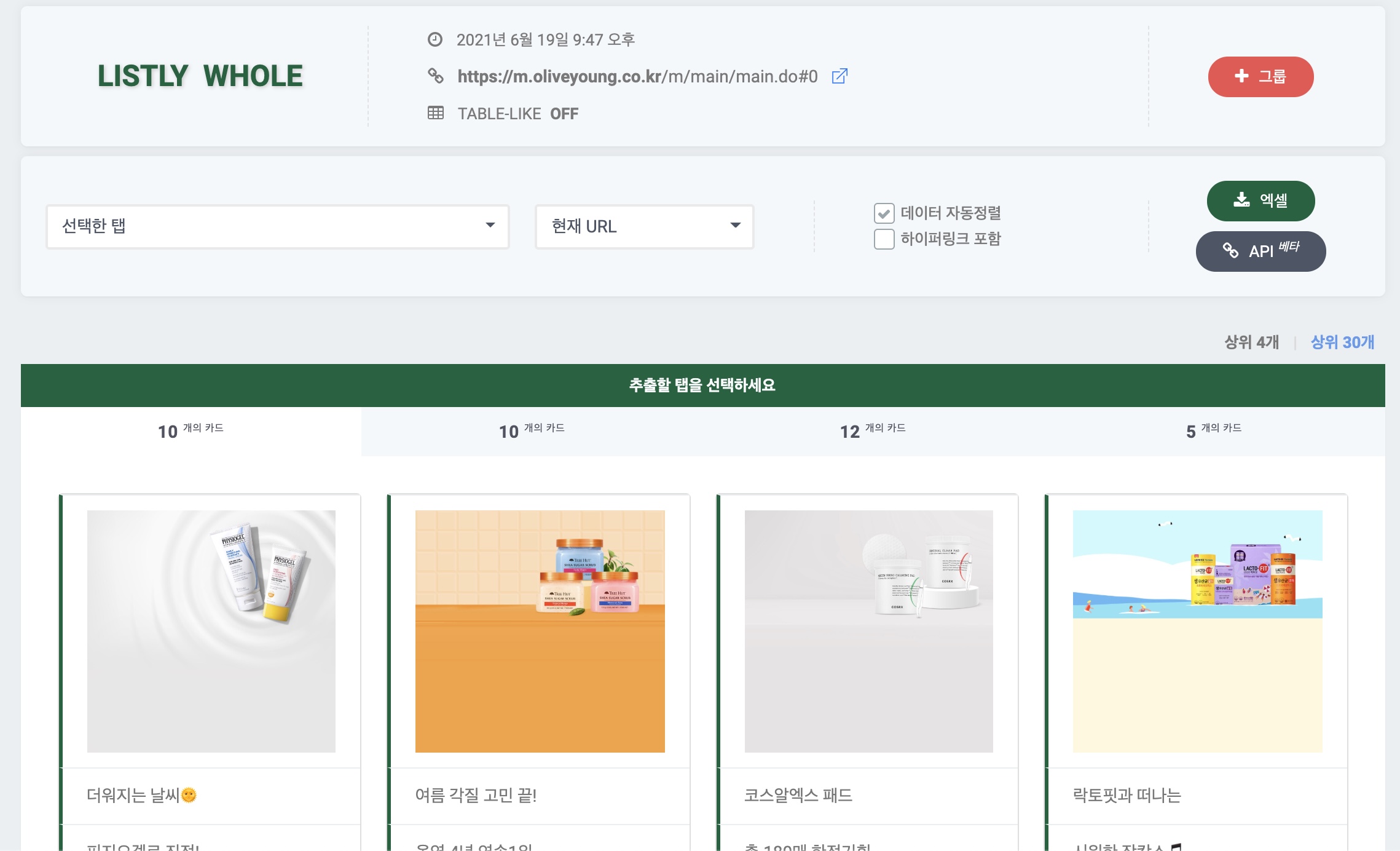
通常のPCでOlive Youngモバイルページ(下記左)にアクセスしてデータを抽出すると、自動的にデスクトップページ(下記右)にリダイレクトされます。アドレスバーを確認すると、URLも自動的に変更されていることがわかります。
{% columns %}
{% column %}
モバイルページ:
{% endcolumn %}
{% column %}
デスクトップページ:
{% endcolumn %}
{% endcolumns %}
{% stepper %}
{% step %}
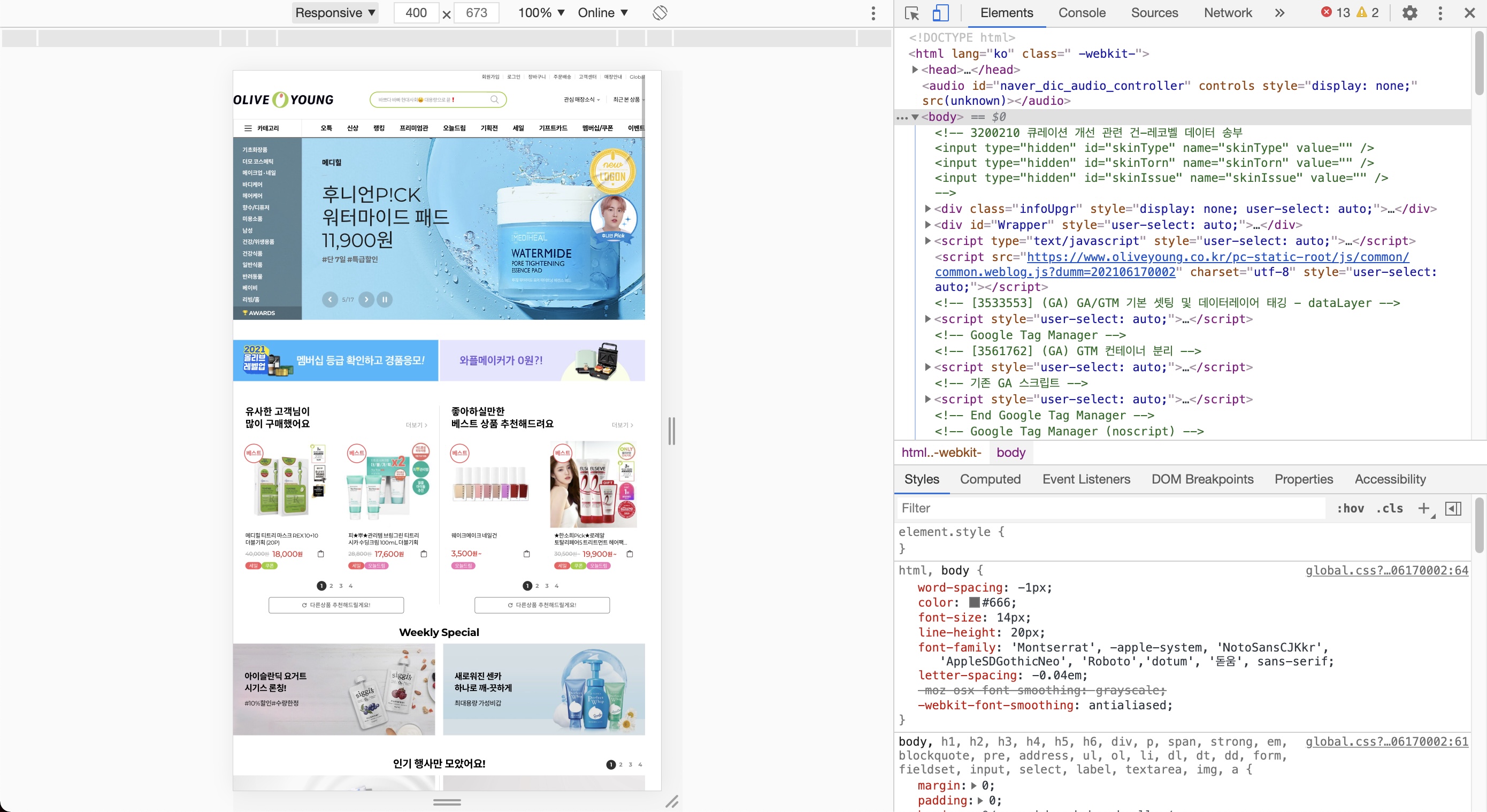
### Chromeブラウザのモバイルページで F12 または Ctrl+Shift+i を押す
Macの場合、option+command+iを押して開発者モードウィンドウを開きます。
{% endstep %}
{% step %}
### ショートカット Ctrl+Shift+M を押す
{% endstep %}
{% step %}
### 左のウェブページ上部のResponsiveをクリックして、目的のモバイルデバイスを選択
{% endstep %}
{% step %}
### アドレスバーに目的のモバイルURLを再入力してアクセス
モバイルページ:
{% endstep %}
{% step %}
### LISTLYの `Whole` で抽出(Partsは動作しません)
{% endstep %}
{% endstepper %}
### <例2> モバイルページ抽出のスケジュール設定
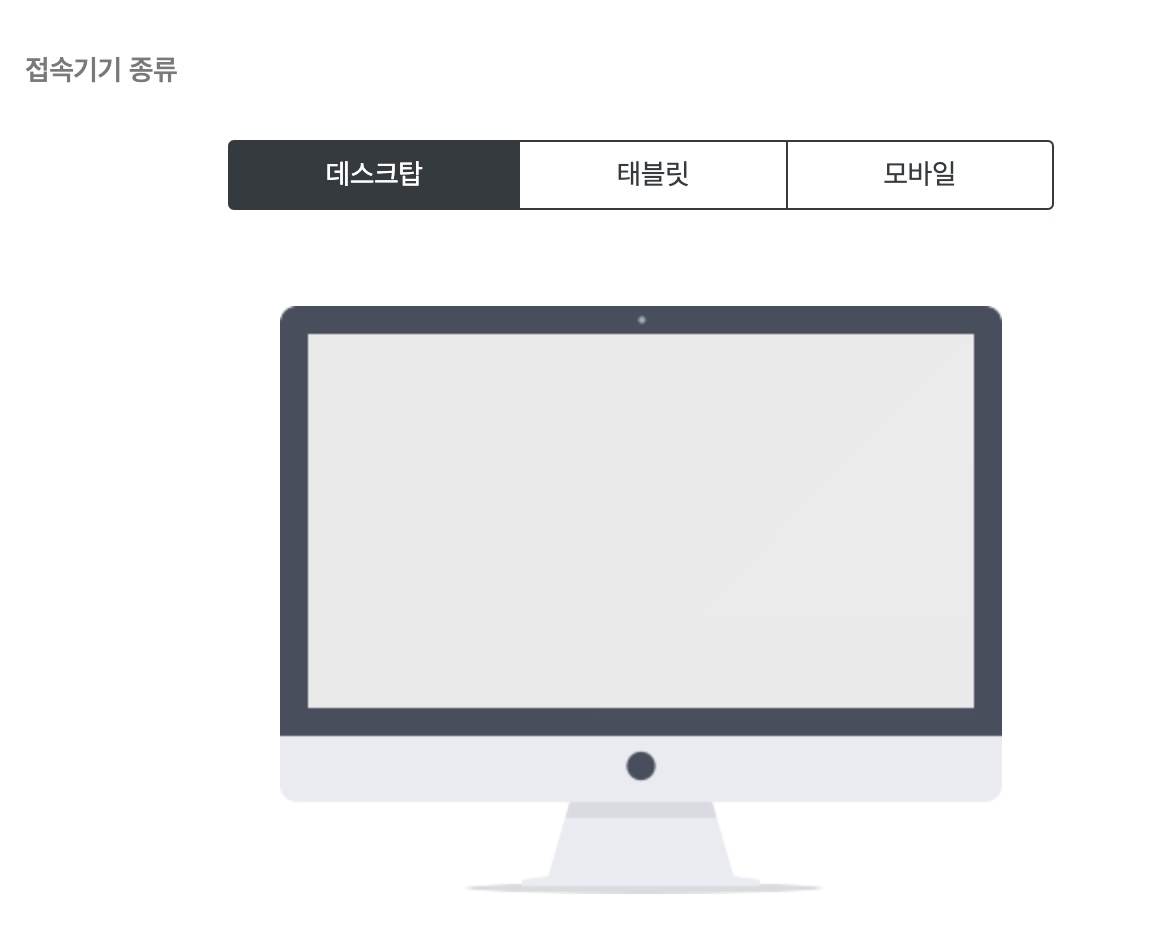
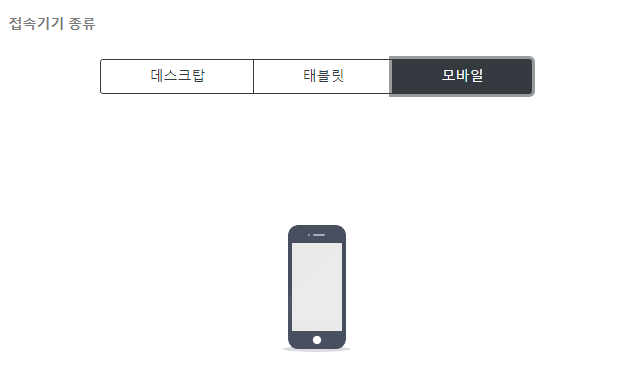
上記の設定で、モバイルページを抽出できますが、繰り返し抽出したい場合は、デバイスタイプをデスクトップ(デフォルト)からモバイルに変更してから、スケジューラーを設定する必要があります。
{% stepper %}
{% step %}
### Databoard → 設定アイコンをクリック → デバイスタイプをクリック
デバイスタイプをモバイルに変更し、設定を保存します。
{% endstep %}
{% step %}
### Databoardのスケジュールボタンをクリックしてスケジュールを設定
{% endstep %}
{% endstepper %}
---
# Agent Instructions
This documentation is published with GitBook. GitBook is the documentation platform designed so that both humans and AI agents can read, navigate, and reason over technical content effectively. Learn more at gitbook.com.
## Querying This Documentation
If you need additional information that is not directly available in this page, you can query the documentation dynamically by asking a question.
Perform an HTTP GET request on the current page URL with the `ask` query parameter, and the optional `goal` query parameter:
```
GET https://help.listly.io/docs/ja/getting-started/databoard-features/settings-device-type.md?ask=&goal=
```
`ask` is the immediate question: it should be specific, self-contained, and written in natural language.
`goal` is optional and describes the broader end goal you are ultimately trying to accomplish on behalf of the user. GitBook uses it to tailor the answer towards what is most useful for that goal.
The response will contain a direct answer to the question and relevant excerpts and sources from the documentation.
Use this mechanism when the answer is not explicitly present in the current page, you need clarification or additional context, or you want to retrieve related documentation sections.