> For the complete documentation index, see [llms.txt](https://help.listly.io/llms.txt). Markdown versions of documentation pages are available by appending `.md` to page URLs; this page is available as [Markdown](https://help.listly.io/docs/ja/getting-started/extension-features/parts-selection.md).
# 部分抽出の範囲選択
{% hint style="success" %}
[**部分抽出(Extract Part)とは?**](https://help.listly.io/docs/ja/~/revisions/8HYcVPKMxph0gzWRX4MW/getting-started/extension-features/parts)
**目的の特定領域のみを選択してデータを抽出します。** 抽出データの配列と精度を向上させたい場合に使用します。
{% endhint %}
## 使い方
{% stepper %}
{% step %}
### 範囲を個別に選択する
Extract Partでは、複数のデータ範囲を選択して一度にまとめて抽出できます。
下の例のように、商品名・レビュー・価格・型番など、必要な部分をそれぞれクリックすると、選択した範囲がパネルに個別に登録されます。**\[Run Listly]**ボタンをクリックすると、選択したすべての範囲を同時に抽出できます。
このように選択して抽出すると、個別に選択した各範囲の情報が下の画像のように抽出されます。
{% endstep %}
{% step %}
### 反復する範囲をまとめて選択する(反復要素を自動選択)
**ワンクリックで、反復する範囲を自動的に選択できます。**
下の例のように、Webページ上の特定の要素をクリックし、続けて最初の要素と反復する要素をクリックすると、Listlyが類似する範囲を認識してポップアップが表示されます。表示されたら、**Group All**ボタンをクリックします。
**同じ階層構造を持つ要素は、下のように1つの範囲として認識され、サイドパネルに記録されます。** (画像は分かりやすくするために色を変えて表現しています。)
「反復する範囲をまとめて選択する」の方法で目的の範囲を選択したら、抽出ボタンをクリックすると、下のようにデータを抽出できます。1つのページ内で反復する画像やブランド名を手軽にまとめて取得することもできます。
{% endstep %}
{% step %}
### 反復要素を自動選択する(アイテムボックス単位で選択)
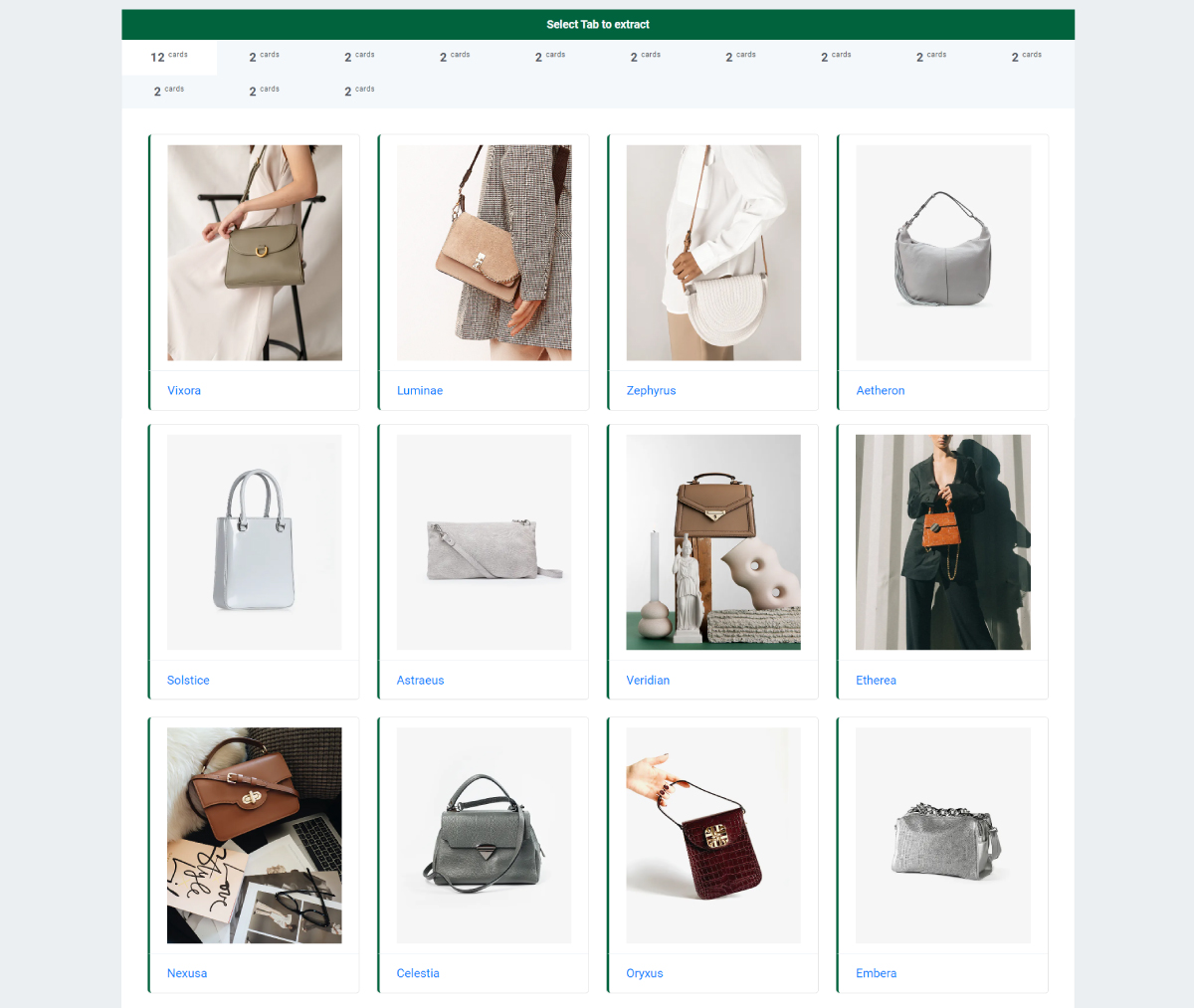
反復する要素を、アイテムボックス単位で自動選択することもできます。最初のボックスを選択し、続いて2番目のボックスを選択すると、同じ構造を持つすべてのアイテムを一度に選択できます。
**このようにアイテム単位で選択したい場合は、**選択した2つの範囲から類似したパターンが検出された際に表示されるポップアップで、\
**「Select by item」**が有効になっていることを確認してから、**「Group All」**をクリックしてください。
上の画像のとおり、このトグルを有効にすると、選択範囲の点線ボックスがアイテム単位に広がることを確認できます。
{% endstep %}
{% endstepper %}
---
# Agent Instructions
This documentation is published with GitBook. GitBook is the documentation platform designed so that both humans and AI agents can read, navigate, and reason over technical content effectively. Learn more at gitbook.com.
## Querying This Documentation
If you need additional information that is not directly available in this page, you can query the documentation dynamically by asking a question.
Perform an HTTP GET request on the current page URL with the `ask` query parameter, and the optional `goal` query parameter:
```
GET https://help.listly.io/docs/ja/getting-started/extension-features/parts-selection.md?ask=&goal=
```
`ask` is the immediate question: it should be specific, self-contained, and written in natural language.
`goal` is optional and describes the broader end goal you are ultimately trying to accomplish on behalf of the user. GitBook uses it to tailor the answer towards what is most useful for that goal.
The response will contain a direct answer to the question and relevant excerpts and sources from the documentation.
Use this mechanism when the answer is not explicitly present in the current page, you need clarification or additional context, or you want to retrieve related documentation sections.