> For the complete documentation index, see [llms.txt](https://help.listly.io/llms.txt). Markdown versions of documentation pages are available by appending `.md` to page URLs; this page is available as [Markdown](https://help.listly.io/docs/ko/getting-started/databoard-features/folder-management.md).
# 폴더 관리
폴더 생성/추가/수정/삭제 기능 안내
## 사용방법
{% stepper %}
{% step %}
### 폴더 생성하기
**A. 탭스 추출 (Tabs)**
Tabs 추출을 실행할 경우 자동으로 폴더가 생성되며, 폴더 안에서 추출된 개별 페이지 목록을 확인할 수 있습니다.
**B. 임의 폴더 생성하기**
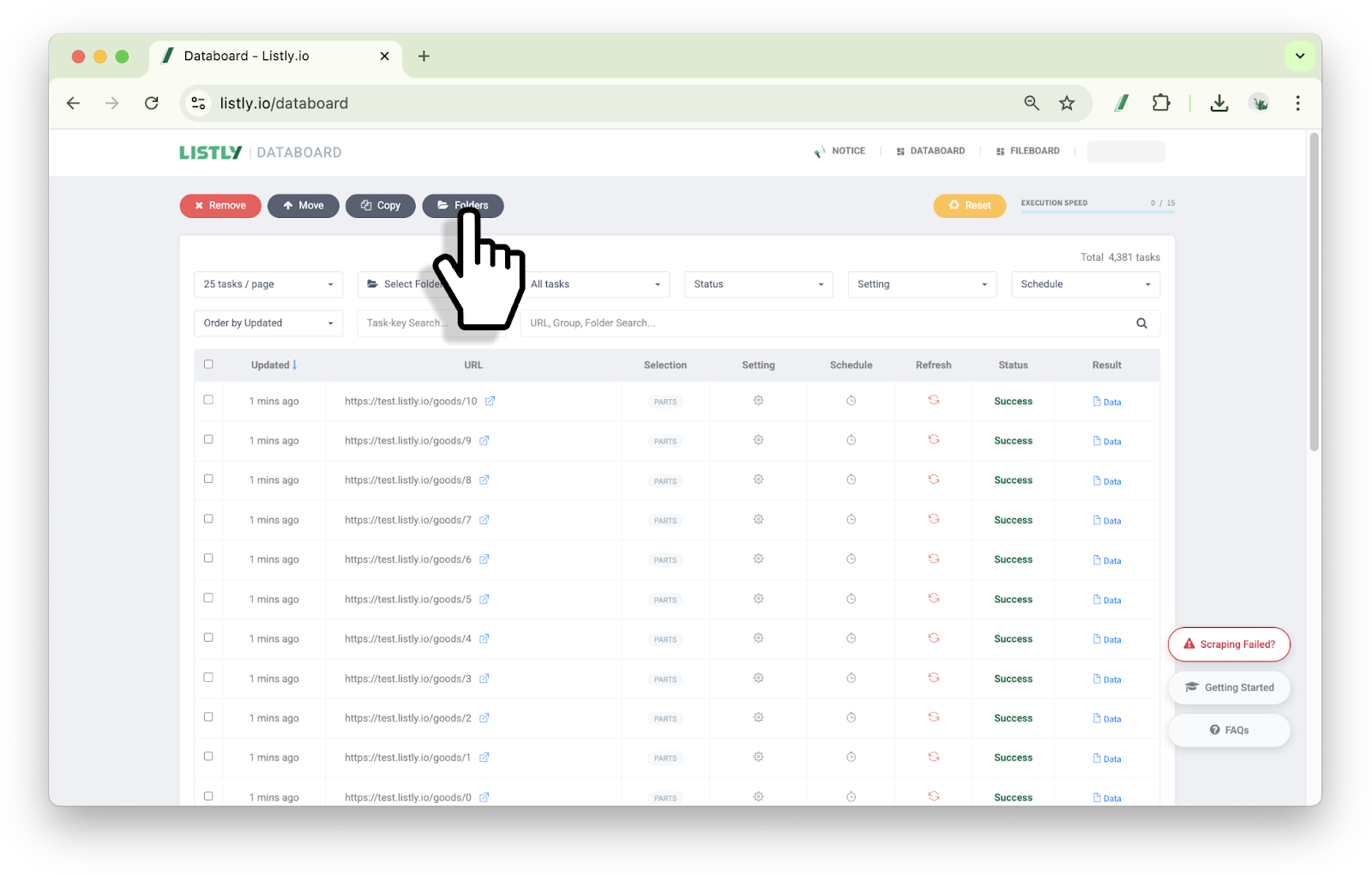
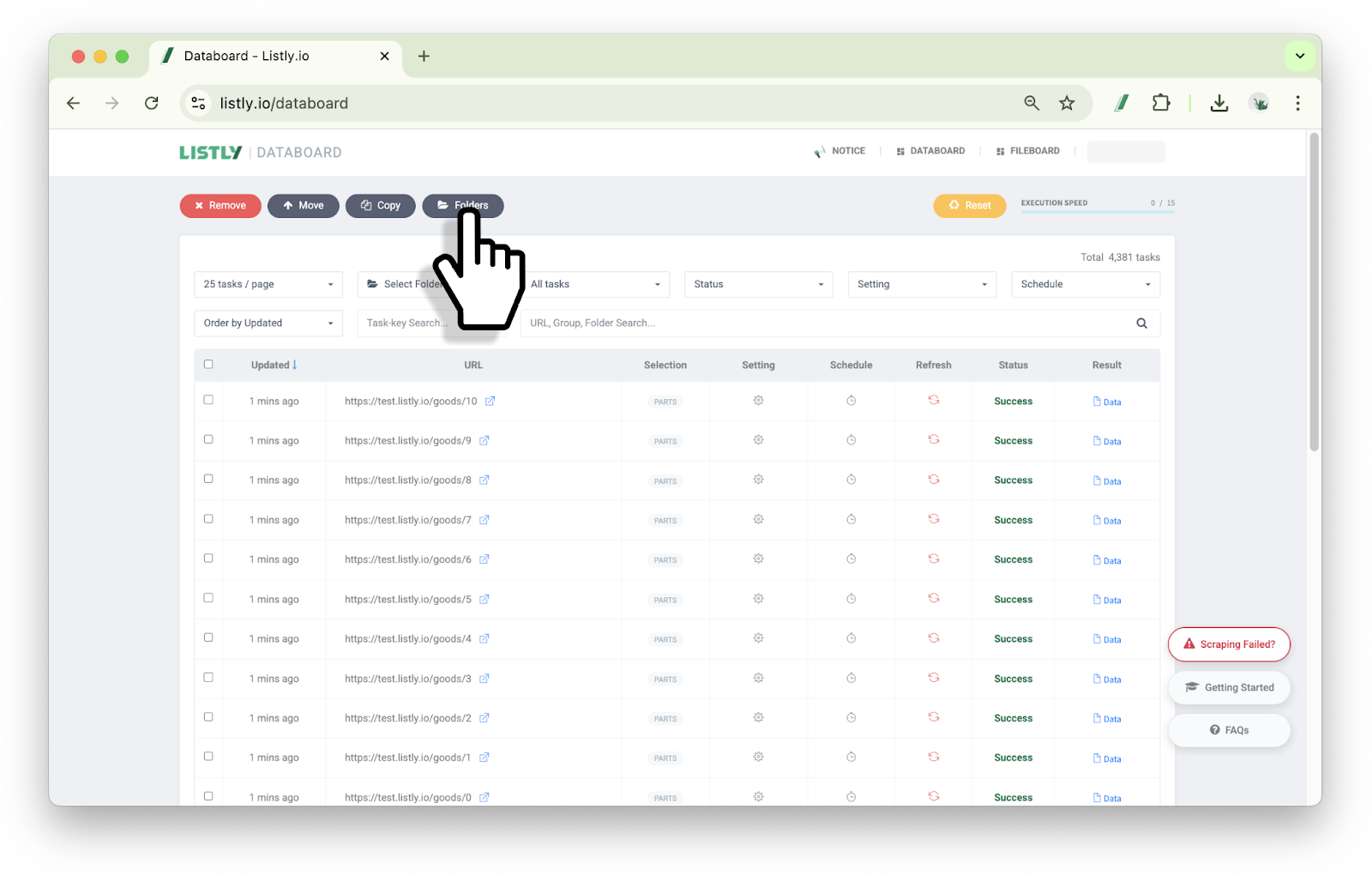
1\) 데이터보드 상단 **\[폴더 목록]** 을 클릭하세요.
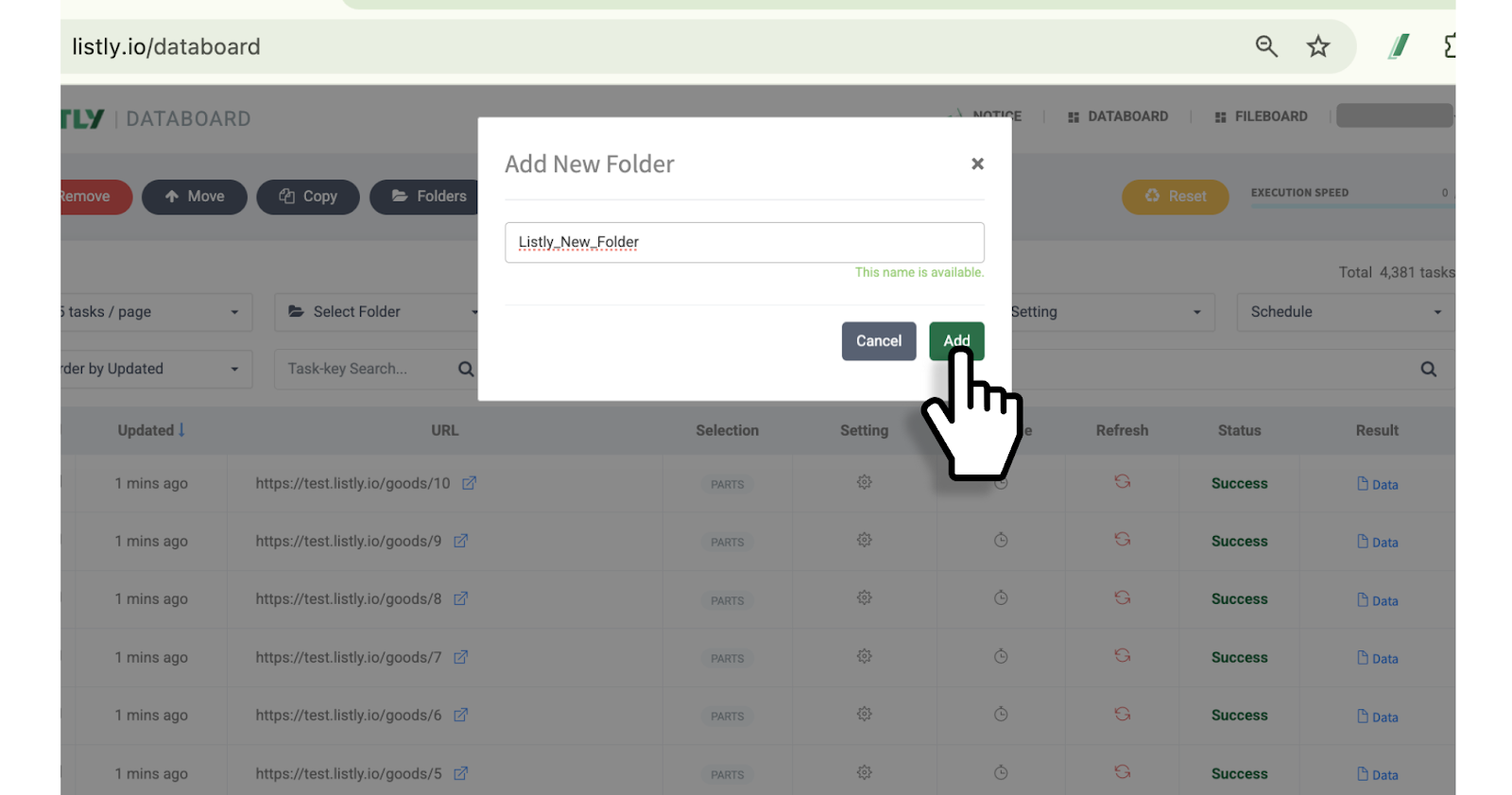
2\) **\[추가]**를 클릭하세요.
3\) 폴더명을 입력한 후 **\[추가]** 버튼을 한번 더 클릭합니다.
{% hint style="warning" %}
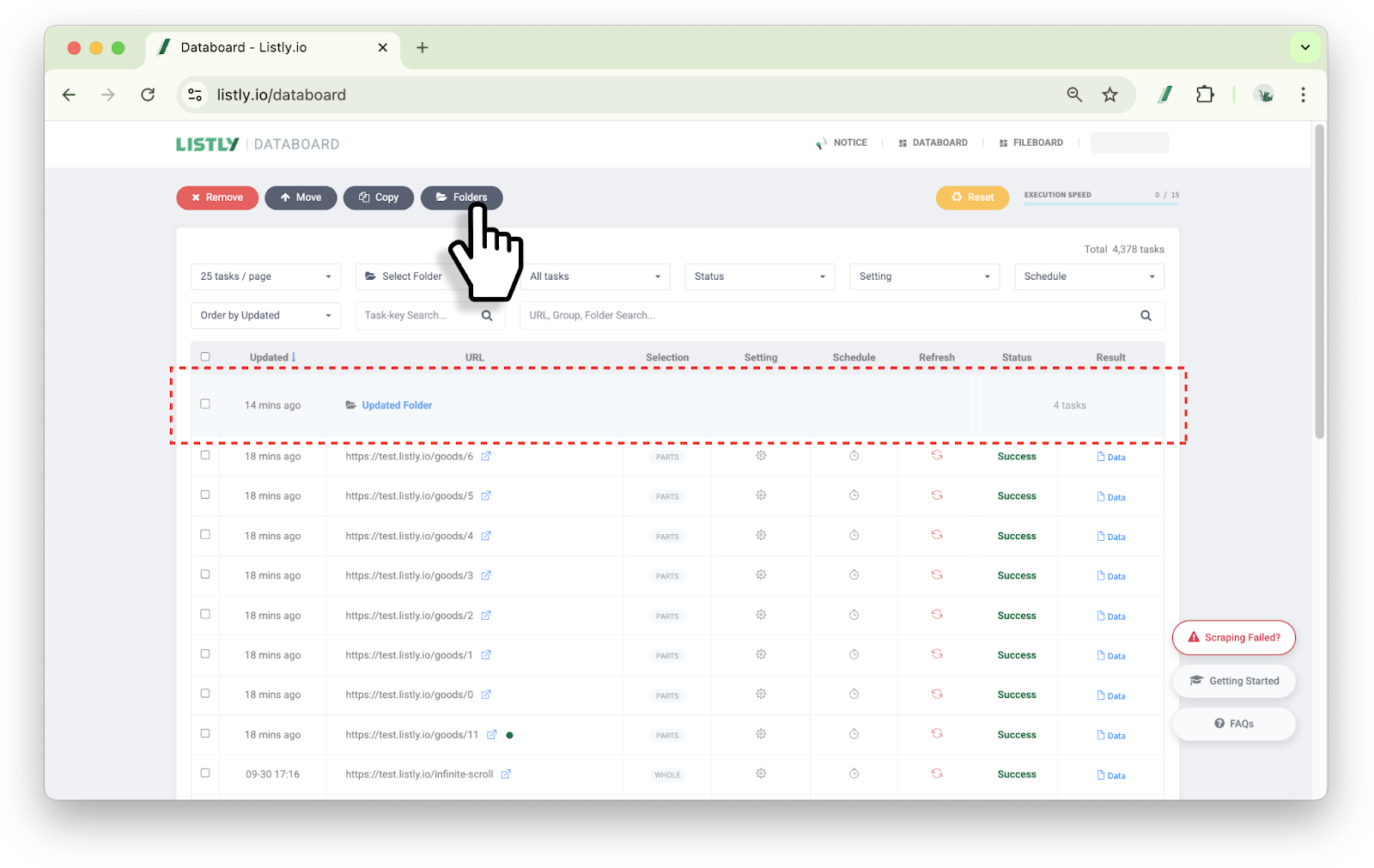
새 폴더는 태스크가 들어가기 전까지 데이터보드에 표시되지 않습니다. 폴더에 태스크를 넣어야 나타납니다.
{% endhint %}
{% endstep %}
{% step %}
### 태스크 이동하기
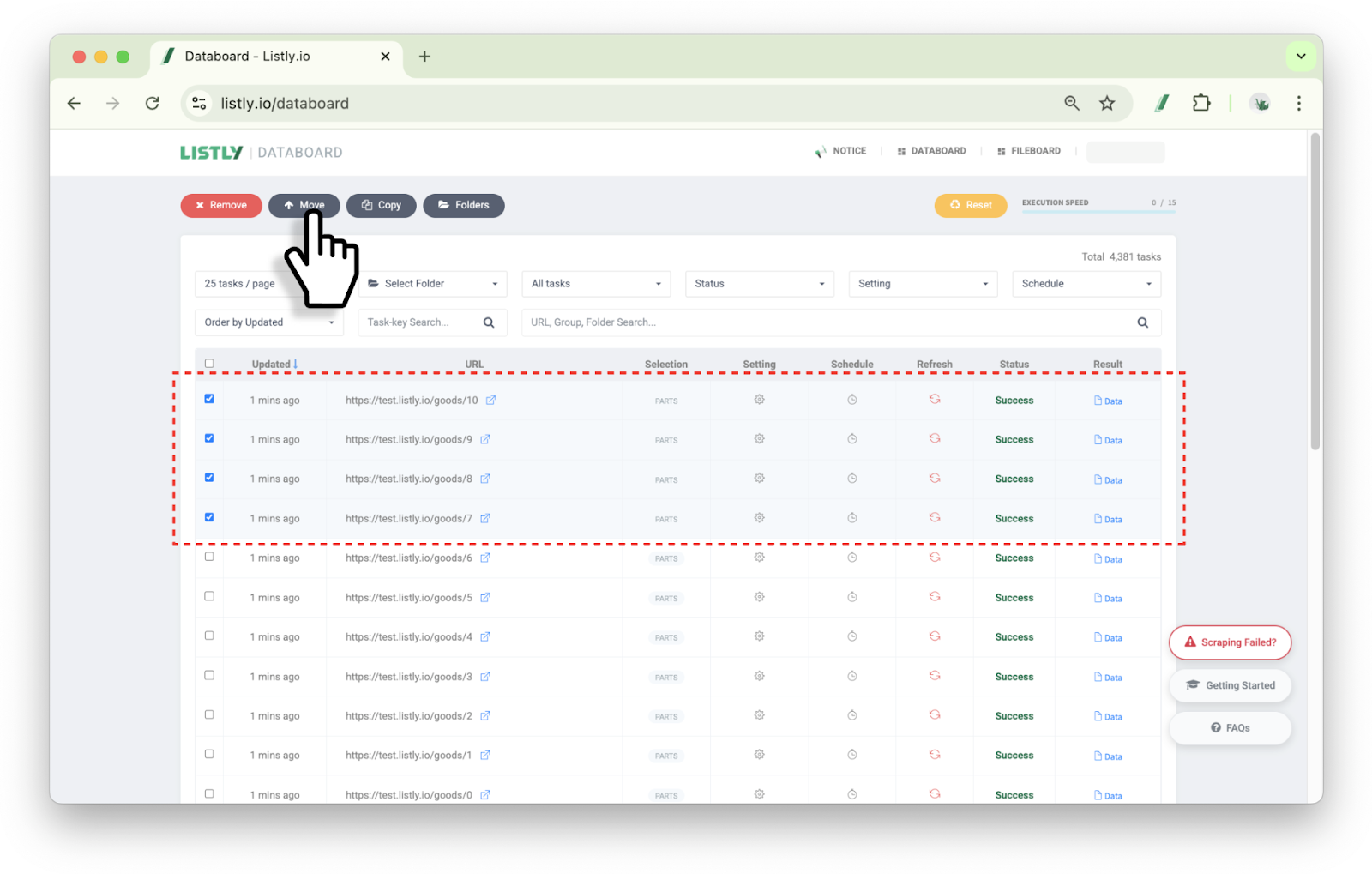
1\) 폴더로 이동시킬 태스크를 선택한 후, 데이터보드 상단의 **\[이동]** 버튼을 클릭합니다.
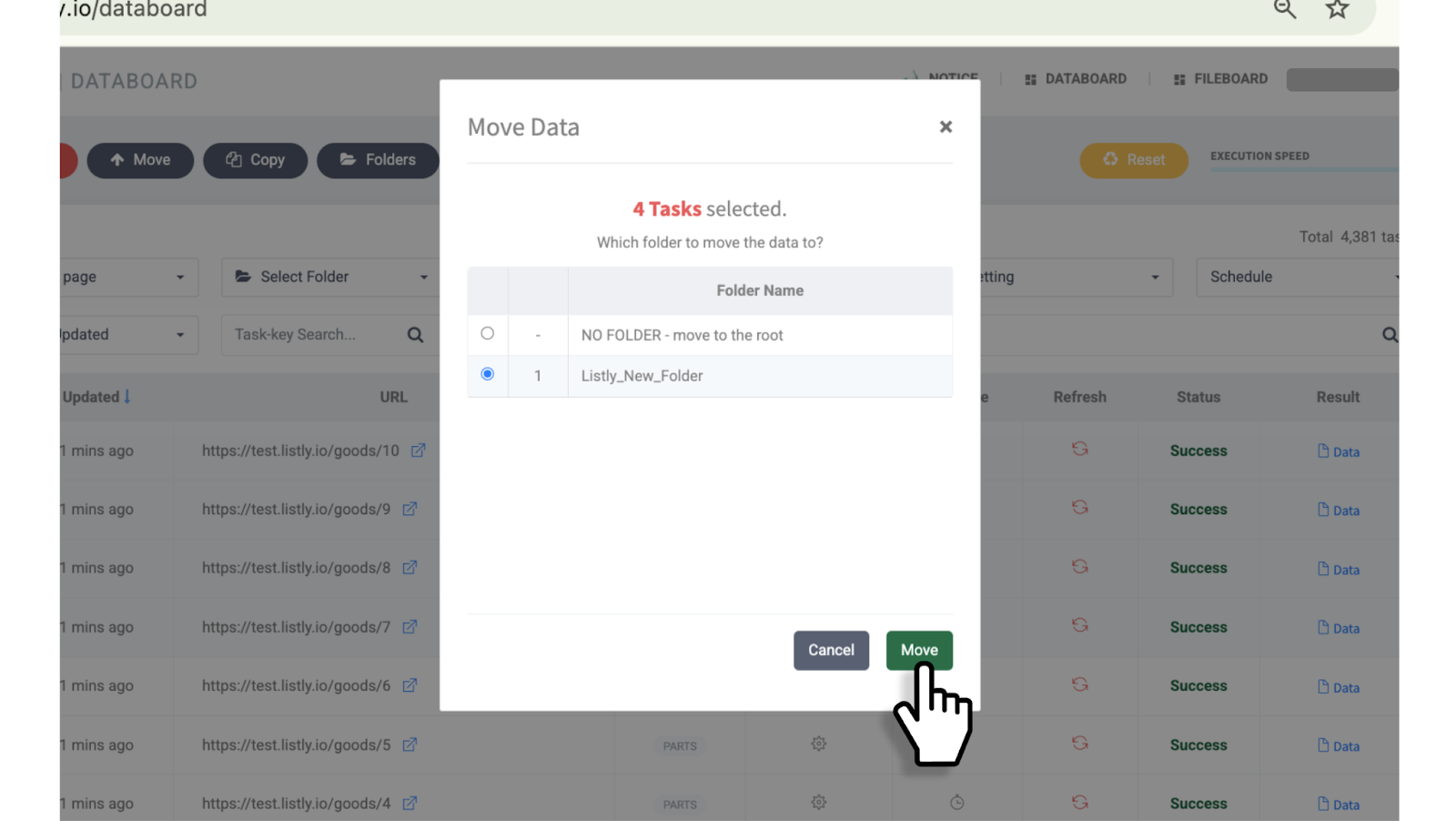
2\) 태스크를 이동시킬 폴더를 선택한 후 **\[이동]** 버튼을 클릭합니다.
{% endstep %}
{% step %}
### 폴더명 수정하기
1\) 데이터보드 상단의 **\[폴더 목록]**을 클릭합니다.
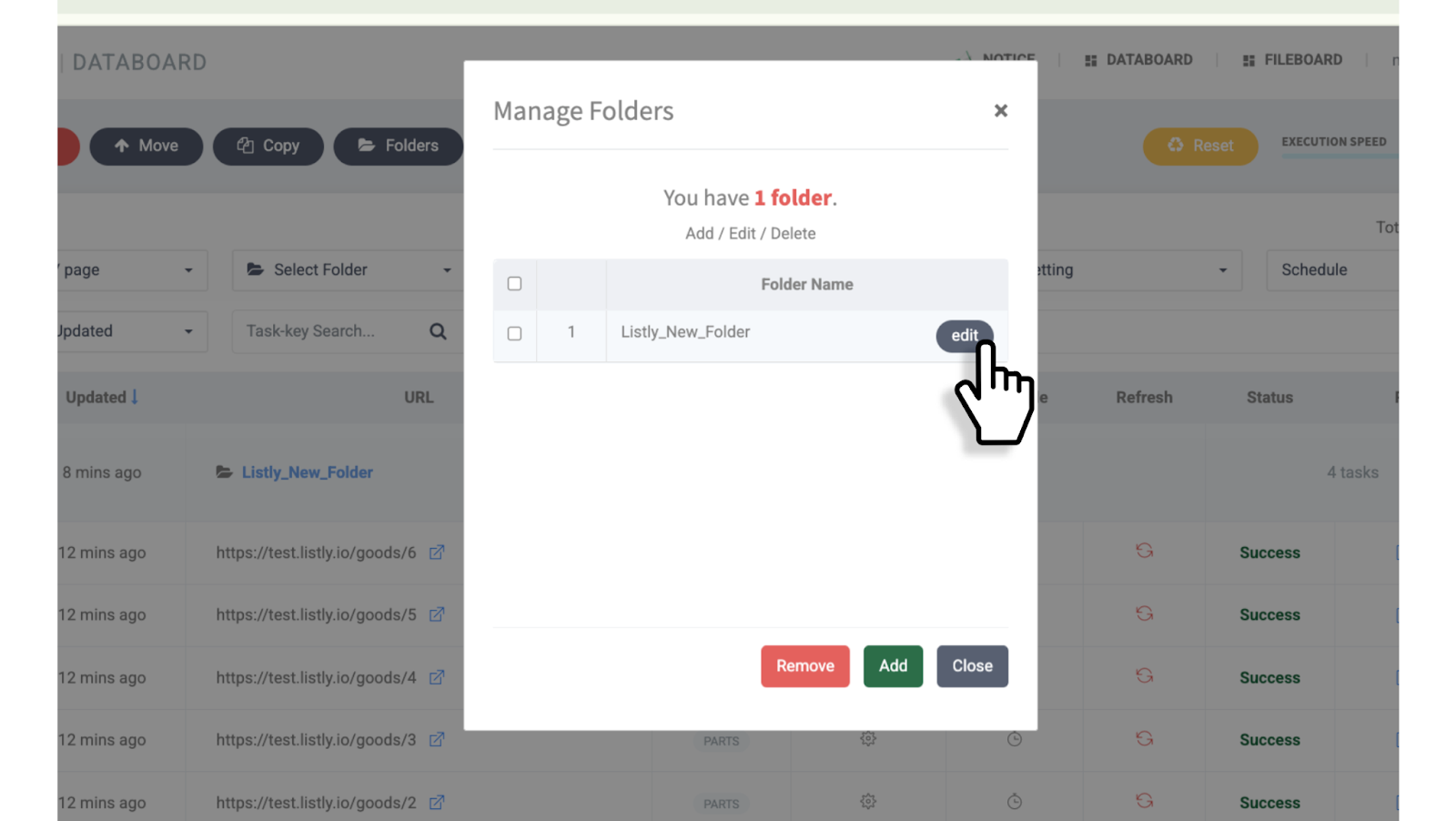
2\) 수정할 폴더 위에 마우스를 올리면 **\[수정]** 버튼이 표시됩니다. 해당 버튼을 클릭하세요.
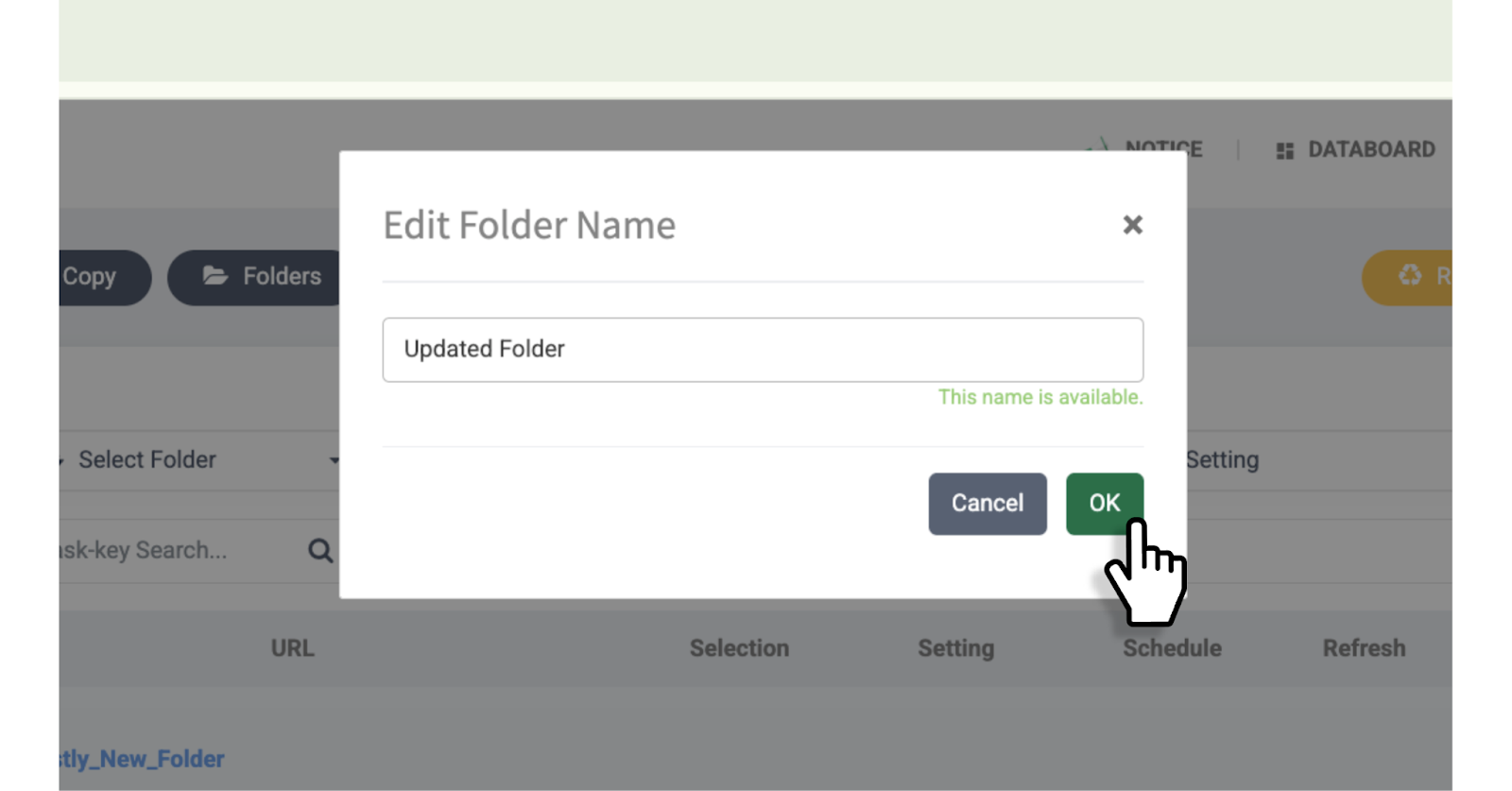
3\) 새 이름 입력 후 **\[확인]** 버튼을 클릭합니다.
{% endstep %}
{% step %}
### 폴더 삭제하기
{% hint style="danger" %}
폴더는 태스크 삭제 버튼으로는 삭제가 불가합니다.
{% endhint %}
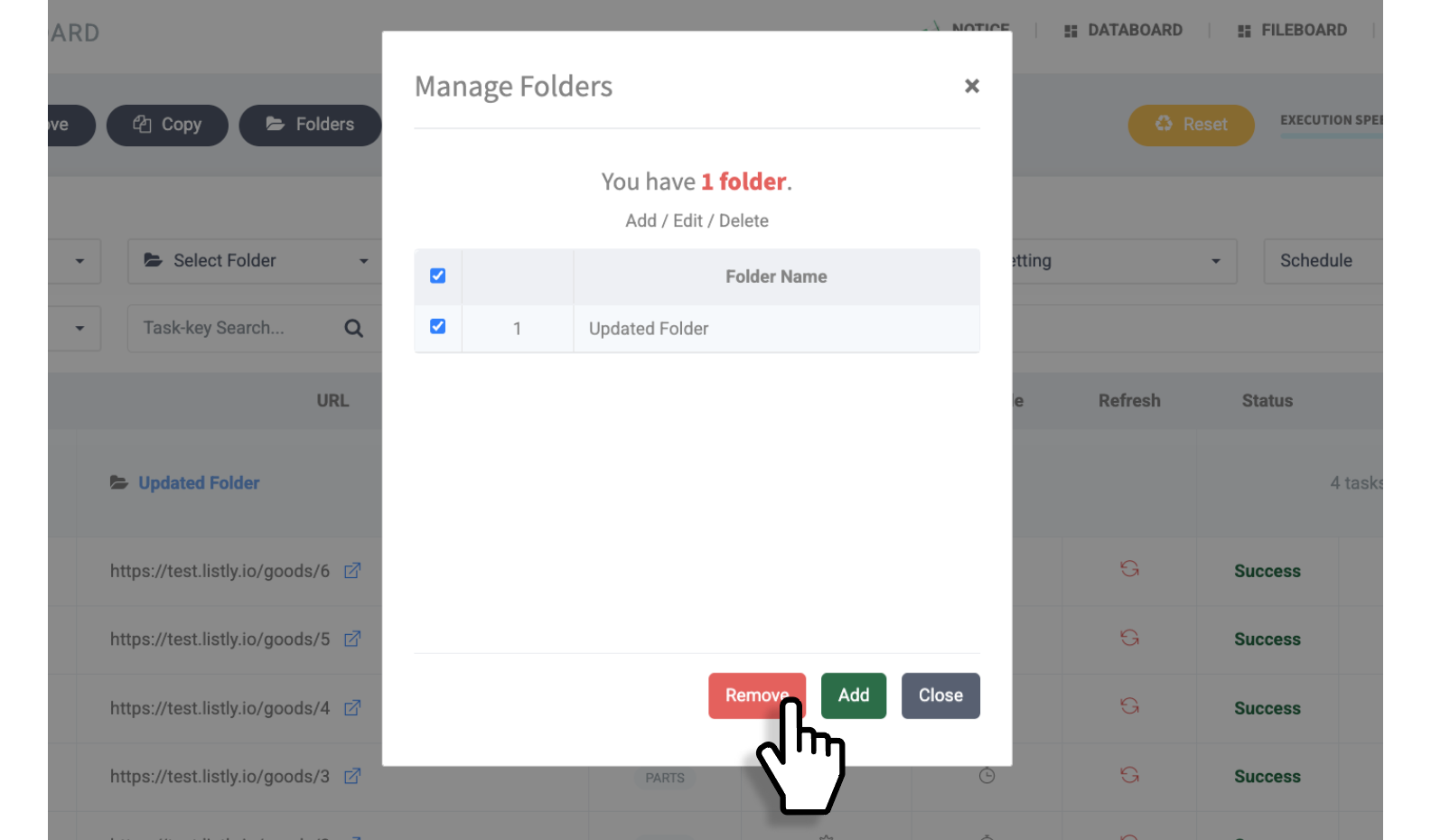
1\) 데이터보드 상단 **\[폴더 목록]**을 클릭합니다.
2\) 삭제할 폴더를 선택한 후 하단 **\[삭제]** 버튼을 클릭합니다.
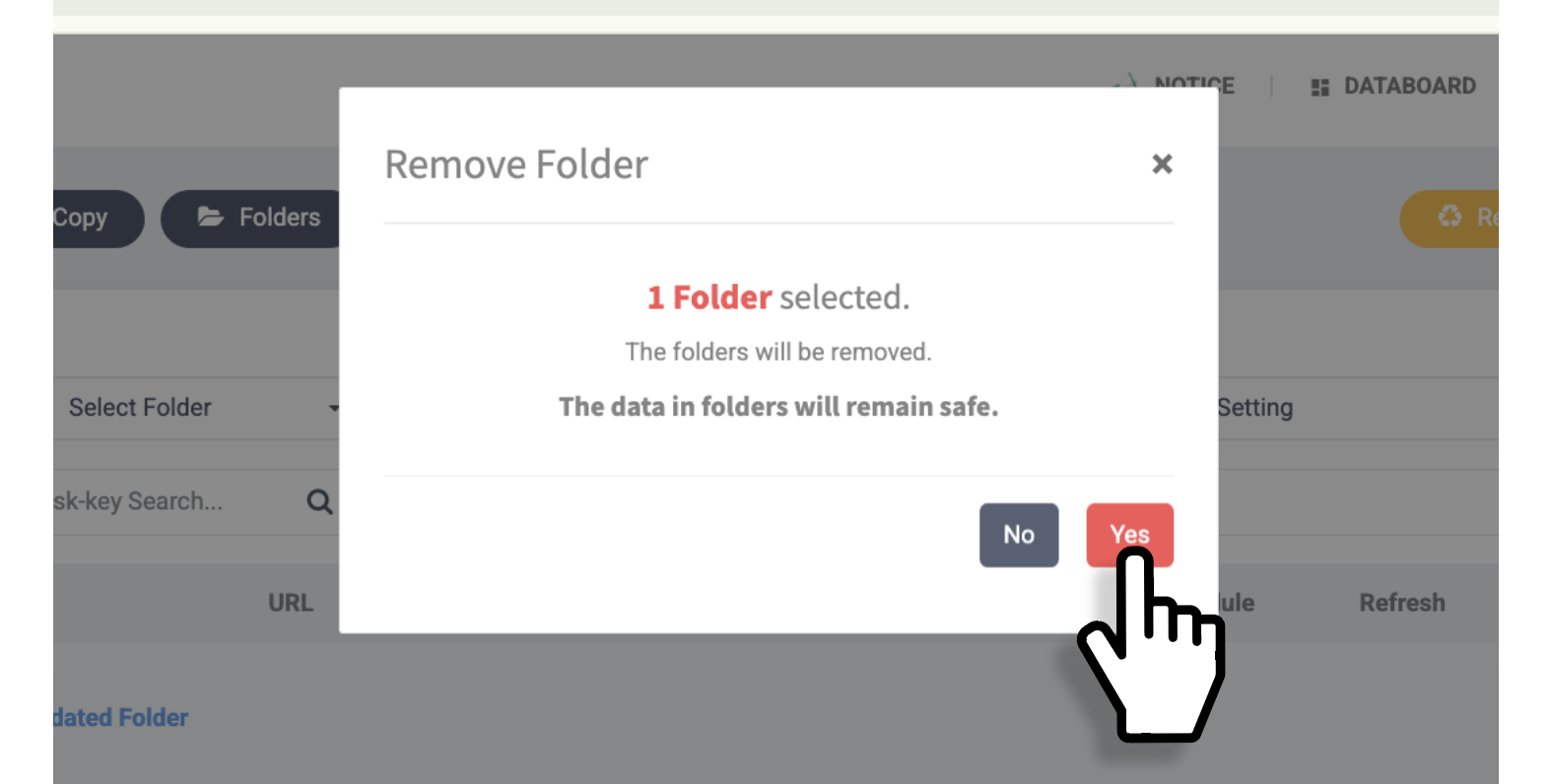
3\) 확인창에서 **\[네]** 를 선택하여 폴더를 삭제할 수 있습니다.
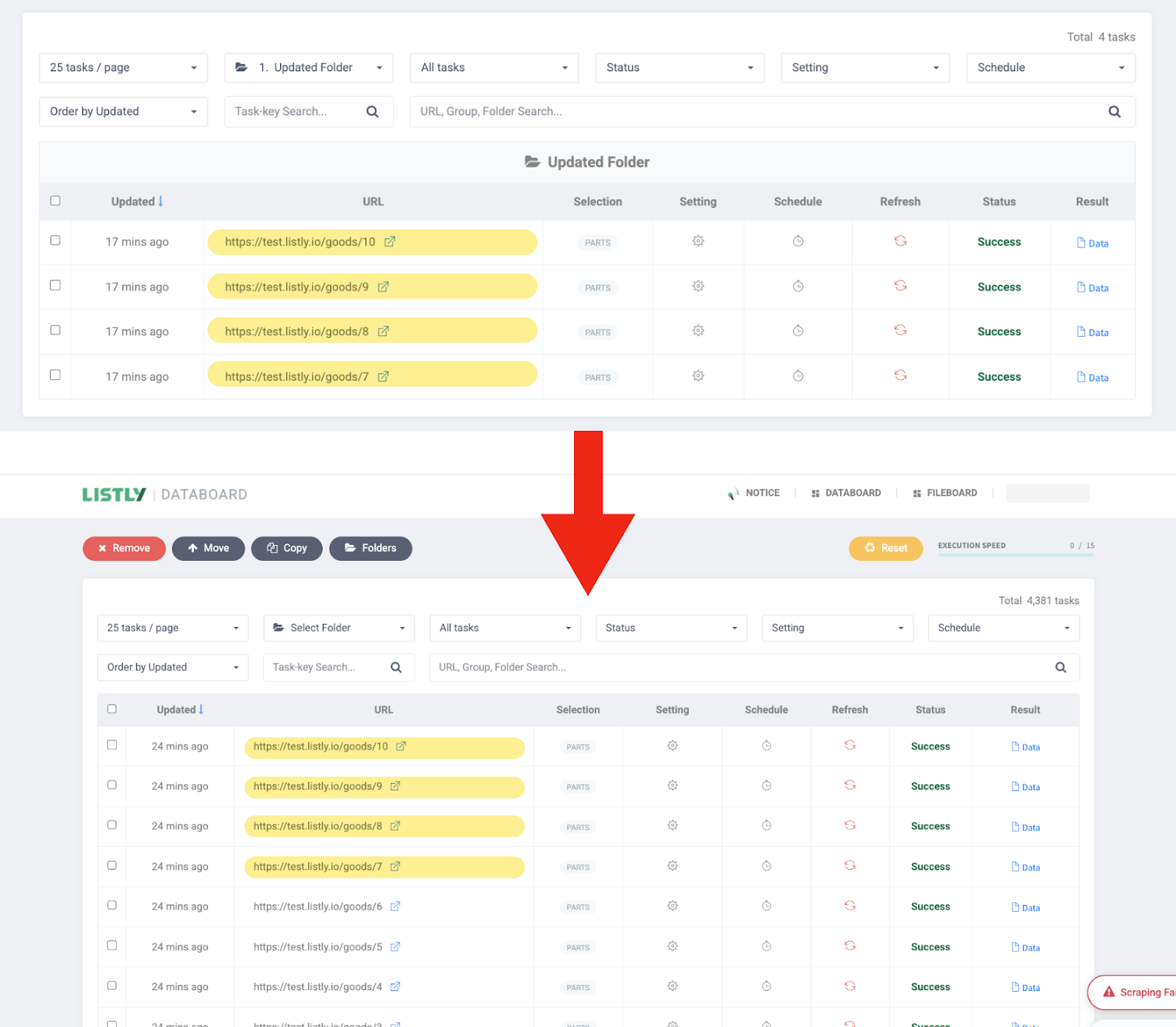
4\) 폴더를 삭제하더라도, 폴더 안에 있던 태스크는 함께 삭제되지 않습니다. 모든 태스크는 개별 태스크로 분리되어 데이터보드에 다시 표시됩니다.
{% endstep %}
{% endstepper %}
---
# Agent Instructions
This documentation is published with GitBook. GitBook is the documentation platform designed so that both humans and AI agents can read, navigate, and reason over technical content effectively. Learn more at gitbook.com.
## Querying This Documentation
If you need additional information that is not directly available in this page, you can query the documentation dynamically by asking a question.
Perform an HTTP GET request on the current page URL with the `ask` query parameter, and the optional `goal` query parameter:
```
GET https://help.listly.io/docs/ko/getting-started/databoard-features/folder-management.md?ask=&goal=
```
`ask` is the immediate question: it should be specific, self-contained, and written in natural language.
`goal` is optional and describes the broader end goal you are ultimately trying to accomplish on behalf of the user. GitBook uses it to tailor the answer towards what is most useful for that goal.
The response will contain a direct answer to the question and relevant excerpts and sources from the documentation.
Use this mechanism when the answer is not explicitly present in the current page, you need clarification or additional context, or you want to retrieve related documentation sections.