# 设置 - 动作脚本

## 什么是 Action Script？

{% hint style="danger" %}
**Action Script 服务已重组为 Enterprise 专属高级选项。** 我们在此通知您，Business 套餐（单用户许可证）的 Action Script 创建服务已停止。**如果您使用的是 Enterprise 产品，您仍然可以**[**请求 Action Script**](https://www.listly.io/contact)**。**

但是，只是开发团队的脚本编写服务已停止——**Action Script 设置字段仍然可用**。如果您已经收到正常工作的代码或正在编写自己的代码，可以继续使用。
{% endhint %}

Action Script 是一项在提取前重放所需键盘/鼠标操作以获取所需网页数据的功能。在以下情况下特别有用，**您需要在网页上多次点击按钮才能访问特定信息**：

{% stepper %}
{% step %}
**当您需要多次点击按钮才能获得所需信息并重复该过程时**

重复"点击 → 等待输入字段 → 输入邮政编码 → 点击确认按钮 → 等待新页面加载"
{% endstep %}

{% step %}
**当您想提取只有点击特定按钮后才出现的每日信息时**

选择选项值 → 点击搜索按钮
{% endstep %}
{% endstepper %}

***

## 使用方法

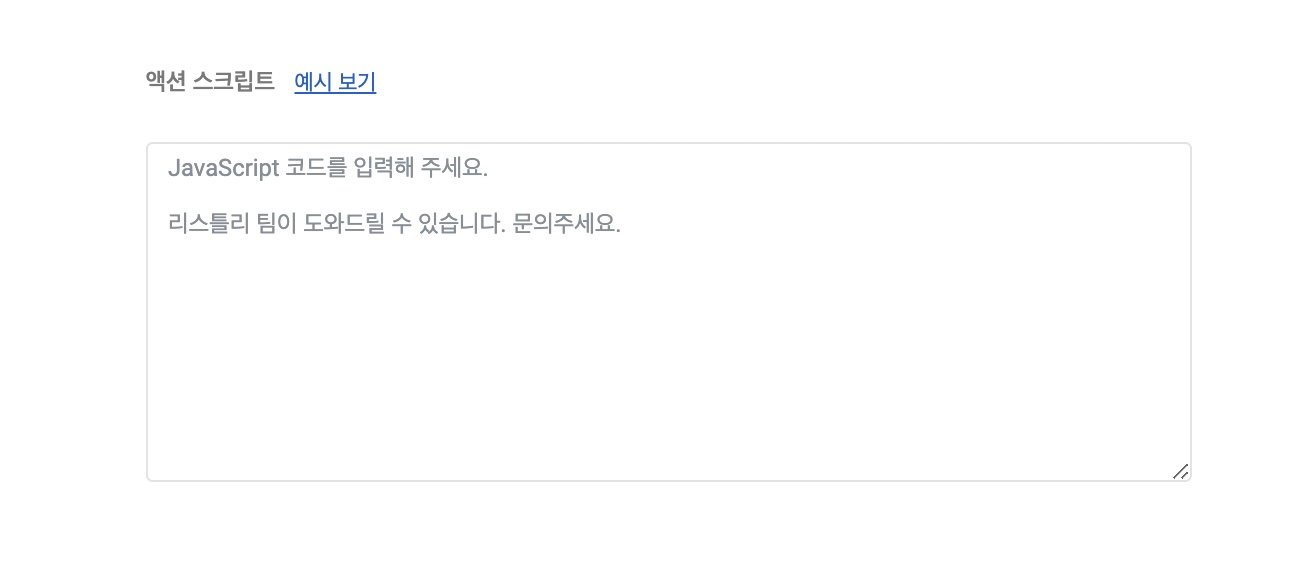
将定义这些操作的 JavaScript 代码保存到 Action Script 字段中。配置代码后，每次重新提取时这些操作将自动执行。

{% hint style="info" %}
**快速入门**

➡️ 提取数据 ➡️ 进入 DATABOARD ➡️ 点击设置图标 ➡️ 在 Action Script 中输入 JavaScript 代码 ➡️ 保存 ➡️ 重新提取
{% endhint %}

<figure><img src="/files/a91d8aaa6a0fc345c6aa803f48fa6e4a3db84a71" alt=""><figcaption></figcaption></figure>

***

## 通过示例理解 Action Script

{% stepper %}
{% step %}
**当您需要多次点击按钮才能获得所需信息并重复该过程时**

**示例 1**

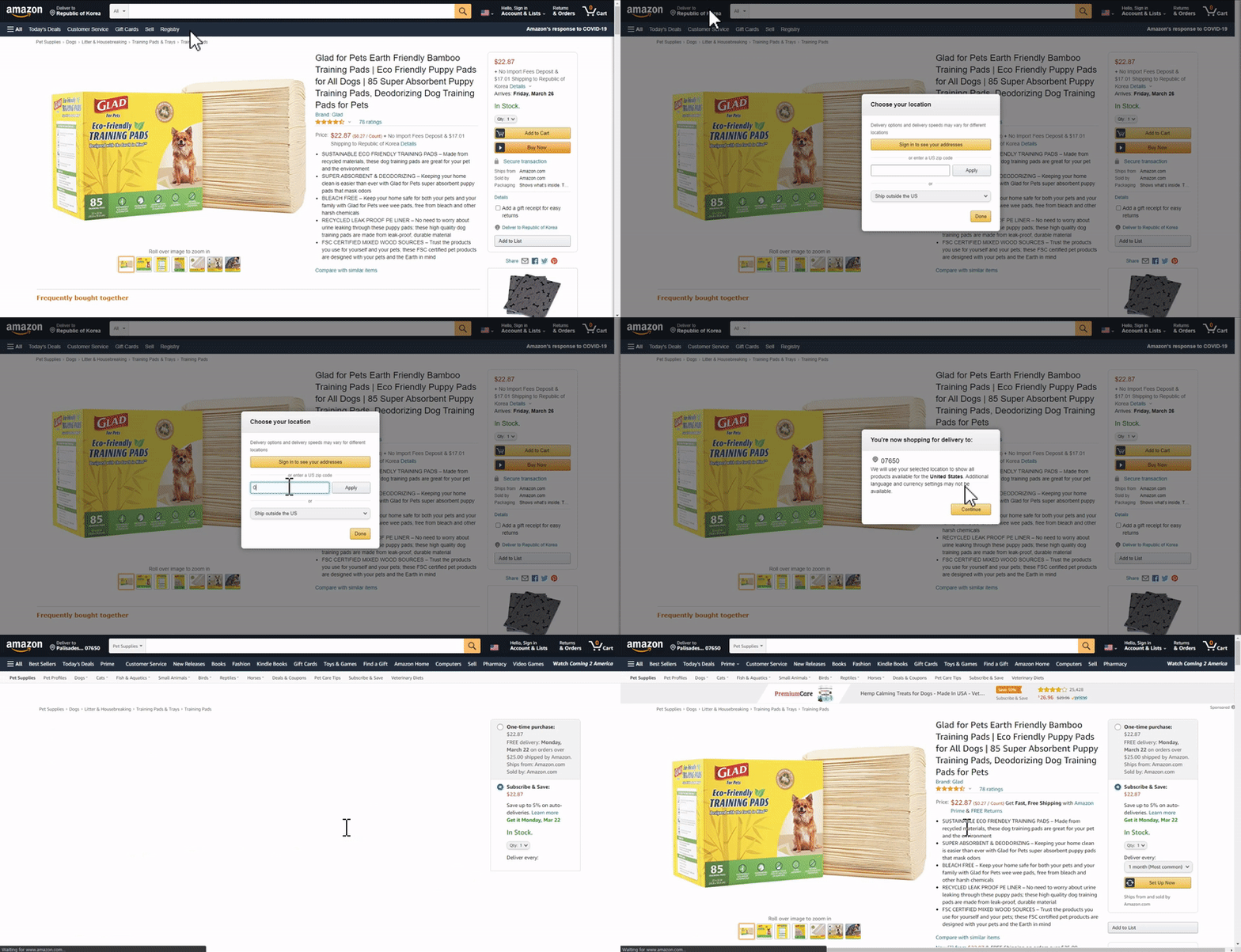
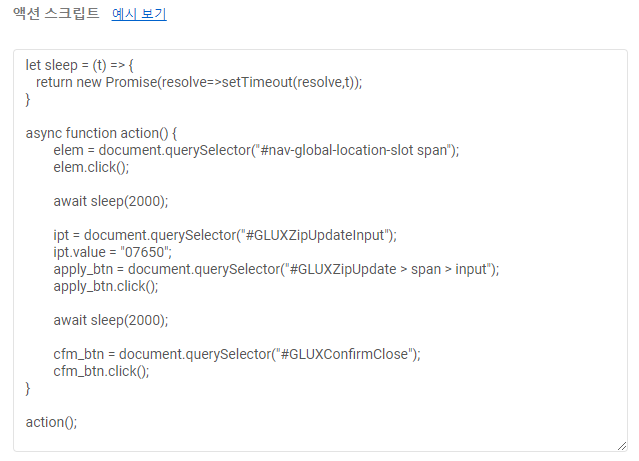
这是一个韩国用户的实际案例。它配置了购物网站的收货地址更改。需要多个操作：**点击 → 等待输入字段 → 输入邮政编码 → 点击确认按钮 → 等待新页面加载**等。由于产品详情（价格、选项等）也会根据收货地址而变化，这些操作需要应用到所有正在采集的产品。LISTLY TEAM 编写了下面的代码并提供给用户，用户只需将其粘贴到批量设置 → action script 中即可一次性应用。

<figure><img src="/files/cb4f3339abcf4439e5f743cd8d9ebe87a6aed63b" alt=""><figcaption></figcaption></figure>

<figure><img src="/files/61c996f2035974684382ac8a172369fe519c6314" alt=""><figcaption></figcaption></figure>

**示例 2**

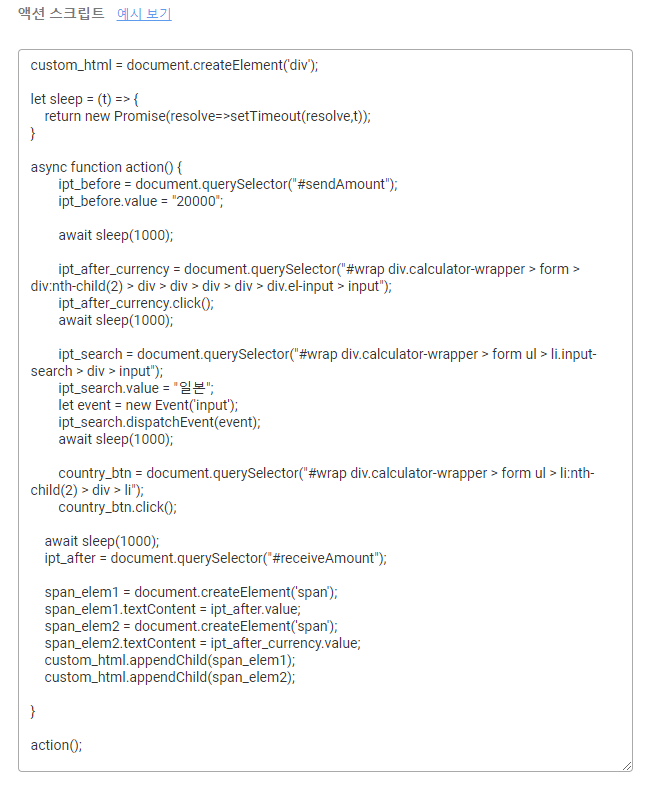
这是一个韩国用户的实际案例。为了监控实时汇率信息，他们输入兑换金额 → 选择国家来收集最终金额。这里使用的 Action Script 有点不同。使用名为 custom\_html 的变量，他们直接选择和配置要提取的信息，设置为如第三张图片所示准确提取所需的信息。

<figure><img src="/files/8de446e7cb80f866dccf1331349ce4fadc433d68" alt=""><figcaption></figcaption></figure>

<figure><img src="/files/a6f6c37793b9f2c24e17d74014b664d418b5937e" alt=""><figcaption></figcaption></figure>

<figure><img src="/files/c04953110c4dc117551ceac65471eaffa2d0b8d2" alt=""><figcaption></figcaption></figure>
{% endstep %}

{% step %}
**当您想提取只有点击特定按钮后才出现的每日信息时**

**示例 3**

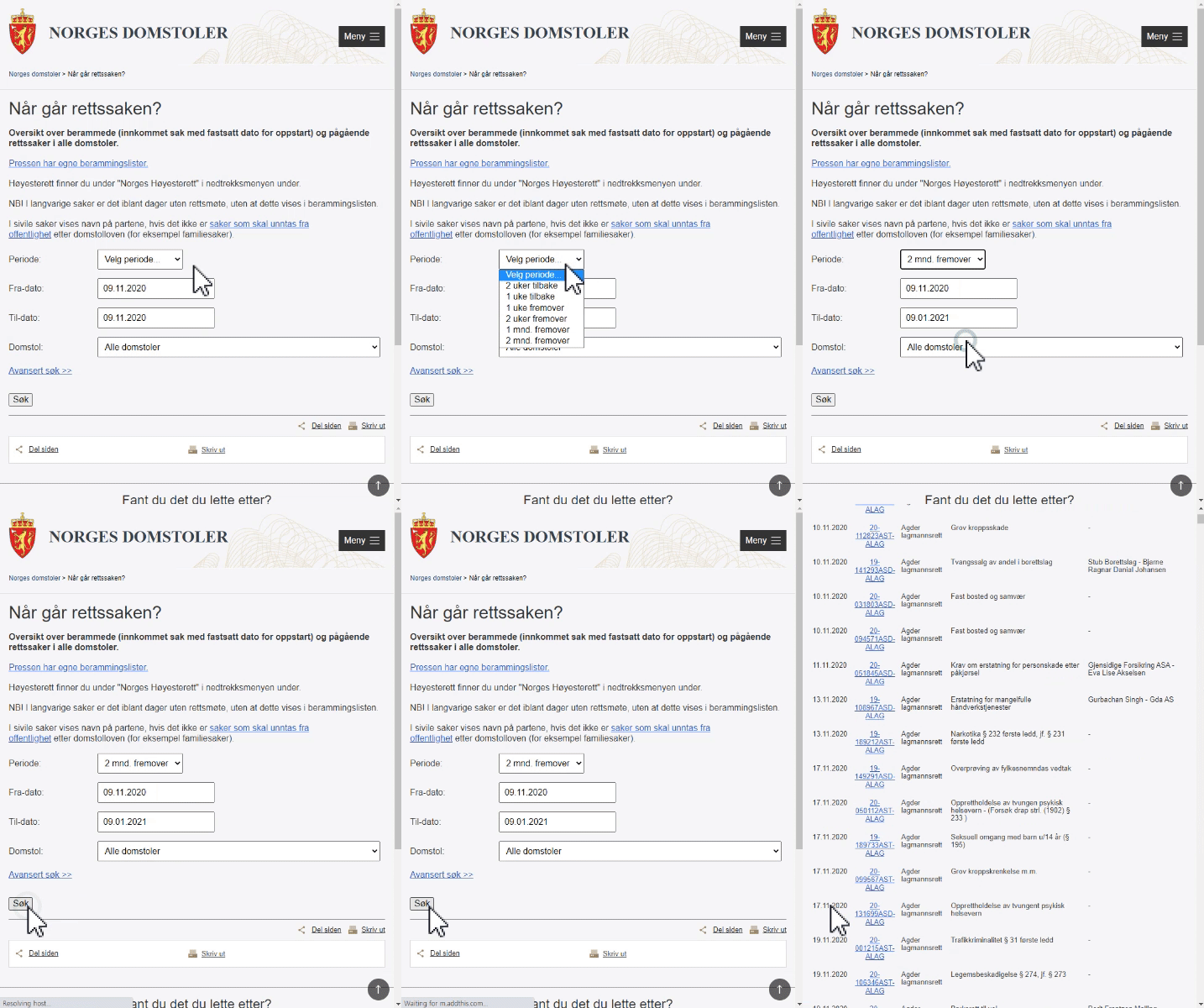
这是一个国际用户的实际案例。为了在挪威法院网站上获取最近 2 个月的搜索结果，他们需要**选择一个选项值（2 mnd. fremover）并点击搜索按钮（Søk）**。**搜索结果出现后，使用 LISTLY Whole 提取**，他们正在使用 LISTLY 自动化这项工作以每天采集数据。

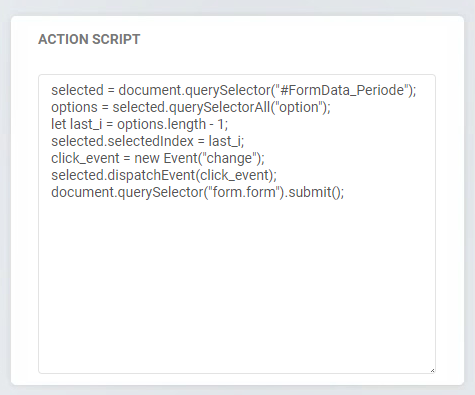
您可以在设置 → Action Script 中用 JavaScript 代码定义这些操作。由于普通用户难以直接设置，LISTLY TEAM 帮助进行配置。

对于开发人员，您可以通过在浏览器开发者工具 → Console 中在提取目标页面上运行代码来测试自己的代码，以直观确认其是否正常工作。

<figure><img src="/files/1a919b159403347ec62541d0be22fa5c7097b59f" alt=""><figcaption></figcaption></figure>

<figure><img src="/files/d4dec025519a48f687bc47c3f852eda172d2c570" alt=""><figcaption></figcaption></figure>

**示例 4**

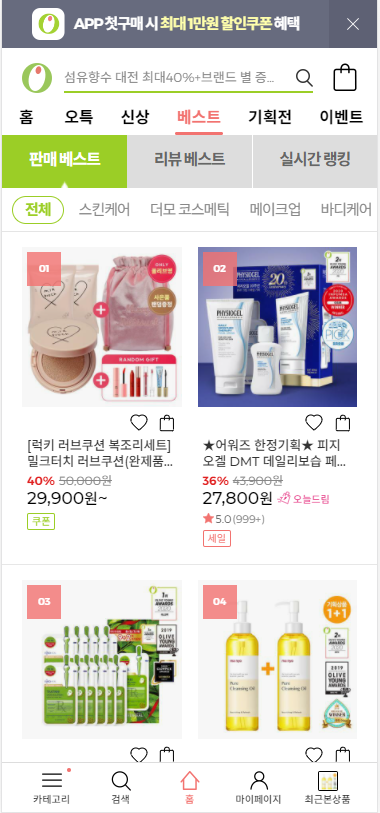
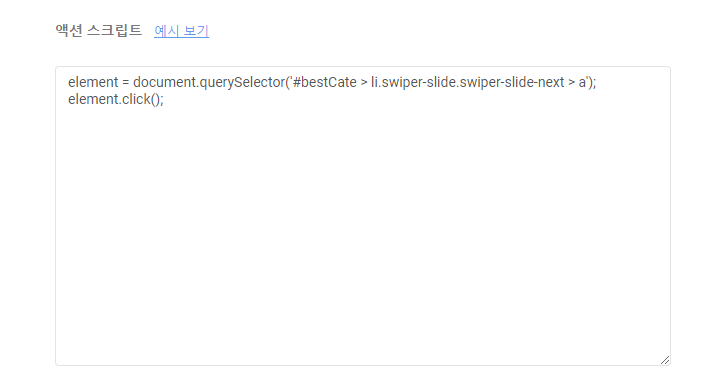
这是一个韩国用户的实际案例。用户想提取如右图所示点击"Skincare"类别时出现的内容，但首次访问页面时的默认视图显示如左图所示的"All"类别产品。

<div><figure><img src="/files/e613c16d449fe24a897cd2e1e1e50bd5f9420bda" alt=""><figcaption><p>初始屏幕</p></figcaption></figure> <figure><img src="/files/2c0793e65970e72dd72c1189c955e0d3f2b45675" alt=""><figcaption><p>用户想提取的屏幕</p></figcaption></figure></div>

<figure><img src="/files/17970c2c23efe58feeeb78136f30b7a7233cff7b" alt=""><figcaption></figcaption></figure>

在这种情况下也一样，将定义这些操作的 JavaScript 代码保存到 Action Script 中。配置代码后，每次重新提取时这些操作将自动执行。
{% endstep %}
{% endstepper %}


---

# Agent Instructions: Querying This Documentation

If you need additional information that is not directly available in this page, you can query the documentation dynamically by asking a question.

Perform an HTTP GET request on the current page URL with the `ask` query parameter:

```
GET https://help.listly.io/docs/zh-hans/getting-started/databoard-features/she-zhi-dong-zuo-jiao-ben.md?ask=<question>
```

The question should be specific, self-contained, and written in natural language.
The response will contain a direct answer to the question and relevant excerpts and sources from the documentation.

Use this mechanism when the answer is not explicitly present in the current page, you need clarification or additional context, or you want to retrieve related documentation sections.