> For the complete documentation index, see [llms.txt](https://help.listly.io/llms.txt). Markdown versions of documentation pages are available by appending `.md` to page URLs; this page is available as [Markdown](https://help.listly.io/docs/zh-hans/getting-started/databoard-features/she-zhi-zi-dong-bao-cun.md).
# 设置 - 自动保存
## 什么是滚动时自动保存?
有时当您**滚动**要提取的页面时,数据会消失。自动保存功能帮助您**捕获滚动过程中自动消失的所有信息**,不会遗漏任何内容。
{% hint style="info" %}
**快速入门**
➡️ 提取数据 ➡️ Databoard 设置 ➡️ 自动滚动 + 自动保存
{% endhint %}
***
## 使用方法
{% stepper %}
{% step %}
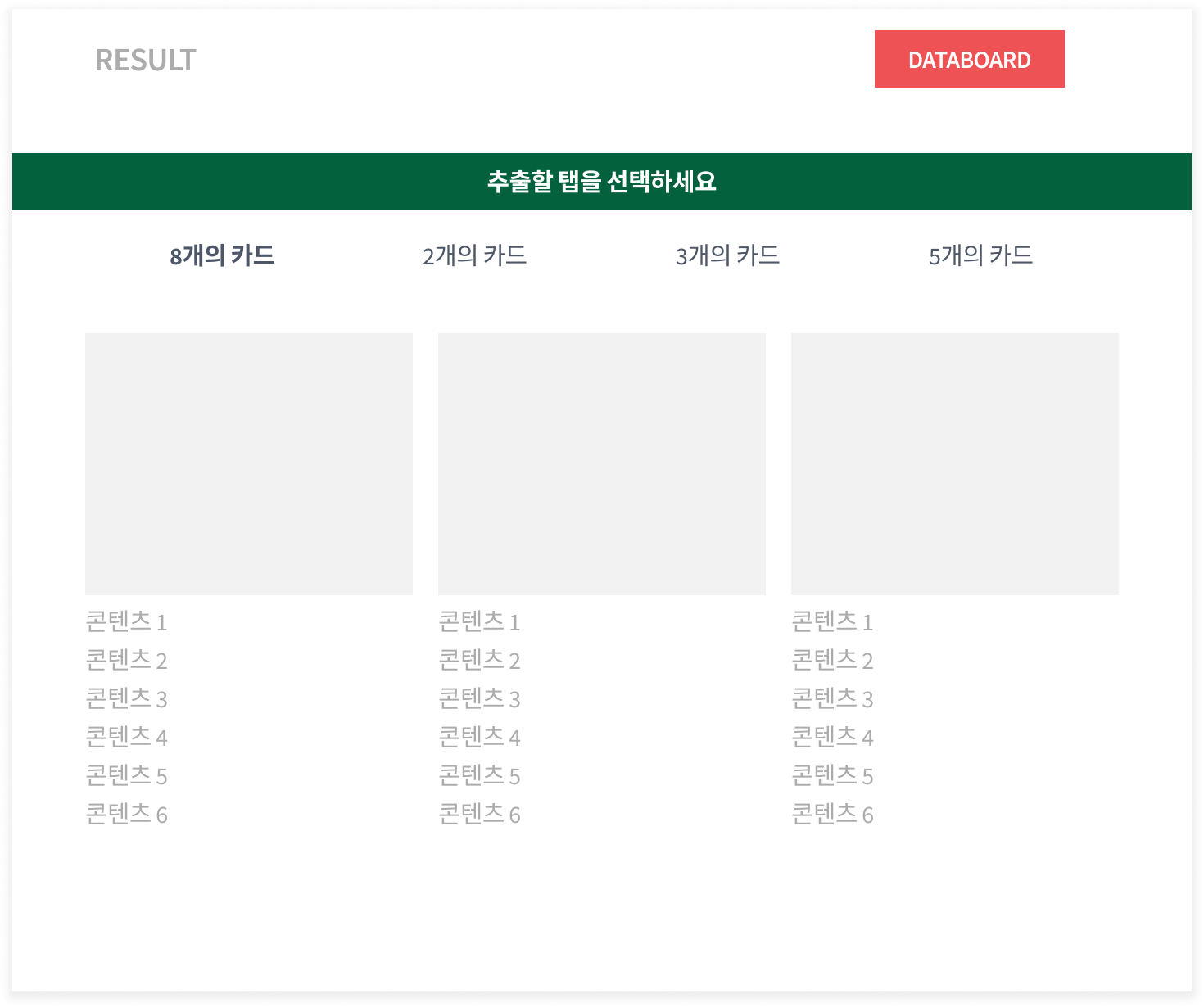
**从您想要的页面提取数据。**
{% endstep %}
{% step %}
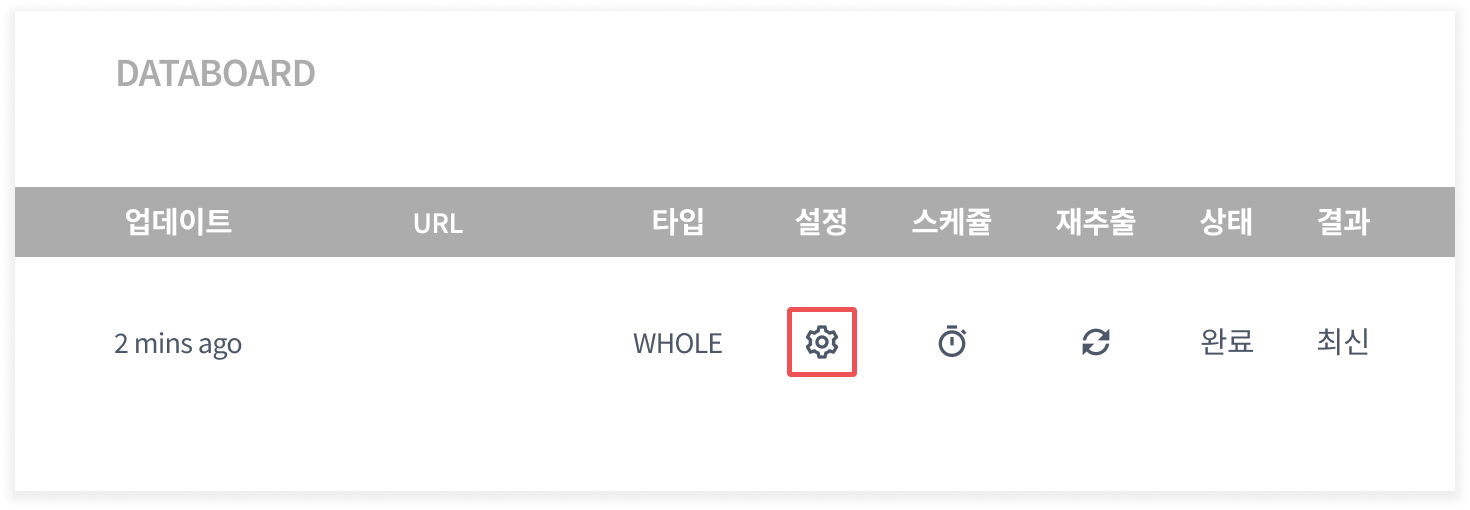
**进入 Databoard 并点击 ****`Settings`**** 图标。**
{% endstep %}
{% step %}
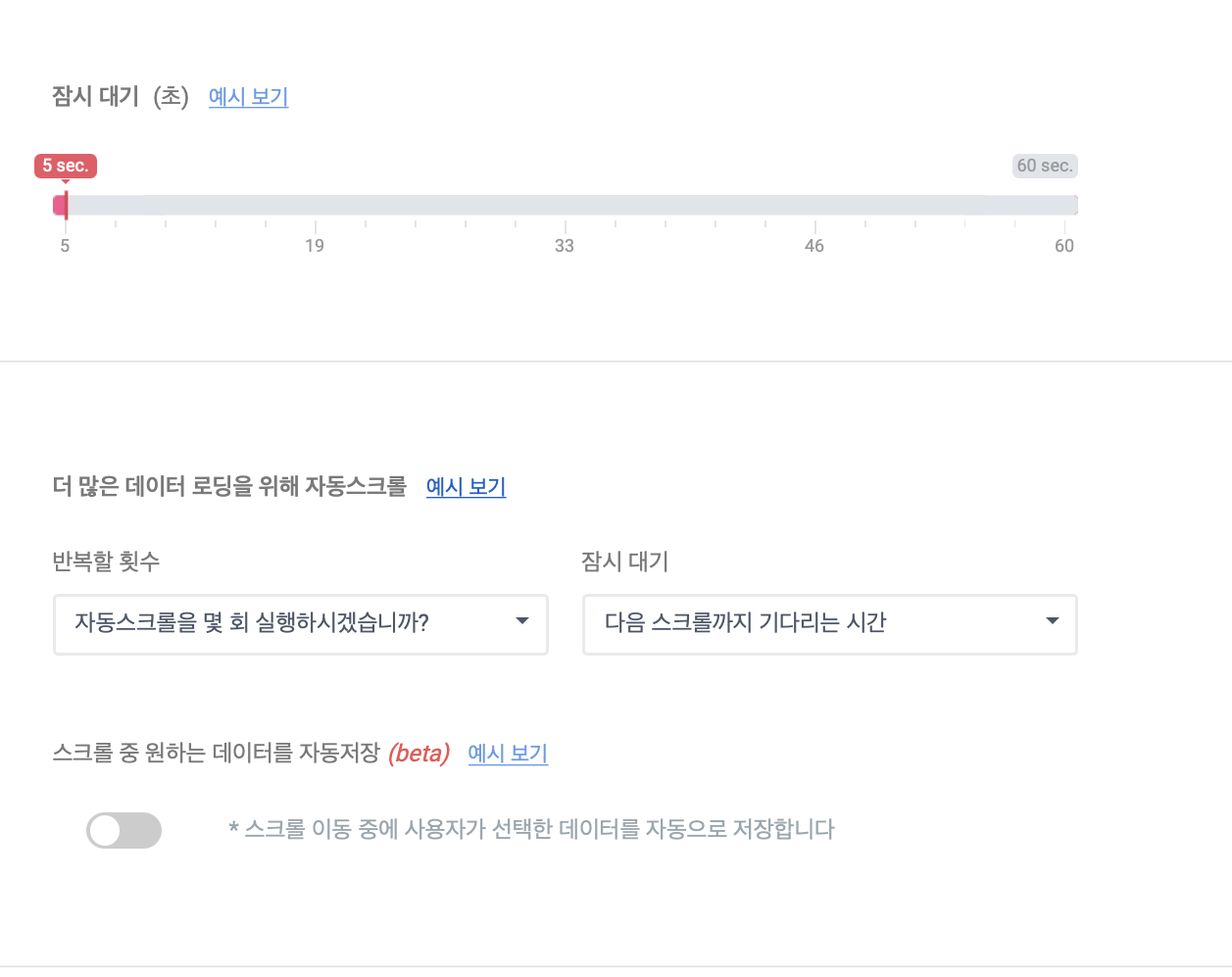
**向下滚动到 ****`Auto-scroll and Auto-save`**** 部分。**
滚动时自动保存功能只能在先配置自动滚动功能后才能修改。
{% hint style="success" %}
如果您要提取的网页在滚动时不会清除数据:
您只需要 **`Auto-scroll`**,不需要 **`Auto-save`** 功能。
{% endhint %}
{% endstep %}
{% step %}
**更改自动滚动设置。**
**`Auto-scroll`** 最多可设置 300 次。
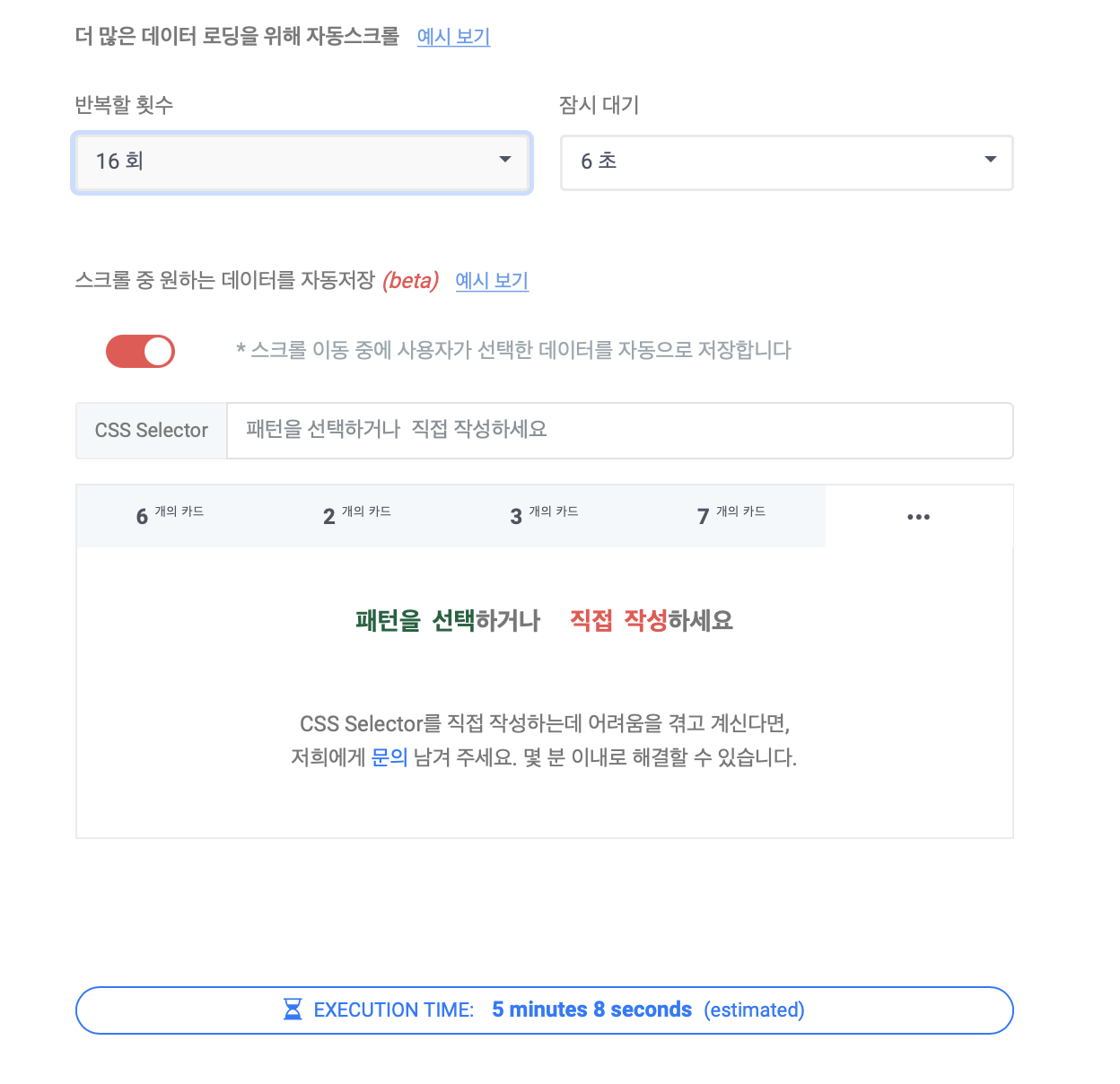
**设置您想要自动滚动重复的次数。** **`Wait for`** 最多可等待 10 秒,指定自动保存数据的间隔。
{% endstep %}
{% step %}
**如有需要,选择或输入要提取的 ****`CSS Selector value`****。**
当您增加 **`Auto-scroll`** 重复次数和 **`Wait for`** 时间时,下方的 **`EXECUTION TIME`** 会成比例增加。
如有需要,选择或输入要提取的 **`CSS Selector value`**。您可以使用 **`CSS Selector value`** 来选择要保存的数据模式。
{% endstep %}
{% step %}
**保存更改的设置**
完成后,点击页面底部的 **Save** 按钮。
然后返回 Databoard 并点击 **`Re-extract`** 按钮。
{% endstep %}
{% endstepper %}
{% hint style="danger" %}
**如果执行时间(EXECUTION TIME)总计超过 10 分钟,提取任务将失败。**
因此,请注意您不能自动化太多滚动重复。
{% endhint %}
---
# Agent Instructions
This documentation is published with GitBook. GitBook is the documentation platform designed so that both humans and AI agents can read, navigate, and reason over technical content effectively. Learn more at gitbook.com.
## Querying This Documentation
If you need additional information that is not directly available in this page, you can query the documentation dynamically by asking a question.
Perform an HTTP GET request on the current page URL with the `ask` query parameter, and the optional `goal` query parameter:
```
GET https://help.listly.io/docs/zh-hans/getting-started/databoard-features/she-zhi-zi-dong-bao-cun.md?ask=&goal=
```
`ask` is the immediate question: it should be specific, self-contained, and written in natural language.
`goal` is optional and describes the broader end goal you are ultimately trying to accomplish on behalf of the user. GitBook uses it to tailor the answer towards what is most useful for that goal.
The response will contain a direct answer to the question and relevant excerpts and sources from the documentation.
Use this mechanism when the answer is not explicitly present in the current page, you need clarification or additional context, or you want to retrieve related documentation sections.