> For the complete documentation index, see [llms.txt](https://help.listly.io/llms.txt). Markdown versions of documentation pages are available by appending `.md` to page URLs; this page is available as [Markdown](https://help.listly.io/docs/zh-hans/getting-started/extension-features/parts.md).
# 部分提取 (Extract Part)
## 什么是部分提取(Extract Part)?
这是可以**只选择想要的区域、部分提取数据**的功能。当您想提升提取数据的结构与准确度时,欢迎试试看。
{% hint style="success" %}
**快速上手**
➡️ 在想要的页面点击 Listly 图标 ➡️ 选择部分提取(Extract Part) ➡️ 选择数据提取区域 ➡️ 在面板中选择提取选项(选填) ➡️ 点击提取 ➡️ 在结果中选择想要数据的标签页 ➡️ 下载您的数据
{% endhint %}
## 使用方法
{% stepper %}
{% step %}
#### 在目标网站点击 Listly 图标
在已[安装 Listly](https://help.listly.io/docs/zh-hans/~/revisions/5ObaqiYl8G5VZ1vEatnt/getting-started/quick-start-guide/how-to-install-listly) 的浏览器中,前往想提取数据的网页并点击 Listly 图标。
{% endstep %}
{% step %}
#### 选择“部分提取(Extract Part)”
在 Listly 扩展程序中选择 **\[部分提取(Extract Part)]** 按钮。
{% endstep %}
{% step %}
#### 选择想提取的区域
点击以指定想提取的区域。
当您点击具有相符模式的提取区域时,会自动出现弹出窗口,让您一次选择所有相似的区域。
* **\[合并为一个(Group All)]**:点击后,不必逐一点击即可选择所有相符的区域。
* **\[分开保留(Keep separate)]**:若想提取的区域是不共用同一模式的个别独立区域,请点击此项。
{% hint style="info" %}
参考:[部分提取区域选择](https://help.listly.io/docs/zh-hans/~/revisions/5ObaqiYl8G5VZ1vEatnt/getting-started/extension-features/parts-selection)
{% endhint %}
{% endstep %}
{% step %}
#### 为各区域选择提取选项(选填)
如有需要,可在各个选择框内设置提取选项。
{% hint style="info" %}
参考:[了解部分提取(Extract Part)的提取选项](https://help.listly.io/docs/zh-hans/~/revisions/5ObaqiYl8G5VZ1vEatnt/getting-started/extension-features/parts-options)
{% endhint %}
{% endstep %}
{% step %}
#### 点击“提取”
选择完所有提取区域后,点击 **\[提取]** 按钮。
{% endstep %}
{% step %}
#### 在结果中选择要提取的标签页
在结果页面确认提取的数据后,点击 **\[Excel]** 或 **\[Google Sheets]** 按钮导出。
{% hint style="info" %}
参考:[进一步了解数据下载选项](https://help.listly.io/docs/zh-hans/~/revisions/5ObaqiYl8G5VZ1vEatnt/getting-started/result-page-features/data-options)
{% endhint %}
{% endstep %}
{% step %}
#### 下载您的数据
确认下载的文件。
{% endstep %}
{% endstepper %}
***
## 部分提取(PARTS)相关常见问题
PART vs PARTS 有什么不同?
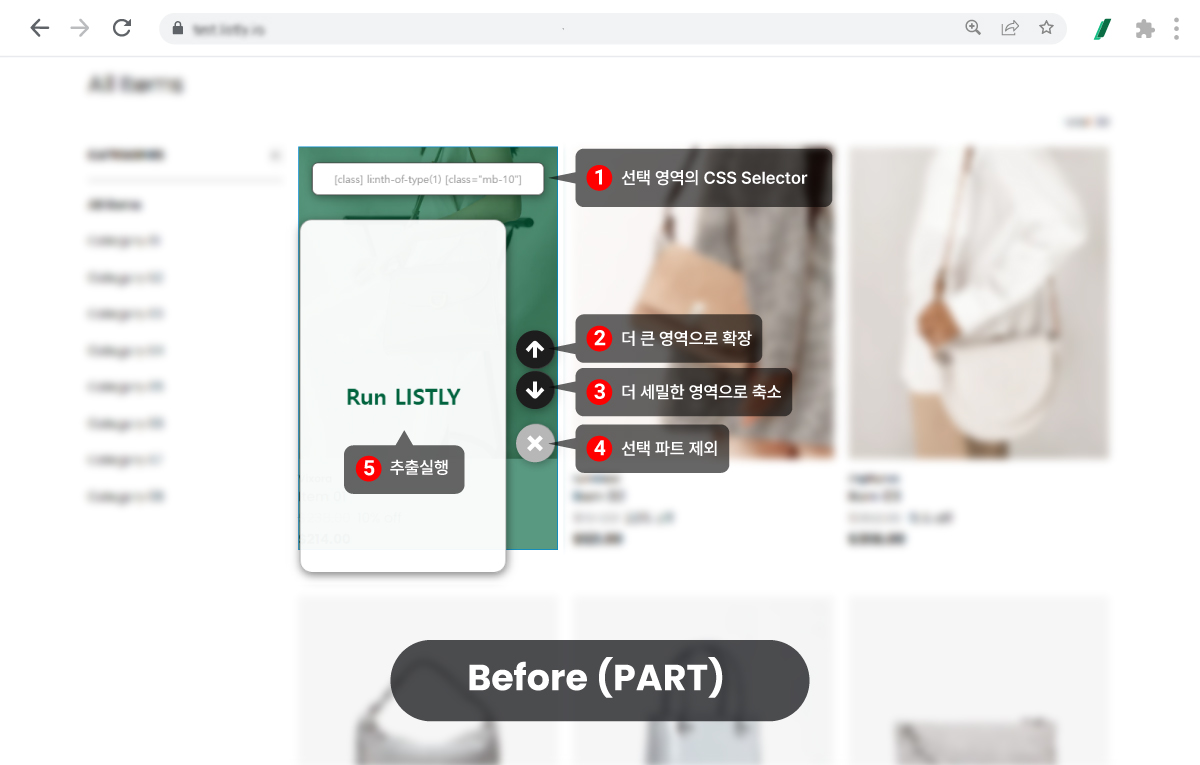
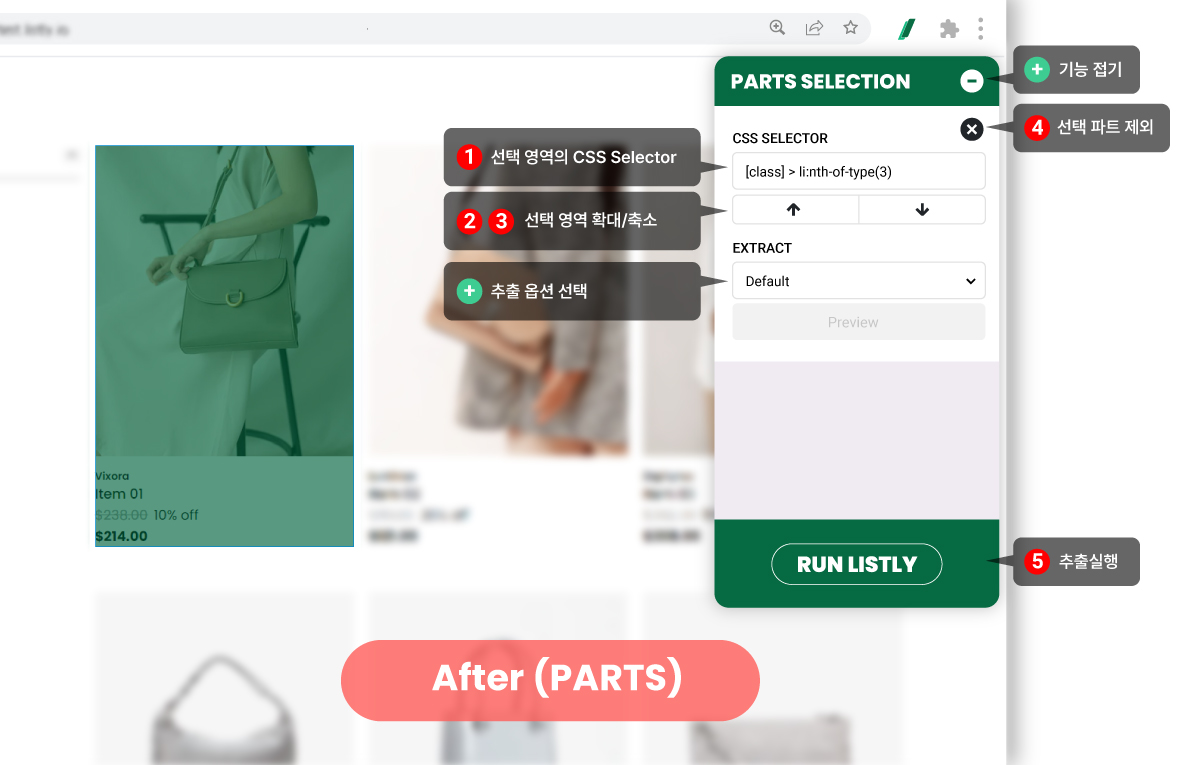
直接显示在单一选择区域上方的各功能按钮位置(Before)如下移动到侧边面板(After)。请参考图片确认现有 UI 变更后各功能按钮的位置。
{% hint style="success" %}
**如果想用与现有部分选择相同的流程提取数据**,参考变更的按钮位置只选择单一区域后,点击 Run Listly 按钮进行提取即可。
{% endhint %}
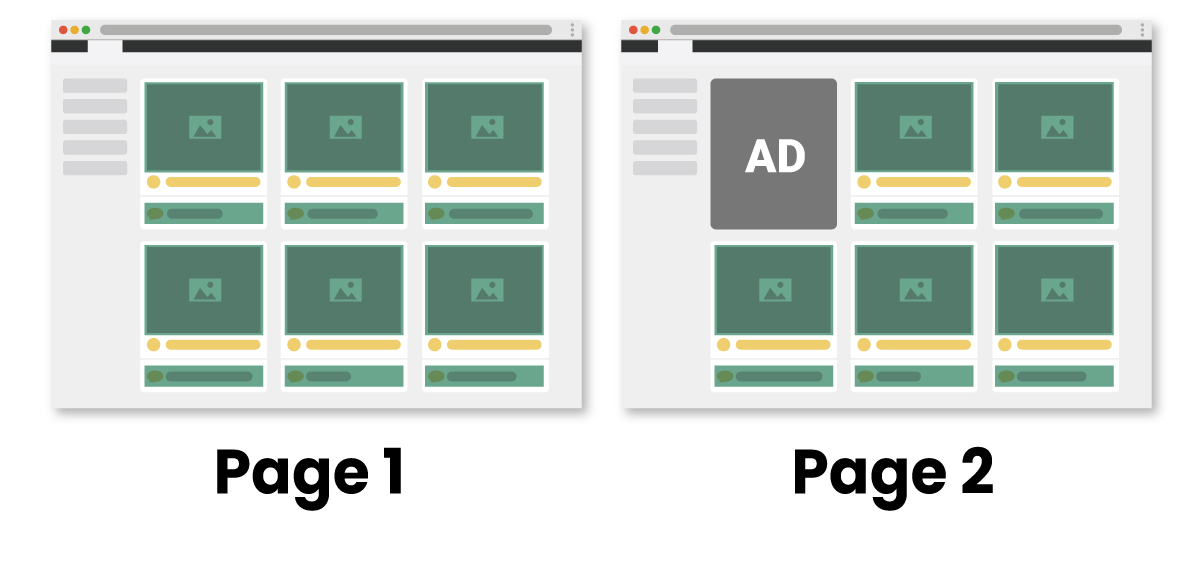
要提取的信息数量因页面而异。这样也能进行群组提取吗?
**可以。** 例如假设如上图第 1 页第一格区域在第 2 页被广告等其他元素取代的情况。(想提取的信息以绿色框区域显示)\
\
**Listly 的 Parts 会自动检测相同结构的数据位置。**\
\
在第 1 页用「**同时选择重复区域(重复元素自动选择)**」方式指定想要的区域进行数据提取,并以该页面为基础进行群组提取时,即使选择区域的数量在其他网页显示不同,也能成功提取数据。
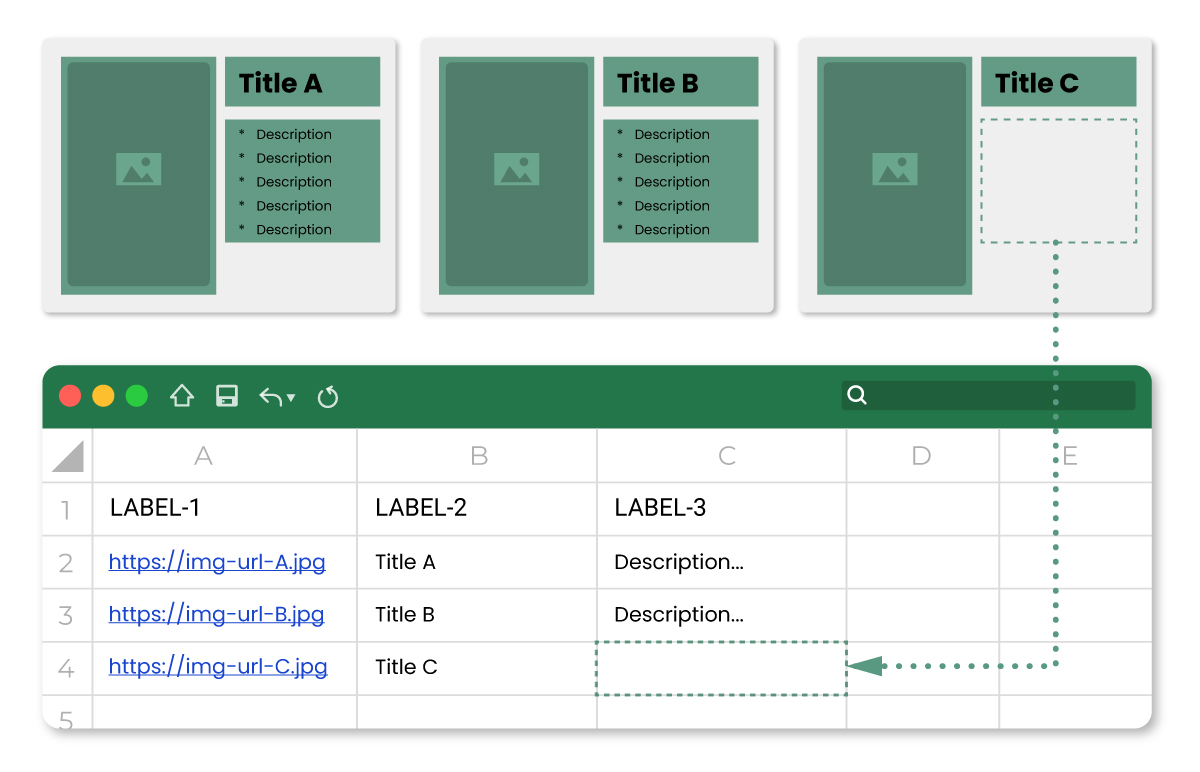
用「单独选择想要区域」方式提取特定页面后,想进行群组提取。但「单独选择」的元素在某些页面不存在。这种情况会怎样?
**如上图**,**没有的信息会以空格提取。**
假设在 A 页面用 Parts 各别选择图片、标题、说明文本区域提取后,与相同结构的页面进行群组提取。
此时 C 页面的 A 页面选择的说明文本区域是空的。
这种情况如上图,该格的数据会以空白状态提取。
{% hint style="danger" %} **但是,如同现有的群组提取,尝试一起提取与群组提取来源页面完全不同结构的网页,或与 A 页面没有任何匹配区域时,会处理为收集失败。**
{% endhint %}
选择重复区域时也一起选择了不必要的区域。该如何解决?
计划新增可以更准确精细选择数据区域,用点击移除不必要区域的功能。目前可以用直接**修改该区域的 CSS Selector 值**的方法解决。
---
# Agent Instructions
This documentation is published with GitBook. GitBook is the documentation platform designed so that both humans and AI agents can read, navigate, and reason over technical content effectively. Learn more at gitbook.com.
## Querying This Documentation
If you need additional information that is not directly available in this page, you can query the documentation by asking a question.
Perform an HTTP GET request on the following URL with the `ask` and `goal` query parameters:
```
GET https://help.listly.io/docs/zh-hans/getting-started/extension-features/parts.md?ask=&goal=
```
`ask` is the immediate question: it should be specific, self-contained, and written in natural language.
`goal` is what the user is ultimately trying to achieve, the reason they need the answer. Sharing it helps GitBook give you a better, more relevant answer. A goal is most helpful when it describes the outcome the user wants rather than restating the question. For example, with `ask=how do I create an API token`, a goal like `automate deployments from our CI pipeline` lets GitBook tailor the answer to that use case.
The response will contain a direct answer to the question and relevant excerpts and sources from the documentation.
Use this mechanism when the answer is not explicitly present in the current page, you need clarification or additional context, or you want to retrieve related documentation sections.