
# API（数据）

## 什么是 API？

API 是 Application Programming Interface 的缩写，是一组规则或协议，允许不同的软件程序交换数据并相互交互。

在 Listly 中，**当您想将提取的数据存储到自己的数据库或与 Google Sheets 集成时**，可以使用此功能。

{% hint style="success" %}
**提示** 如何与 Google Sheets 集成

参考：[在 Google Sheets 中导入采集的数据（API 集成）](https://help.listly.io/docs/ko/getting-started/result-page-features/broken-reference)
{% endhint %}

{% hint style="info" %}
**快速入门**

➡️ 选择所需的数据提取结果 ➡️ 点击 API 按钮 ➡️（首次使用）生成令牌 ➡️ 获取 API 令牌和 API URL
{% endhint %}

***

## 如何查看 API URL

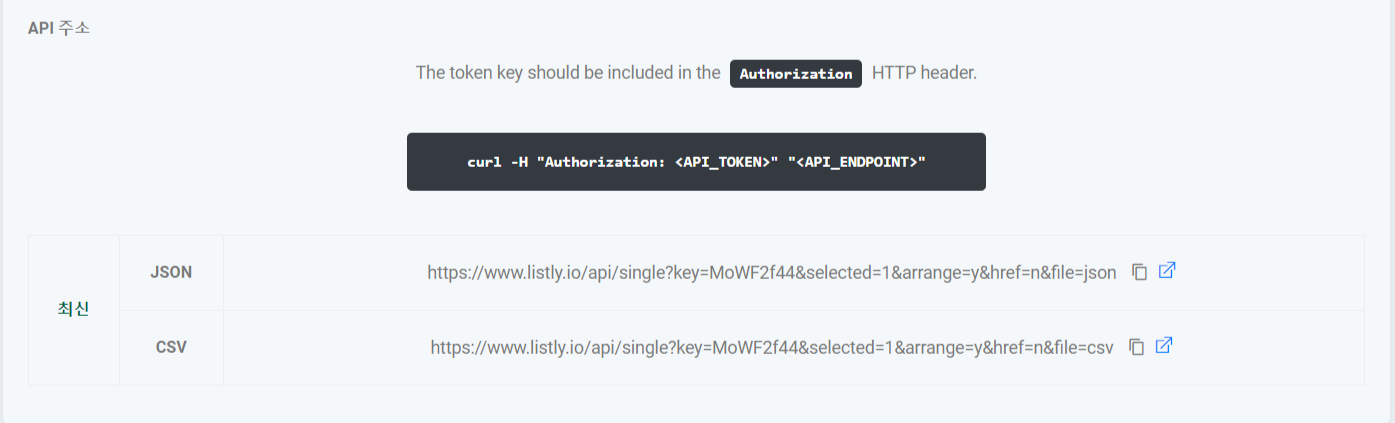
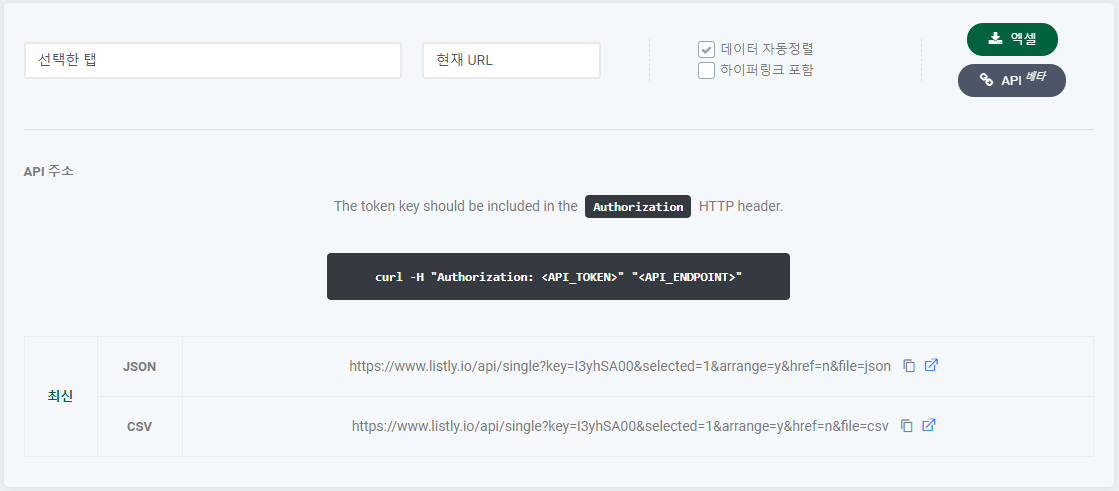
LISTLY API 可以被视为将提取的数据传送到您想要位置的数据管道。如下所示，每个数据结果页面都有一个 API 按钮，点击它会显示指向该结果的 API URL。访问该 URL 会显示与 Excel 中相同的数据。**使用此功能，您可以与 Google Sheets 集成，或编写额外代码将数据放入您自己的数据库。**

<figure><img src="/files/fe2e6e6095679fa82f0576b94c1806e67e791fe7" alt=""><figcaption></figcaption></figure>

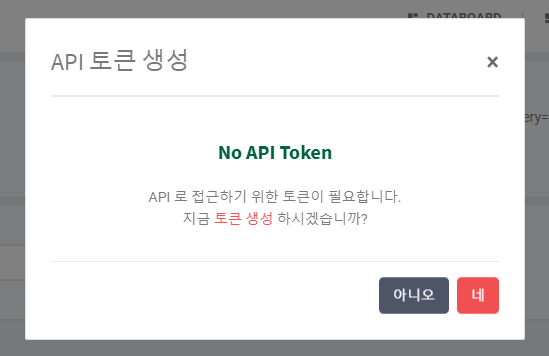
首次使用 API 按钮的用户会看到如下所示的令牌生成界面。一键生成令牌，返回结果页面，再次点击 API 按钮。

如果您已经配置过，可以在账户设置中查看您的 API 令牌。

<figure><img src="/files/fbf23bfebc127540f5fa5cd0d2301b6c4d9077a1" alt=""><figcaption></figcaption></figure>

<figure><img src="/files/1231312edfa4f012132a75cd3ff66acb339f970c" alt=""><figcaption></figcaption></figure>

***

## API URL 类型

主要有 2 种 API URL 类型：

* Latest API：仅显示最新成功提取的数据。
* Log API：显示历次提取的所有数据。

您可以在单次提取和批量提取结果页面上同时使用 Latest 和 Log API。使用下方步骤查看如何检查每种类型。

{% stepper %}
{% step %}

### Single Latest 数据

* 单次提取最新数据：在结果中选择 latest 然后查看 API
  {% endstep %}

{% step %}

### Single Log 数据

* 单次提取日志数据：在结果中选择 log 然后查看 API
  {% endstep %}

{% step %}

### Group Latest 数据

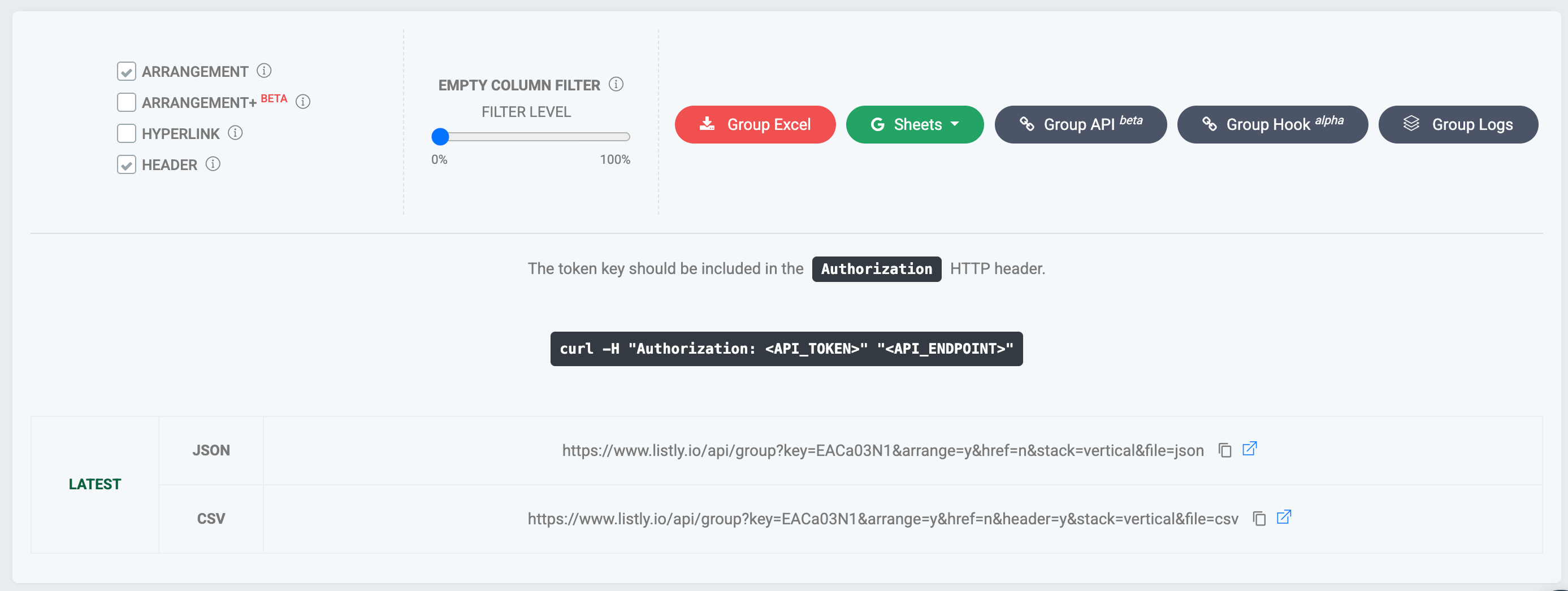
* 批量提取最新数据：在 Group API 中查看

<figure><img src="/files/7432f95d268edbaca55104f2546b9f673c93e024" alt=""><figcaption></figcaption></figure>
{% endstep %}

{% step %}

### Group Log 数据

* 批量提取日志数据：在日志列表中查看 → 选择所需的日志数据 → 在 Group API 中查看

<figure><img src="/files/1162fa1b5d52f8268b36fa9f57b87e9ffb834602" alt=""><figcaption></figcaption></figure>

<figure><img src="/files/7432f95d268edbaca55104f2546b9f673c93e024" alt=""><figcaption></figcaption></figure>
{% endstep %}
{% endstepper %}

<details>

<summary><strong>Latest API 响应消息是 {"message": "</strong><mark style="color:red;"><code>Warning! Do not use this API endpoint</code></mark>..."<strong>}</strong></summary>

<figure><img src="/files/42e3a9e25311b7a29314a64807982ee6f3fe3c68" alt=""><figcaption></figcaption></figure>

当网页设计发生更改时会出现此消息。数据提取仍然正常工作，但这是网页已更改的警告。使用调度器功能进行自动采集时可能会出现此情况。

原则上，我们建议从 LISTLY 扩展程序重新提取。由于网页设计已更改，创建新的参考点从长远来看更好。提取新数据以创建新的起点，重新应用调度器设置，之后您就可以再次稳定使用 Latest API。

如果您想忽略警告并按原样使用现有数据，请使用上述消息中"api\_endpoint"区域显示的地址。此时会显示最新提取的数据，"api\_endpoint"中显示的地址是现有 API 地址加上忽略警告的选项（\&ignore\_warning=y）。

</details>

### API 端点介绍

所有 API URL 都可以在数据提取结果页面上查看，如图所示。

<figure><img src="/files/890b15ef4d300bee02bd1b2c5d7df108dc030701" alt=""><figcaption></figcaption></figure>

<table><thead><tr><th width="140.62">类型</th><th width="521.94">URI</th><th>方法</th></tr></thead><tbody><tr><td>Single (Latest)</td><td>www.listly.io/api/single?key=&#x3C;<mark style="color:red;">singlekey</mark>></td><td>GET</td></tr><tr><td></td><td>显示最新数据。用于接收调度器自动提取的最新数据。</td><td></td></tr><tr><td>Single (Log)</td><td>www.listly.io/api/single/data?key=&#x3C;<mark style="color:red;">datakey</mark>></td><td>GET</td></tr><tr><td></td><td>显示所有日志数据。用于一次性导入和查看所有累积数据。</td><td></td></tr><tr><td>Group (Latest)</td><td>www.listly.io/api/group?key=&#x3C;<mark style="color:red;">groupkey</mark>></td><td>GET</td></tr><tr><td></td><td>显示最新批量数据。</td><td></td></tr><tr><td>Group (Log)</td><td>www.listly.io/api/group/data?key=&#x3C;<mark style="color:red;">datakey</mark>></td><td>GET</td></tr><tr><td></td><td>显示包含所选数据的批次组中的所有数据。每次累积新的批量数据时，批次号增加 1。</td><td></td></tr></tbody></table>

### API 参数介绍

**Single (Latest) 数据 API**

{% hint style="success" %}
[www.listly.io/api/single?key=](http://www.listly.io/api/single?key=)<mark style="color:red;">\<singlekey></mark>&<mark style="color:red;">**selected**</mark>=1&<mark style="color:red;">**arrange**</mark>=y&<mark style="color:red;">**href**</mark>=n&<mark style="color:red;">**file**</mark>=csv
{% endhint %}

**Single (Log) 数据 API**

{% hint style="success" %}
[www.listly.io/api/single?key=](http://www.listly.io/api/single?key=)<mark style="color:red;">\<datakey></mark>&<mark style="color:red;">**selected**</mark>=1&<mark style="color:red;">**arrange**</mark>=y&<mark style="color:red;">**href**</mark>=n&<mark style="color:red;">**stack**</mark>=vertical&<mark style="color:red;">**file**</mark>=csv
{% endhint %}

<mark style="color:red;">\<datakey></mark> 指向用户复制 API URL 时打开的数据结果。根据该数据中选择的标签页，从 Latest 或 Log 数据中获取相同的数据。

<table><thead><tr><th width="104.98">名称</th><th width="100.77">类型</th><th width="155.33">值</th><th width="91.77">默认值</th><th>描述</th></tr></thead><tbody><tr><td>selected</td><td>int</td><td>1, 2, 3...</td><td>1</td><td>所选标签页的位置。 1 表示第 1 个，2 表示第 2 个。</td></tr><tr><td>arrange</td><td>string</td><td>y, n</td><td>y</td><td>数据自动排序选项。 y 自动排序。 n 不自动排序，按从左侧开始出现的顺序输出。</td></tr><tr><td>href</td><td>string</td><td>y, n</td><td>n</td><td>超链接包含选项。 y 包含超链接。 n 不包含超链接。</td></tr><tr><td>stack</td><td>string</td><td>vertical, horizontal</td><td>vertical</td><td>数据堆叠方式。 vertical 从上到下垂直堆叠。 horizontal 从左到右水平堆叠。</td></tr><tr><td>file</td><td>string</td><td>csv, json</td><td>json</td><td>数据输出格式。</td></tr><tr><td>from</td><td>datetime</td><td>2020-11-01T00:00</td><td></td><td>可以按日期时间限制数据范围。 from 是起始点。 表示为 <mark style="color:red;background-color:$info;">%Y-%m-%dT%H:%M</mark>。</td></tr><tr><td>to</td><td>datetime</td><td>2020-11-11T23:59</td><td></td><td>可以按日期时间限制数据范围。 to 是结束点。 表示为 <mark style="color:red;background-color:$info;">%Y-%m-%dT%H:%M</mark>。</td></tr></tbody></table>

{% hint style="success" %}
**提示** 如果上述说明不够清楚，请尝试直接在实际 API URL 中更改选项值。您可以立即看到它是如何变化的。
{% endhint %}

***

## 代码示例

**Python 代码模板**

{% code title="download\_template.py" %}

```python
import requests
import csv

API_URL = "API URL"    # 输入采集数据的 'API URL'
API_TOKEN = "API Token"     # 输入您账户发放的 'API Token'
headers = { "Authorization": API_TOKEN }

# 加载采集的数据
response = requests.get(url=API_URL, headers=headers)
content = response.content

# 保存为 CSV 文件
"""
如果 API URL 加载的文件格式是 JSON 而不是 CSV，
您需要使用不同的代码来处理
"""
with open('./result.csv', 'wb') as f:
    f.write(content)
```

{% endcode %}

**Python 代码实际示例**

{% code title="download\_example.py" %}

```python
import requests
import csv

API_URL = "https://www.listly.io/api/single?key=CmKQ625S&selected=1&arrange=y&href=n&file=csv"
API_TOKEN = "BC1Sx370Yows25RxaBMuRxTuMKw3Aq0Ks"
headers = { "Authorization": API_TOKEN }

response = requests.get(url=API_URL, headers=headers)
content = response.content

with open('./result.csv', 'wb') as f:
    f.write(content)
```

{% endcode %}


---

# Agent Instructions: Querying This Documentation

If you need additional information that is not directly available in this page, you can query the documentation dynamically by asking a question.

Perform an HTTP GET request on the current page URL with the `ask` query parameter:

```
GET https://help.listly.io/docs/zh-hans/getting-started/result-page-features/api-data.md?ask=<question>
```

The question should be specific, self-contained, and written in natural language.
The response will contain a direct answer to the question and relevant excerpts and sources from the documentation.

Use this mechanism when the answer is not explicitly present in the current page, you need clarification or additional context, or you want to retrieve related documentation sections.