> For the complete documentation index, see [llms.txt](https://help.listly.io/llms.txt). Markdown versions of documentation pages are available by appending `.md` to page URLs; this page is available as [Markdown](https://help.listly.io/docs/zh-hans/~/revisions/JXzrUqGRv2SpX1M1KEqJ/getting-started/extension-features/tabs-parts.md).

# 标签页提取(Extract Tabs)

## 什么是标签页提取（Extract Tabs）？

**标签页提取（Extract Tabs）** 是可以一次提取浏览器中所有已打开标签页里相符部分的功能。同时提取多个页面时被封锁的风险较低，操作流程也更简单。

{% hint style="warning" %}
**使用标签页提取（Extract Tabs）时的注意事项**

根据您的电脑与浏览器环境，一次打开过多标签页可能会让网页将其判读为异常信号，导致页面加载非常缓慢或无法正常打开。提取数据时，建议将每次的标签页数量控制在 30 个左右。
{% endhint %}

{% hint style="info" %}
**快速上手**

➡️ 在浏览器打开多个标签页 ➡️ 点击 Listly 图标 ➡️ 选择标签页提取（Extract Tabs） ➡️ 选择提取区域 ➡️ 点击提取按钮 ➡️ 在结果中选择数据标签页并确认预览 ➡️ 下载您的文件
{% endhint %}

## 使用方法

{% stepper %}
{% step %}

### 在浏览器打开多个标签页

将想提取的每个页面各自打开在浏览器的独立标签页中。

<figure><img src="https://5118966-files.gitbook.io/~/files/v0/b/gitbook-x-prod.appspot.com/o/spaces%2FLlkvcuviCyyU871Augk5%2Fuploads%2FPRo4wNPVcPutCzXrUJTd%2F7.%20%E1%84%90%E1%85%A2%E1%86%B8%E1%84%89%E1%85%B3%E1%84%8E%E1%85%AE%E1%84%8E%E1%85%AE%E1%86%AF-%E1%84%87%E1%85%B3%E1%84%85%E1%85%A1%E1%84%8B%E1%85%AE%E1%84%8C%E1%85%A5%E1%84%8B%E1%85%A1%E1%86%AB%E1%84%8B%E1%85%A6%20%E1%84%8B%E1%85%A7%E1%84%85%E1%85%A5%E1%84%90%E1%85%A2%E1%86%B8%20%E1%84%8B%E1%85%A7%E1%86%AF%E1%84%8B%E1%85%A5%E1%84%83%E1%85%AE%E1%86%AB%20%E1%84%89%E1%85%A1%E1%86%BC%E1%84%90%E1%85%A2.gif?alt=media&amp;token=af8236c6-b3f3-4de5-a7dd-2176e73aaf99" alt=""><figcaption></figcaption></figure>
{% endstep %}

{% step %}

### 点击 Listly 图标

在任一已打开的标签页上，点击 **Listly 扩展程序图标** → **标签页提取（Extract Tabs）** 按钮。

*<mark style="color:$info;">标签页提取（Extract Tabs）按钮旁的小数字，表示当前打开的浏览器标签页中，与当前页面同域名的标签页数量。您可以通过这个数字确认标签页提取（Extract Tabs）是否已准备就绪。</mark>*

<figure><img src="https://5118966-files.gitbook.io/~/files/v0/b/gitbook-x-prod.appspot.com/o/spaces%2FLlkvcuviCyyU871Augk5%2Fuploads%2F1PdB84t4J1ZXhsf1vCUq%2Fimage.png?alt=media&amp;token=f6df07b3-64e1-4a64-83d3-ecaafa208b3d" alt=""><figcaption></figcaption></figure>
{% endstep %}

{% step %}

### 选择提取区域

选择想提取数据的区域，接着点击 **提取** 按钮。

{% hint style="info" %}
提取区域的选择方式与[部分提取（Extract Part）](https://help.listly.io/docs/zh-hans/~/revisions/fD6YBuWsxL8UVkxOB5R8/getting-started/extension-features/parts)相同。
{% endhint %}

<figure><img src="https://5118966-files.gitbook.io/~/files/v0/b/gitbook-x-prod.appspot.com/o/spaces%2FLlkvcuviCyyU871Augk5%2Fuploads%2FVMTGs3WnawGLYnyekApQ%2Fimage.png?alt=media&amp;token=756f3842-7918-4046-b07d-e86b9641a463" alt=""><figcaption></figcaption></figure>

提取开始后，您可以在进度条中跟踪进度。

<figure><img src="https://5118966-files.gitbook.io/~/files/v0/b/gitbook-x-prod.appspot.com/o/spaces%2FLlkvcuviCyyU871Augk5%2Fuploads%2FseOHOncEMTfTz4y8EbjM%2Fimage.png?alt=media&amp;token=4a994727-1cf3-439e-b3ad-53f972fb8626" alt=""><figcaption></figcaption></figure>

提取完成后，点击 **\[查看结果]** 按钮。

<figure><img src="https://5118966-files.gitbook.io/~/files/v0/b/gitbook-x-prod.appspot.com/o/spaces%2FLlkvcuviCyyU871Augk5%2Fuploads%2FppRS91HNPWETUGWLYjka%2Fimage.png?alt=media&amp;token=15a0919e-e6a4-4942-988c-030a0005c1d1" alt=""><figcaption></figcaption></figure>
{% endstep %}

{% step %}

### 选择要提取的数据

在结果窗口中，确认想提取的信息是否正确选择。

<figure><img src="https://5118966-files.gitbook.io/~/files/v0/b/gitbook-x-prod.appspot.com/o/spaces%2FLlkvcuviCyyU871Augk5%2Fuploads%2FhMO8pJRIqCLGKJwmUWaG%2Fimage.png?alt=media&amp;token=7a38beb6-3c5e-43ee-aa75-cdaa79487ba6" alt=""><figcaption></figcaption></figure>

❶ 请确认 **\[整个文件夹（Whole folder）]** 按钮已选择，以便将所有标签页的信息下载为单一文件。

❷ 在 **Data Layout** 选项中，选择您想要的数据排列方式。试着切换各选项，并在预览窗口中确认结果。

<figure><img src="https://5118966-files.gitbook.io/~/files/v0/b/gitbook-x-prod.appspot.com/o/spaces%2FLlkvcuviCyyU871Augk5%2Fuploads%2FGvC2XtOhEgp6xMohNtC0%2Fimage.png?alt=media&amp;token=dde51c85-a884-43a8-9c85-1aa8c7c09ef0" alt=""><figcaption></figcaption></figure>
{% endstep %}

{% step %}

### 下载提取的数据

将提取的数据下载为 Excel 或 Google Sheets 文件并打开后，您会看到所有标签页的信息都清晰地整理在单一文件中。

<figure><img src="https://5118966-files.gitbook.io/~/files/v0/b/gitbook-x-prod.appspot.com/o/spaces%2FLlkvcuviCyyU871Augk5%2Fuploads%2FhktHp2AQdd23sOPjNrw0%2Fimage.png?alt=media&amp;token=a91d2768-0735-4b05-b083-e905a4ea691d" alt=""><figcaption></figcaption></figure>
{% endstep %}
{% endstepper %}

## 教学视频

{% embed url="<https://www.youtube.com/watch?v=3L6joW_sXwI>" %}

***

## Tabs 提取相关常见问题

<details>

<summary>要进行 Tabs 提取，但网站没有出现新标签页。被封锁了吗？</summary>

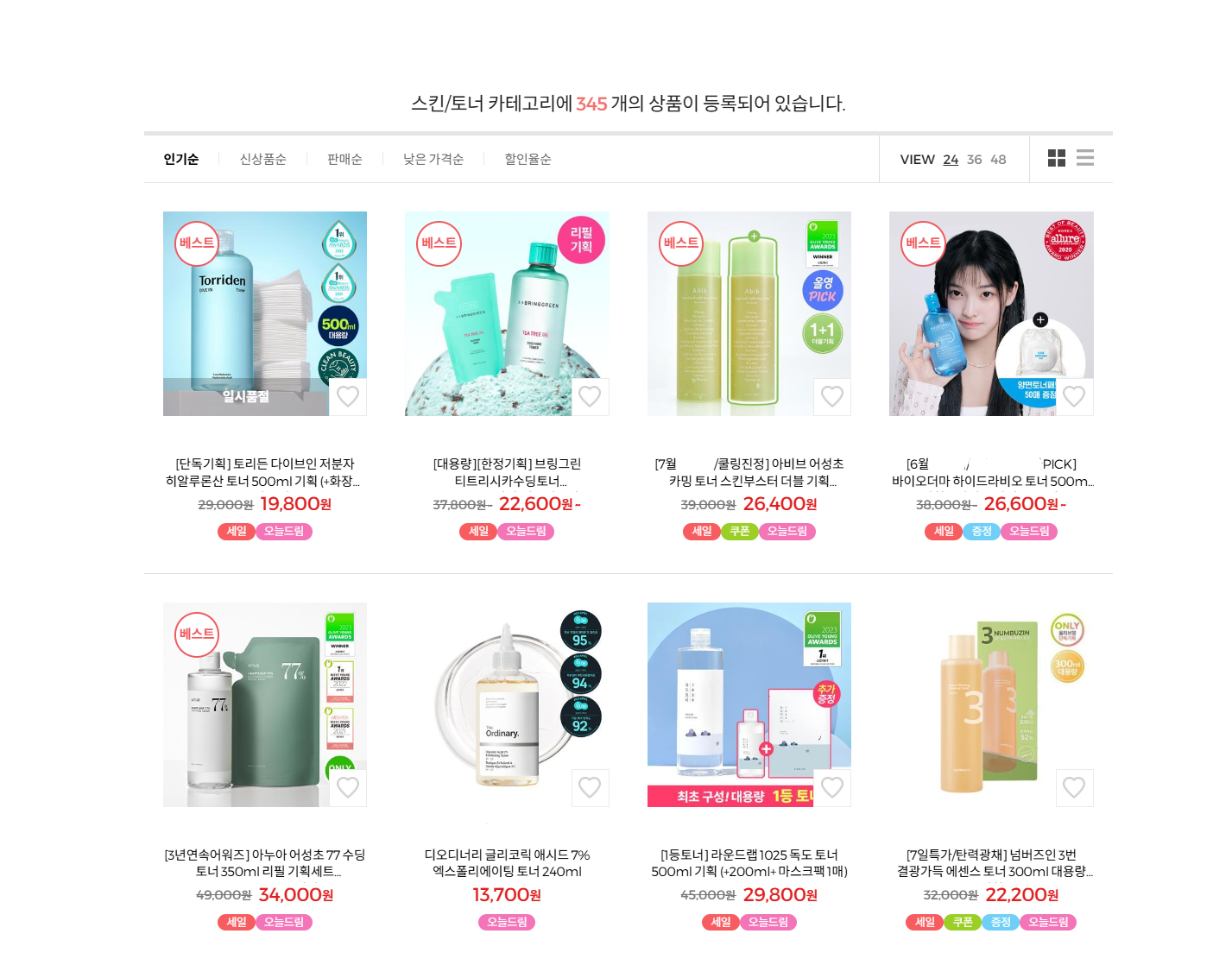
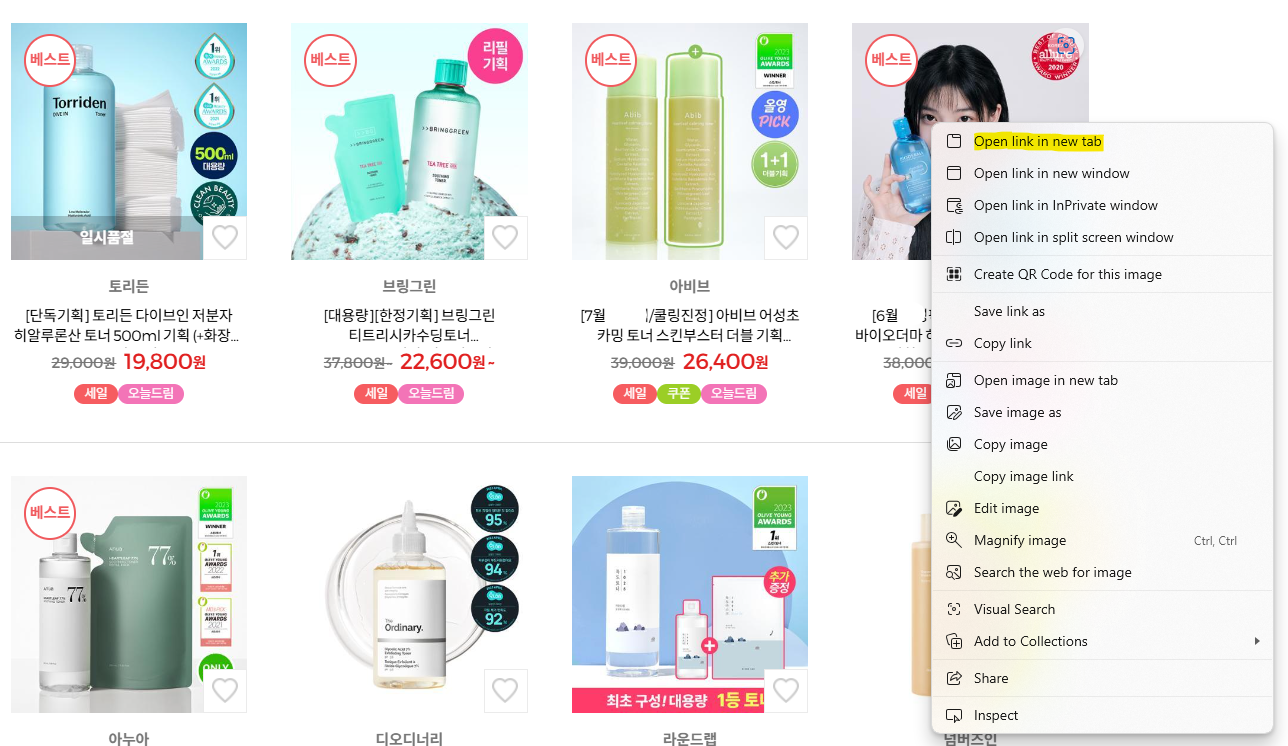
首先**要进行 Tabs 提取，必须先在浏览器开启新标签页**。基本上可以在列表页面用鼠标右键逐一开启想提取的单独详细页面，但很麻烦，

<figure><img src="https://content.gitbook.com/content/LlkvcuviCyyU871Augk5/blobs/TOgmKJaWnSIJwRXNwfYG/tabs%20error%201.png" alt=""><figcaption></figcaption></figure>

<figure><img src="https://content.gitbook.com/content/LlkvcuviCyyU871Augk5/blobs/AhCy6kioVEVaSDqnkhq5/tabs%20error%202.png" alt=""><figcaption></figcaption></figure>

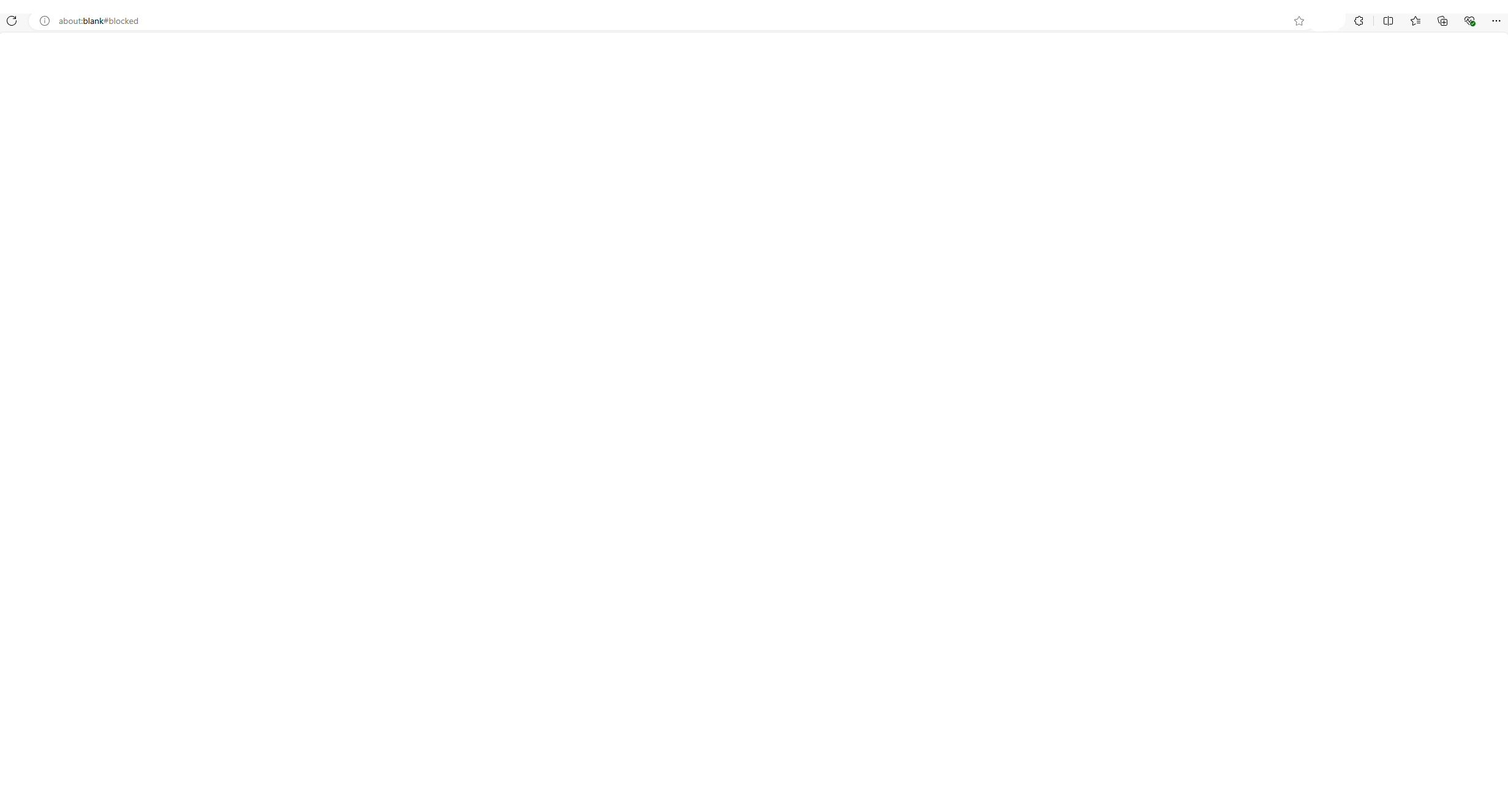
如下图也可能出现 BLANK#BLOCKED 等错误消息。

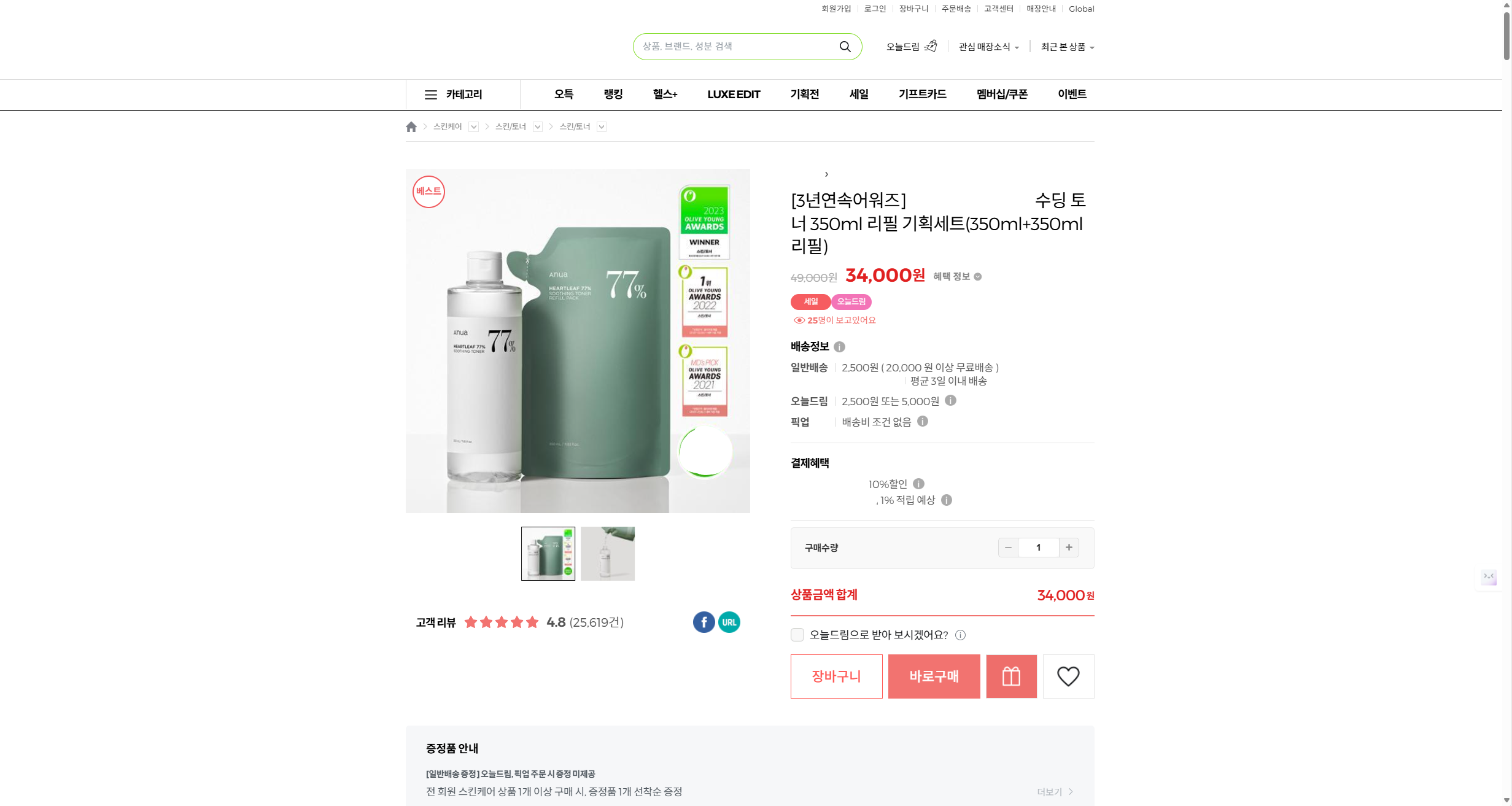
<div><figure><img src="https://content.gitbook.com/content/LlkvcuviCyyU871Augk5/blobs/3sPJr9G0NO9Xmqp17d9q/tabs%20error%203.png" alt=""><figcaption><p>新标签页<strong>正常开启的详细页面</strong>示例</p></figcaption></figure> <figure><img src="https://content.gitbook.com/content/LlkvcuviCyyU871Augk5/blobs/bJn1j4vKEPtF7F6TszOe/tabs%20error%204.png" alt=""><figcaption><p>新标签页<strong>未正常开启的详细页面</strong>示例</p></figcaption></figure></div>

主要用鼠标右键在新标签页开启详细页面时，如果没有正确点击包含详细页面链接的区域，可能发生上述错误。

使用 Listly 的 [\[开启多个标签页（Open Tabs）\]](https://help.listly.io/docs/ko/getting-started/listly-basics/open-tabs) 功能或其他扩展程序使用一次开启 URL 的功能，可以防止这种情况。

</details>

<details>

<summary>Listly 数据提取单位：基础 URL vs 高级 URL</summary>

URL 是 Listly 的数据提取单位。根据用途和扣除方式区分为「**基础 URL**」和「**高级 URL**」，差异如下。

#### 基础 URL（URLs for Basic features）

* 用途：用于通过扩展程序的基础标签进行单一页面提取。
* 扣除方式：每次提取页面扣除 1 个基础 URL。
* 使用条件：订阅 Light Plan 和 Business Plan 等上层方案时可无限使用。Free Plan 用户全部使用完 10 次后，30 天后 URL 会充值到 10 个。基础 URL 无法另外购买。

#### 高级 URL（URLs for Advanced features）

* 用途：使用 Tabs、群组提取、自动点击、自动滚动、定时任务设置、操作模板等 Listly 高级功能时使用。
* 扣除方式：通过高级功能处理一个页面分量的数据时扣除 1 个高级 URL。提取失败时不扣除。
* 使用条件：订阅方案首次付款后每月更新，用完的高级 URL 无法在价格页面额外购买。如要额外购买，必须先订阅上层方案。

</details>

<details>

<summary>想按标签页开启的顺序接收 Excel 文件时，该怎么做？</summary>

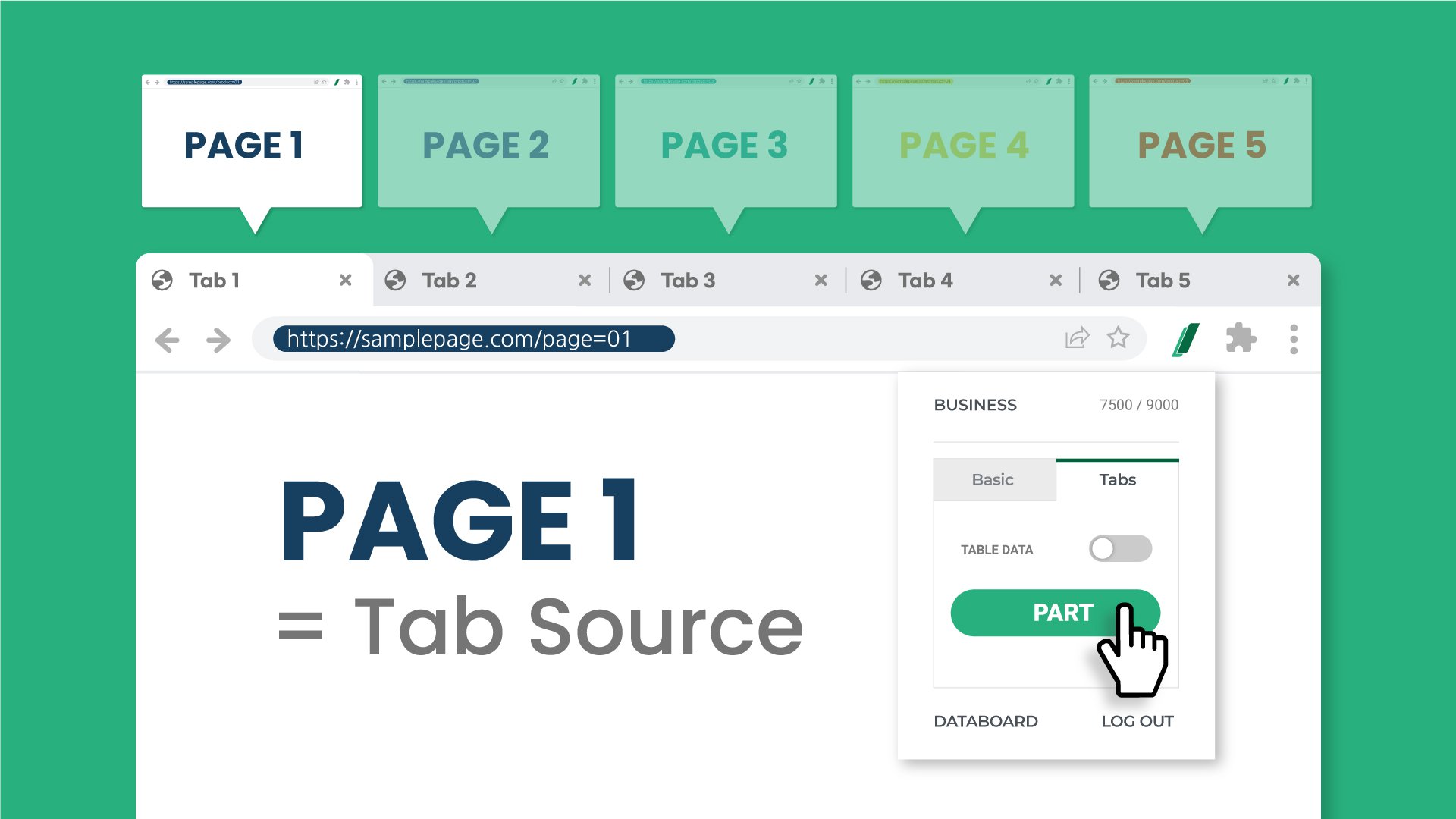
<figure><img src="https://content.gitbook.com/content/LlkvcuviCyyU871Augk5/blobs/VCGwFPDjeXLETcAIRWpm/tab%20source%201.jpg" alt=""><figcaption></figcaption></figure>

第一个方法是在开启的浏览器标签页中最前面的标签页点击**提取按钮**。\
这样第一个窗口会自动设定为「标签来源」，结果窗口也会以该「标签来源」为基准开启。

<figure><img src="https://content.gitbook.com/content/LlkvcuviCyyU871Augk5/blobs/EYF7PMyFqDeFUebs9Pgh/tab%20source%202.jpg" alt=""><figcaption></figcaption></figure>

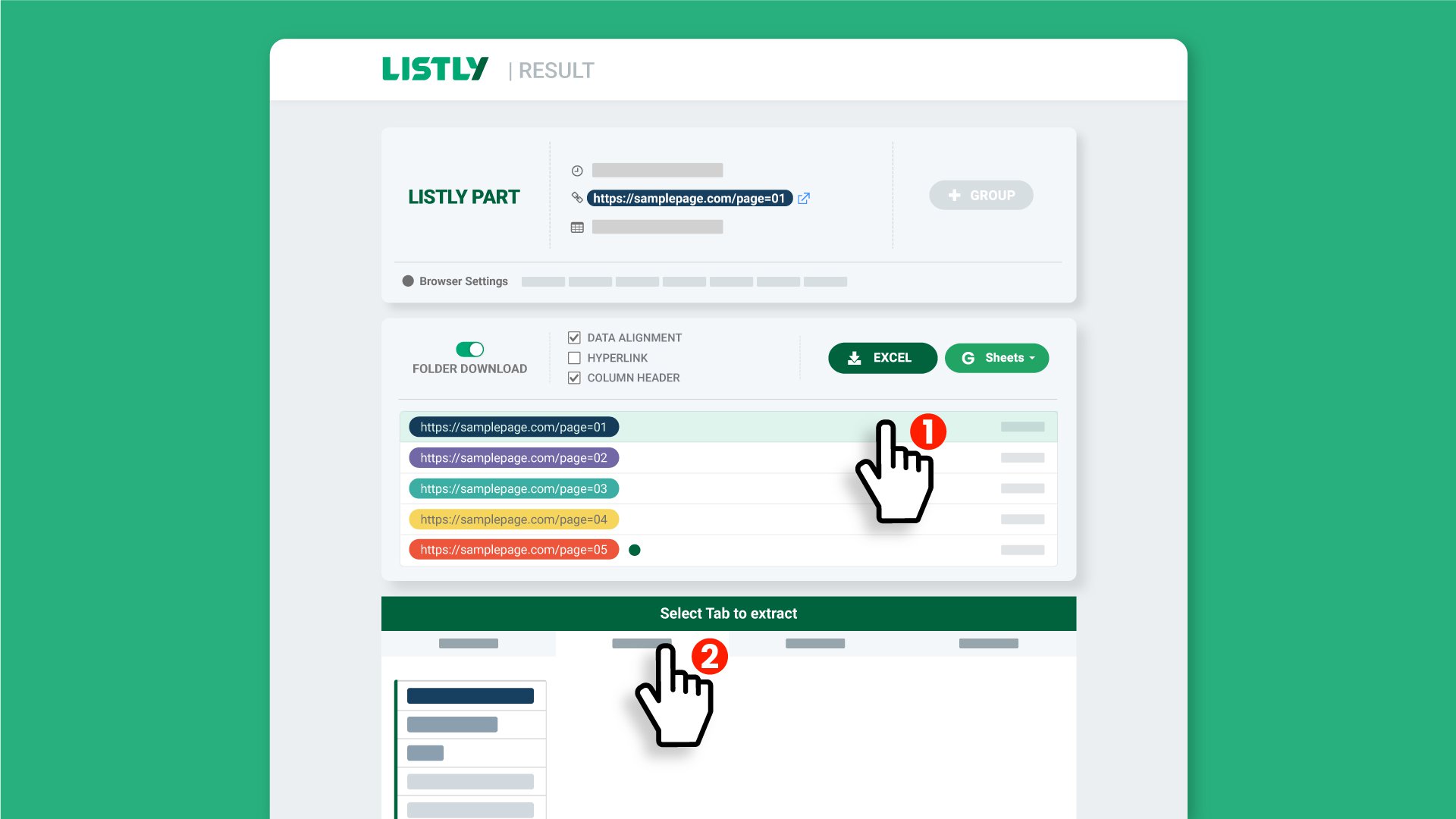
如果已在第一个浏览器标签页以外的其他标签页点击了提取按钮，**在结果窗口变更作为基准的任务**即可。\
① 点击文件夹列表中第一个 URL。\
② 在下方信息卡选择包含想提取数据的标签。

经过上述过程后，点击 **Excel** 或 **Google 表格**按钮下载结果。

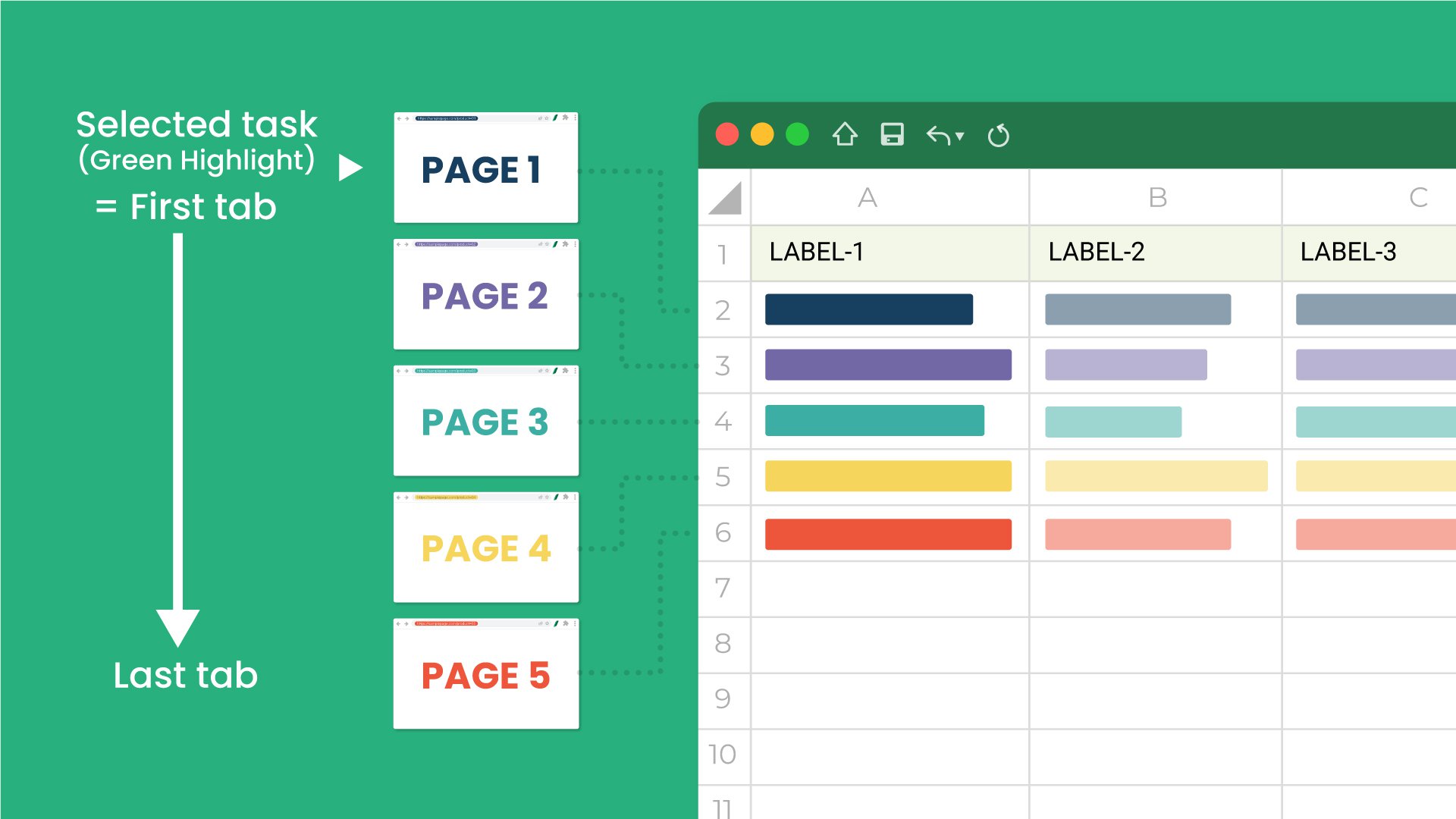
<figure><img src="https://content.gitbook.com/content/LlkvcuviCyyU871Augk5/blobs/zpeqoeC5djwM58kEqvni/tab%20source%203.jpg" alt=""><figcaption></figcaption></figure>

将第一个浏览器标签页设为「基准点」，就能如上提取按窗口开启顺序排列的数据。

</details>


---

# Agent Instructions
This documentation is published with GitBook. GitBook is the documentation platform designed so that both humans and AI agents can read, navigate, and reason over technical content effectively. Learn more at gitbook.com.

## Querying This Documentation
If you need additional information that is not directly available in this page, you can query the documentation dynamically by asking a question.

Perform an HTTP GET request on the current page URL with the `ask` query parameter, and the optional `goal` query parameter:

```
GET https://help.listly.io/docs/zh-hans/~/revisions/JXzrUqGRv2SpX1M1KEqJ/getting-started/extension-features/tabs-parts.md?ask=<question>&goal=<endgoal>
```

`ask` is the immediate question: it should be specific, self-contained, and written in natural language.
`goal` is optional and describes the broader end goal you are ultimately trying to accomplish on behalf of the user. GitBook uses it to tailor the answer towards what is most useful for that goal.

The response will contain a direct answer to the question and relevant excerpts and sources from the documentation.

Use this mechanism when the answer is not explicitly present in the current page, you need clarification or additional context, or you want to retrieve related documentation sections.