> For the complete documentation index, see [llms.txt](https://help.listly.io/llms.txt). Markdown versions of documentation pages are available by appending `.md` to page URLs; this page is available as [Markdown](https://help.listly.io/docs/zh-hant/getting-started/databoard-features/settings-auto-login-zh-hant.md).
# 設定 - 自動登入(測試版)
## 自動登入功能是什麼?
Listly 正在實驗的測試版功能,基於最新加密技術自動儲存登入資訊。設定後會自動儲存想要的網站登入資訊,讓您能夠在無需額外登入程序的情況下,輕鬆提取需要登入的資料。
***
## 使用方法
{% stepper %}
{% step %}
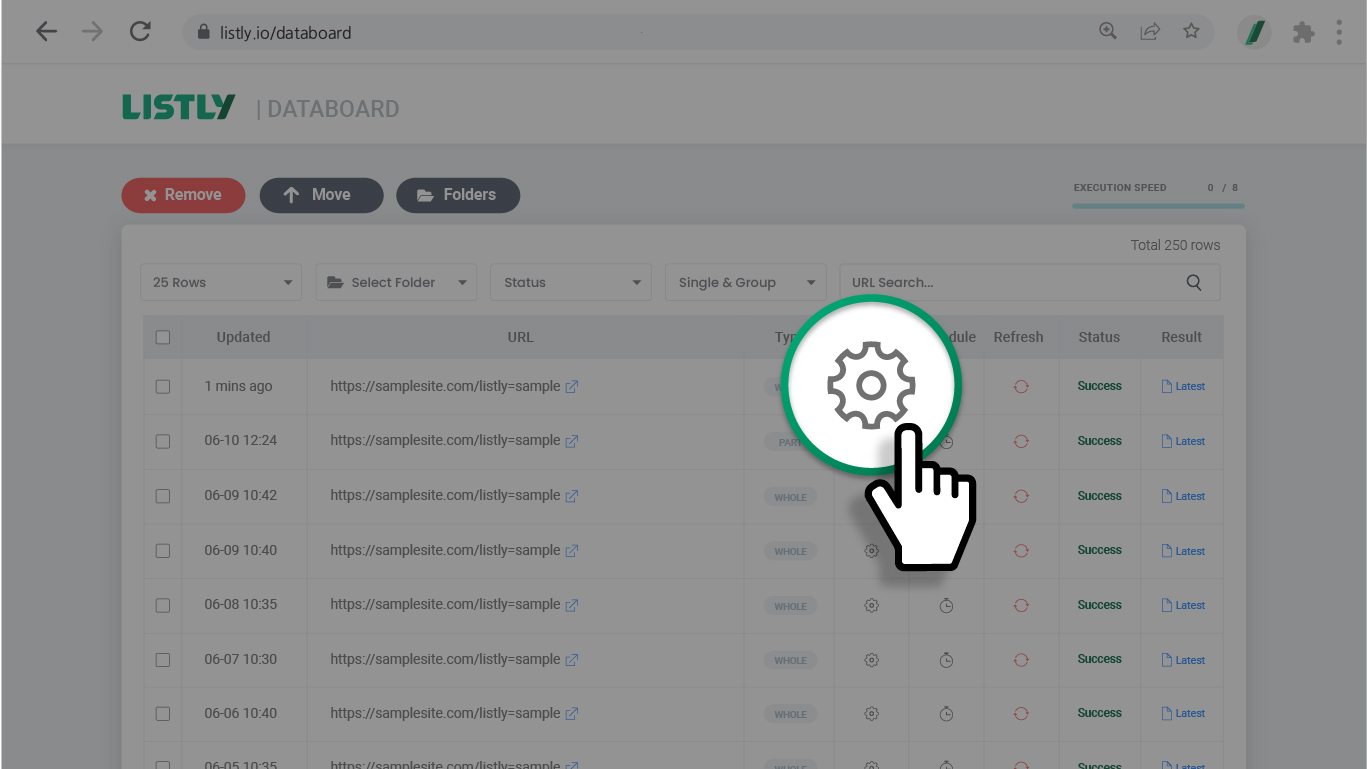
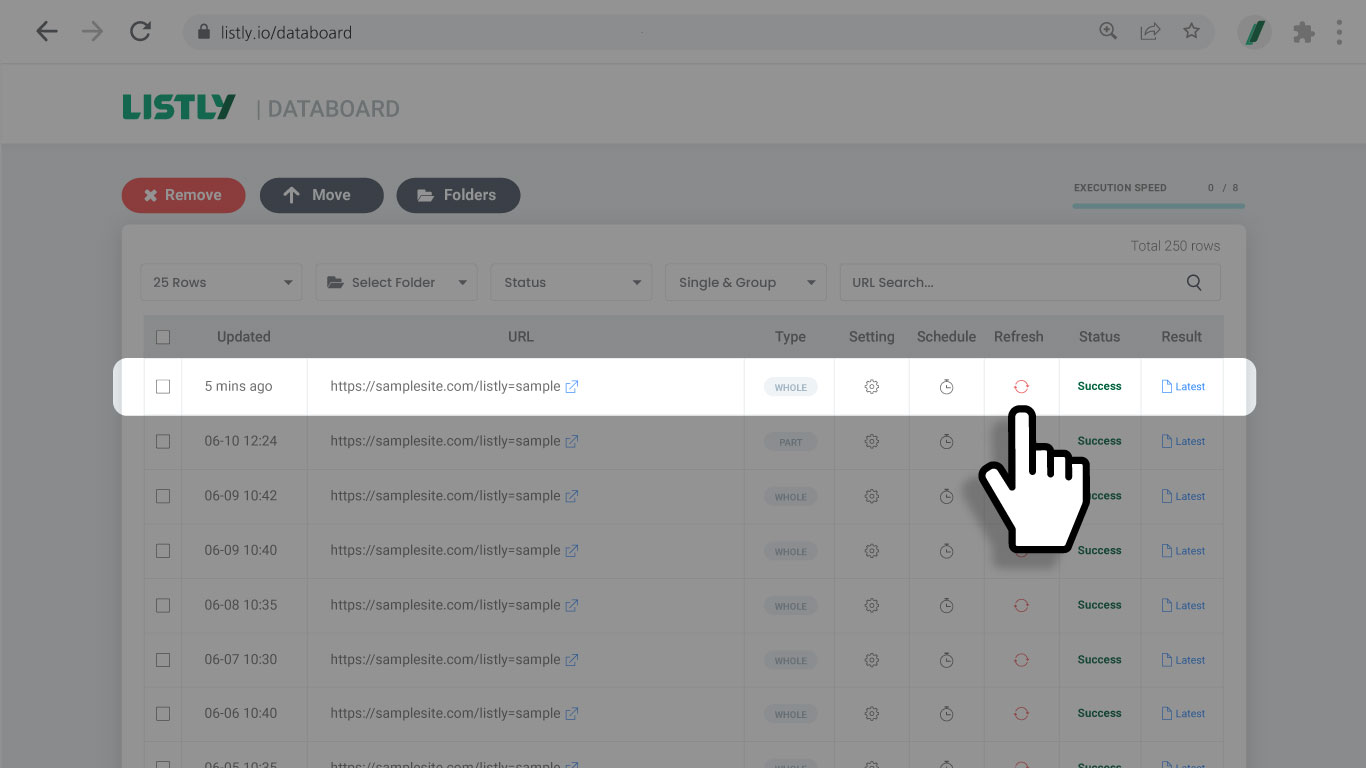
#### 在資料面板**點擊設定圖示**
在資料面板中點擊要設定登入的任務的齒輪圖示,前往設定頁面。
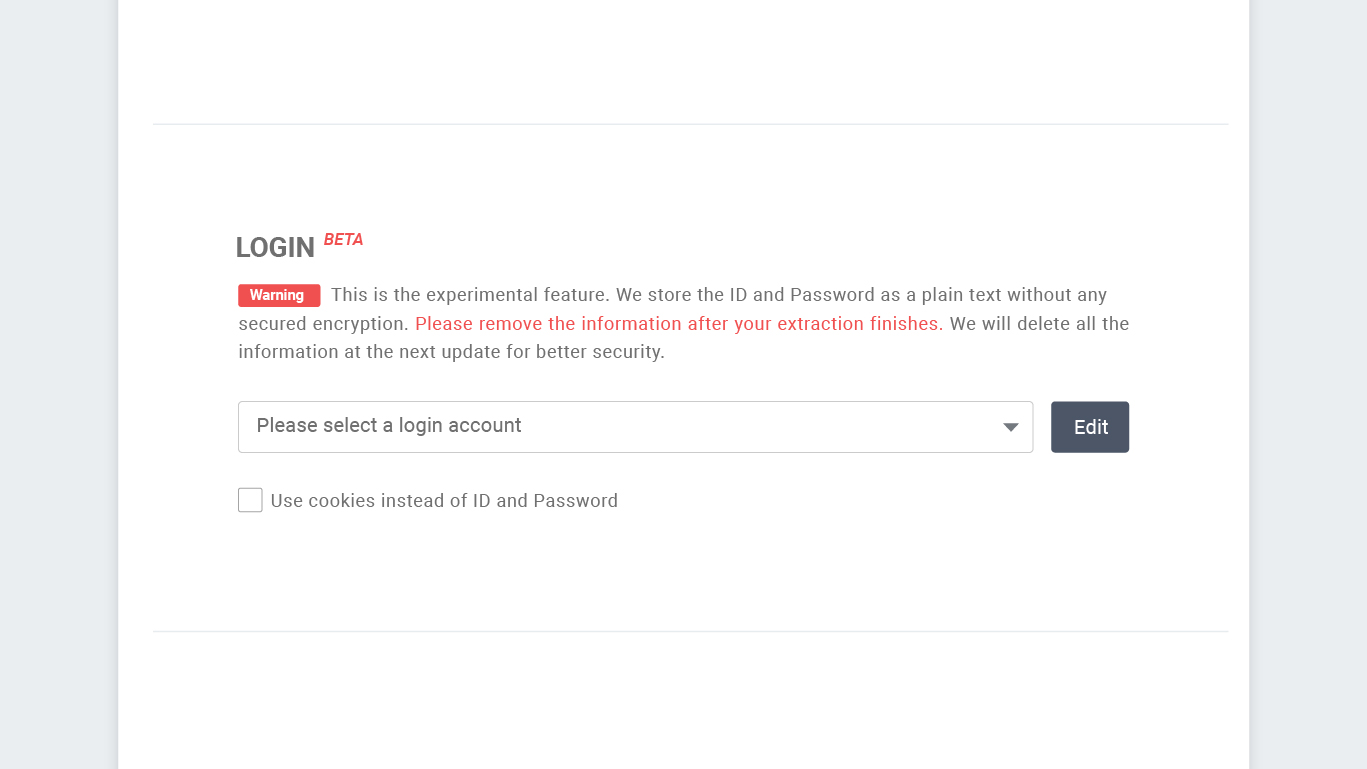
自動登入的資訊輸入欄位於設定視窗中間。
{% endstep %}
{% step %}
#### 輸入自動登入所需的**資訊**
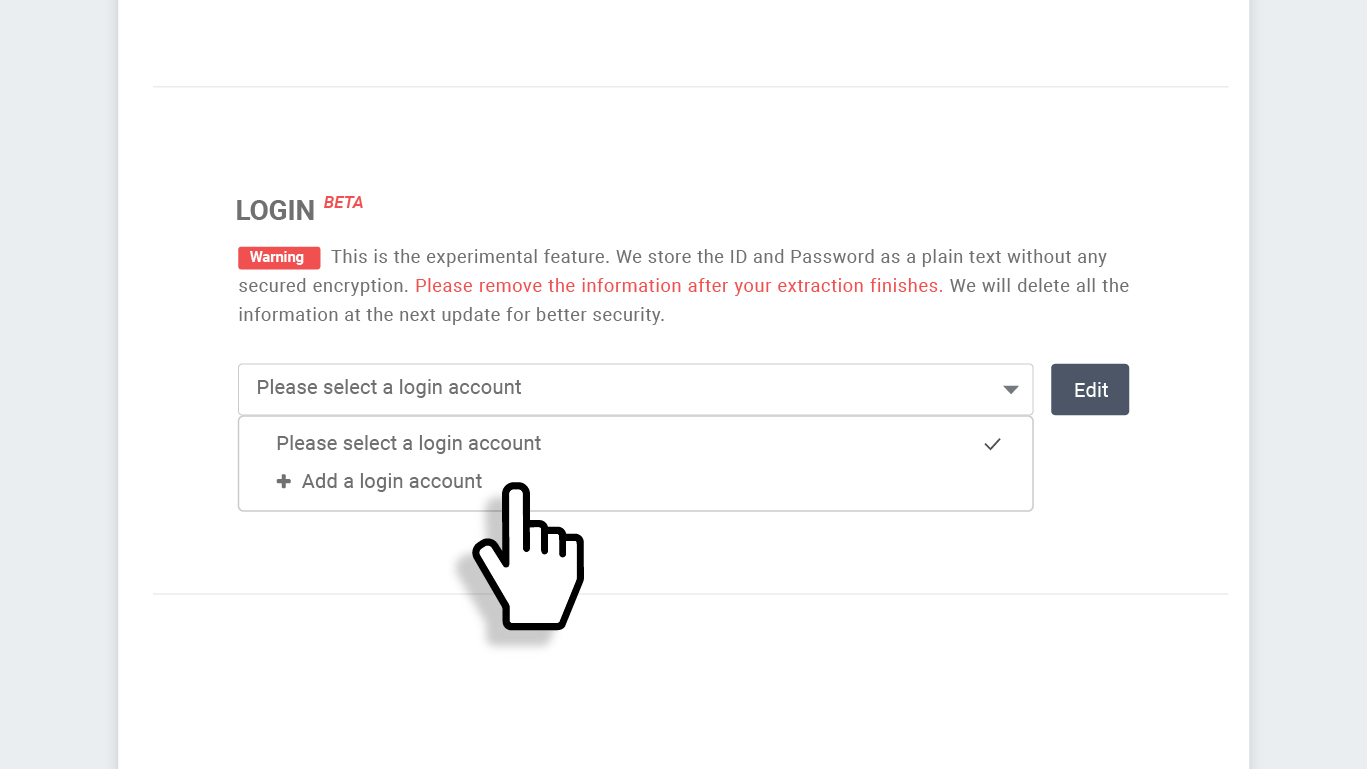
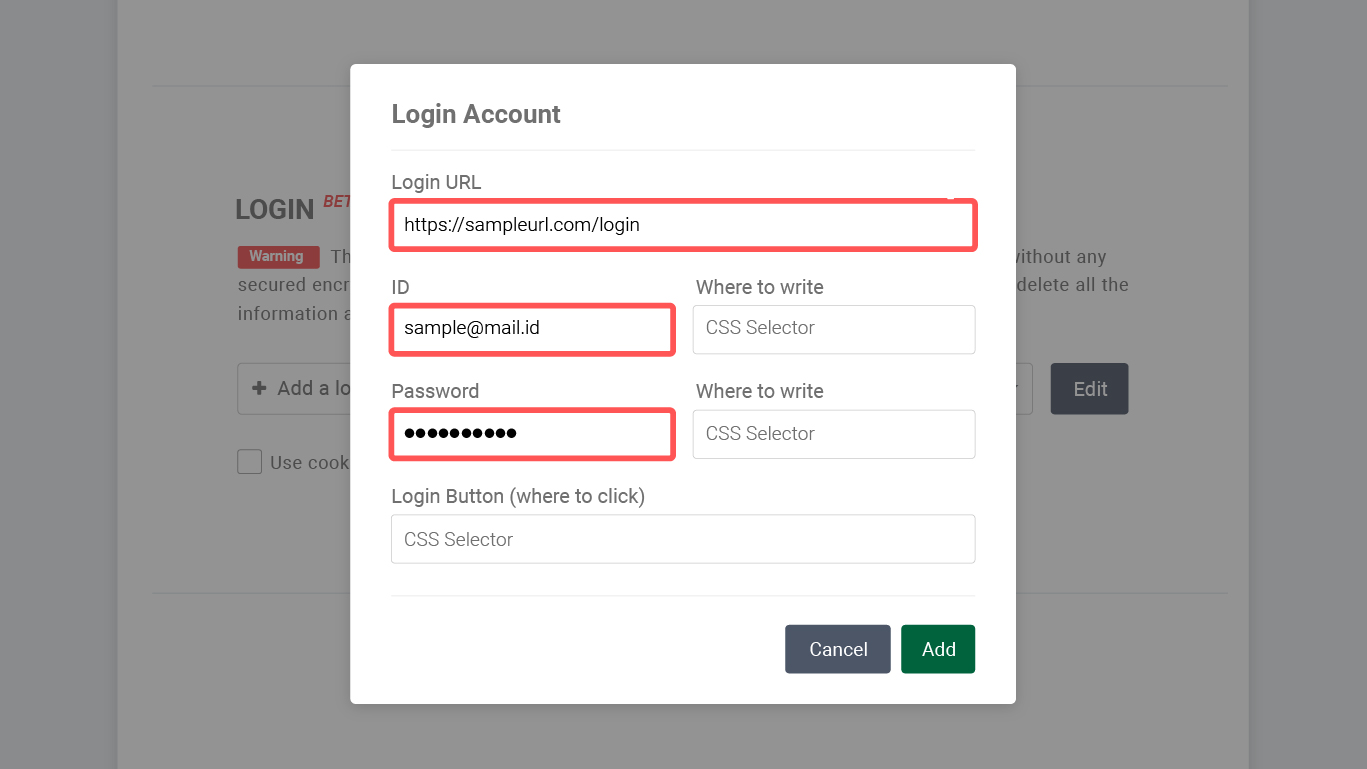
點擊下拉選單後,選擇 **+ Add a login account(+新增登入帳號)** 選項。
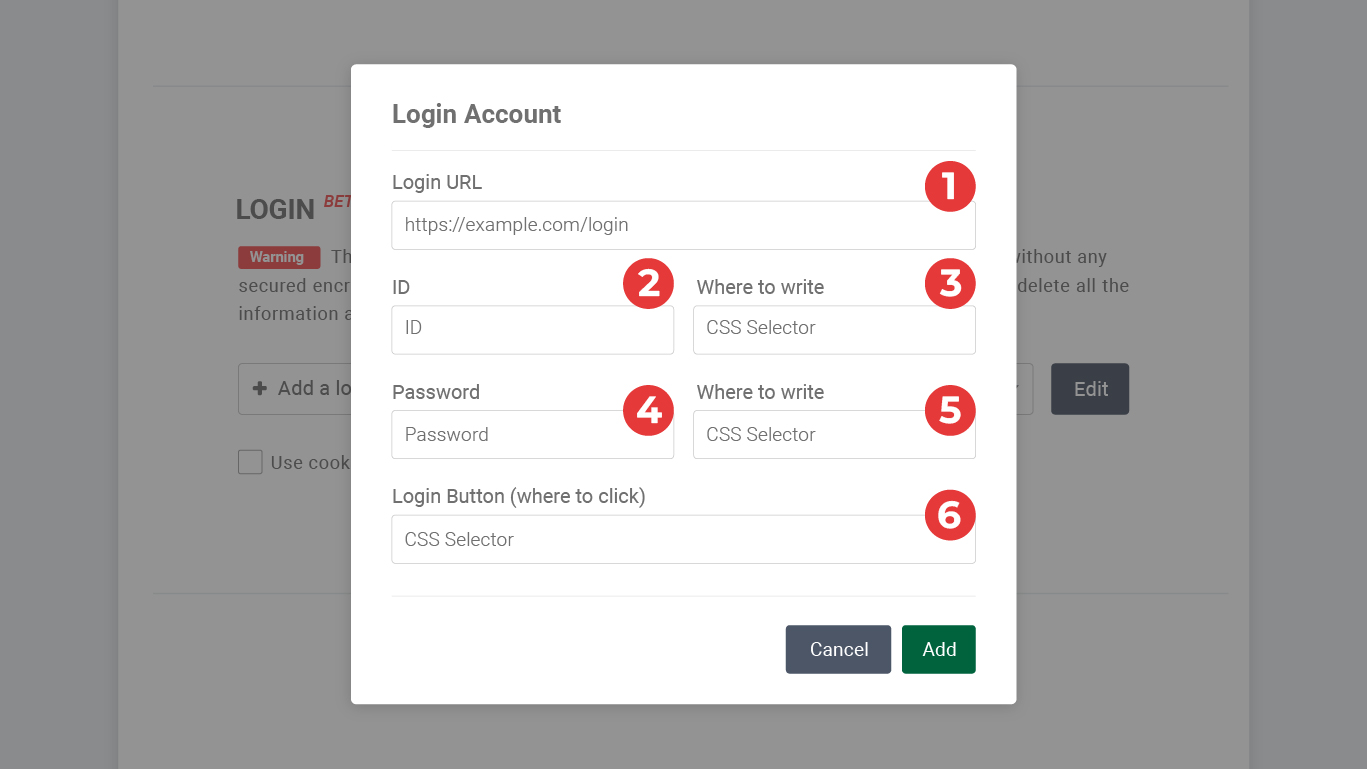
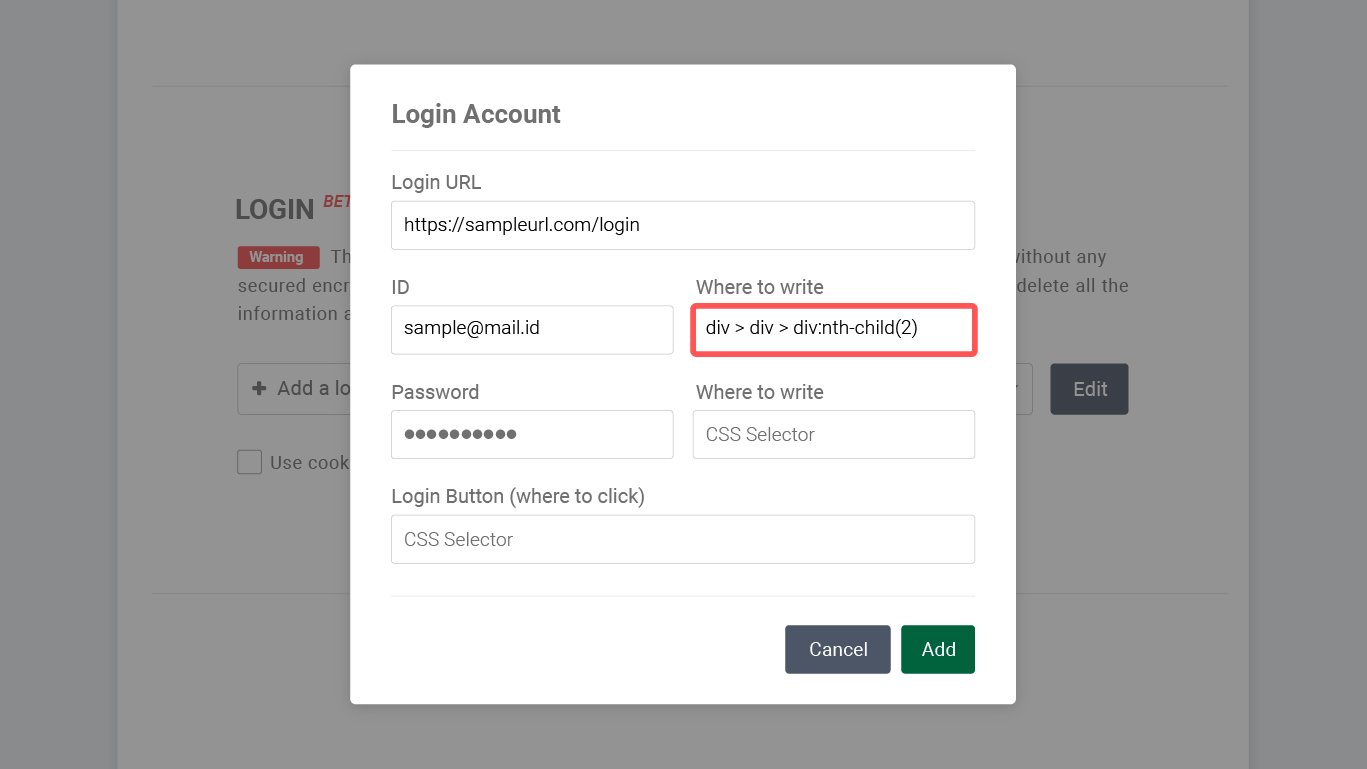
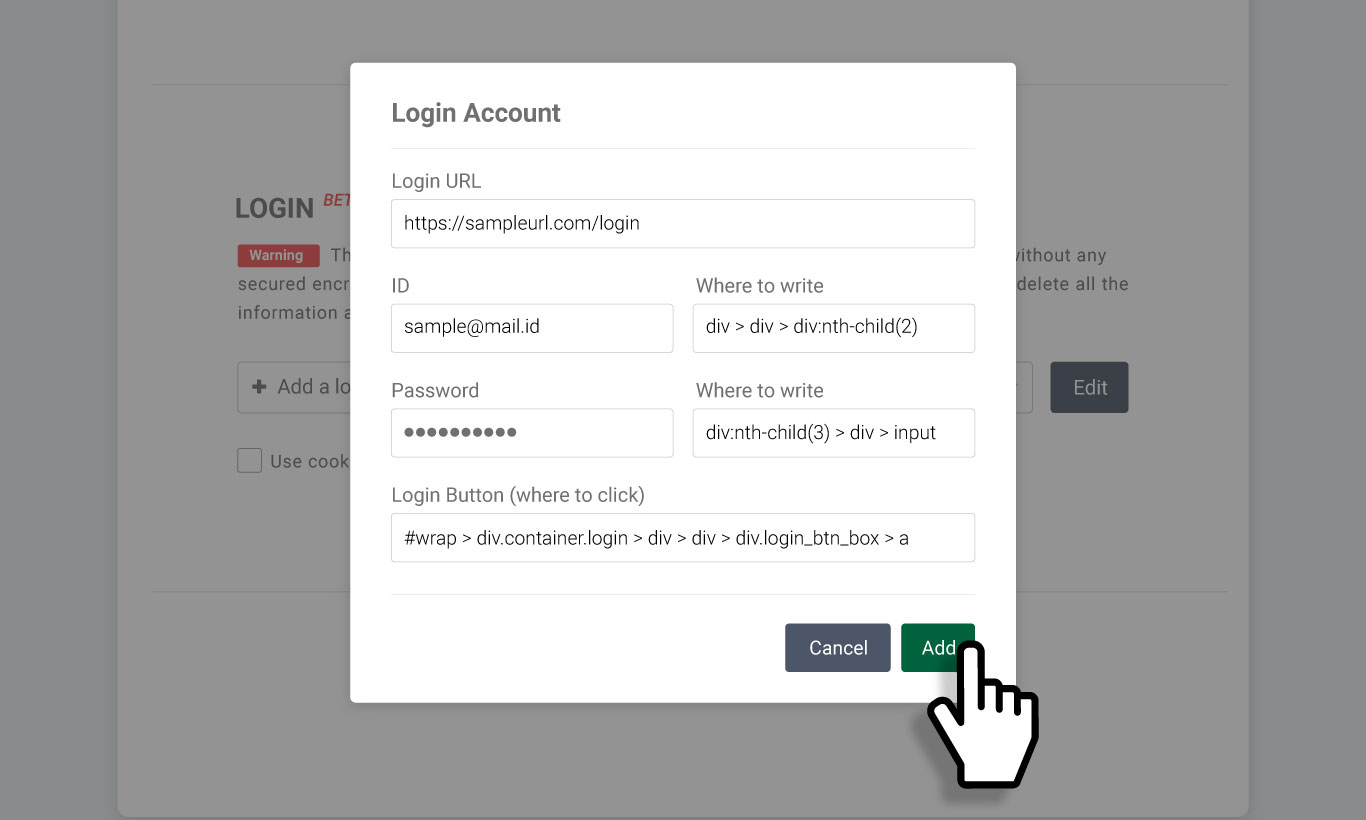
彈出視窗中要輸入的資訊如下:
① 登入畫面的 URL 位址\
② 該網站的 ID\
③ 輸入 ID 欄位的 Selector 值\
④ 該網站的密碼\
⑤ 輸入密碼欄位的 Selector 值\
⑥ 登入(確認)按鈕的 Selector 值
{% hint style="success" %}
參考:[CSS 選擇器](https://help.listly.io/docs/ko/getting-started/listly-basics/css-selector)
{% endhint %}
{% endstep %}
{% step %}
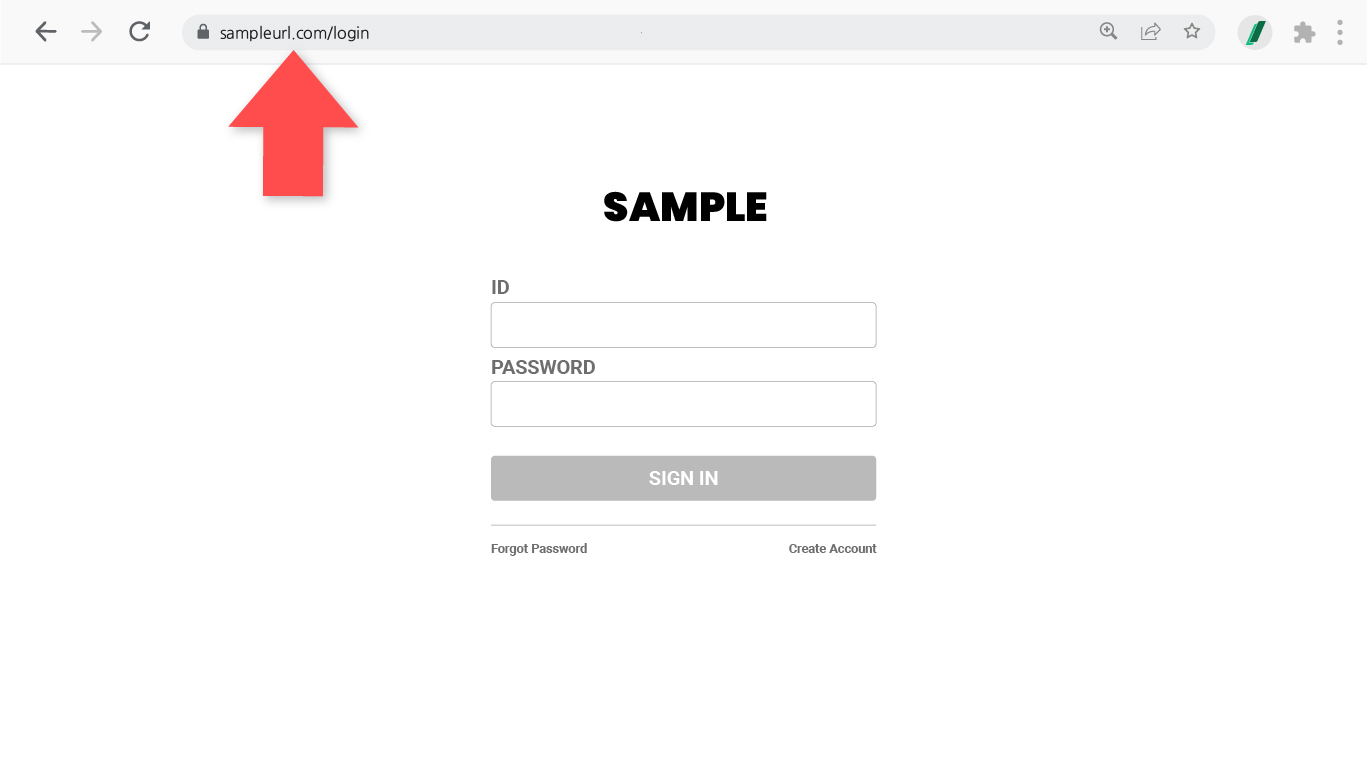
#### 複製並貼上登入頁面 URL
首先複製網站登入畫面的 URL。
將複製的 URL 貼到第一個欄位,然後在 ID 和 Password 欄位中分別輸入此網站登入時需要的資訊。
{% endstep %}
{% step %}
#### 複製、貼上 CSS selector 的方法
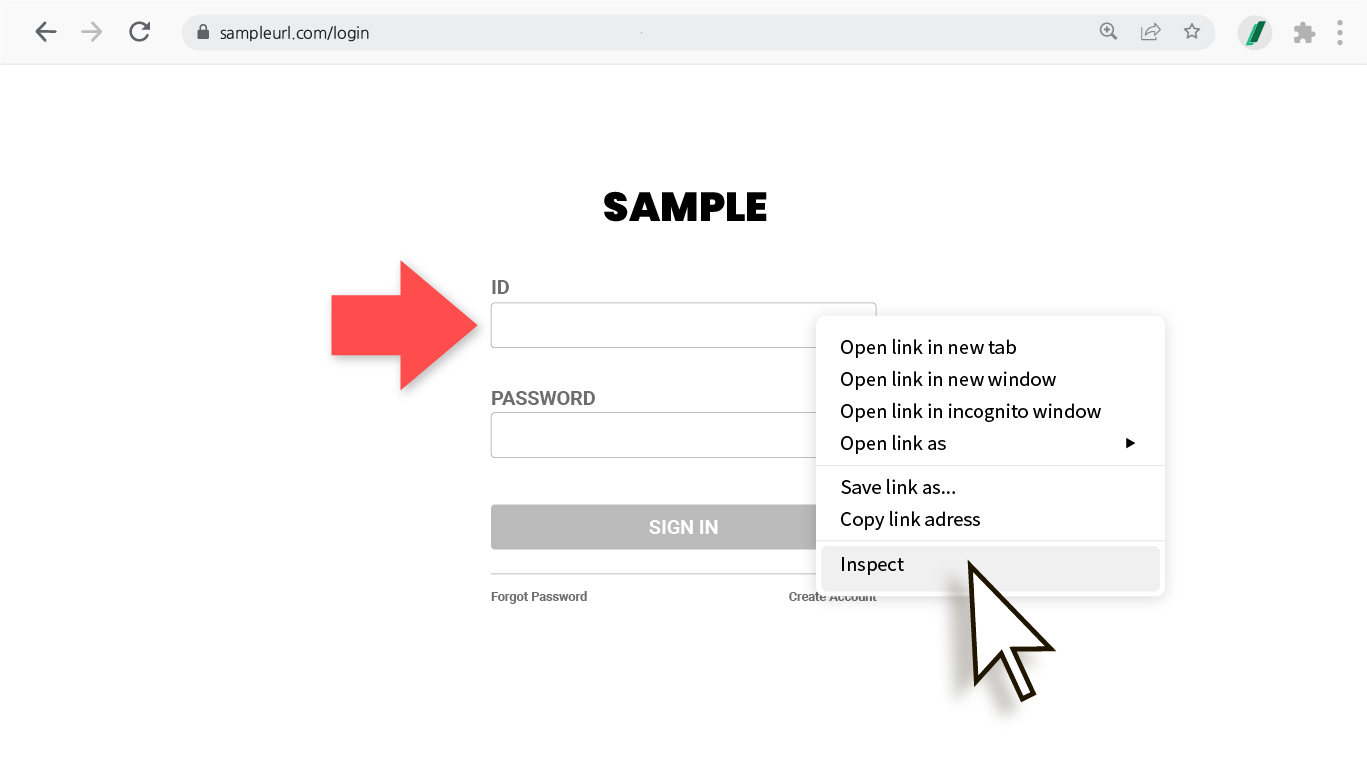
在 ID 輸入欄位上按滑鼠右鍵,選擇 **Inspect(檢查)**。
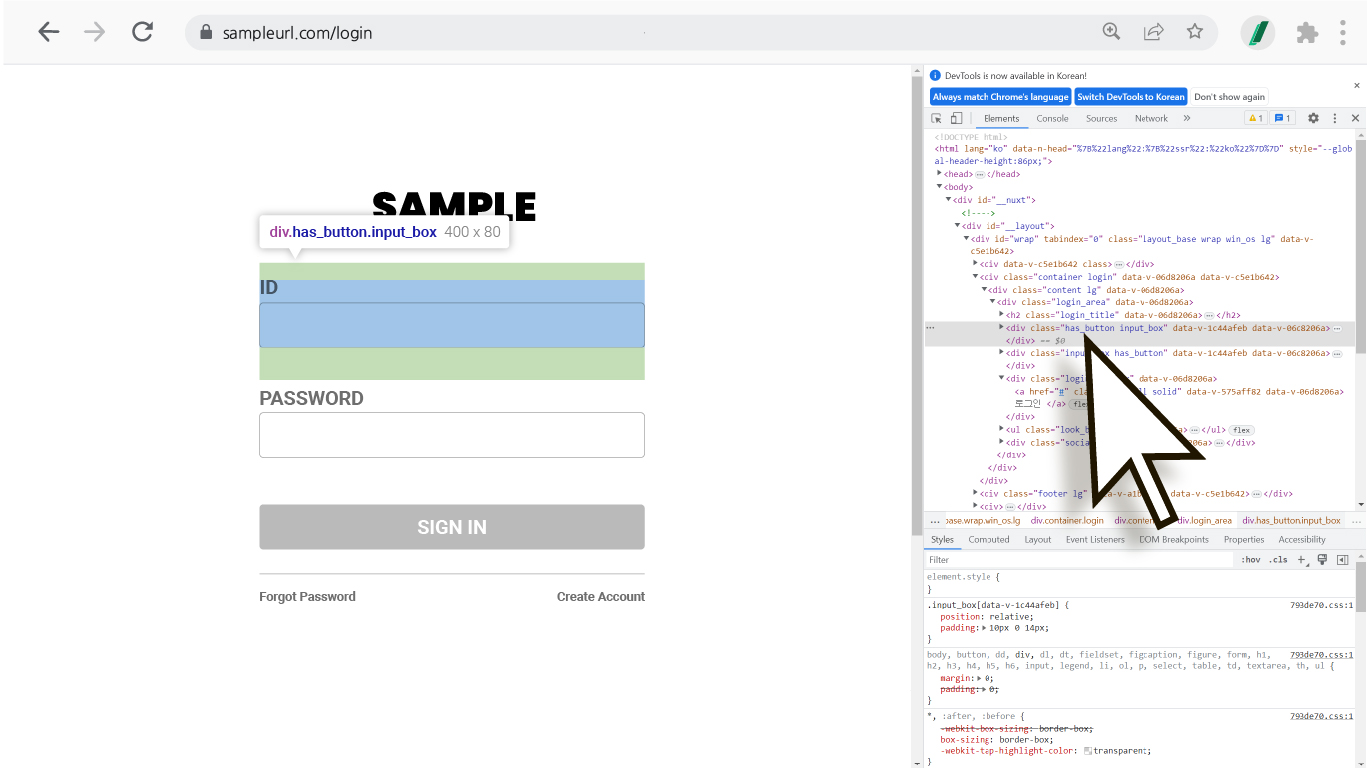
**螢幕右側或下方會出現充滿程式碼的視窗,但別擔心 :)** 剛才選擇的欄位對應的程式碼會以灰色標示,將滑鼠移到上面就能確認該位置會以顏色強調。
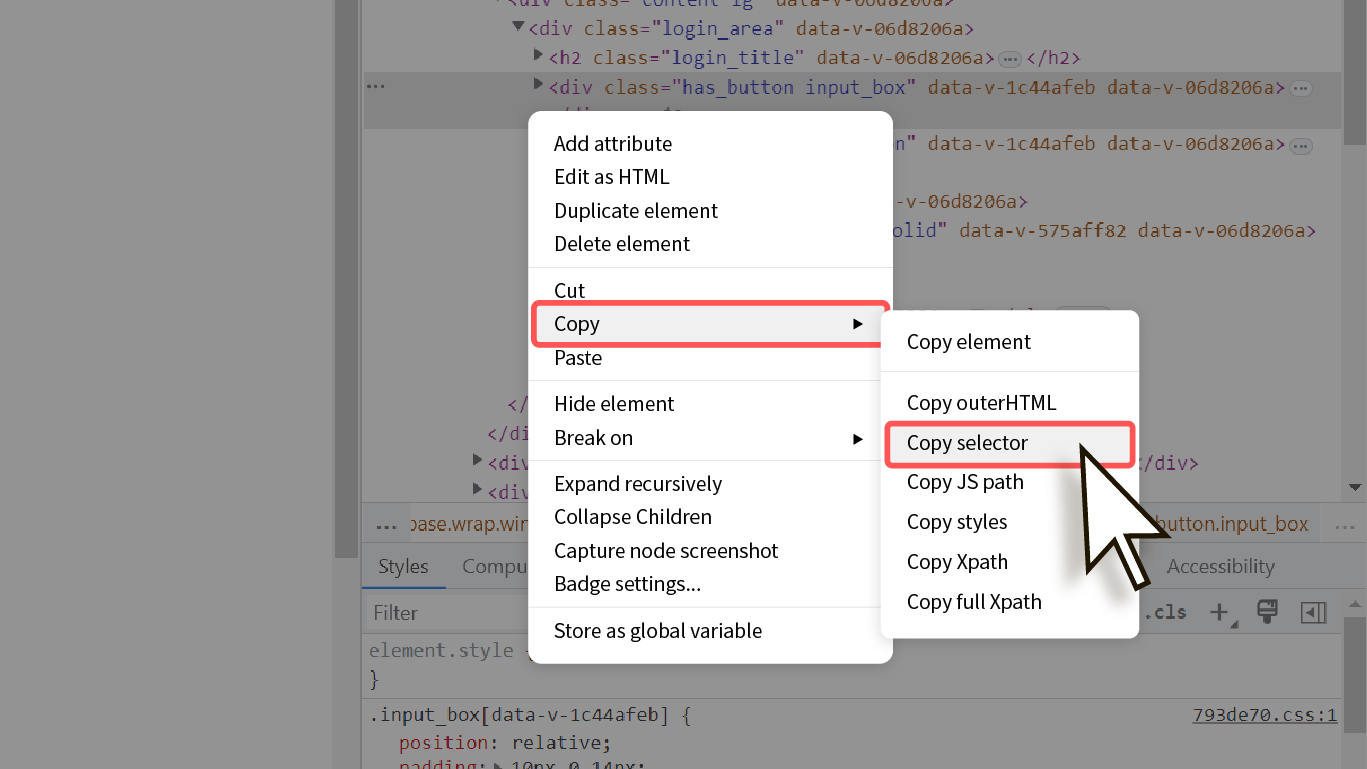
在灰色標示的程式碼上按滑鼠右鍵,選擇 Copy -> Copy selector,該 selector 的值就會自動複製。
回到登入資訊輸入視窗,將游標放在該位置,按鍵盤 Ctrl + V 貼上。
{% endstep %}
{% step %}
#### 填寫其餘資訊(重複步驟 3 的 selector 貼上過程)
輸入完所有資訊後,**點擊 Add(新增)按鈕**,然後點擊設定視窗下方的 **Save(儲存)按鈕**儲存該登入設定。
{% hint style="success" %}
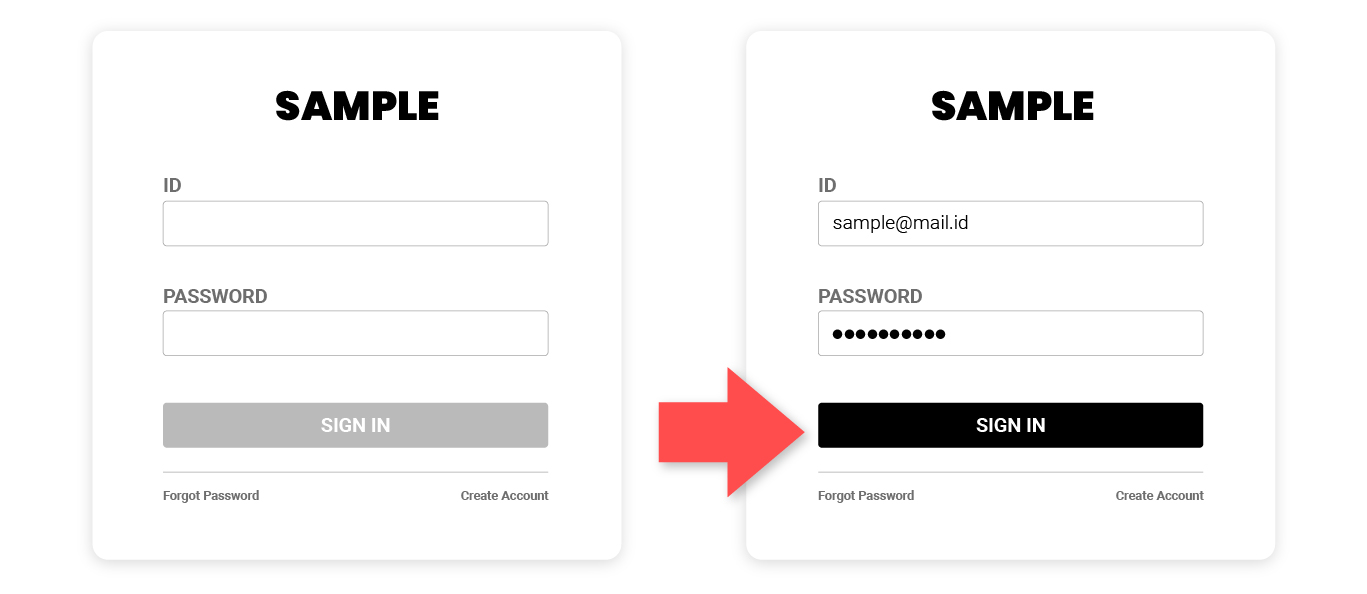
**TIP** 某些網站需要輸入登入資訊後登入按鈕才會啟動。複製\*\*【登入按鈕】**的 selector 值時,在按鈕上按滑鼠右鍵 → 選擇 Inspect(檢查)之前,如下圖所示**保持登入按鈕為啟動狀態\*\*再進行,可以獲得更穩定的 selector 值。
{% endhint %}
回到資料面板後點擊 **Refresh(重新提取)** 圖示,確認輸入該登入資訊的任務是否正常運作。
{% endstep %}
{% endstepper %}
{% hint style="warning" %}
**使用自動登入功能時的注意事項**
自動登入功能是測試版服務。**根據各網站的安全政策和登入畫面結構,可能無法設定或套用**,如下所示。在以下情況下,請透過\*\*「資料夾下載」\*\*功能提取想要的資料,或聯繫 [Listly 團隊](https://www.listly.io/contact)。
1. *安全性強的網站(範例:僅限已認證裝置登入、需要雙重認證、封鎖海外連線等...包含大部分郵件服務)*
2. *ID、密碼輸入框和登入(確認)按鈕不在同一頁面的情況*
3. *登入頁面以模態彈出視窗形式(無法確認 URL)提供的網站*
4. *URL 中包含隨機字串(混合英文+數字+特殊符號的字串)的登入頁面*
{% endhint %}
---
# Agent Instructions
This documentation is published with GitBook. GitBook is the documentation platform designed so that both humans and AI agents can read, navigate, and reason over technical content effectively. Learn more at gitbook.com.
## Querying This Documentation
If you need additional information that is not directly available in this page, you can query the documentation dynamically by asking a question.
Perform an HTTP GET request on the current page URL with the `ask` query parameter, and the optional `goal` query parameter:
```
GET https://help.listly.io/docs/zh-hant/getting-started/databoard-features/settings-auto-login-zh-hant.md?ask=&goal=
```
`ask` is the immediate question: it should be specific, self-contained, and written in natural language.
`goal` is optional and describes the broader end goal you are ultimately trying to accomplish on behalf of the user. GitBook uses it to tailor the answer towards what is most useful for that goal.
The response will contain a direct answer to the question and relevant excerpts and sources from the documentation.
Use this mechanism when the answer is not explicitly present in the current page, you need clarification or additional context, or you want to retrieve related documentation sections.