> For the complete documentation index, see [llms.txt](https://help.listly.io/llms.txt). Markdown versions of documentation pages are available by appending `.md` to page URLs; this page is available as [Markdown](https://help.listly.io/docs/zh-hant/getting-started/databoard-features/settings-execution-speed-zh-hant.md).
# 設定 - 執行速度
## 提取速度調整功能是什麼?
全球使用者湧入的知名網站通常會同時運營封鎖濫用流量的系統。用 Listly 收集資料時,如果收集速度太快,該網站可能會判定這種嘗試為濫用並封鎖連線。最糟的情況下,可能會永久封鎖使用者的 IP 位址。為了預防這種情況,**Listly 提供使用者可以調整收集速度的選項**。
{% hint style="success" %}
**收集速度越快,IP 位址被封鎖的機率**也會上升。
這種情況可以使用 Listly 企業版解決。`單獨購買高品質代理` + `自動重試` 功能,每次請求使用高品質的新 IP 位址,收集失敗時自動用其他 IP 位址重試。
更詳細的資訊請聯繫 [Listly 團隊](https://www.listly.io/contact)。
{% endhint %}
***
## 使用方法
{% stepper %}
{% step %}
### 降低收集速度
資料收集速度是指同時收集的 URL 個數。即**收集速度 15** 表示最多同時收集 15 個網頁。對被收集的網站來說,這可能成為流量攻擊。實際上許多網站在短時間內訪問次數過多時,會要求驗證是人類還是機器人,或封鎖 IP 永久拒絕訪問。最終就是提取失敗。
Listly 為了預防和補救這種情況,提供使用者可以直接調整提取速度的功能。我們推薦的值是最低值 1 或 2。這樣速度就接近人類實際收集的速度。**收集速度越慢,提取失敗的可能性就越低**。
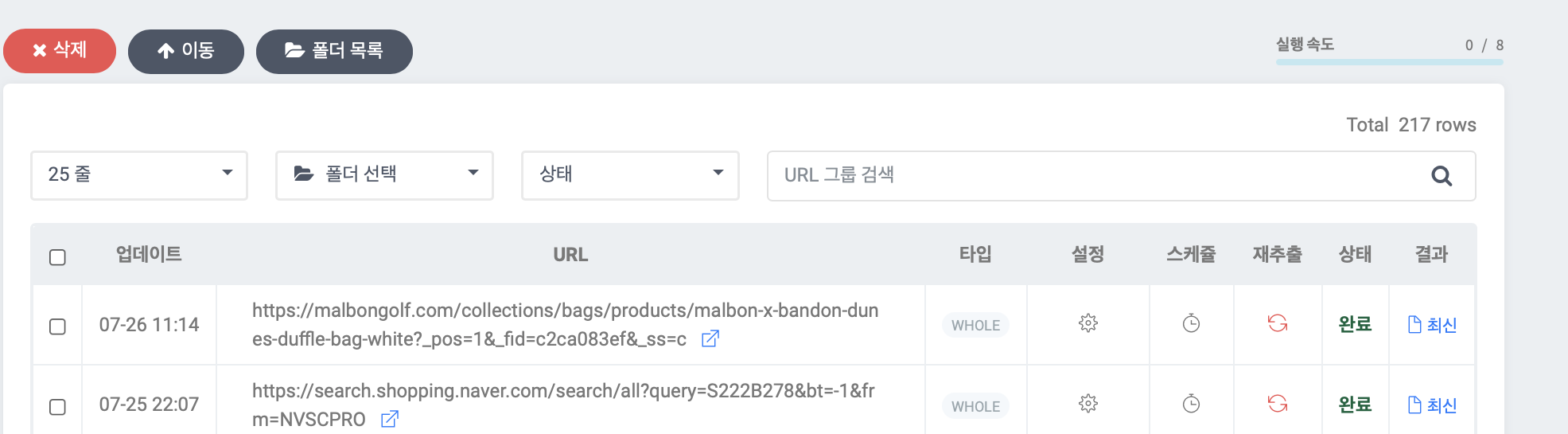
如下方截圖,前往 Listly 資料面板後,確認並點擊右上角的**執行速度**條。
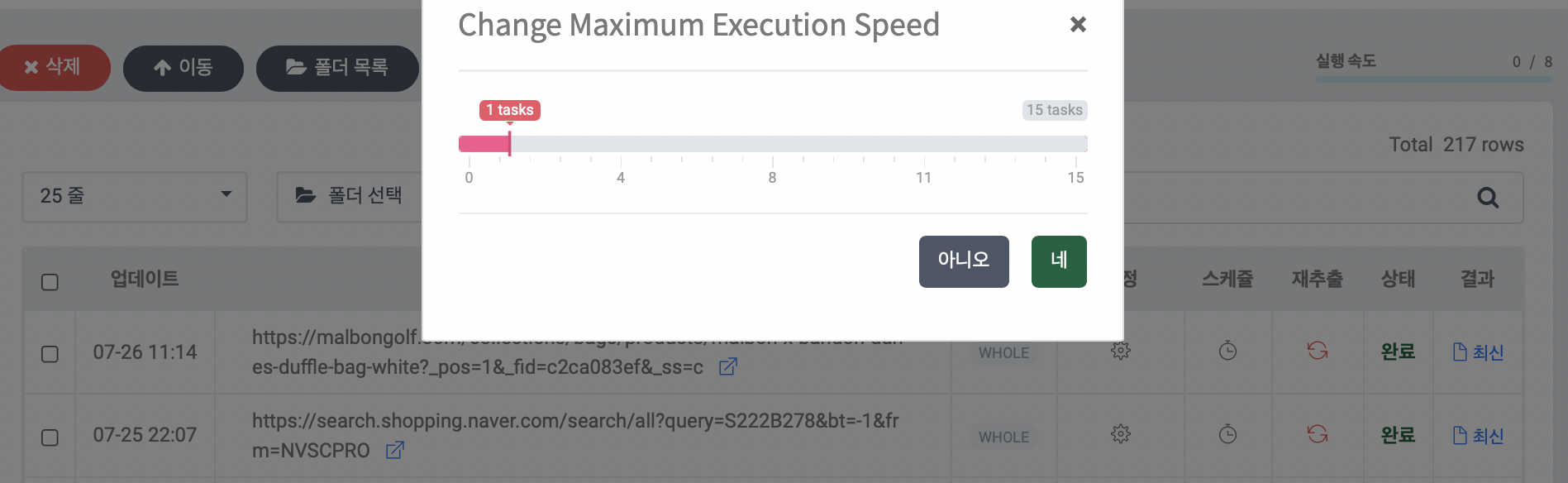
調整到所需速度後按 **\[是]** 按鈕。
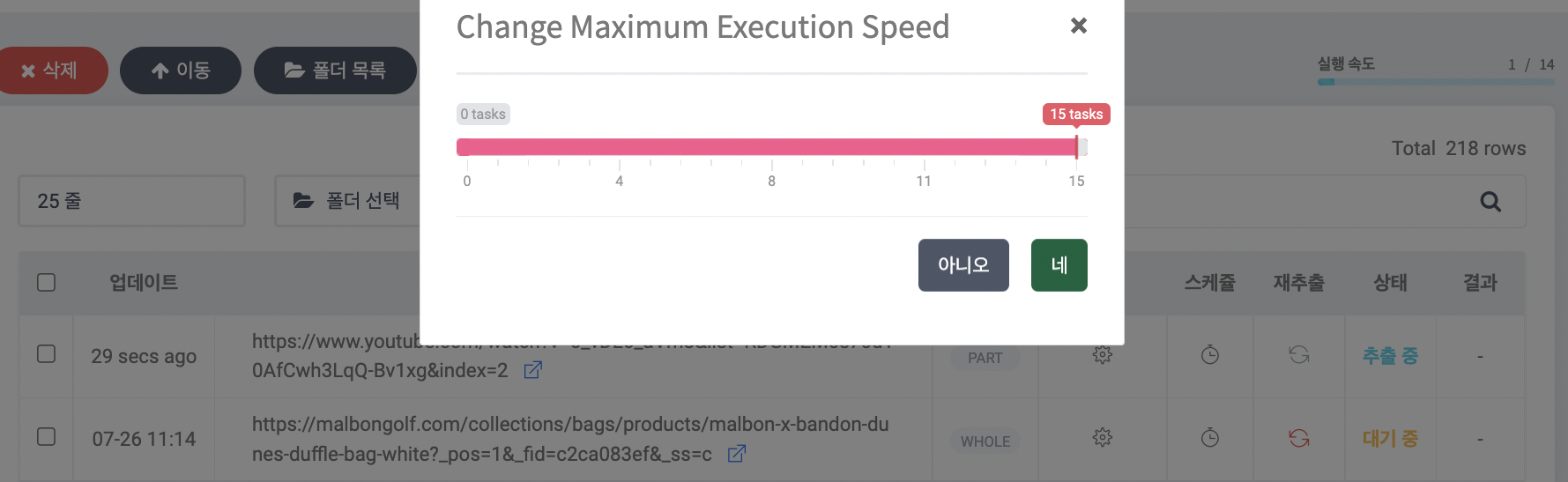
選擇提取速度為 1 時最慢,相反選擇 15 時最快。差別在於一次收集 1 個 URL 還是 15 個 URL。
{% endstep %}
{% step %}
### 提高收集速度
如果想**快速完成資料收集**,建議提高提取速度並同時使用降低封鎖風險的`高品質代理`。代理是單獨購買的商品。
{% endstep %}
{% endstepper %}
---
# Agent Instructions
This documentation is published with GitBook. GitBook is the documentation platform designed so that both humans and AI agents can read, navigate, and reason over technical content effectively. Learn more at gitbook.com.
## Querying This Documentation
If you need additional information that is not directly available in this page, you can query the documentation dynamically by asking a question.
Perform an HTTP GET request on the current page URL with the `ask` query parameter, and the optional `goal` query parameter:
```
GET https://help.listly.io/docs/zh-hant/getting-started/databoard-features/settings-execution-speed-zh-hant.md?ask=&goal=
```
`ask` is the immediate question: it should be specific, self-contained, and written in natural language.
`goal` is optional and describes the broader end goal you are ultimately trying to accomplish on behalf of the user. GitBook uses it to tailor the answer towards what is most useful for that goal.
The response will contain a direct answer to the question and relevant excerpts and sources from the documentation.
Use this mechanism when the answer is not explicitly present in the current page, you need clarification or additional context, or you want to retrieve related documentation sections.