> For the complete documentation index, see [llms.txt](https://help.listly.io/llms.txt). Markdown versions of documentation pages are available by appending `.md` to page URLs; this page is available as [Markdown](https://help.listly.io/docs/zh-hant/getting-started/enterprise-solutions/auto-name-columns-zh-hant.md).
# 企業版 - 自動命名欄位
## 欄位名稱指定功能是什麼?
在企業方案的提取結果視窗中,可以直接修改每個欄位(Column)顯示的名稱,這些名稱將作為最終資料的標題行內容。
***
## 使用方法
{% stepper %}
{% step %}
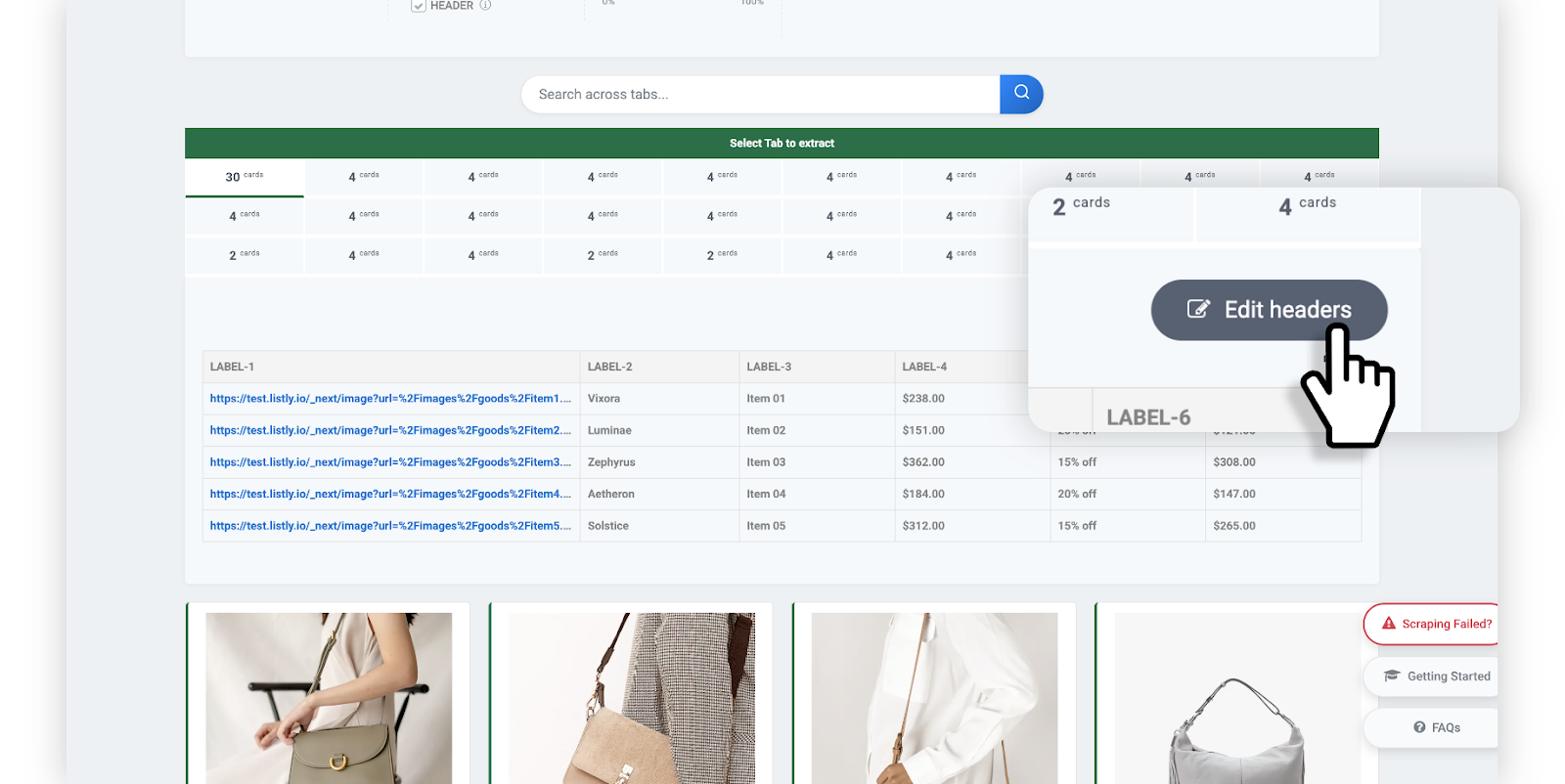
#### 在結果視窗中點擊 \[Edit Headers] 按鈕
在提取完成的結果視窗中選擇要提取的分頁後,點擊 **\[Edit Headers]** 按鈕。
{% endstep %}
{% step %}
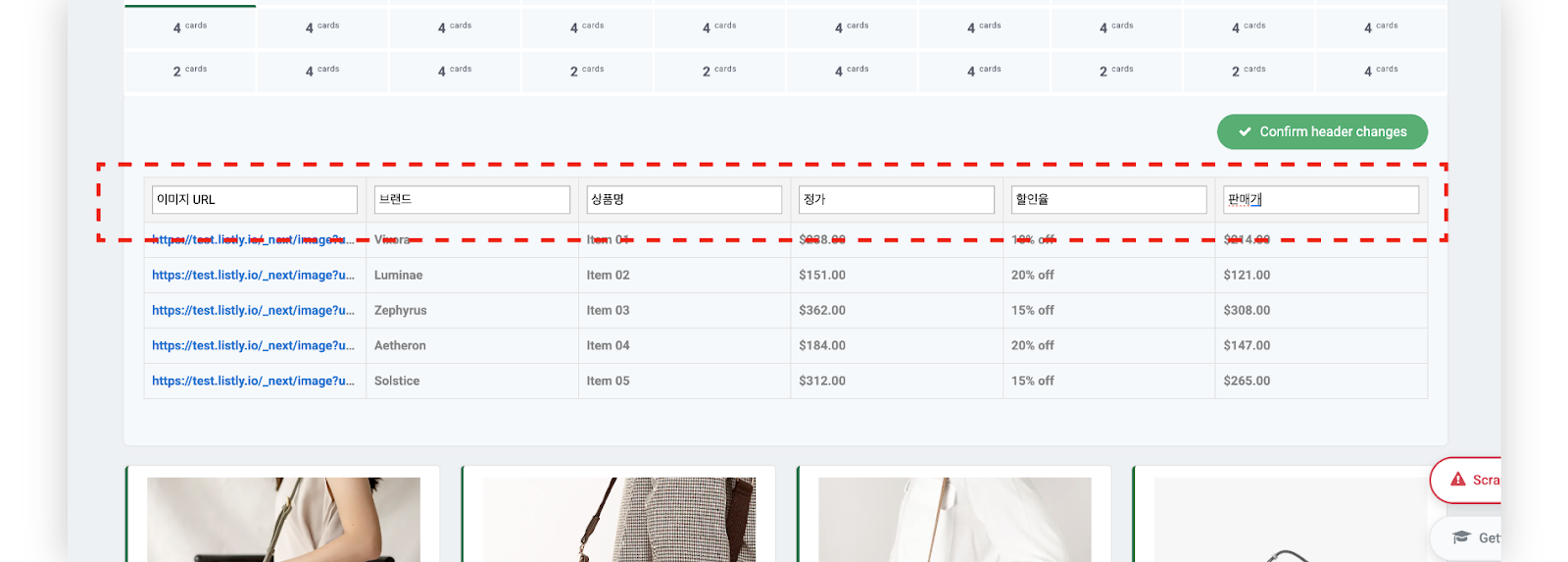
#### 按需要修改欄位名稱(標題)
啟用欄位名稱編輯後,將每個資料欄修改為適當的內容。
{% endstep %}
{% step %}
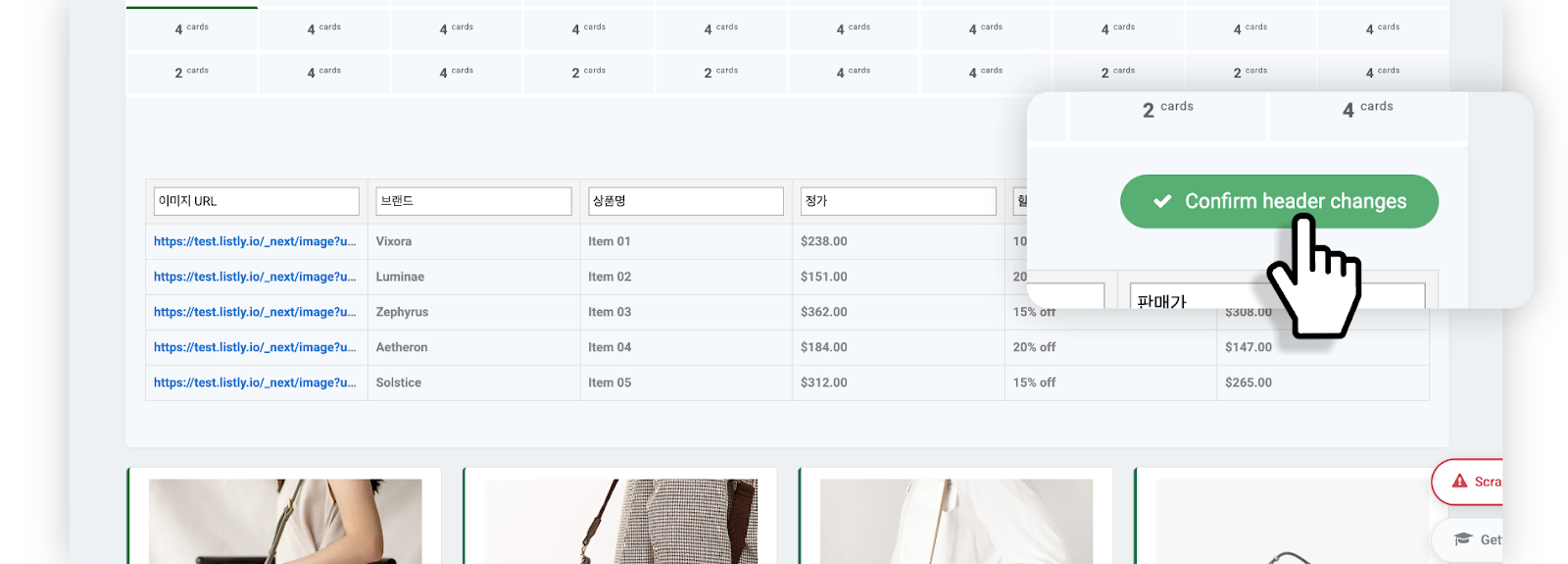
#### 儲存變更
修改完成後點擊 **\[Confirm header changes]** 按鈕進行儲存。
{% endstep %}
{% step %}
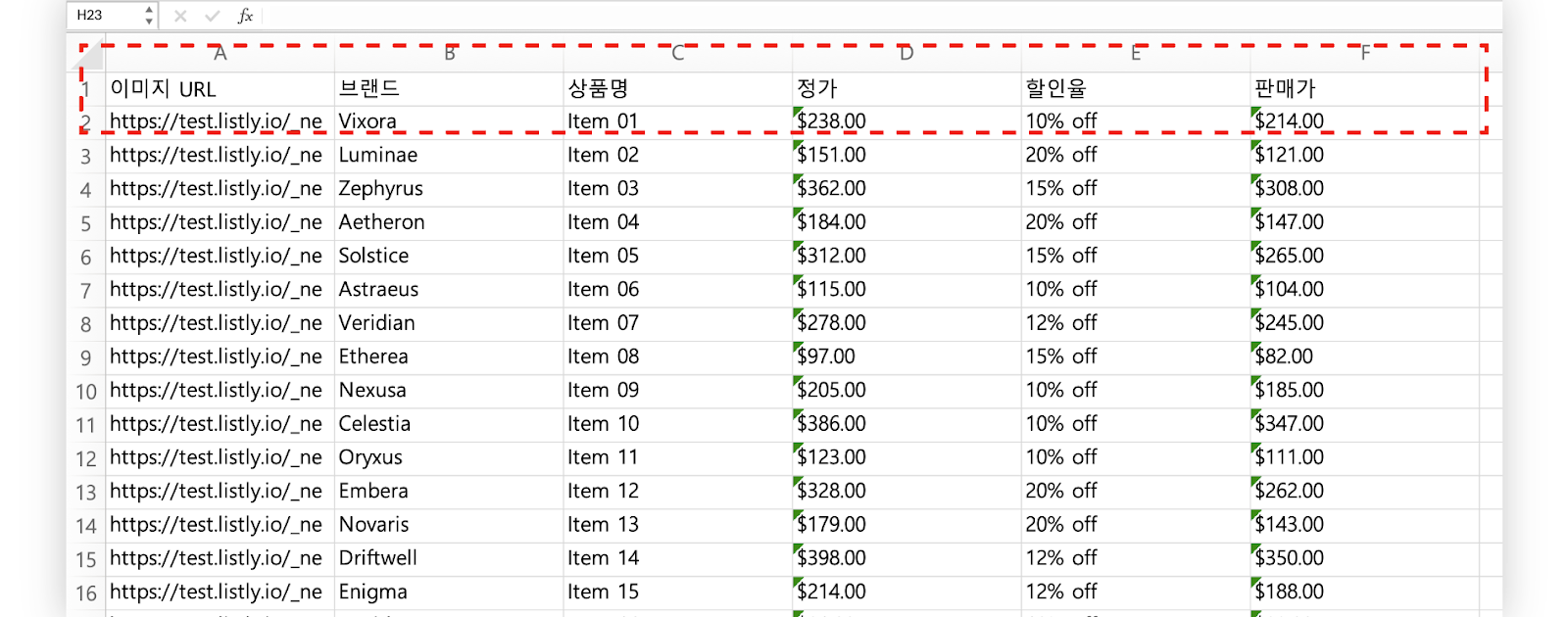
#### 下載檔案確認變更的欄位名稱
變更的名稱也會原樣反映在 Excel、Google Sheets 檔案的標題行中。
{% endstep %}
{% endstepper %}
---
# Agent Instructions
This documentation is published with GitBook. GitBook is the documentation platform designed so that both humans and AI agents can read, navigate, and reason over technical content effectively. Learn more at gitbook.com.
## Querying This Documentation
If you need additional information that is not directly available in this page, you can query the documentation dynamically by asking a question.
Perform an HTTP GET request on the current page URL with the `ask` query parameter, and the optional `goal` query parameter:
```
GET https://help.listly.io/docs/zh-hant/getting-started/enterprise-solutions/auto-name-columns-zh-hant.md?ask=&goal=
```
`ask` is the immediate question: it should be specific, self-contained, and written in natural language.
`goal` is optional and describes the broader end goal you are ultimately trying to accomplish on behalf of the user. GitBook uses it to tailor the answer towards what is most useful for that goal.
The response will contain a direct answer to the question and relevant excerpts and sources from the documentation.
Use this mechanism when the answer is not explicitly present in the current page, you need clarification or additional context, or you want to retrieve related documentation sections.