> For the complete documentation index, see [llms.txt](https://help.listly.io/llms.txt). Markdown versions of documentation pages are available by appending `.md` to page URLs; this page is available as [Markdown](https://help.listly.io/docs/zh-hant/getting-started/extension-features-zh-hant/parts-zh-hant.md).
# 部分擷取 (Extract Part)
## 什麼是部分擷取?
這是可以**只選取想要的區塊、部分擷取資料**的功能。當您想提升擷取資料的結構與準確度時,歡迎試試看。
{% hint style="success" %}
**快速上手**
➡️ 在想要的頁面點擊 Listly 圖示 ➡️ 選擇部分擷取(Extract Part) ➡️ 選取資料擷取範圍 ➡️ 在面板中選擇擷取選項(選填) ➡️ 點擊擷取 ➡️ 在結果中選擇想要資料的分頁 ➡️ 下載您的資料
{% endhint %}
## 使用方法
{% stepper %}
{% step %}
#### 在目標網站點擊 Listly 圖示
在已[安裝 Listly](https://help.listly.io/docs/zh-hant/~/revisions/TwEEnvoCG3rX212le4Cp/getting-started/quick-start-guide-zh-hant/how-to-install-listly-zh-hant) 的瀏覽器中,前往想擷取資料的網頁並點擊 Listly 圖示。
{% endstep %}
{% step %}
#### 選擇「部分擷取」
在 Listly 擴充功能中選擇 **\[部分擷取]** 按鈕。
{% endstep %}
{% step %}
#### 選取想擷取的區塊
點擊以指定想擷取的區塊。
當您點擊具有相符模式的擷取區塊時,會自動出現彈出視窗,讓您一次選取所有相似的區塊。
* **\[合併為一組(Group All)]**:點擊後,不必逐一點擊即可選取所有相符的區塊。
* **\[分開保留(Keep separate)]**:若想擷取的區塊是不共用同一模式的個別獨立區塊,請點擊此項。
{% hint style="info" %}
參考:[部分擷取範圍選取](https://help.listly.io/docs/zh-hant/~/revisions/TwEEnvoCG3rX212le4Cp/getting-started/extension-features-zh-hant/parts-selection-zh-hant)
{% endhint %}
{% endstep %}
{% step %}
#### 為各區塊選擇擷取選項(選填)
如有需要,可在各個選取框內設定擷取選項。
{% hint style="info" %}
參考:[了解部分擷取(Extract Part)的擷取選項](https://help.listly.io/docs/zh-hant/~/revisions/TwEEnvoCG3rX212le4Cp/getting-started/extension-features-zh-hant/parts-options-zh-hant)
{% endhint %}
{% endstep %}
{% step %}
### 點擊「擷取」
選取完所有擷取區塊後,點擊 **\[擷取]** 按鈕。
{% endstep %}
{% step %}
### 在結果中選擇要擷取的分頁
在結果頁面確認擷取的資料後,點擊 **\[Excel]** 或 **\[Google Sheets]** 按鈕匯出。
{% hint style="info" %}
參考:[進一步了解資料下載選項](https://help.listly.io/docs/zh-hant/~/revisions/TwEEnvoCG3rX212le4Cp/getting-started/result-page-features-zh-hant/data-download-options-zh-hant)
{% endhint %}
{% endstep %}
{% step %}
### 下載您的資料
確認下載的檔案。
{% endstep %}
{% endstepper %}
***
## PARTS 擷取常見問題
PART vs PARTS 有什麼不同?
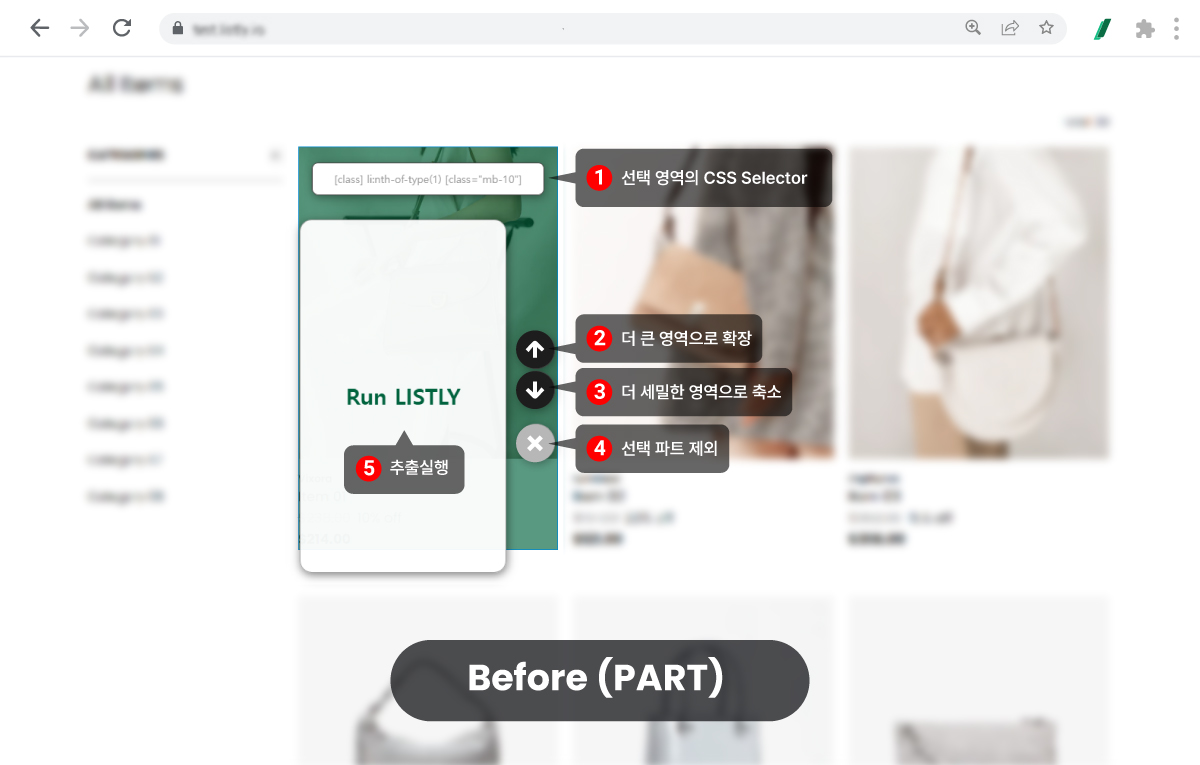
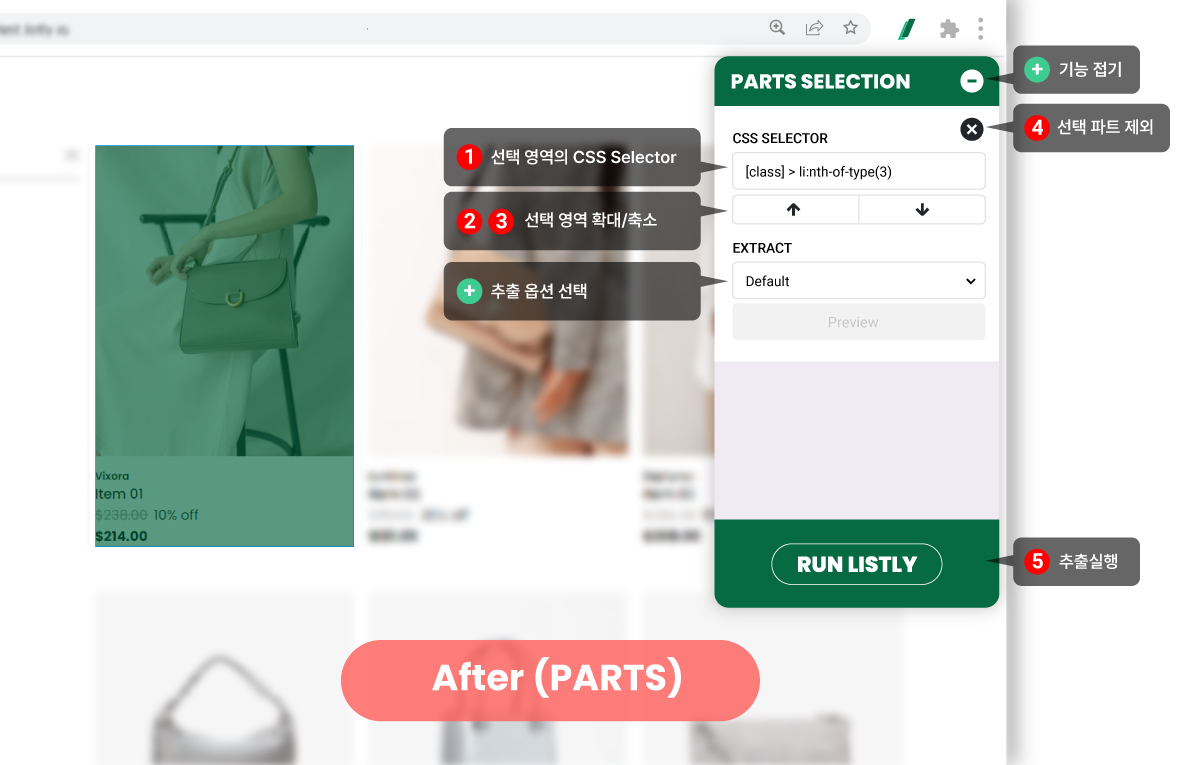
原本直接顯示在單一選取區域上方的各功能按鈕位置(Before),已經移動到側邊面板(After),如下圖所示。請參考圖片了解原有 UI 中各功能按鈕的新位置。
{% hint style="success" %}
**如果想要以與原有 PARTS 選取相同的流程擷取資料**,只需參考變更後的按鈕位置,選擇單一區域後點擊執行 Listly 按鈕即可進行擷取。
{% endhint %}
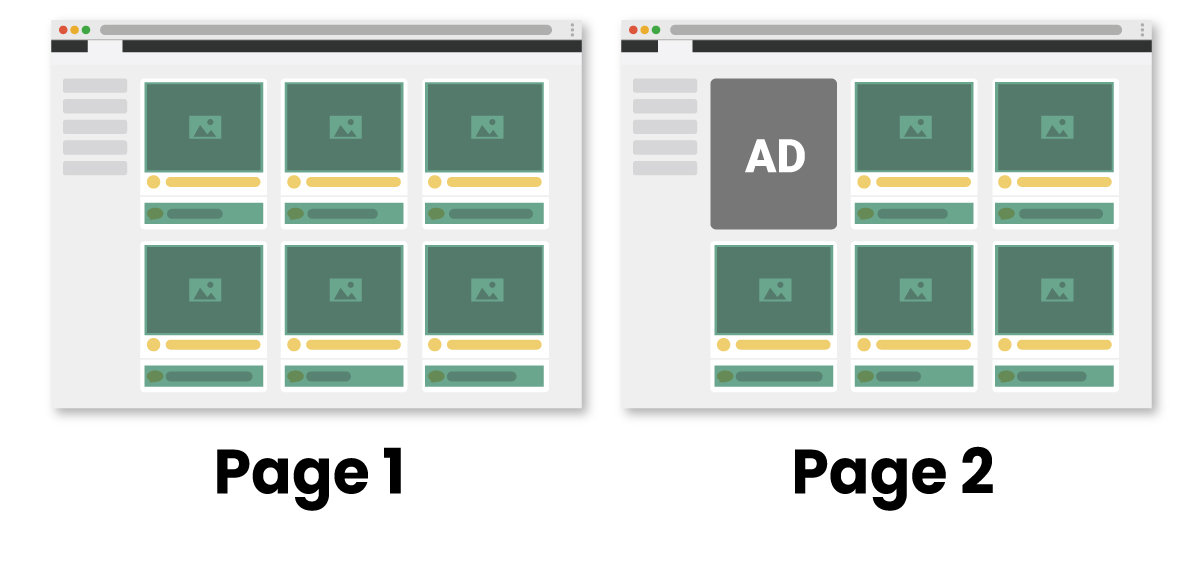
要擷取的資訊數量在不同頁面中有所不同。還能進行群組擷取嗎?
\*\*可以的。\*\*例如,假設如上圖所示,第 1 頁的第一個欄位區域在第 2 頁被廣告等其他元素取代。(想要擷取的資訊以綠色框表示)\
\
**Listly 的 PARTS 會自動偵測相同結構的資料位置。**\
\
在第 1 頁使用「**同時選取重複區域(自動選取重複元素)**」方式指定想要的區域並擷取資料,然後以該頁面為基礎進行群組擷取時,即使選取區域的數量在不同網頁中不同,也能成功擷取資料。
使用「個別選擇想要的區域」方式擷取特定頁面後,想要進行群組擷取。但是「個別選擇」的元素在某些頁面中不存在。這種情況會怎麼樣?
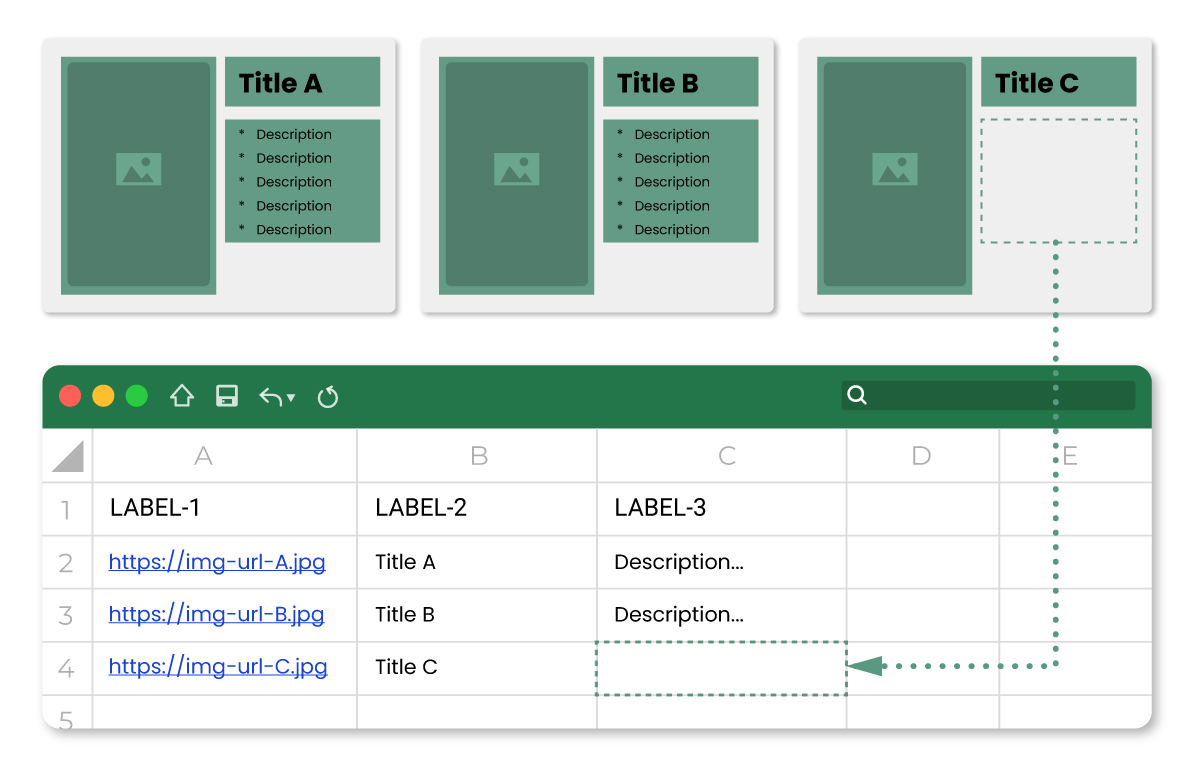
**如上圖所示,不存在的資訊會以空白欄位擷取。**
假設在 A 頁面使用 PARTS 分別選擇圖片、標題、說明文字區域進行擷取後,與相同結構的頁面進行群組擷取。
此時 C 頁面中沒有 A 頁面選取的說明文字區域。
在這種情況下,如上圖所示,該欄位的資料會以空白狀態擷取。
{% hint style="danger" %} \*\*但是,如同原有的群組擷取一樣,如果嘗試與群組擷取來源頁面完全不同結構的網頁一起擷取,或者沒有任何與 A 頁面相符的區域,則會被視為收集失敗。\*\*
{% endhint %}
選取重複區域時,連不必要的區域也一起被選取了。該如何解決?
我們計劃新增可以透過點擊移除不必要區域的功能,以便更準確、精細地選擇資料區域。目前可以透過**直接修改該區域的 CSS Selector 值**來解決。
---
# Agent Instructions
This documentation is published with GitBook. GitBook is the documentation platform designed so that both humans and AI agents can read, navigate, and reason over technical content effectively. Learn more at gitbook.com.
## Querying This Documentation
If you need additional information that is not directly available in this page, you can query the documentation dynamically by asking a question.
Perform an HTTP GET request on the current page URL with the `ask` query parameter, and the optional `goal` query parameter:
```
GET https://help.listly.io/docs/zh-hant/getting-started/extension-features-zh-hant/parts-zh-hant.md?ask=&goal=
```
`ask` is the immediate question: it should be specific, self-contained, and written in natural language.
`goal` is optional and describes the broader end goal you are ultimately trying to accomplish on behalf of the user. GitBook uses it to tailor the answer towards what is most useful for that goal.
The response will contain a direct answer to the question and relevant excerpts and sources from the documentation.
Use this mechanism when the answer is not explicitly present in the current page, you need clarification or additional context, or you want to retrieve related documentation sections.