> For the complete documentation index, see [llms.txt](https://help.listly.io/llms.txt). Markdown versions of documentation pages are available by appending `.md` to page URLs; this page is available as [Markdown](https://help.listly.io/docs/zh-hant/getting-started/extension-features-zh-hant/table-data-zh-hant.md).
# 表格資料
## 表格資料功能是什麼?
提取「看起來像表格的資料」時可以便利使用的功能。
{% columns %}
{% column width="58.333333333333336%" %}
{% endcolumn %}
{% column width="41.666666666666664%" %}
{% endcolumn %}
{% endcolumns %}
{% hint style="info" %}
**超簡單跟著做**
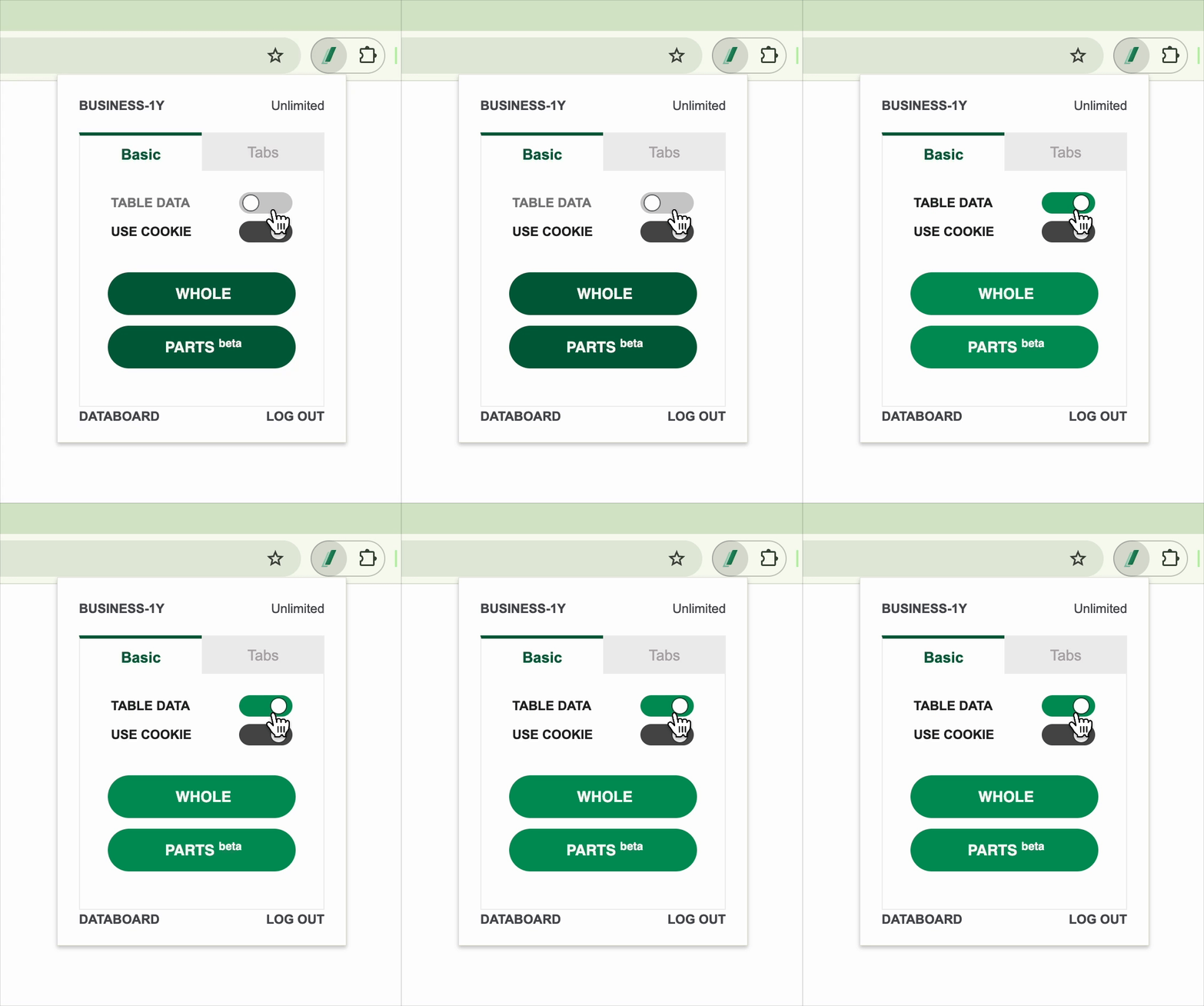
➡️ TABLE DATA 關閉狀態提取 ➡️ 「看起來像表格」但資料未正確提取時,將 TABLE DATA 切換按鈕開啟後重新提取
{% endhint %}
***
左側為 OFF(關閉),右側為 ON(開啟)狀態。以預設的 OFF(關閉)狀態使用,**「看起來像表格但資料好像沒有正確提取」時**,用 **ON(開啟)** 狀態提取資料試試看。
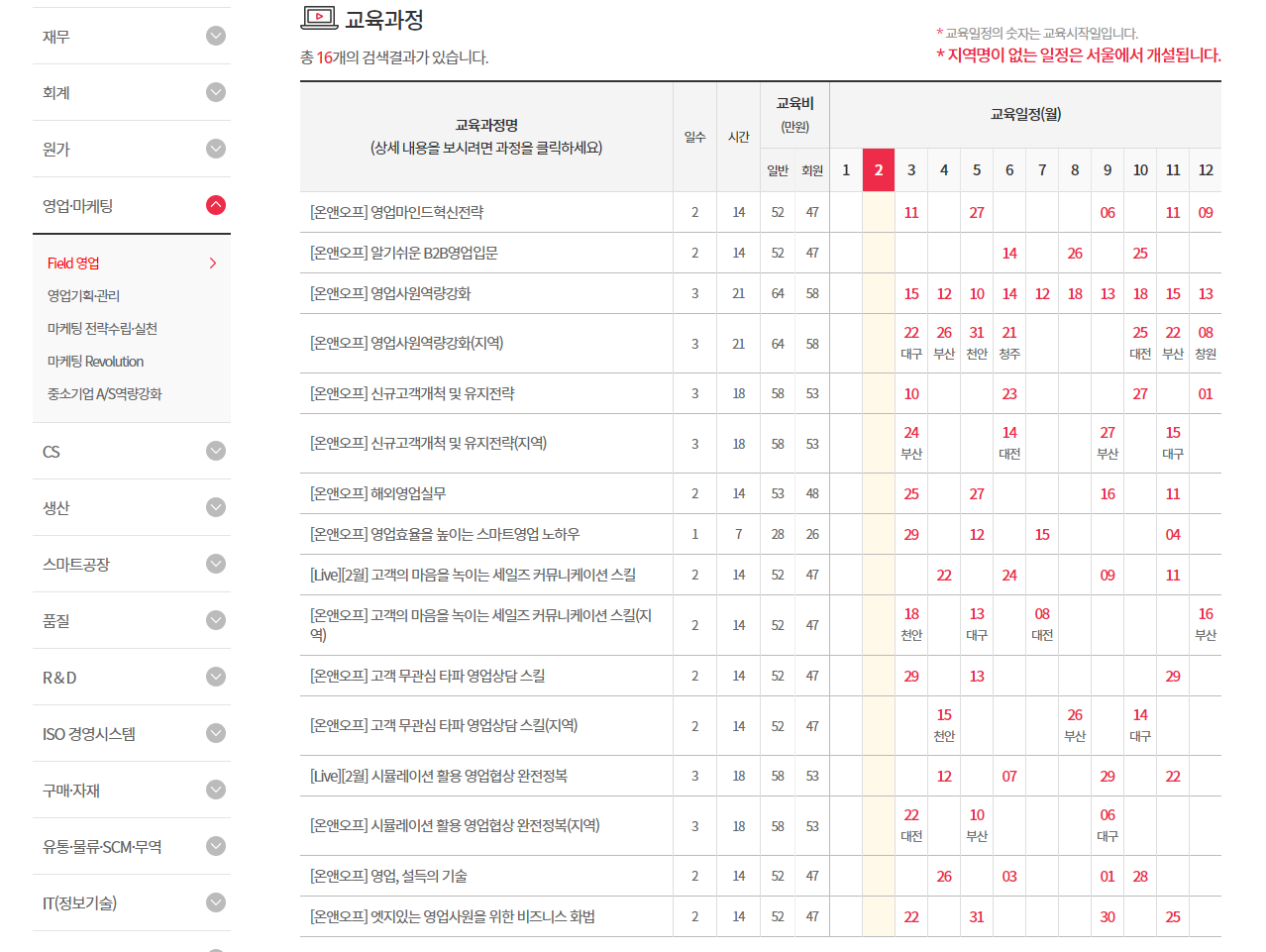
提取看起來像表格(table)的資料的網頁時,可以便利使用,如下網站。
在下方使用方法確認關閉選項和開啟選項的提取差異。
***
{% stepper %}
{% step %}
### TABLE DATA - OFF(關閉)
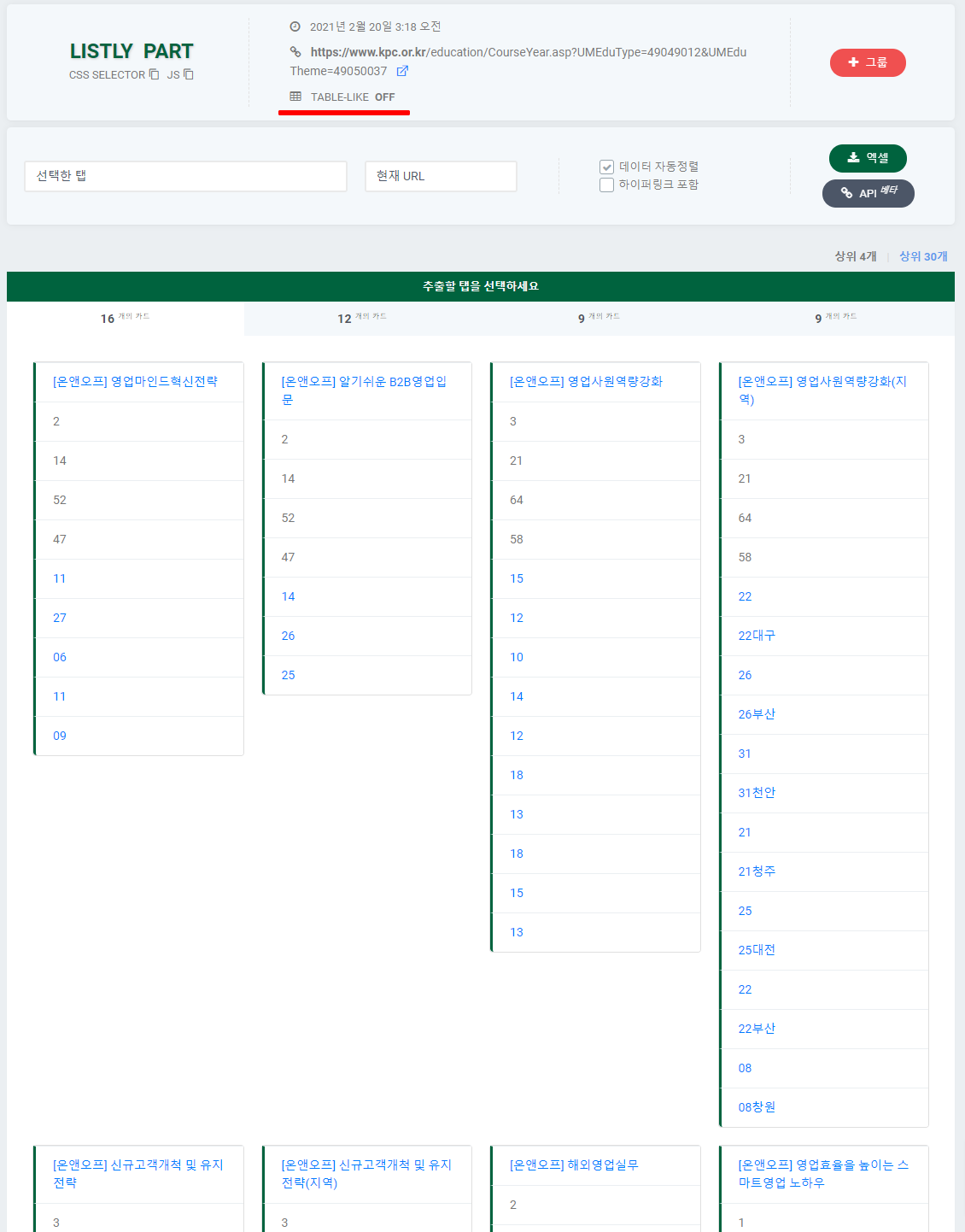
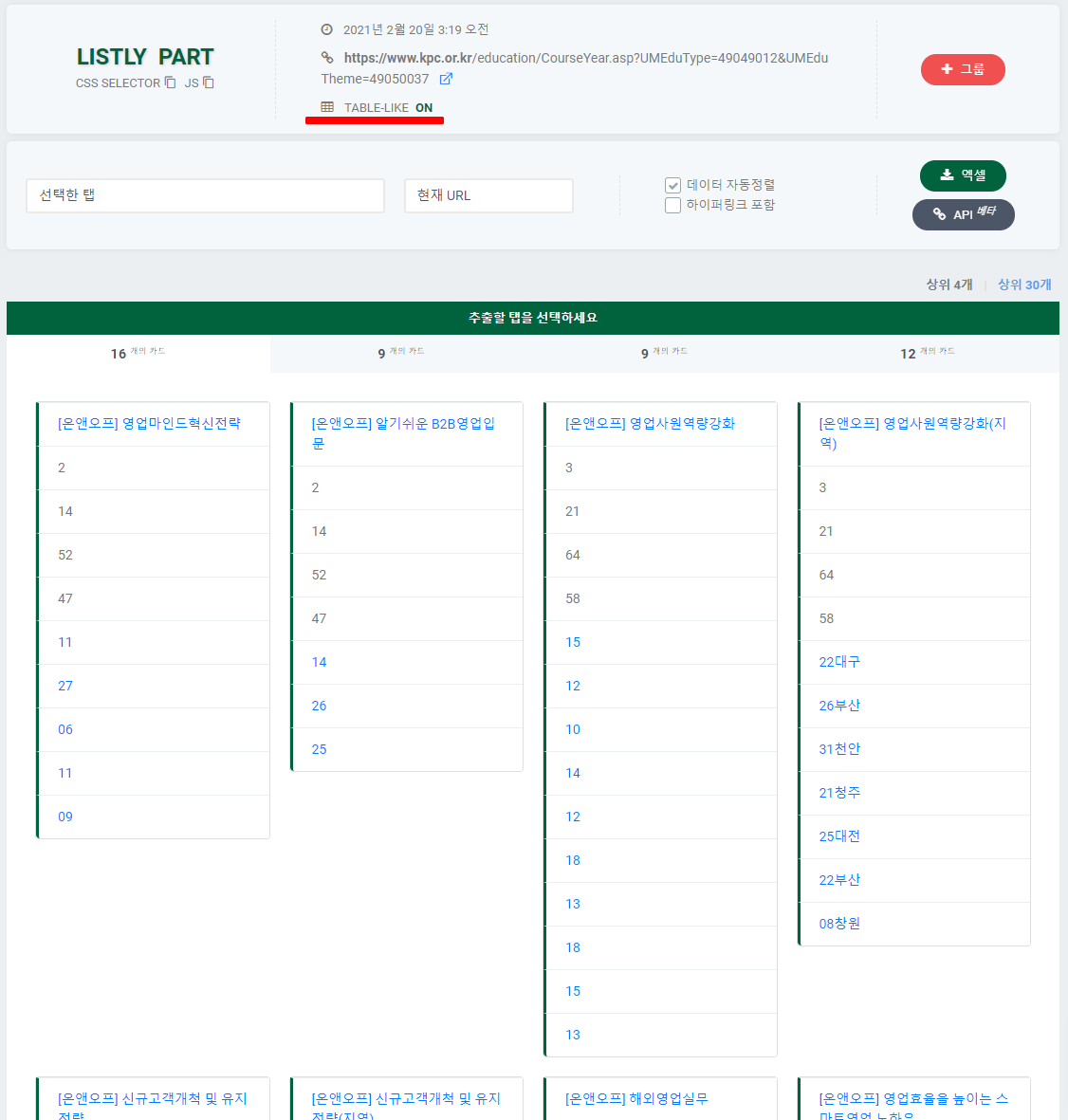
提取資料時在**紅色底線**標示的區域顯示是否套用了 TABLE-LIKE。
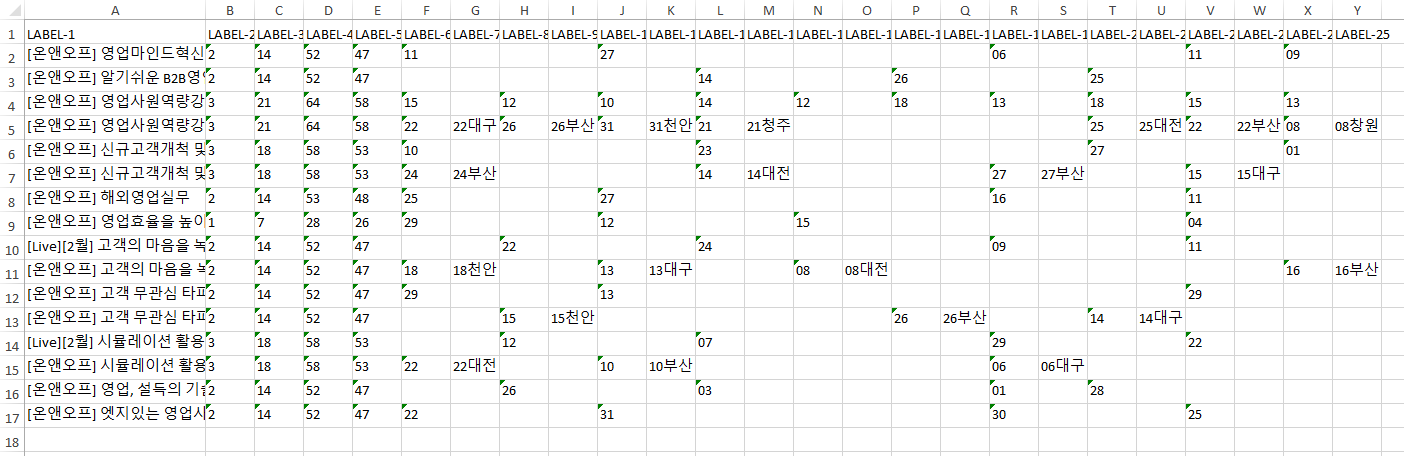
該選項關閉時(OFF),下載 Excel 檔案如下所示。
**原始頁面 vs. 提取資料比較**
比較一下原始頁面和提取資料的一部分吧?
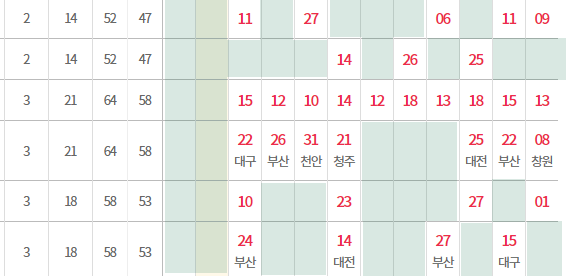
但值有點奇怪。某些字串重複提取了一部分(31, 31天安, 21, 21清州等),欄位之間的空格數也不同。以原始頁面淺綠色標示的空格區域為基準,與 Excel 檔案比較,**可以一眼看出提取資料的排列與原始不同。**
{% hint style="success" %}
這時**將 IS TABLE-LIKE 改為****`ON`****再提取**試試看。
{% endhint %}
{% endstep %}
{% step %}
### TABLE DATA - ON(開啟)
在同一個網站開啟 TABLE-LIKE 選項提取看看。
**紅色底線**標示的區域顯示套用了 TABLE-LIKE。
**原始頁面 vs. 提取資料比較**
比較與上一節相同區域的原始頁面和提取資料。
啟動 TABLE-LIKE 選項提取資料時,原始頁面淺綠色標示的空格區域與提取資料的**空格區域完全一致,也沒有重複提取的文字。**
{% hint style="info" %}
觀察 Listly 使用者的結果,處理表格資料的比率約 10%。也就是說,大部分情況不需要使用 TABLE-LIKE 選項。所以建議以預設的 OFF(關閉)狀態使用,在判斷為「看起來像表格但好像不太好」的情況下,才 ON(開啟)後提取試試看。
{% endhint %}
{% endstep %}
{% endstepper %}
---
# Agent Instructions
This documentation is published with GitBook. GitBook is the documentation platform designed so that both humans and AI agents can read, navigate, and reason over technical content effectively. Learn more at gitbook.com.
## Querying This Documentation
If you need additional information that is not directly available in this page, you can query the documentation dynamically by asking a question.
Perform an HTTP GET request on the current page URL with the `ask` query parameter, and the optional `goal` query parameter:
```
GET https://help.listly.io/docs/zh-hant/getting-started/extension-features-zh-hant/table-data-zh-hant.md?ask=&goal=
```
`ask` is the immediate question: it should be specific, self-contained, and written in natural language.
`goal` is optional and describes the broader end goal you are ultimately trying to accomplish on behalf of the user. GitBook uses it to tailor the answer towards what is most useful for that goal.
The response will contain a direct answer to the question and relevant excerpts and sources from the documentation.
Use this mechanism when the answer is not explicitly present in the current page, you need clarification or additional context, or you want to retrieve related documentation sections.