> For the complete documentation index, see [llms.txt](https://help.listly.io/llms.txt). Markdown versions of documentation pages are available by appending `.md` to page URLs; this page is available as [Markdown](https://help.listly.io/docs/zh-hant/getting-started/result-page-features-zh-hant/actionscript-zh-hant.md).
# 動作腳本
## 操作腳本是什麼?
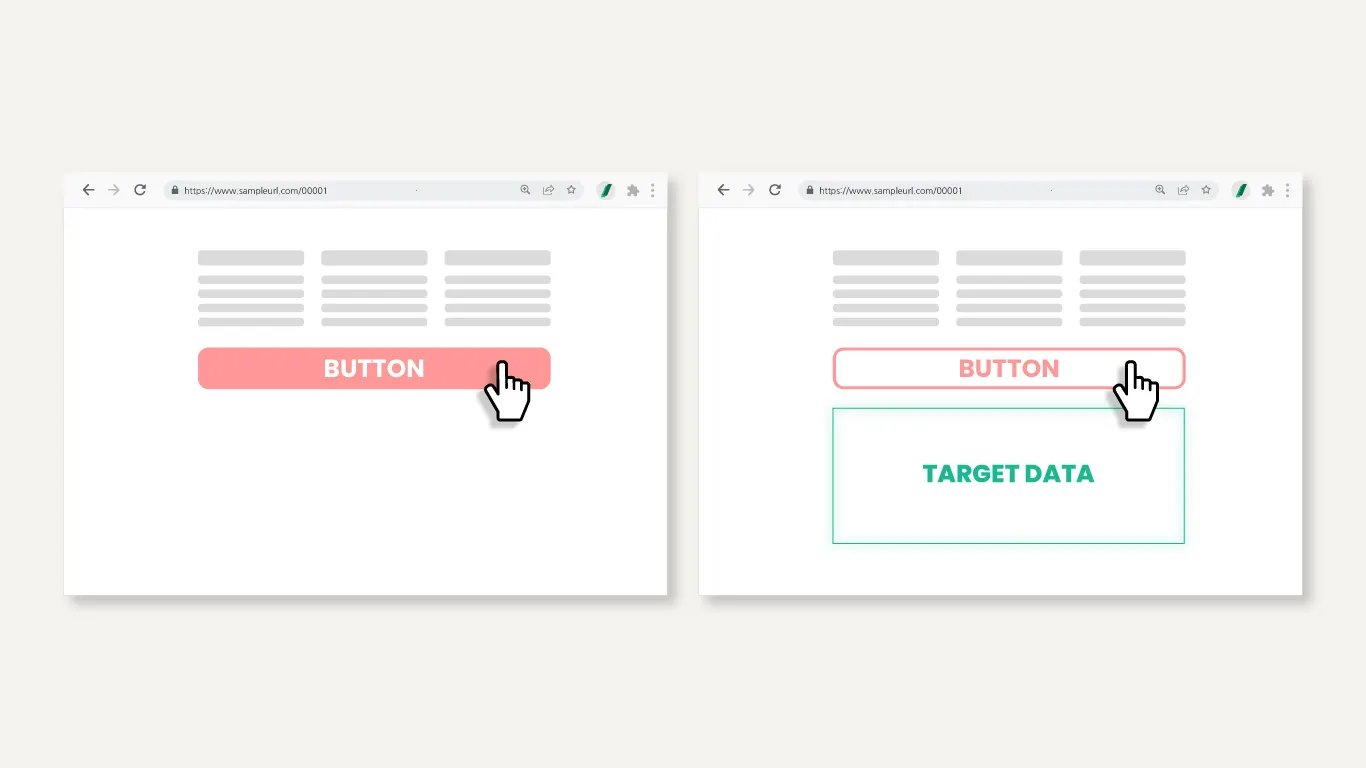
操作腳本不只是單純提取可見的畫面,而是**使用者可以直接撰寫 JavaScript 程式碼控制提取過程的進階功能**。
範例:
* 點擊特定按鈕後出現的區段內的資料提取
* 滑鼠懸停時出現的區域內的資料提取
* 其他控制網站內動態變化的元素後收集資料
如上所示,可以**客製化一般 Listly 自動化設定難以解決的特殊情況的資料提取**。
{% hint style="warning" %}
操作腳本撰寫服務是**企業版方案專用選項商品**。如果使用較低方案,可以直接撰寫腳本使用此功能。
{% endhint %}
***
## 使用方法
{% stepper %}
{% step %}
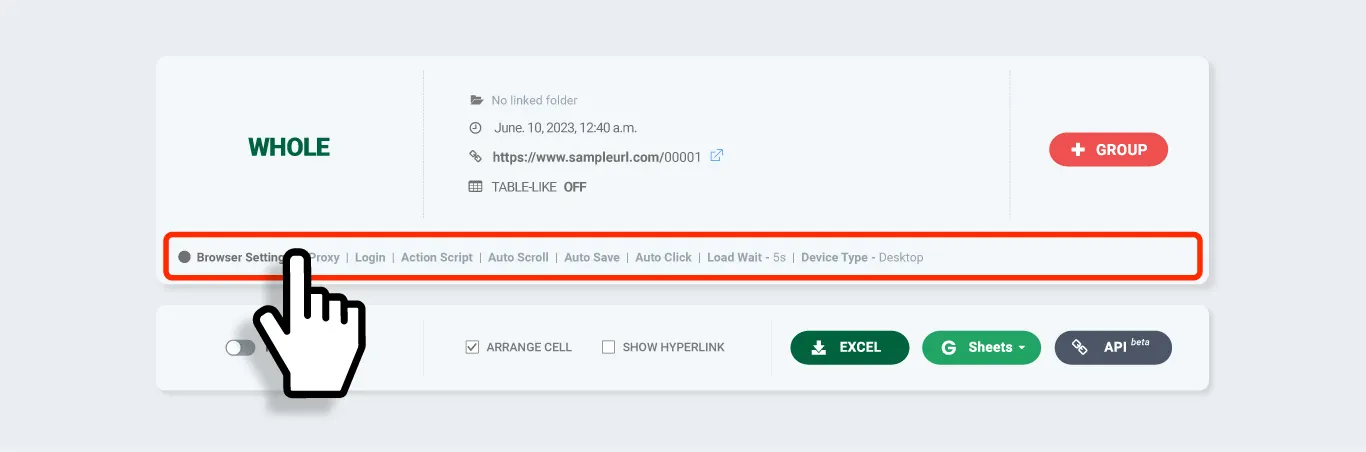
#### 網頁\*\*【全頁提取】\*\*後,點擊結果頁面的 \[Browser Setting] 區間前往該任務的設定畫面。
{% endstep %}
{% step %}
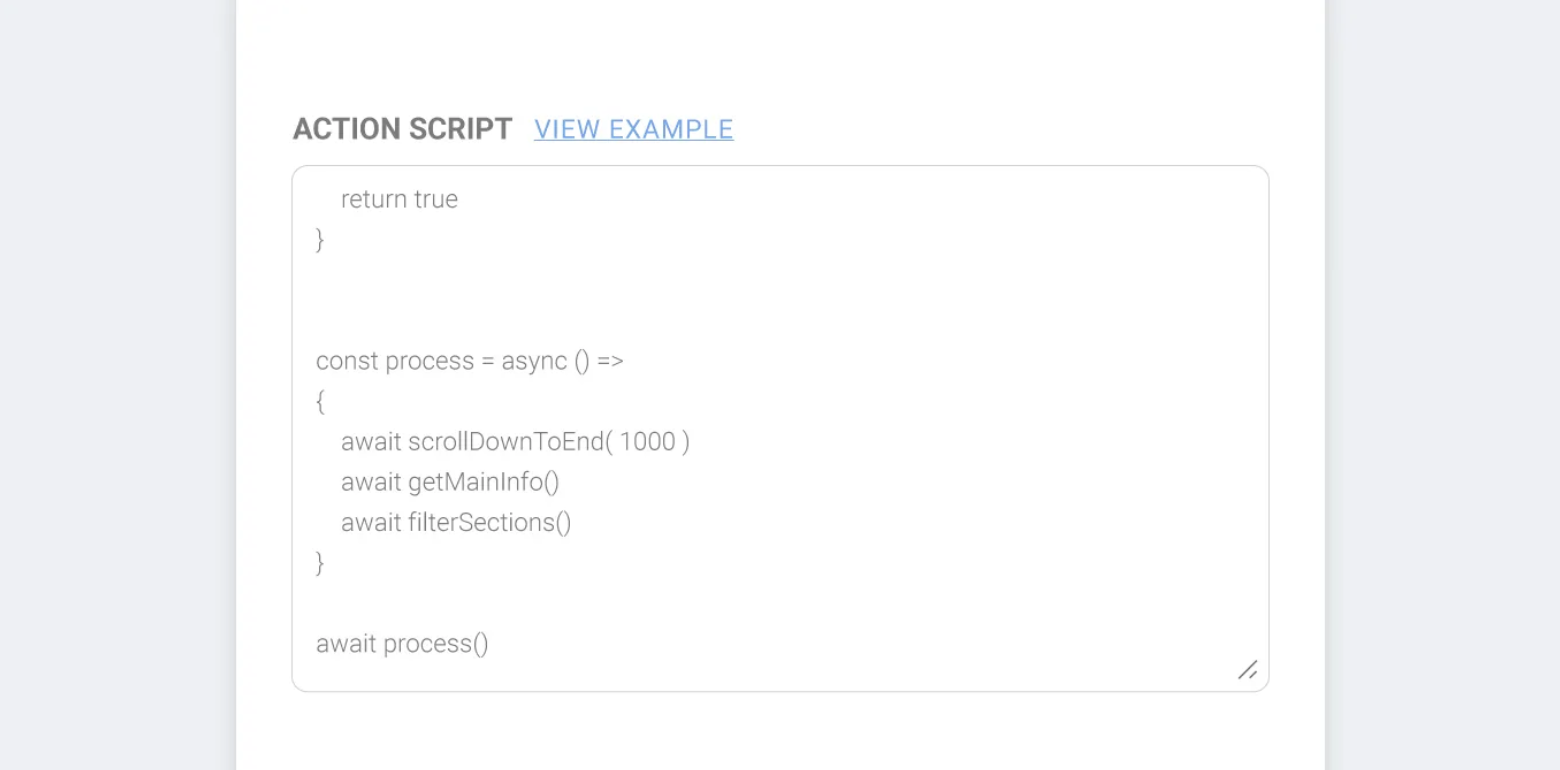
#### 在設定畫面的操作腳本欄貼上撰寫的 JS 程式碼,點擊\*\*【儲存】\*\*按鈕。
{% hint style="success" %}
**TIP** 現在也可以用 Chat GPT 等 AI 服務撰寫簡單的腳本。Listly 團隊實際利用 ChatGPT 生成操作腳本的經驗已透過電子報分享,請參考。\
👉[ 操作腳本,請 ChatGPT 代寫後發現「這也可以?」](https://maily.so/listly.io/posts/knrje7v0zld)
{% endhint %}
{% endstep %}
{% step %}
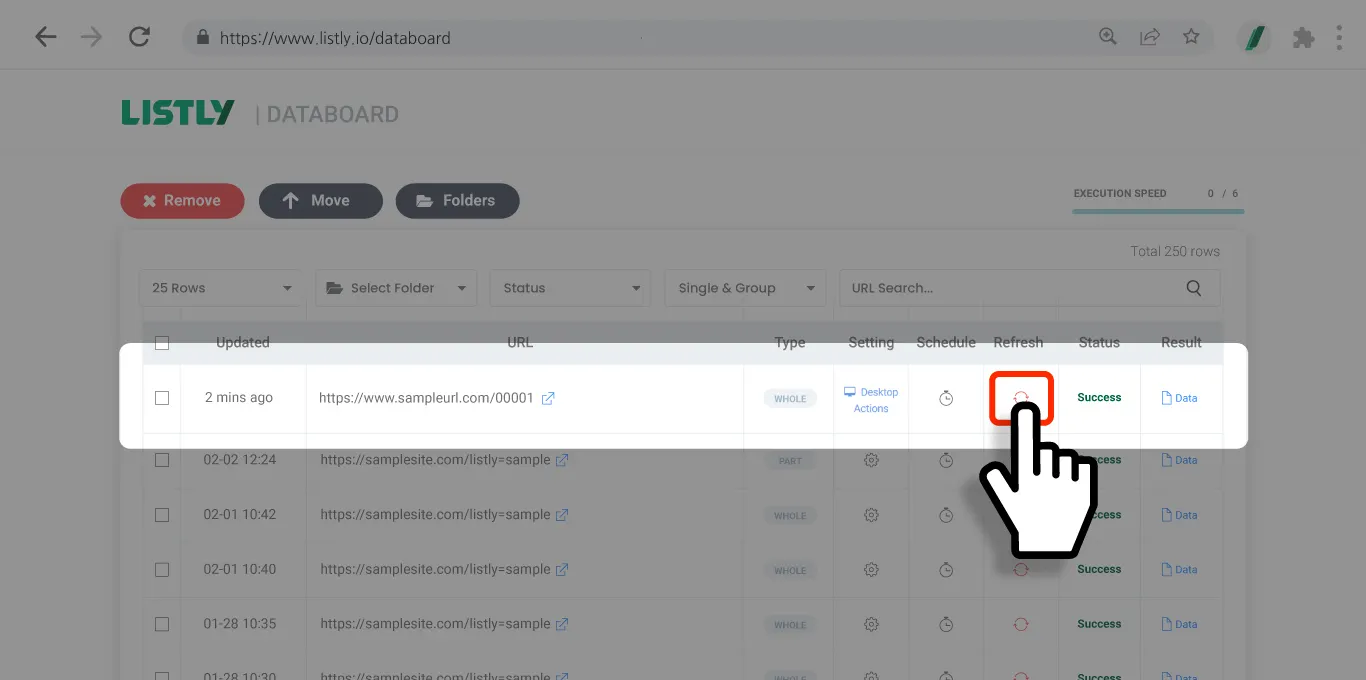
#### 點擊結果視窗或資料面板的\*\*【重新提取】\*\*按鈕,重新提取透過操作腳本的資料區域。
{% endstep %}
{% step %}
#### 重新提取完成後確認結果。請務必驗證設定的操作腳本是否按照意圖運作。
{% endstep %}
{% endstepper %}
## 注意事項
{% hint style="warning" %}
**在群組提取任務套用操作腳本時的注意事項**
操作腳本必須先在群組提取前的來源頁面套用。群組提取假設以代表頁面(來源頁面)為基準,其他 URL 為相同結構後收集資料。如果未在來源頁面套用操作腳本,之後新增的 URL 會因為沒有執行相同動作的基準,可能發生**分頁配對錯誤**或**資料遺漏**。
* 必須在**代表頁面**開啟的狀態下撰寫並套用操作腳本。
* 套用操作腳本後必須執行**重新提取**,先確認該設定是否正常運作。
* 之後透過\*\*【+群組】\*\*按鈕新增 URL,所有群組頁面就會反映相同的操作腳本動作。
* 如果來源頁面與其他頁面的結構差異大,腳本可能無法正常運作,所以**只將相同結構的頁面**加入群組提取很重要。
{% endhint %}
---
# Agent Instructions
This documentation is published with GitBook. GitBook is the documentation platform designed so that both humans and AI agents can read, navigate, and reason over technical content effectively. Learn more at gitbook.com.
## Querying This Documentation
If you need additional information that is not directly available in this page, you can query the documentation dynamically by asking a question.
Perform an HTTP GET request on the current page URL with the `ask` query parameter, and the optional `goal` query parameter:
```
GET https://help.listly.io/docs/zh-hant/getting-started/result-page-features-zh-hant/actionscript-zh-hant.md?ask=&goal=
```
`ask` is the immediate question: it should be specific, self-contained, and written in natural language.
`goal` is optional and describes the broader end goal you are ultimately trying to accomplish on behalf of the user. GitBook uses it to tailor the answer towards what is most useful for that goal.
The response will contain a direct answer to the question and relevant excerpts and sources from the documentation.
Use this mechanism when the answer is not explicitly present in the current page, you need clarification or additional context, or you want to retrieve related documentation sections.