> For the complete documentation index, see [llms.txt](https://help.listly.io/llms.txt). Markdown versions of documentation pages are available by appending `.md` to page URLs; this page is available as [Markdown](https://help.listly.io/getting-started/databoard-features/settings-auto-scroll.md).
# Settings - Auto Scroll
## What is Auto-Scroll?
**Use this when you need to repeatedly scroll down** on the page you're extracting to see more product information.
{% hint style="info" %}
**Quick Start**
➡️ Extract data ➡️ Databoard settings ➡️ Select auto-scroll options ➡️ Save ➡️ Re-extract data
{% endhint %}
***
## How to Use
{% stepper %}
{% step %}
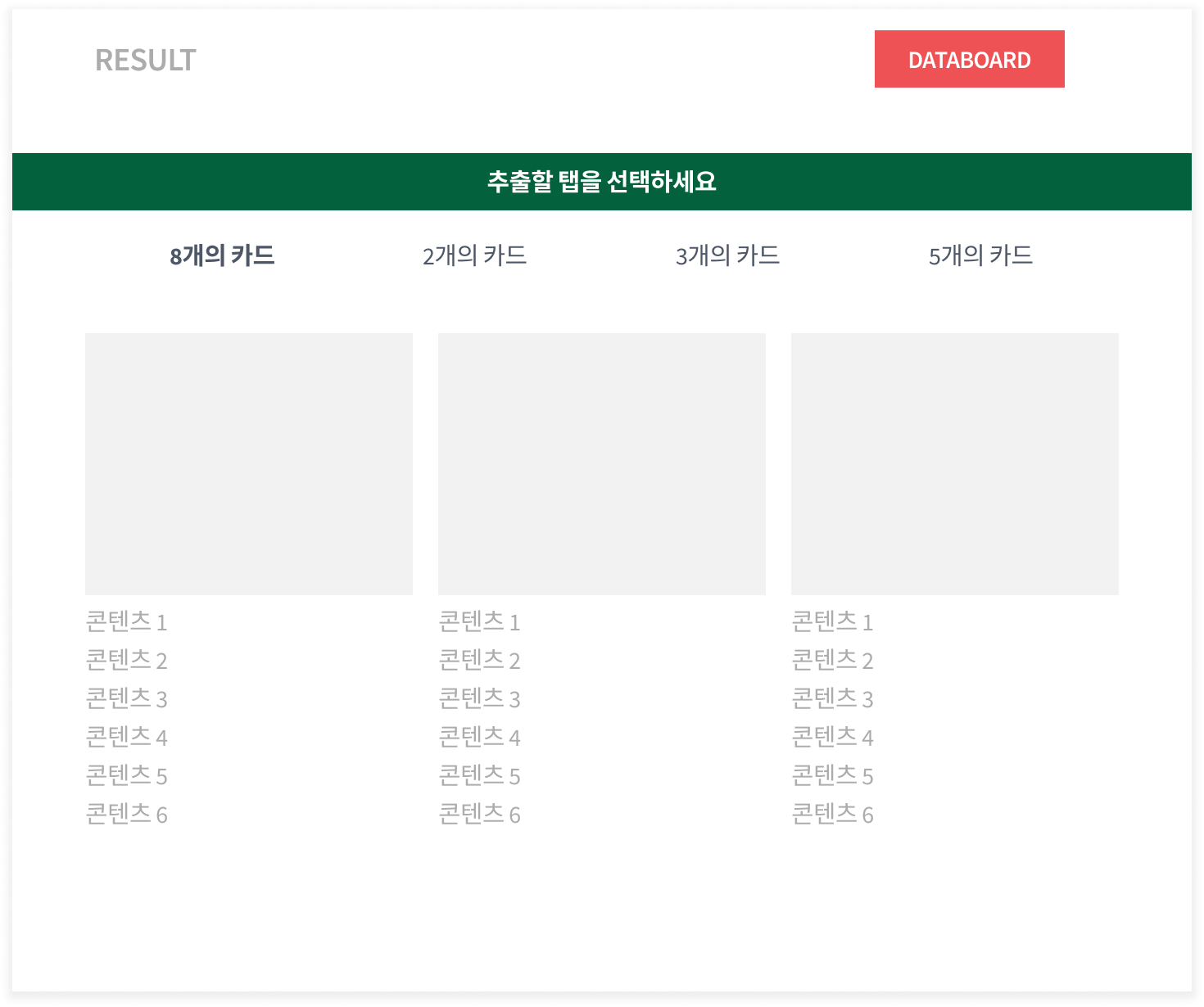
#### Extract data from your desired page. (Parts extraction recommended)
{% endstep %}
{% step %}
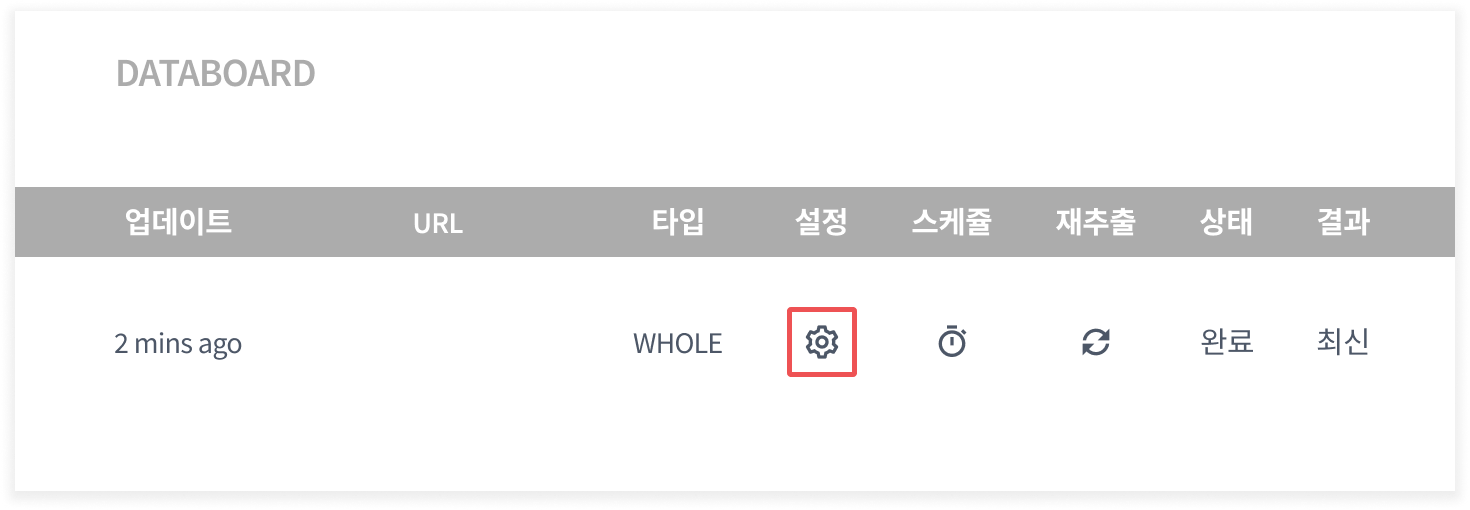
#### Navigate to the Databoard.
{% endstep %}
{% step %}
#### Click the **`Settings`** icon.
{% endstep %}
{% step %}
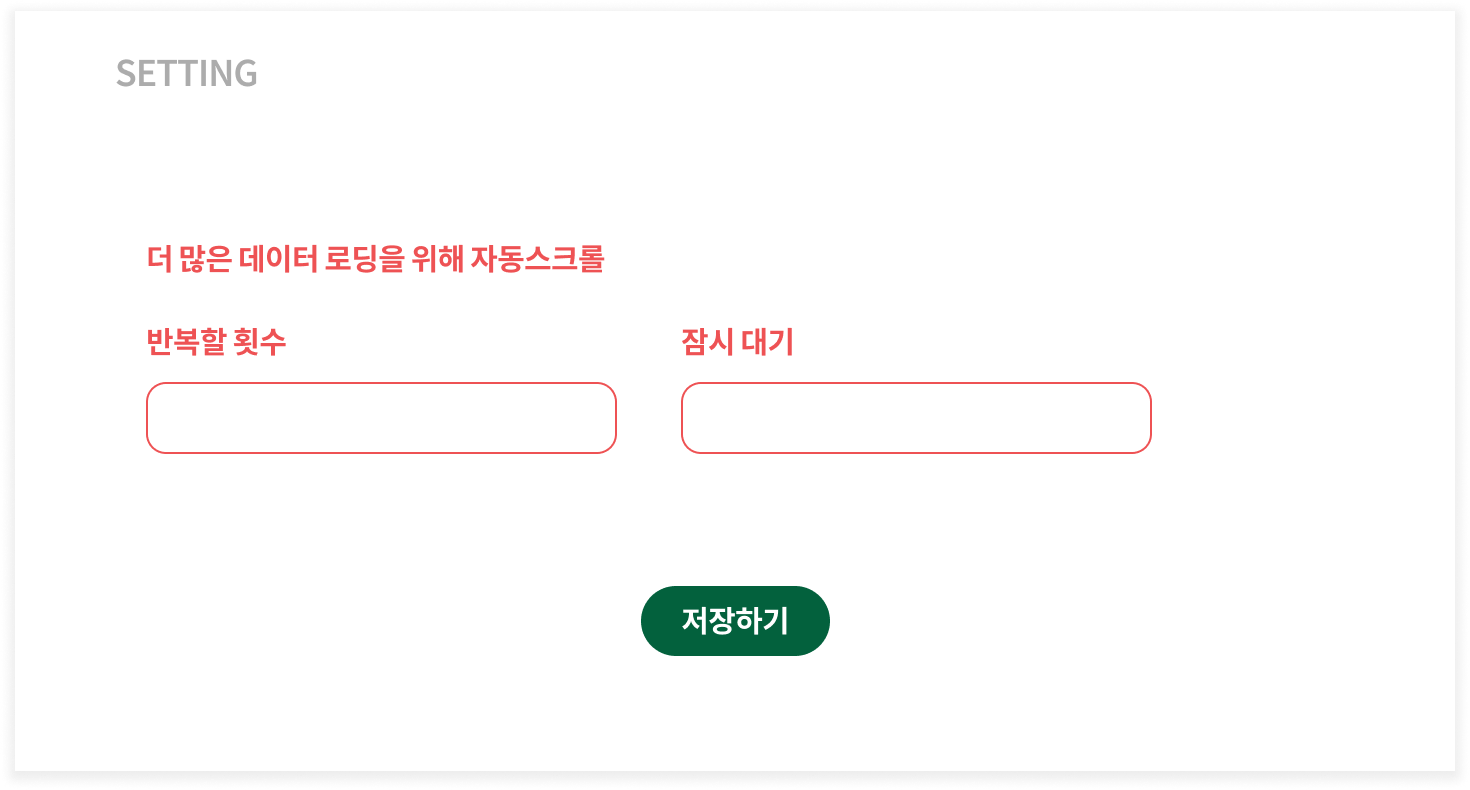
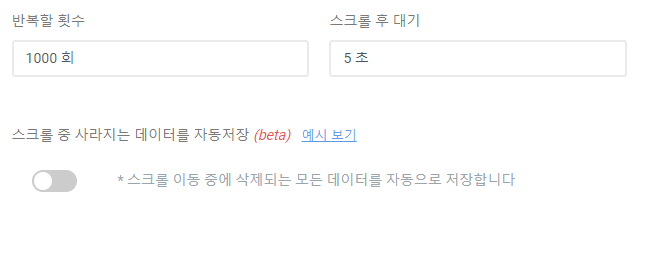
#### Select auto-scroll options and save.
* **Number of times to repeat**: How many times do you want to repeat the scroll down action?
* **Wait after scrolling**: How many seconds do you want to wait after each scroll?
{% endstep %}
{% step %}
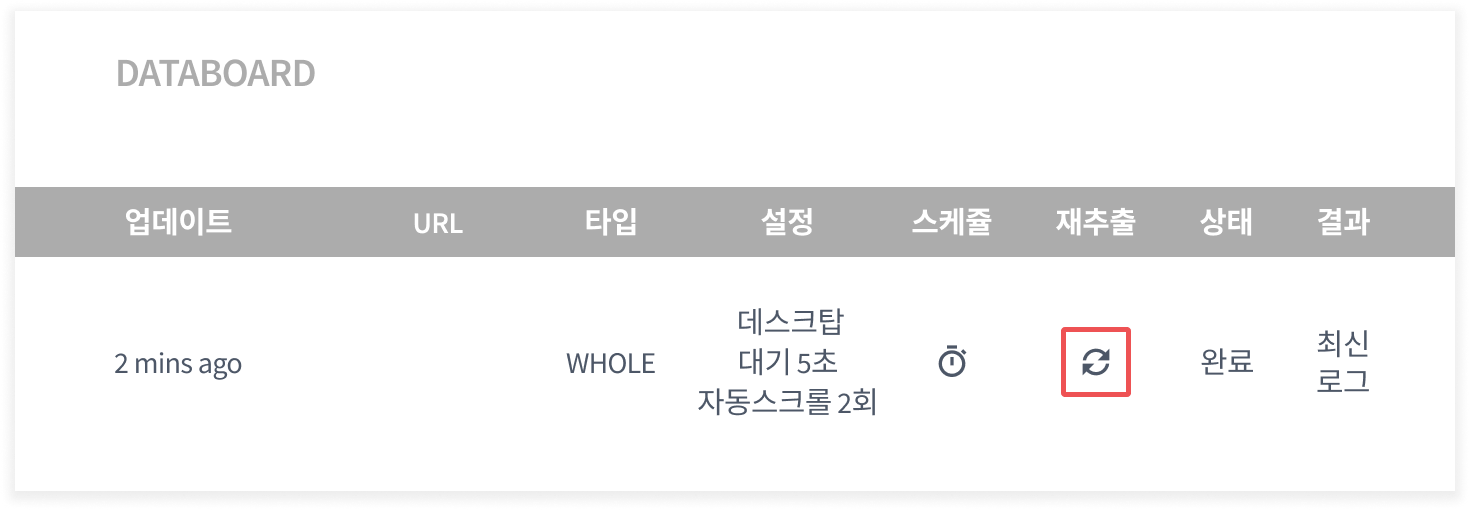
#### Click the **`Re-extract`** button to extract data again.
{% endstep %}
{% endstepper %}
***
## Auto-Scroll FAQ
Auto-scroll doesn't work well on some pages.
* **Try setting a longer wait time after scrolling.**\
Auto-scroll is heavily affected by the speed of the page being collected. For YouTube, it can sometimes take more than 5 seconds per attempt to load additional comments. Setting a longer wait time after scrolling significantly increases the chances of receiving all desired data.
* **Execution time is limited to a maximum of 10 minutes.**\
Features where Listly extracts data on your behalf can only run for **`up to 10 minutes`**, so setting too many scroll repetitions and excessively long wait times will cause **data extraction to fail due to execution time limits**. When configuring settings, **set the number of repetitions and wait time appropriately** so the warning below doesn't appear. Estimated time may differ from actual time depending on the website's server and network conditions.
---
# Agent Instructions
This documentation is published with GitBook. GitBook is the documentation platform designed so that both humans and AI agents can read, navigate, and reason over technical content effectively. Learn more at gitbook.com.
## Querying This Documentation
If you need additional information that is not directly available in this page, you can query the documentation dynamically by asking a question.
Perform an HTTP GET request on the current page URL with the `ask` query parameter, and the optional `goal` query parameter:
```
GET https://help.listly.io/getting-started/databoard-features/settings-auto-scroll.md?ask=&goal=
```
`ask` is the immediate question: it should be specific, self-contained, and written in natural language.
`goal` is optional and describes the broader end goal you are ultimately trying to accomplish on behalf of the user. GitBook uses it to tailor the answer towards what is most useful for that goal.
The response will contain a direct answer to the question and relevant excerpts and sources from the documentation.
Use this mechanism when the answer is not explicitly present in the current page, you need clarification or additional context, or you want to retrieve related documentation sections.