> For the complete documentation index, see [llms.txt](https://help.listly.io/llms.txt). Markdown versions of documentation pages are available by appending `.md` to page URLs; this page is available as [Markdown](https://help.listly.io/getting-started/extension-features/extract-part.md).
# Extract Part
## What is Extract Part?
This feature lets you **extract data selectively by choosing only the areas you want**. Try it when you want to improve the structure and accuracy of your extracted data.
{% hint style="success" %}
**Quick Start**
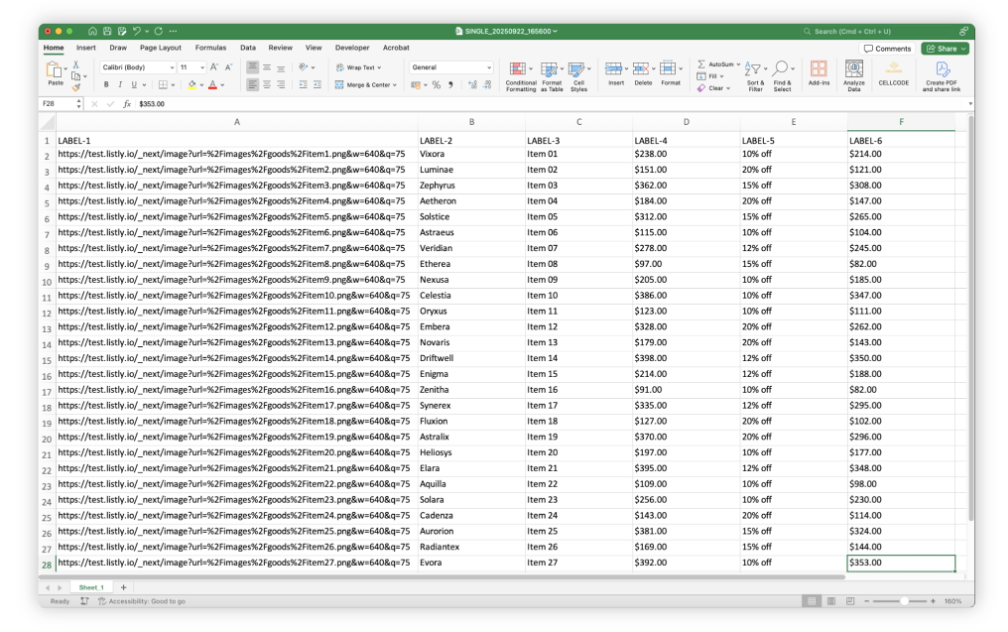
➡️ Click the Listly icon on the page you want ➡️ Select Extract Part ➡️ Select the data extraction areas ➡️ Choose extraction options in the panel (optional) ➡️ Click RUN ➡️ Select the tab for the data you want in the results ➡️ Download your data
{% endhint %}
***
## How to Use
{% stepper %}
{% step %}
#### Click the Listly Icon on your target website
Navigate to the web page you want to extract data from in your [Listly-installed](/getting-started/quick-start-guide/how-to-install-listly.md) browser and click the Listly icon.
{% endstep %}
{% step %}
#### Select 'Extract Part'
Select the **\[Extract Part]** button in the Listly extension.
{% endstep %}
{% step %}
#### Select the areas you want to scrape
Click to specify the areas you want to extract.
When you click an extraction area with a matching pattern, a pop-up will automatically appear, allowing you to select all similar areas at once.
* **\[Group all]** : Click to select all matching areas without having to click them individually.
* **\[Keep separate]** : Click if the areas you wish to extract are distinct individual sections that do not share a pattern.
{% hint style="info" %}
Reference: [Parts Extraction Area Selection](/getting-started/extension-features/selecting-areas-for-extract-part.md)
{% endhint %}
{% endstep %}
{% step %}
#### Select extraction options for each area (optional)
If needed, configure extraction options within the individual selection box.
{% hint style="info" %}
Reference: [Learn About Parts Extraction Options](/getting-started/extension-features/options-for-extract-part.md)
{% endhint %}
{% endstep %}
{% step %}
### Click 'RUN'
Once you've finished selecting extraction areas, click the \[**RUN]** button.
{% endstep %}
{% step %}
### Select Tab to extract in results
After reviewing the extracted data in the results page, click the **\[Excel]** or **\[Google Sheets]** button to export.
{% hint style="info" %}
Reference: [Learn More About Data Download Options](/getting-started/result-page-features/data-download-options.md)
{% endhint %}
{% endstep %}
{% step %}
### Download your data
Check your downloaded file.
{% endstep %}
{% endstepper %}
***
## Parts Extraction Related FAQs
The number of items to extract varies by page. Is group extraction still possible?
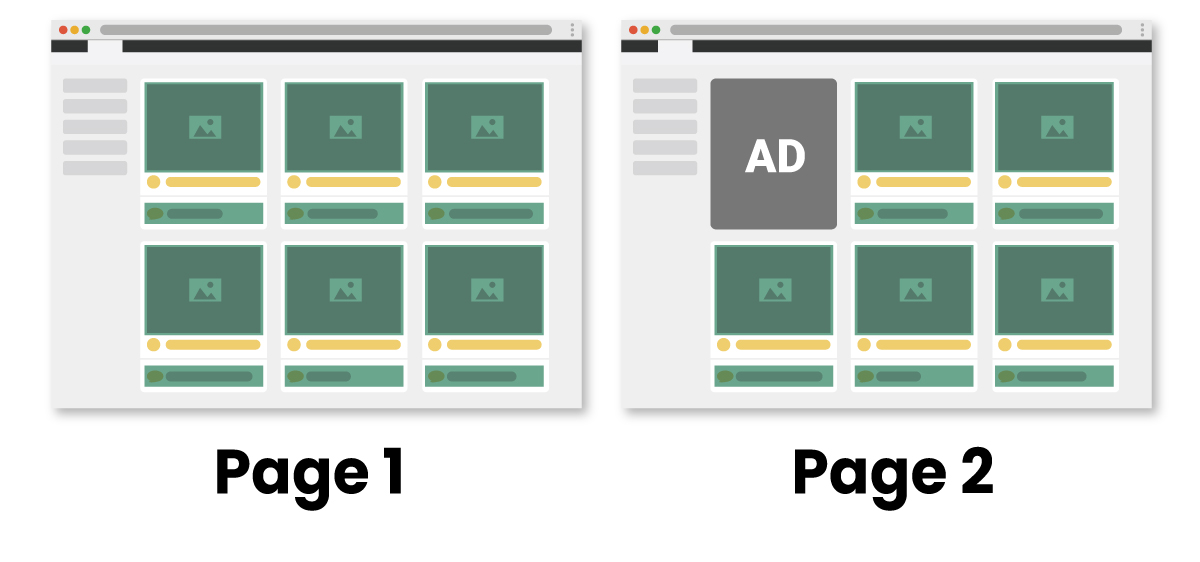
**Yes, it's possible.** For example, as shown in the image above, let's say the first item area on page 1 is replaced by a different element like an advertisement on page 2. (Areas with information you want to extract are marked with green boxes)
**Listly's Parts automatically detects data locations with the same structure.**
If you extract data on page 1 using the '**automatically select repeating elements (auto-select repeating elements)**' method to specify desired areas, then perform group extraction based on that page, data extraction will succeed without failures even if the number of selected areas differs on other web pages.
I want to extract a specific page using the 'individually select desired areas' method, then perform group extraction. However, some pages don't have the element I 'individually selected'. What happens in this case?
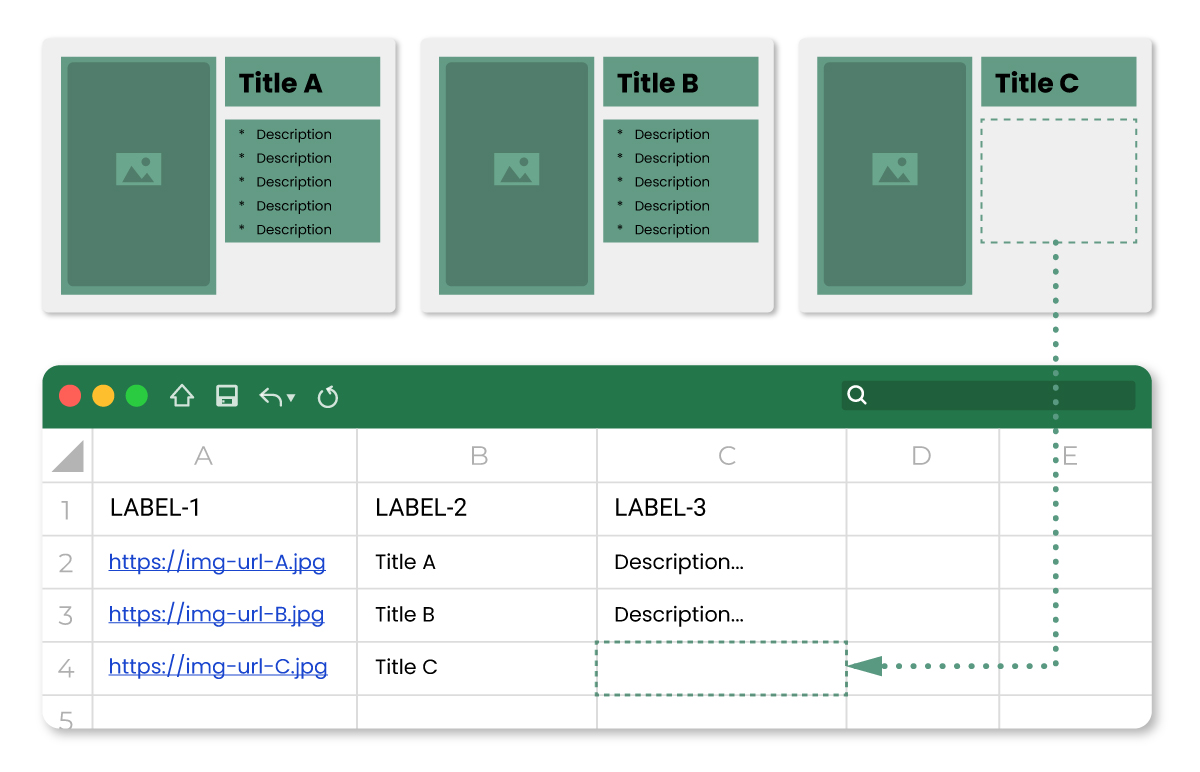
**As shown in the image above, missing information will be extracted as blank cells.**
Let's assume you selected image, title, and description areas separately using Parts on page A, extracted the data, then performed group extraction with pages having the same structure.
If page C has an empty description area that you selected on page A, the data in that cell will be extracted as blank, as shown in the image above.
{% hint style="danger" %} **However, like with previous group extraction, if you try to extract web pages with completely different structures from the source page, or if there are no matching areas with page A, it will be processed as a collection failure.**
{% endhint %}
When selecting repeating areas, unnecessary areas are also selected. How can I solve this?
We plan to add a feature that allows you to remove unnecessary areas by clicking for more precise data area selection. Currently, you can resolve this by **manually editing the CSS Selector value** of that area.
---
# Agent Instructions
This documentation is published with GitBook. GitBook is the documentation platform designed so that both humans and AI agents can read, navigate, and reason over technical content effectively. Learn more at gitbook.com.
## Querying This Documentation
If you need additional information that is not directly available in this page, you can query the documentation dynamically by asking a question.
Perform an HTTP GET request on the current page URL with the `ask` query parameter, and the optional `goal` query parameter:
```
GET https://help.listly.io/getting-started/extension-features/extract-part.md?ask=&goal=
```
`ask` is the immediate question: it should be specific, self-contained, and written in natural language.
`goal` is optional and describes the broader end goal you are ultimately trying to accomplish on behalf of the user. GitBook uses it to tailor the answer towards what is most useful for that goal.
The response will contain a direct answer to the question and relevant excerpts and sources from the documentation.
Use this mechanism when the answer is not explicitly present in the current page, you need clarification or additional context, or you want to retrieve related documentation sections.