> For the complete documentation index, see [llms.txt](https://help.listly.io/llms.txt). Markdown versions of documentation pages are available by appending `.md` to page URLs; this page is available as [Markdown](https://help.listly.io/getting-started/extension-features/extract-tabs.md).
# Extract Tabs
## What is Extract Tabs?
**Extract Tabs** is a feature that lets you extract matching sections from all open tabs in your browser at once. It carries less risk of getting blocked when extracting multiple pages simultaneously, and the workflow is simpler.
{% hint style="warning" %}
**Things to keep in mind when using Extract Tabs**
Depending on your PC and browser environment, opening too many tabs at once can cause a web page to read it as an unusual signal, making the page load very slowly or fail to open properly. When extracting data, we recommend keeping the number of tabs to around 30 per run.
{% endhint %}
{% hint style="info" %}
**Quick Start**
➡️ Open multiple tabs in your browser ➡️ Click the Listly icon ➡️ Select Extract Tabs ➡️ Select the extraction areas ➡️ Click the extract button ➡️ Select the data tab in the results and check the preview ➡️ Download your file
{% endhint %}
***
## How to Use
{% stepper %}
{% step %}
### Open Multiple Tabs in Your Web Browser
Open each page you want to extract in its own separate tab in your browser.
{% endstep %}
{% step %}
### Click the Listly Icon
On any one of your open tabs, click the **Listly extension icon** → **Extract Tabs** button.
*The small number next to the Extract Tabs button shows how many of your currently open browser tabs share the same domain as the current page. You can use this number to check whether Extract Tabs is ready to run.*
{% endstep %}
{% step %}
### Select Extraction Areas
Select the areas you want to extract data from, then click the **Run** button
{% hint style="info" %}
The extraction area selection method is the same as [Extract Part](https://help.listly.io/~/revisions/rseBK4elukvvfKJQ1RRk/getting-started/extension-features/extract-part).
{% endhint %}
Once extraction begins, you can track it in the progress bar.
After extraction is complete, click the **\[View Results]** button.
{% endstep %}
{% step %}
### Select the data to extract
In the results window, check that the information you want to extract is selected correctly.
❶ Make sure the **\[Whole Folder]** button is selected so you can download the information from all your tabs as a single file.
❷ Under the **Data Layout** option, choose how you want the data arranged. Try switching between the options and check the result in the preview window.
{% endstep %}
{% step %}
### Download Extracted Data
When you download the extracted data as an Excel or Google Sheets file and open it, you'll see that the information from all your tabs is neatly organized into a single file.
{% endstep %}
{% endstepper %}
***
## Tutorial Video
{% embed url="" %}
***
## Tabs Extraction FAQ
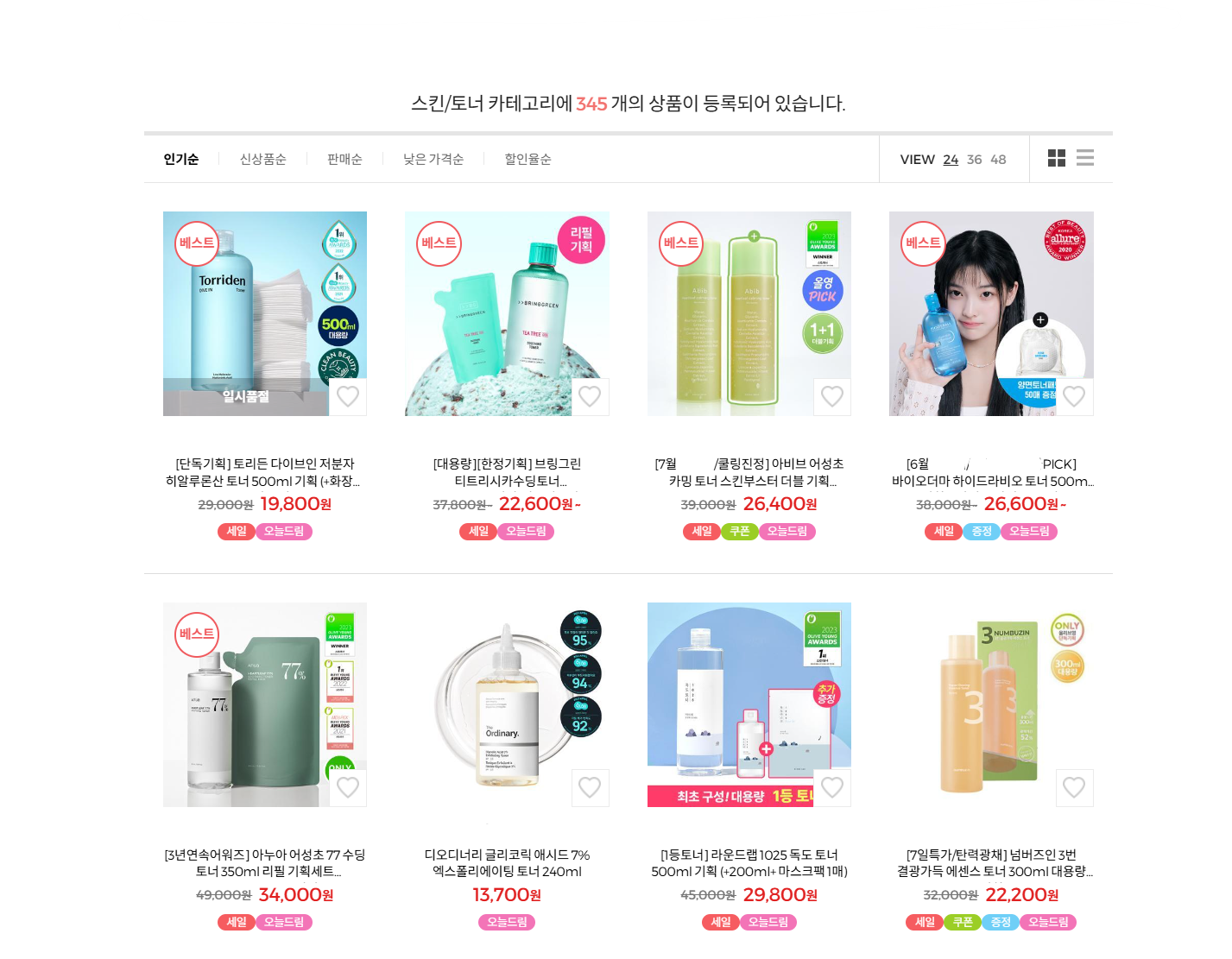
I need to do Tabs extraction, but new tabs aren't appearing on the website. Is it blocked?
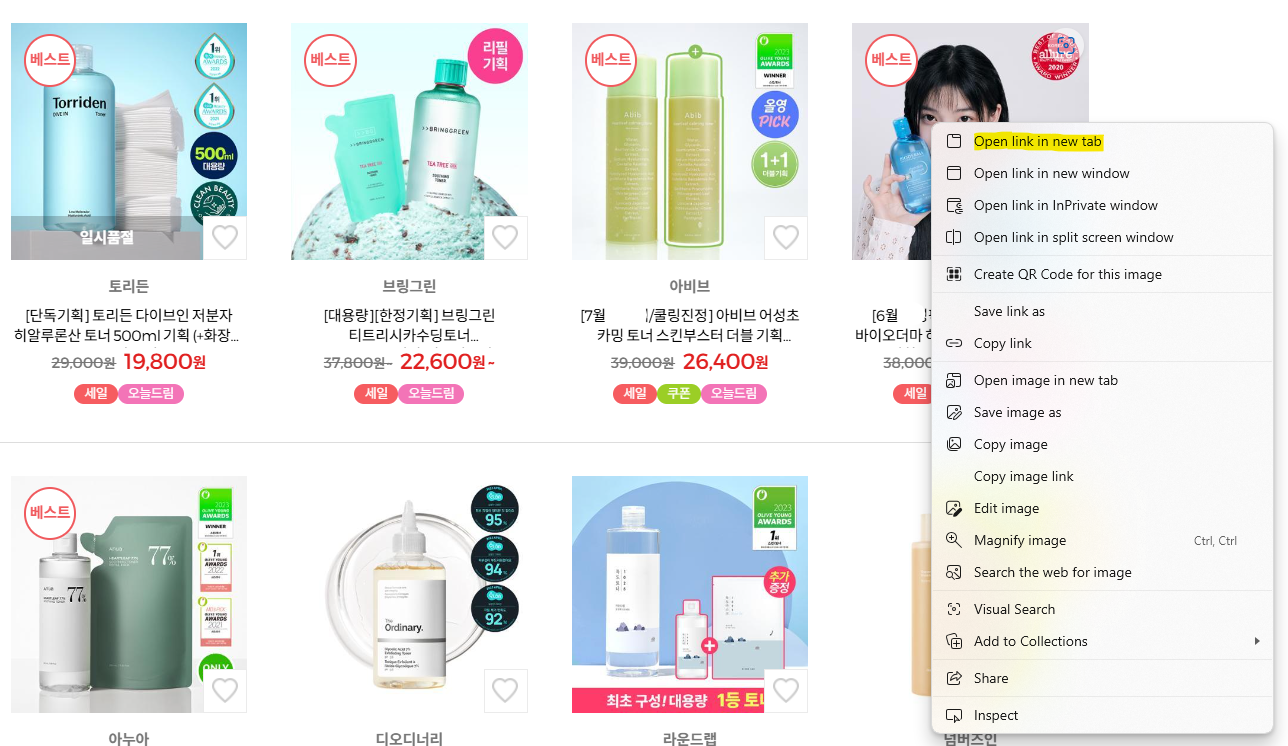
First, **to perform Tabs extraction, you need to open new tabs in your browser first**. Basically, you can open individual detail pages you want to extract one by one using right-click from the list page, but this is cumbersome, and
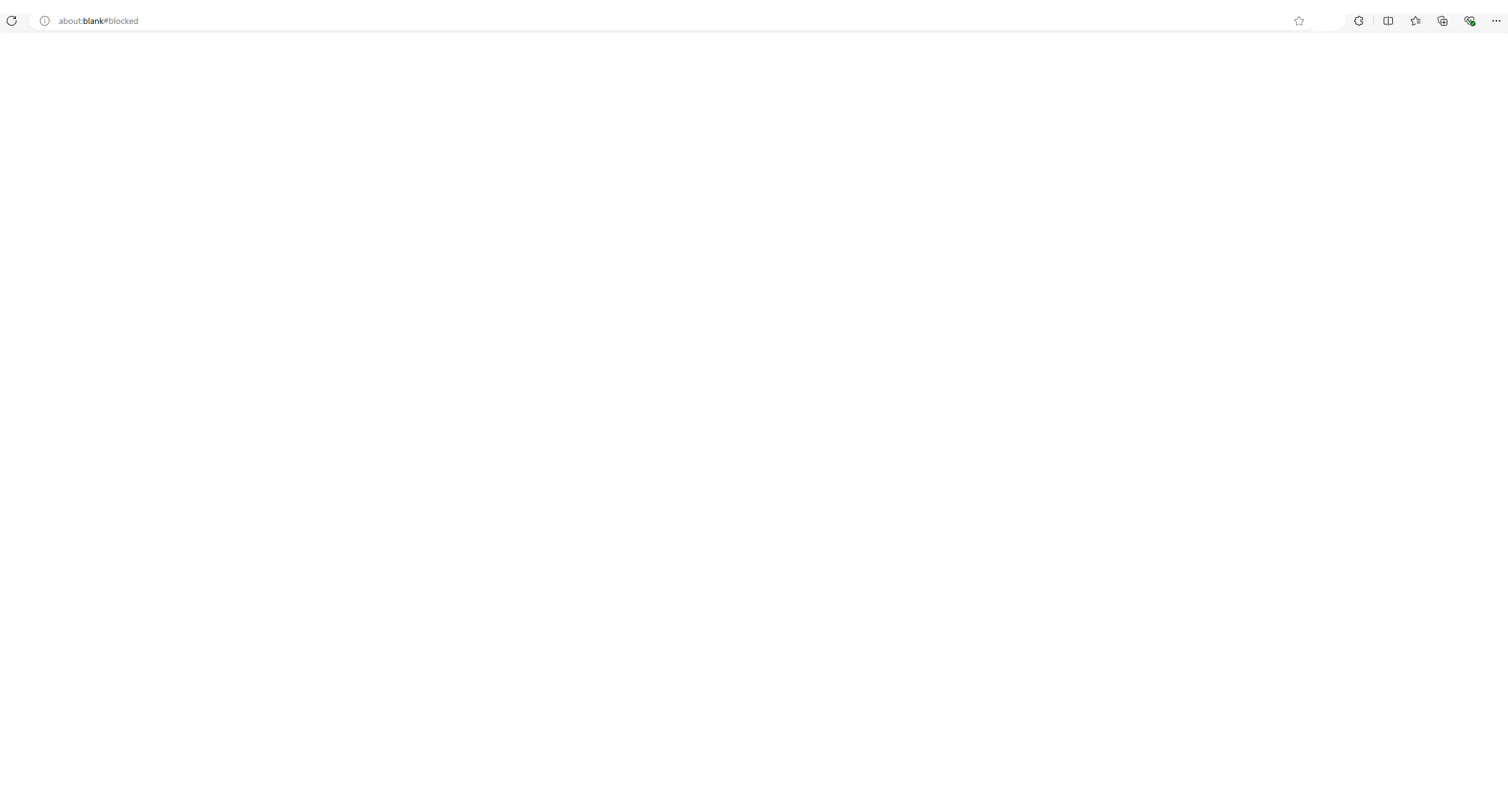
Error messages like BLANK#BLOCKED shown in the image below may appear.
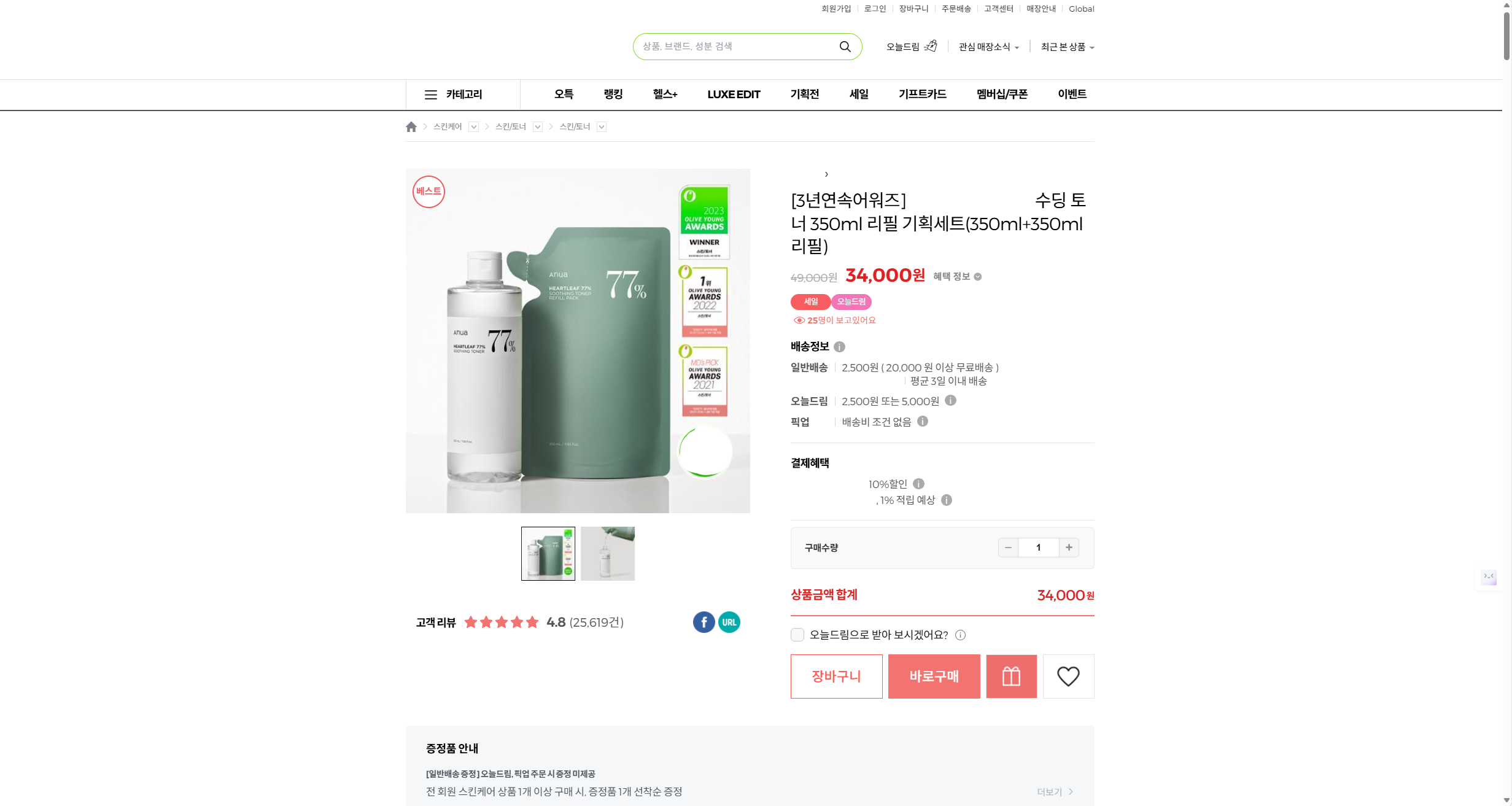
Properly opened detail page example in new tab
Detail page that didn't open properly in new tab example
When opening detail pages in new tabs using right-click, errors like the above often occur if you don't click precisely on the area containing the detail page link.
You can prevent this by using Listly's [\[Open Multiple Tabs (Open Tabs)\]](/getting-started/extension-features/tabs-open-tabs.md) feature or other extensions that open URLs all at once.
Listly Data Extraction Units: Basic URLs vs Advanced URLs
URLs are Listly's unit of data extraction. We classify them into '**Basic URLs**' and '**Advanced URLs**' based on usage and deduction method, and the differences are as follows:
#### Basic URLs (URLs for Basic features)
* Usage: Used for single-page extraction through the Basic tab of the extension.
* Deduction method: 1 Basic URL is deducted each time a page is extracted.
* Usage conditions: Available unlimitedly when subscribing to upper-tier plans like Light Plan and Business Plan. Free Plan users get 10 URLs recharged after 30 days once they've used all 10. Basic URLs cannot be purchased separately.
#### Advanced URLs (URLs for Advanced features)
* Usage: Used when utilizing Listly's advanced features such as Tabs, group extraction, auto-click, auto-scroll, schedule settings, action templates, etc.
* Deduction method: 1 Advanced URL is deducted for processing one page worth of data through advanced features. Not deducted if extraction fails.
* Usage conditions: Renewed monthly after the first payment of the subscribed plan. Consumed Advanced URLs cannot be additionally purchased from the pricing page. If you want to purchase more, you must first subscribe to a higher-tier plan.
If I want to receive the Excel file in the order tabs are opened, what should I do?
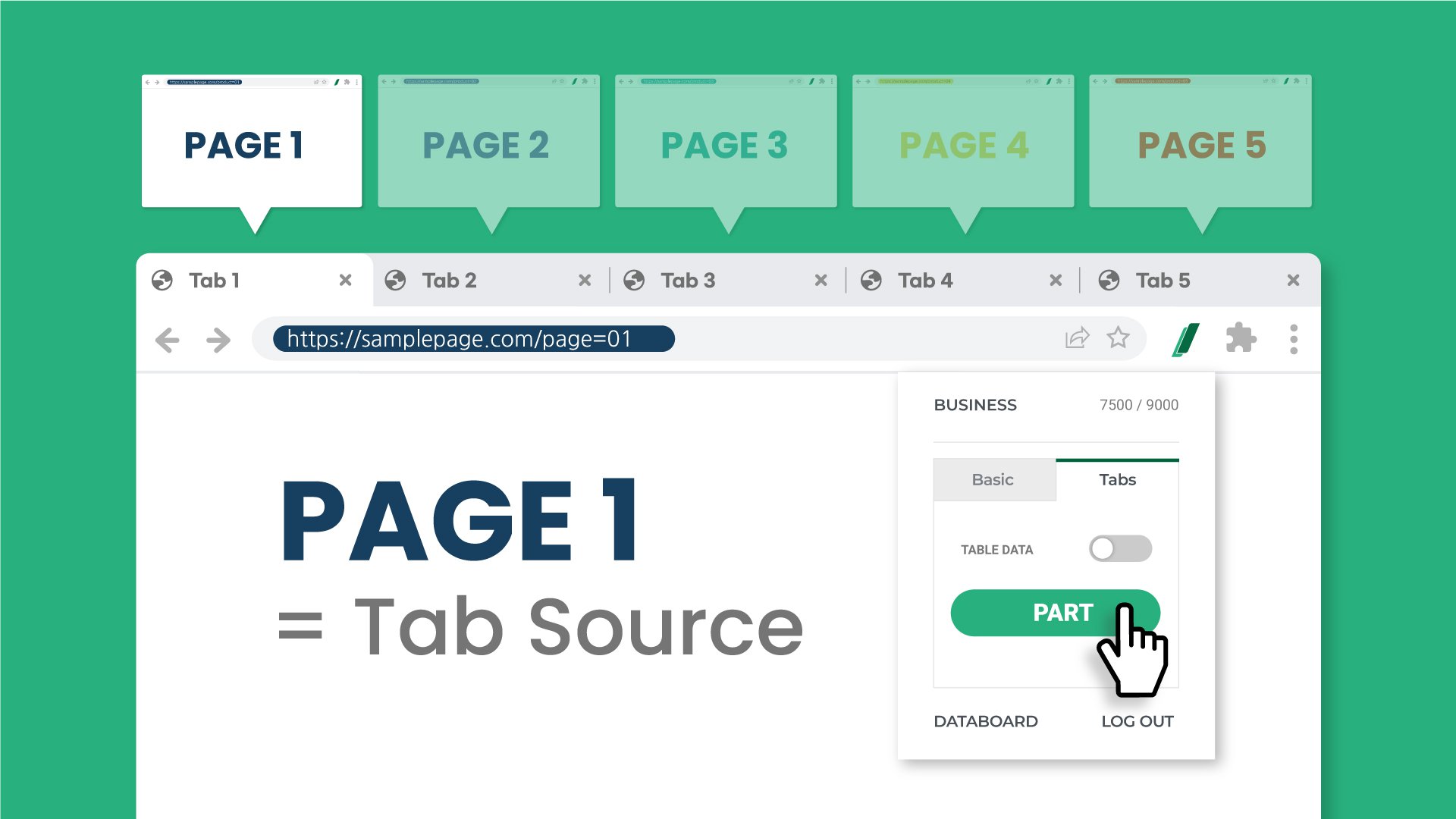
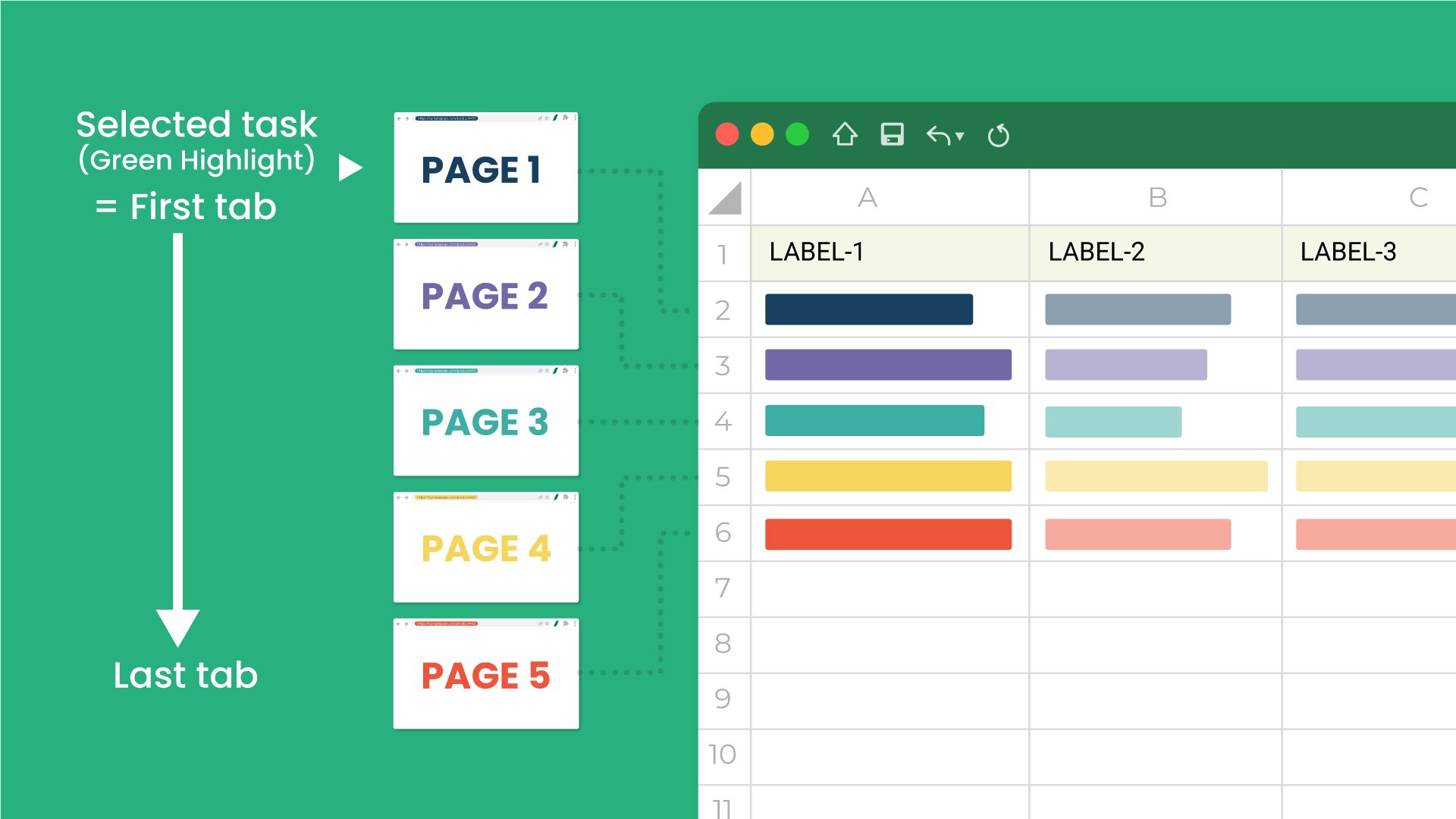
The first method is to click the **extract button** on the first tab among the open browser tabs. Then the first tab is automatically set as the 'tab source', and the results page also opens based on that 'tab source'.
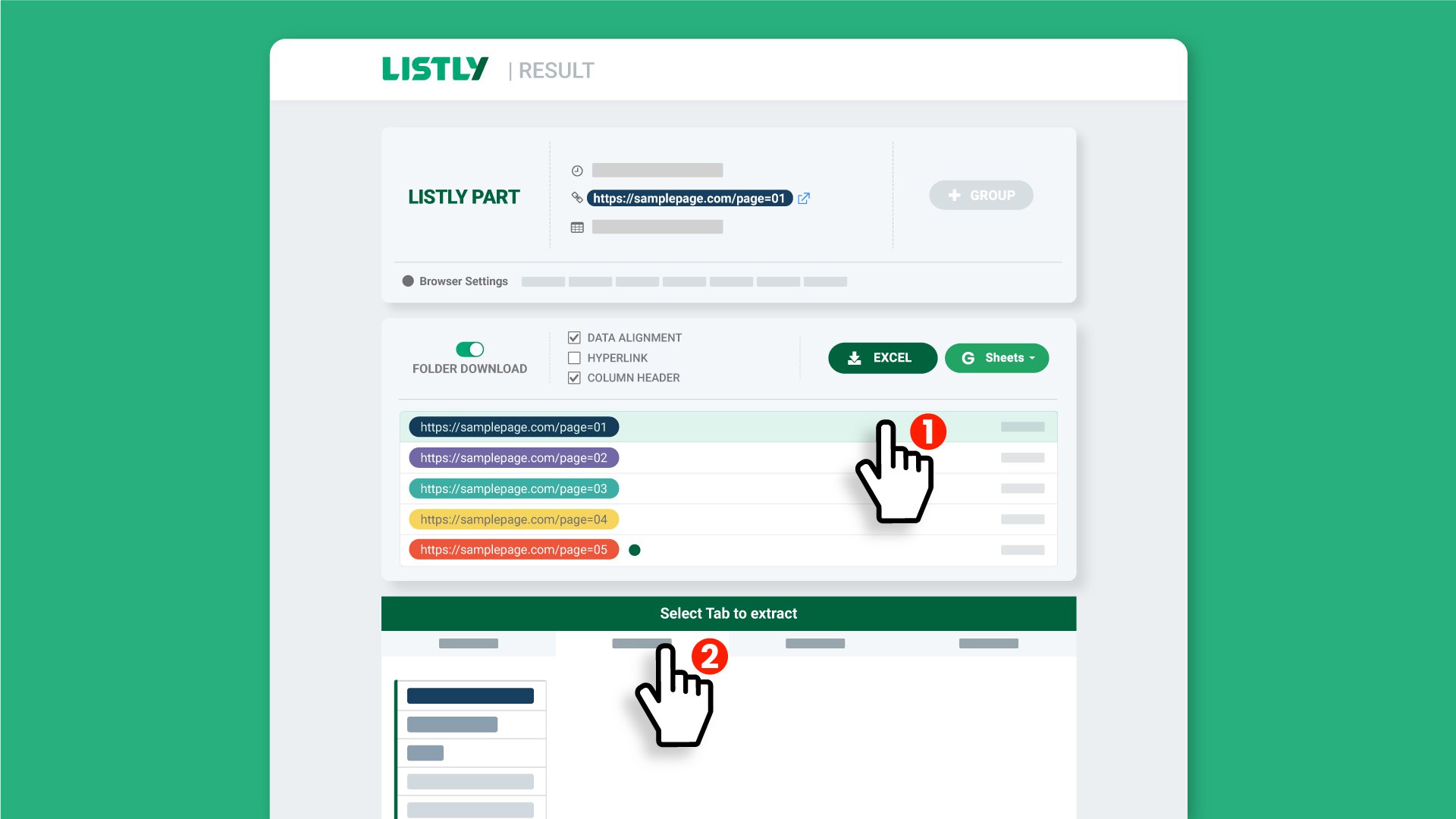
If you've already clicked the extract button on a tab other than the first browser tab, you can **change the reference task in the results page**. ① Click the first URL in the folder list. ② Select the tab containing the data you want to extract from the information card below.
After this process, click the **Excel** or **Google Sheets** button to download the results.
By making the first browser tab the 'reference point', you can extract data sorted in the order the tabs were opened as shown above.
---
# Agent Instructions
This documentation is published with GitBook. GitBook is the documentation platform designed so that both humans and AI agents can read, navigate, and reason over technical content effectively. Learn more at gitbook.com.
## Querying This Documentation
If you need additional information that is not directly available in this page, you can query the documentation dynamically by asking a question.
Perform an HTTP GET request on the current page URL with the `ask` query parameter, and the optional `goal` query parameter:
```
GET https://help.listly.io/getting-started/extension-features/extract-tabs.md?ask=&goal=
```
`ask` is the immediate question: it should be specific, self-contained, and written in natural language.
`goal` is optional and describes the broader end goal you are ultimately trying to accomplish on behalf of the user. GitBook uses it to tailor the answer towards what is most useful for that goal.
The response will contain a direct answer to the question and relevant excerpts and sources from the documentation.
Use this mechanism when the answer is not explicitly present in the current page, you need clarification or additional context, or you want to retrieve related documentation sections.