
Pagination extraction stopped partway through.
If pagination extraction in the extension stopped partway through, follow the steps below.
Click 'Resume' to continue collection
If pagination extraction stops partway through, first click 'Resume' to continue the existing task. If it resumes normally, you can keep extracting within the existing task with no additional steps.
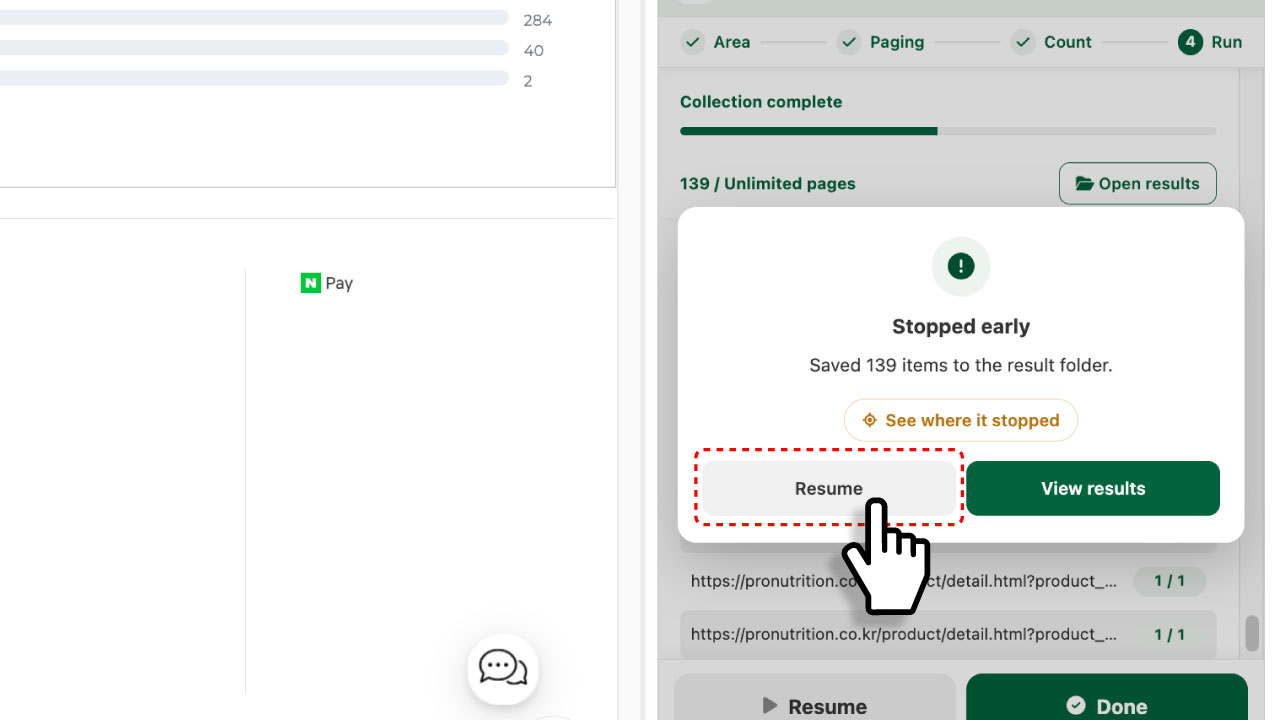
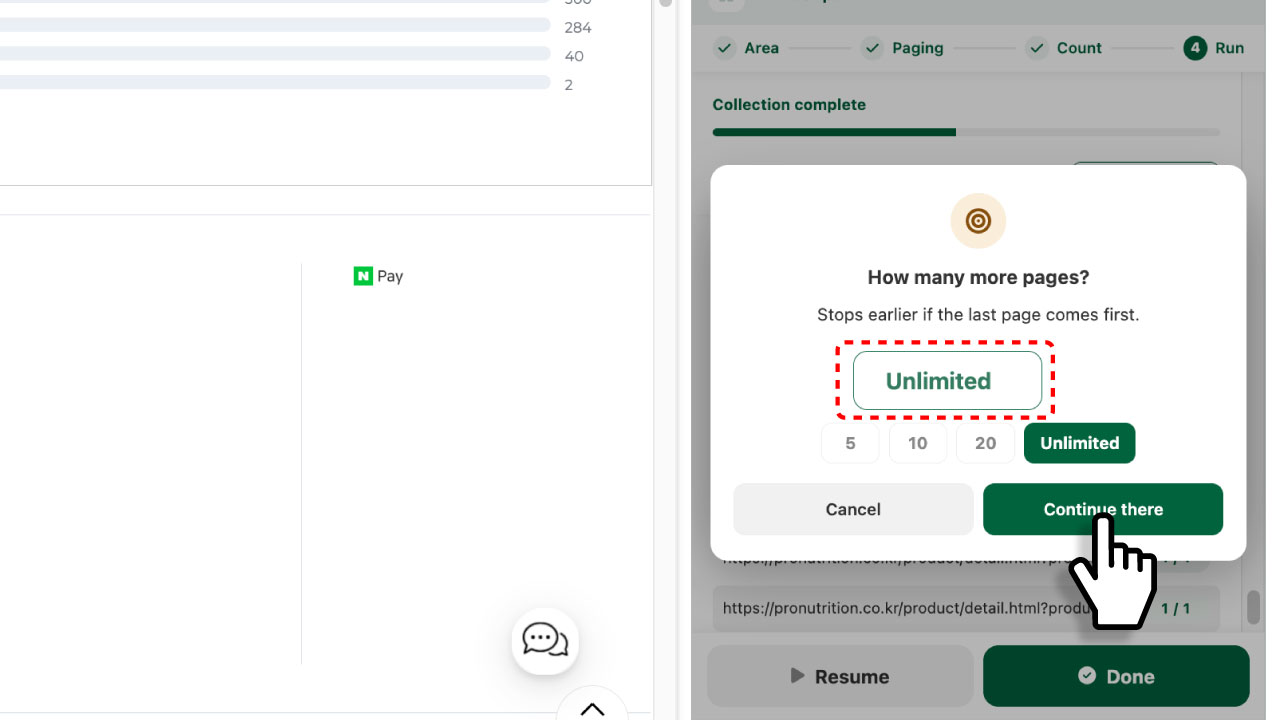
When you click the button, a window appears asking how many more pages to extract. Enter the number of pages you want, then click 'Continue there'.
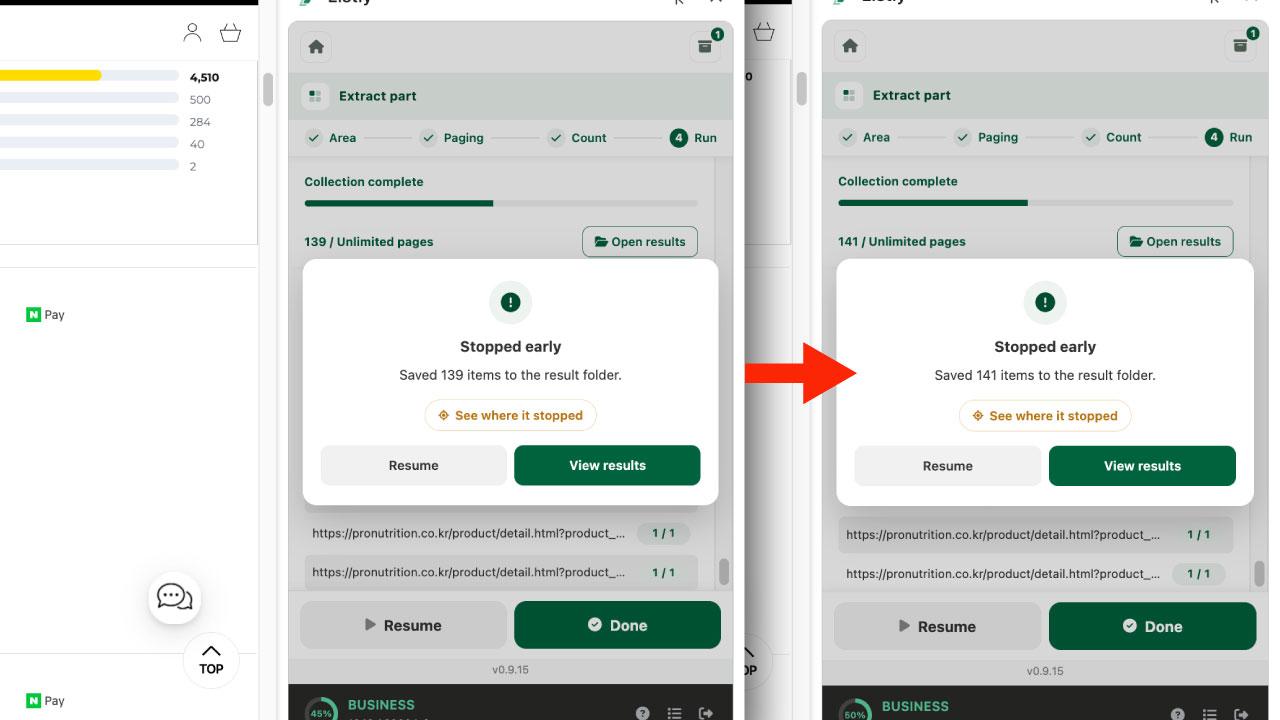
Check whether it stops again after resuming
If, even after clicking 'Resume', extraction repeatedly stops again after collecting only a few more pages than the number you set, we recommend starting a new extraction rather than continuing the existing task.
In this case, follow the steps below to start a new extraction from where it stopped.
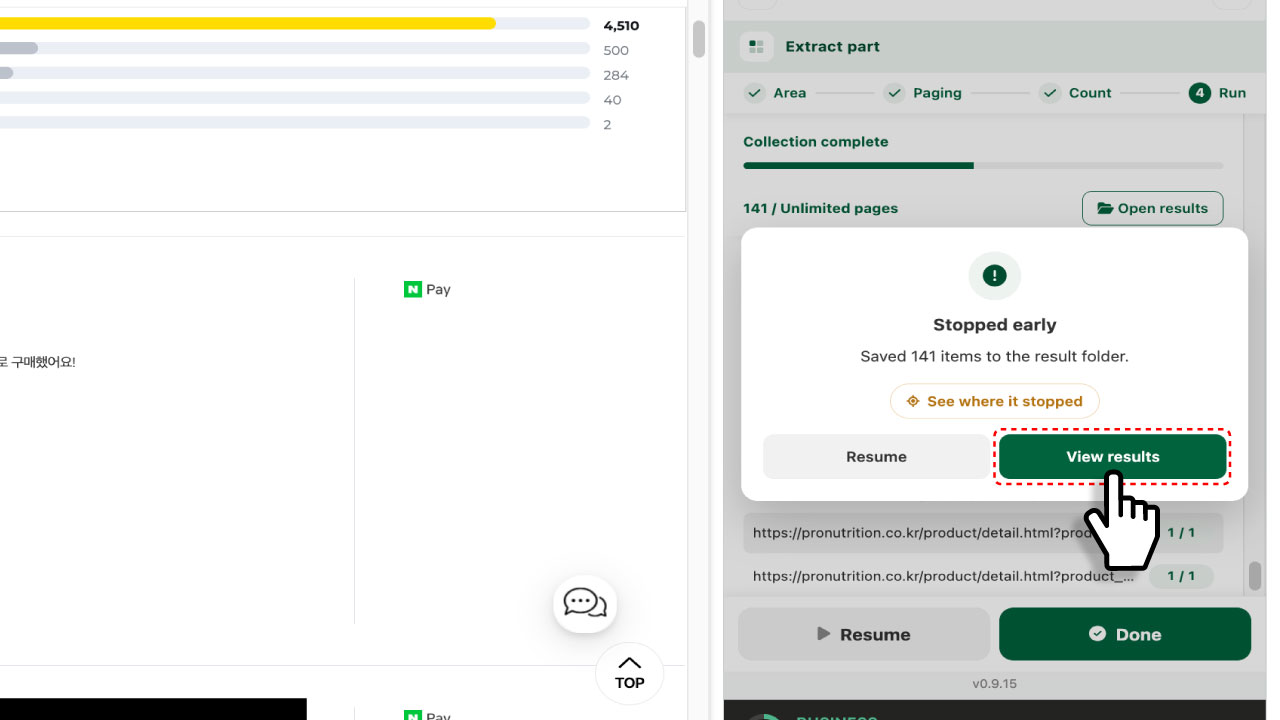
Click 'View results' to save the results extracted so far
While extraction is stopped, click 'View results' to save the results collected so far.
Clicking the button opens the Databoard results screen in a new window. Don't stay on the Databoard screen — go back to the original window where you were running the extraction.
You'll then start a new pagination extraction from the current page.
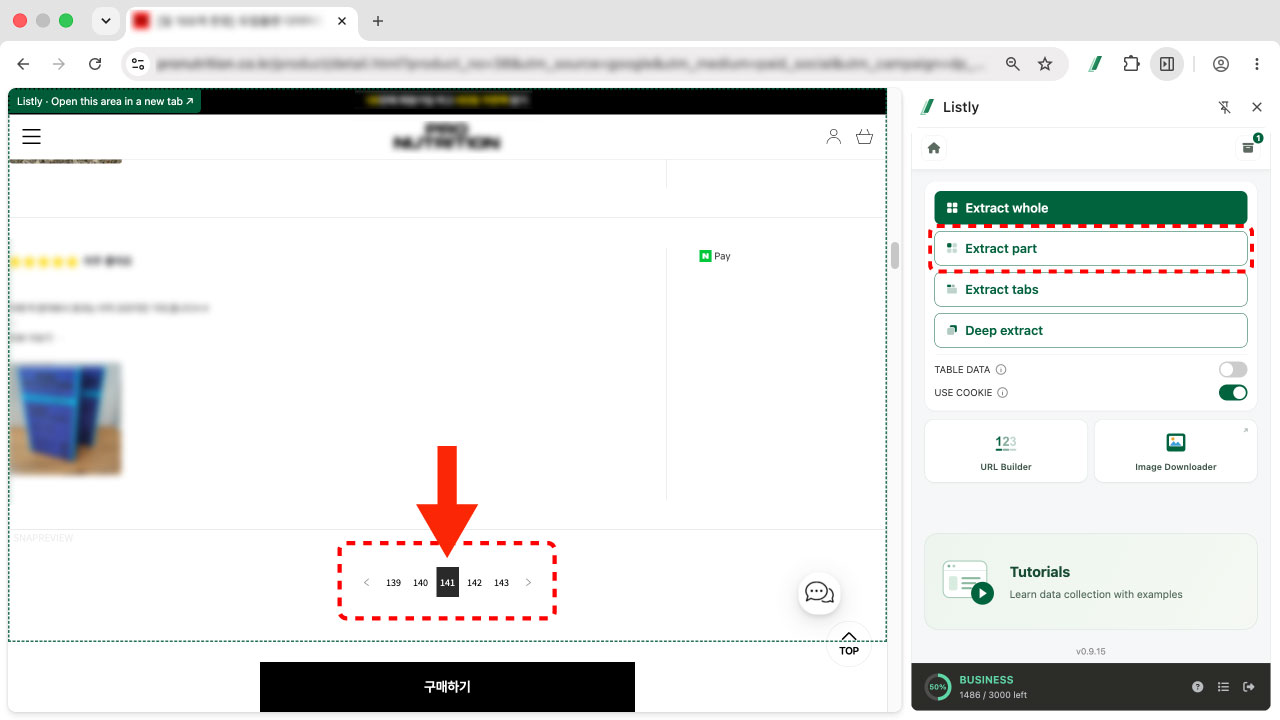
Check the last page that was collected
When you run pagination extraction in the extension, the actual web page moves along with the extraction progress. So if extraction stops, you can see the last collected page on the left side of the side panel.
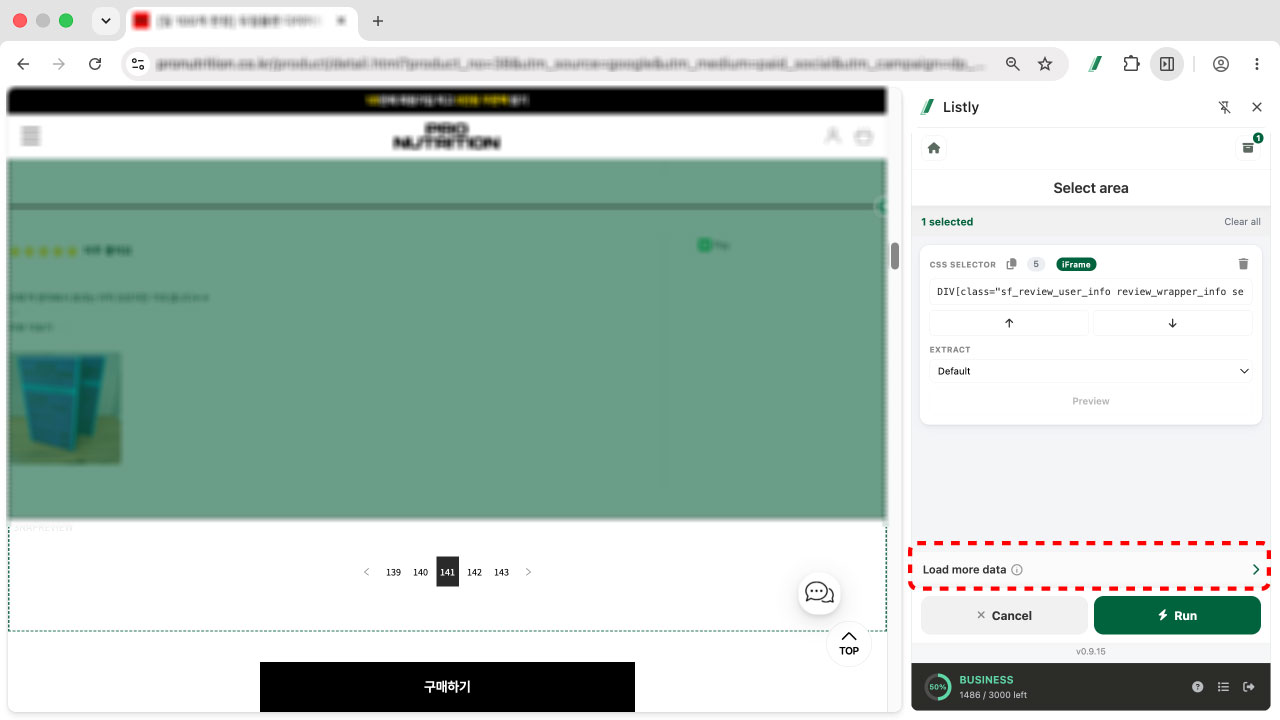
On the current page, click 'Extract Part' in the extension again, then select the same area as in the previous task to start a new extraction.
Pagination in the 'Load More Data' option uses the page currently shown on screen as its starting point. This means you can pick up from where extraction stopped without specifying a start page.
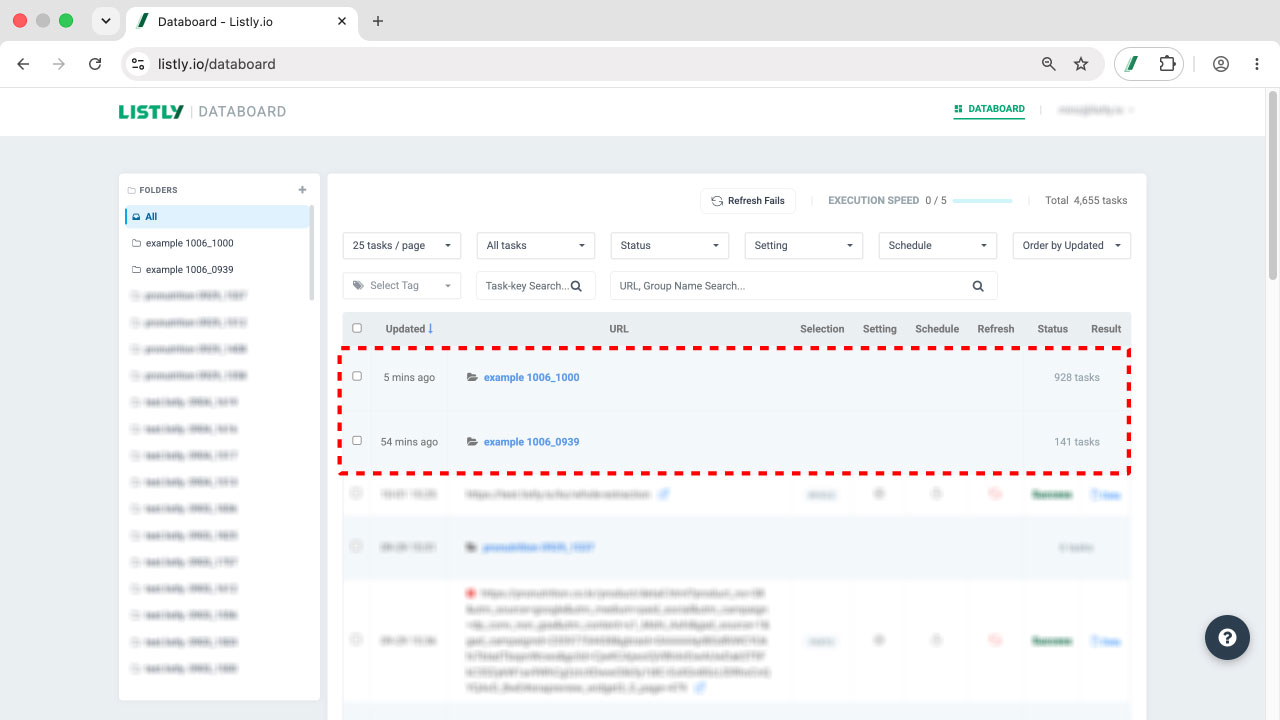
Merge the tasks into a single folder
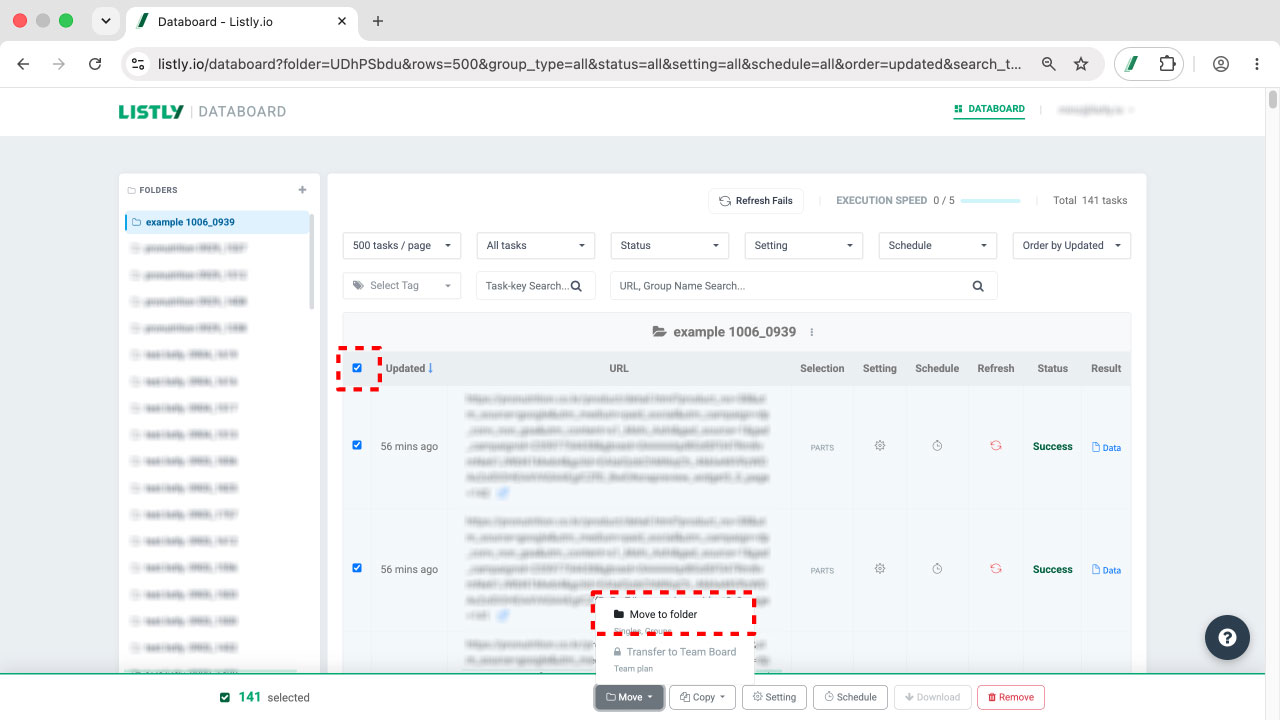
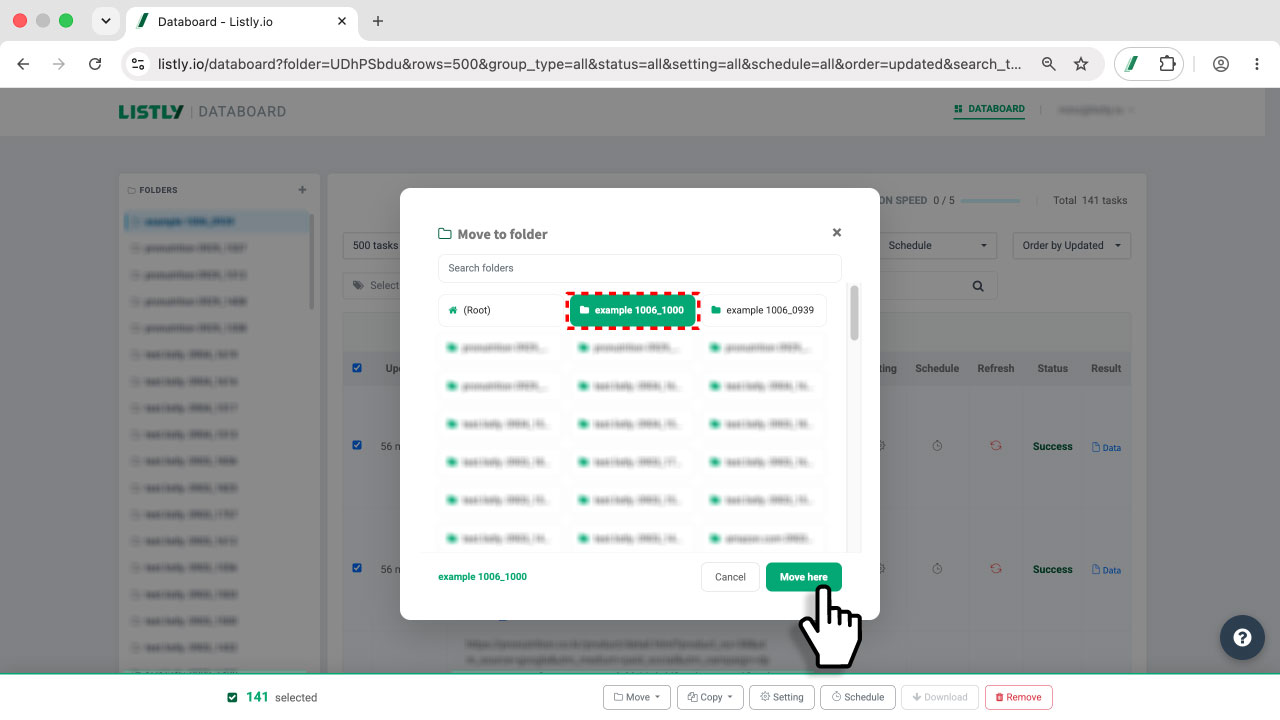
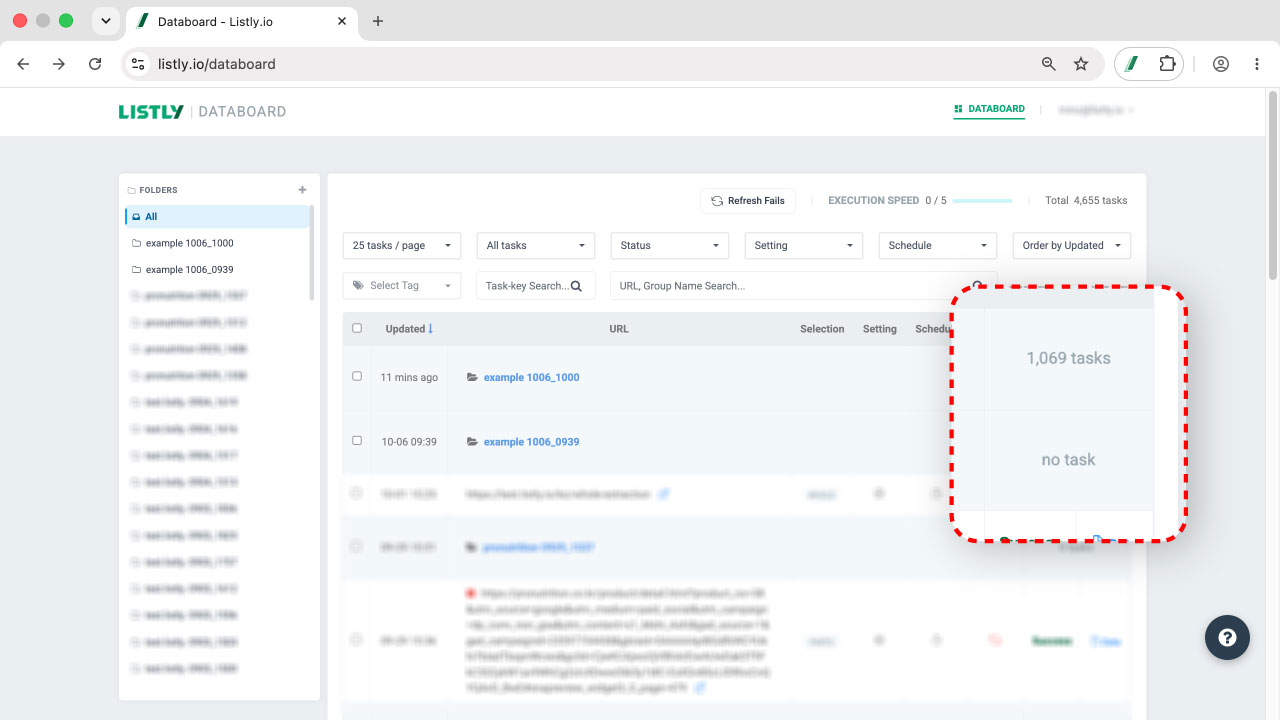
Select one of the two folders, then select all tasks in that folder. From the menu that appears at the bottom, click 'Move' → 'Move to folder', then choose the folder you want to merge the tasks into.
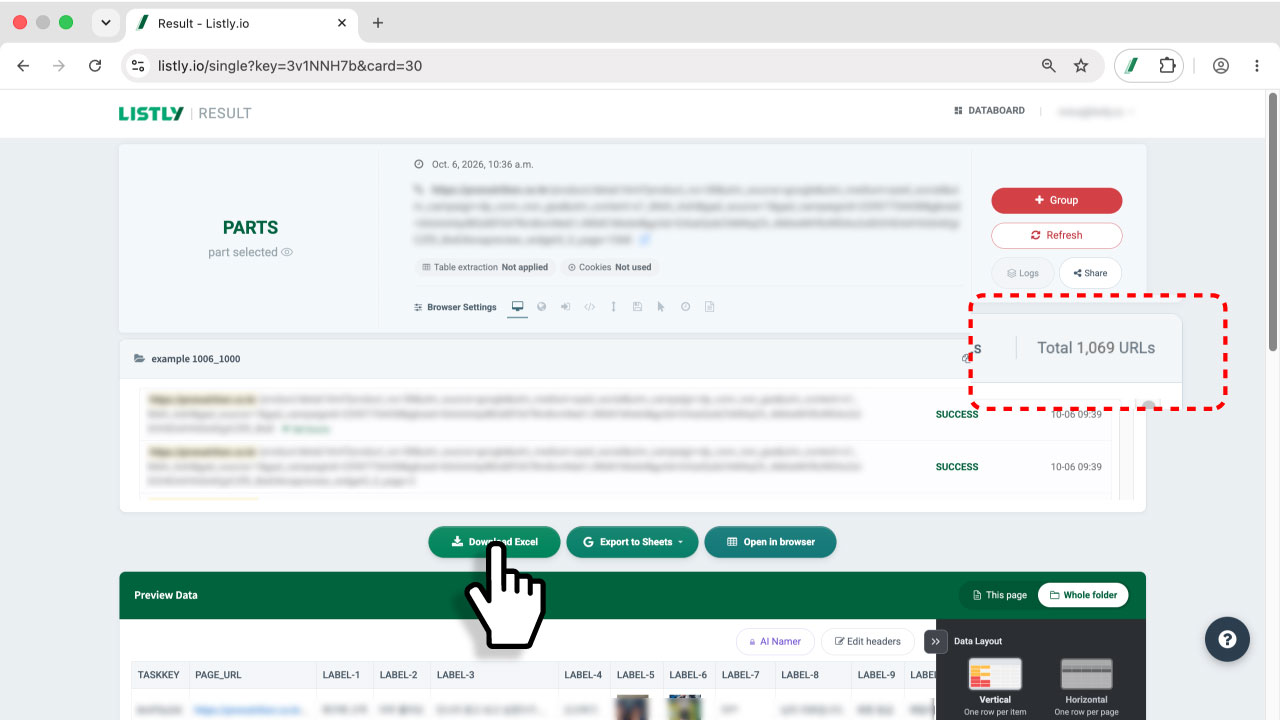
This lets you organize results extracted in two separate runs into a single folder.
Was this helpful?