> For the complete documentation index, see [llms.txt](https://help.listly.io/llms.txt). Markdown versions of documentation pages are available by appending `.md` to page URLs; this page is available as [Markdown](https://help.listly.io/support/troubleshooting-by-error-message/scheduler-normal-screen.md).
# \[Scheduled Extraction] A normal screen with no issues
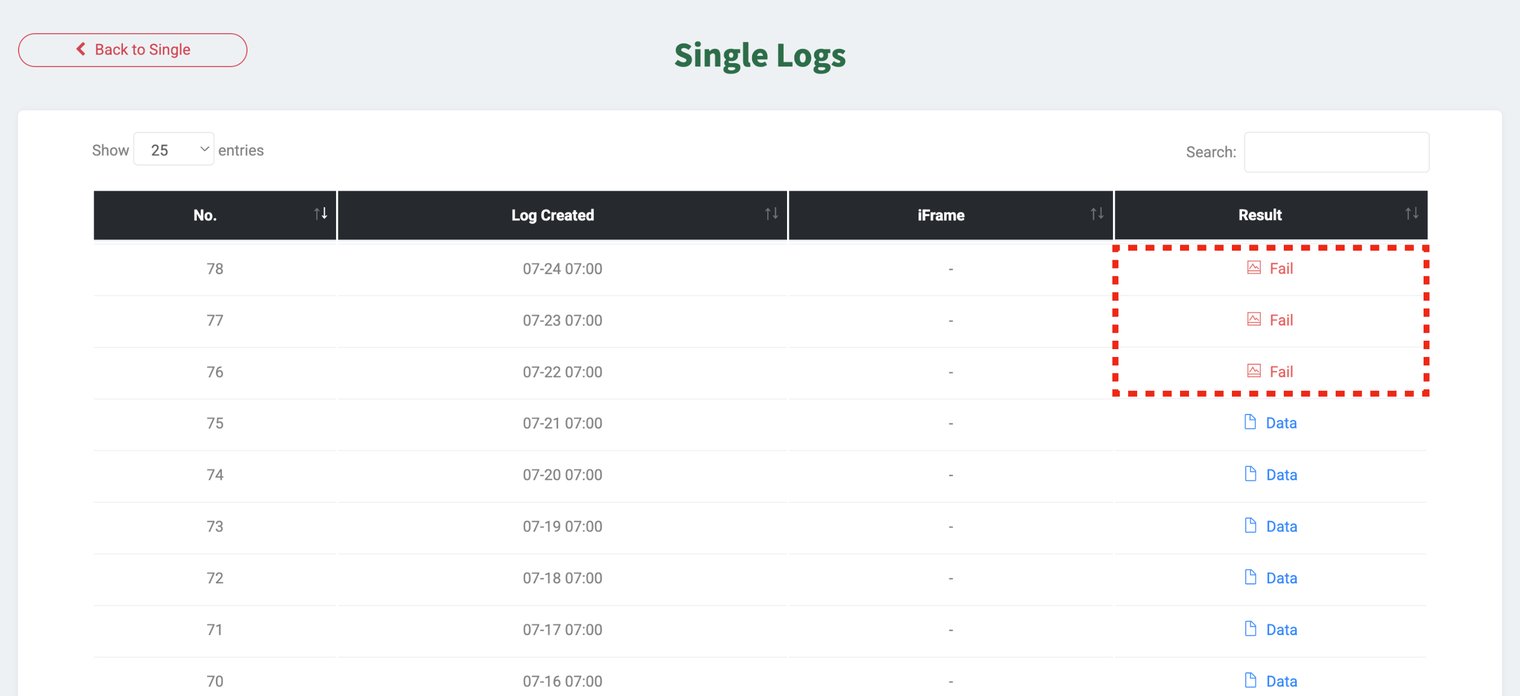
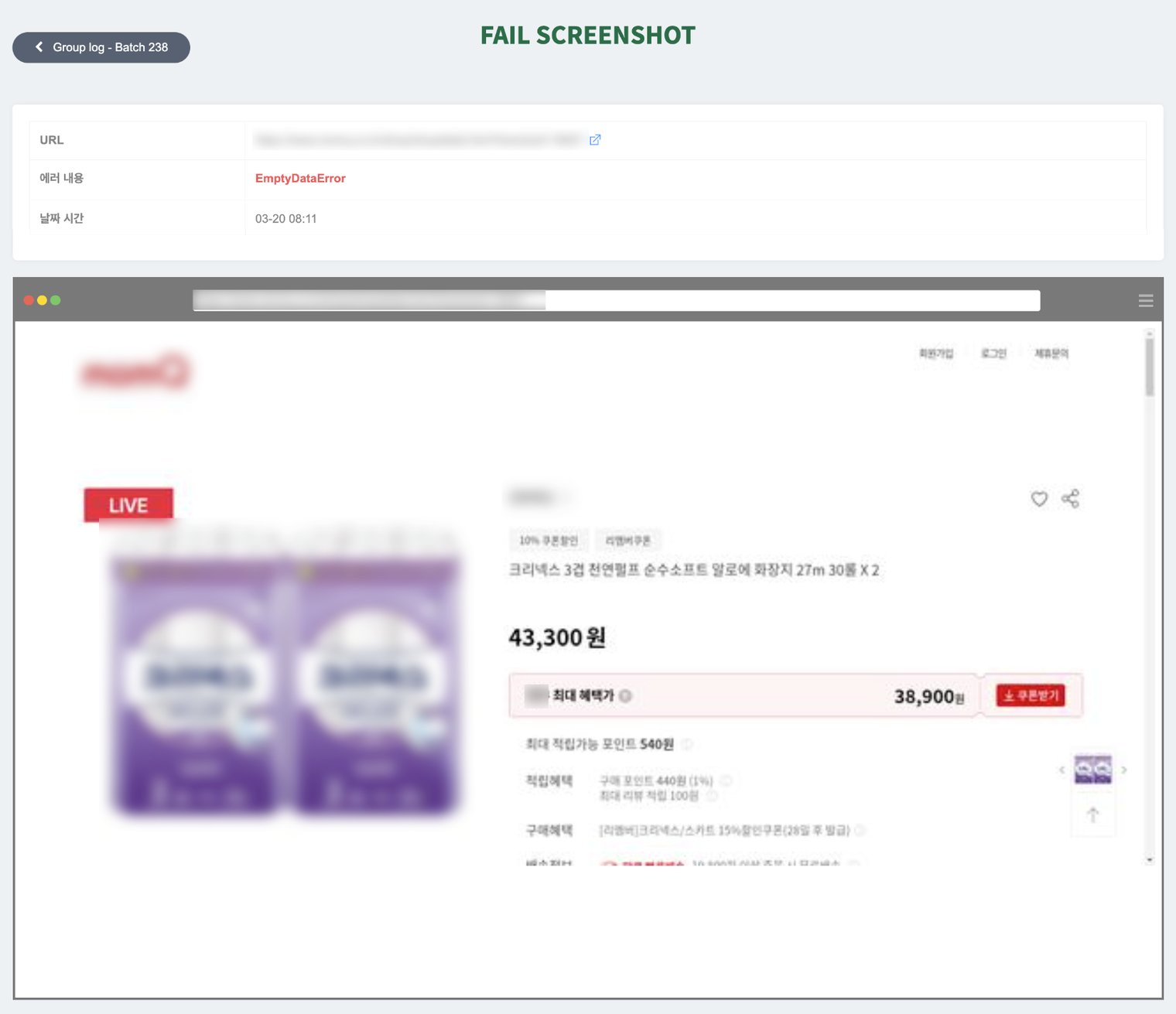
This help guide is for the schedule feature **where repeated extraction has been set up** in a task, **when a page that was previously being extracted successfully** suddenly fails to extract. In the error screenshot **even though the target page appears normal** when data was not collected. This means that **the data location (structure) specified during initial setup has highly likely changed, or that area no longer exists**.In this case, we recommend reselecting the data on that page and registering it as a new task.
#### **✅ Solution**
**The selection methods described below are not recommendations for all cases**. This guide **when an existing extraction fails** is a reference tip to increase the success rate in a new task. For sites with simple structures, selecting multiple detailed areas can still collect data without issues.
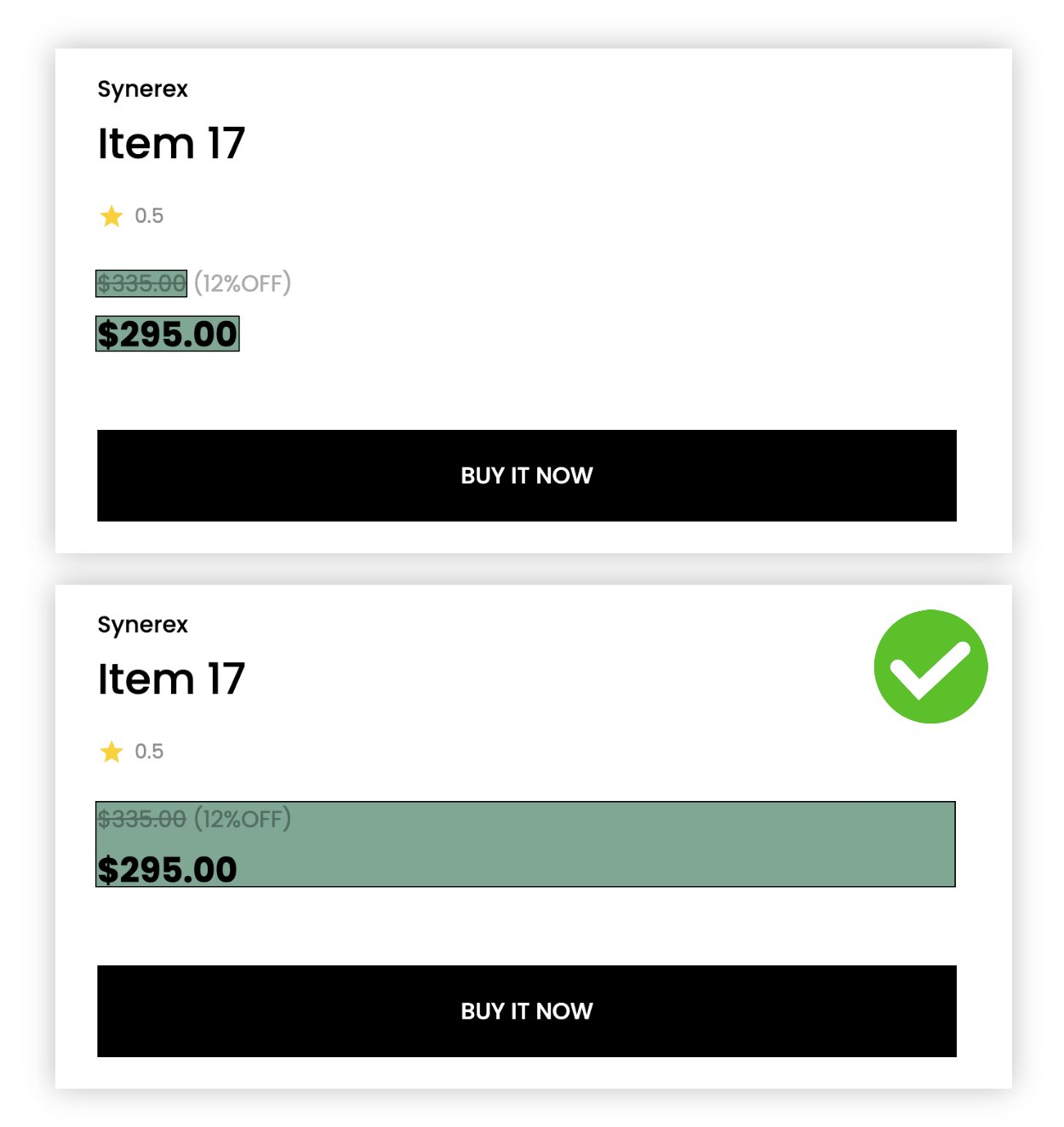
* Access the page, **reselect the data, and extract**. If you want to specify an area using Parts for extraction, selecting a slightly higher element (a larger area) can reduce the chance of failure during repeated extraction.
{% hint style="success" %}
**If the problem continues even after trying all the suggested methods, please contact us at** [**hello@listly.io**](mailto:hello@listly.io)**. We will help you resolve the issue after an accurate diagnosis of the cause.**
{% endhint %}
---
# Agent Instructions
This documentation is published with GitBook. GitBook is the documentation platform designed so that both humans and AI agents can read, navigate, and reason over technical content effectively. Learn more at gitbook.com.
## Querying This Documentation
If you need additional information that is not directly available in this page, you can query the documentation dynamically by asking a question.
Perform an HTTP GET request on the current page URL with the `ask` query parameter, and the optional `goal` query parameter:
```
GET https://help.listly.io/support/troubleshooting-by-error-message/scheduler-normal-screen.md?ask=&goal=
```
`ask` is the immediate question: it should be specific, self-contained, and written in natural language.
`goal` is optional and describes the broader end goal you are ultimately trying to accomplish on behalf of the user. GitBook uses it to tailor the answer towards what is most useful for that goal.
The response will contain a direct answer to the question and relevant excerpts and sources from the documentation.
Use this mechanism when the answer is not explicitly present in the current page, you need clarification or additional context, or you want to retrieve related documentation sections.