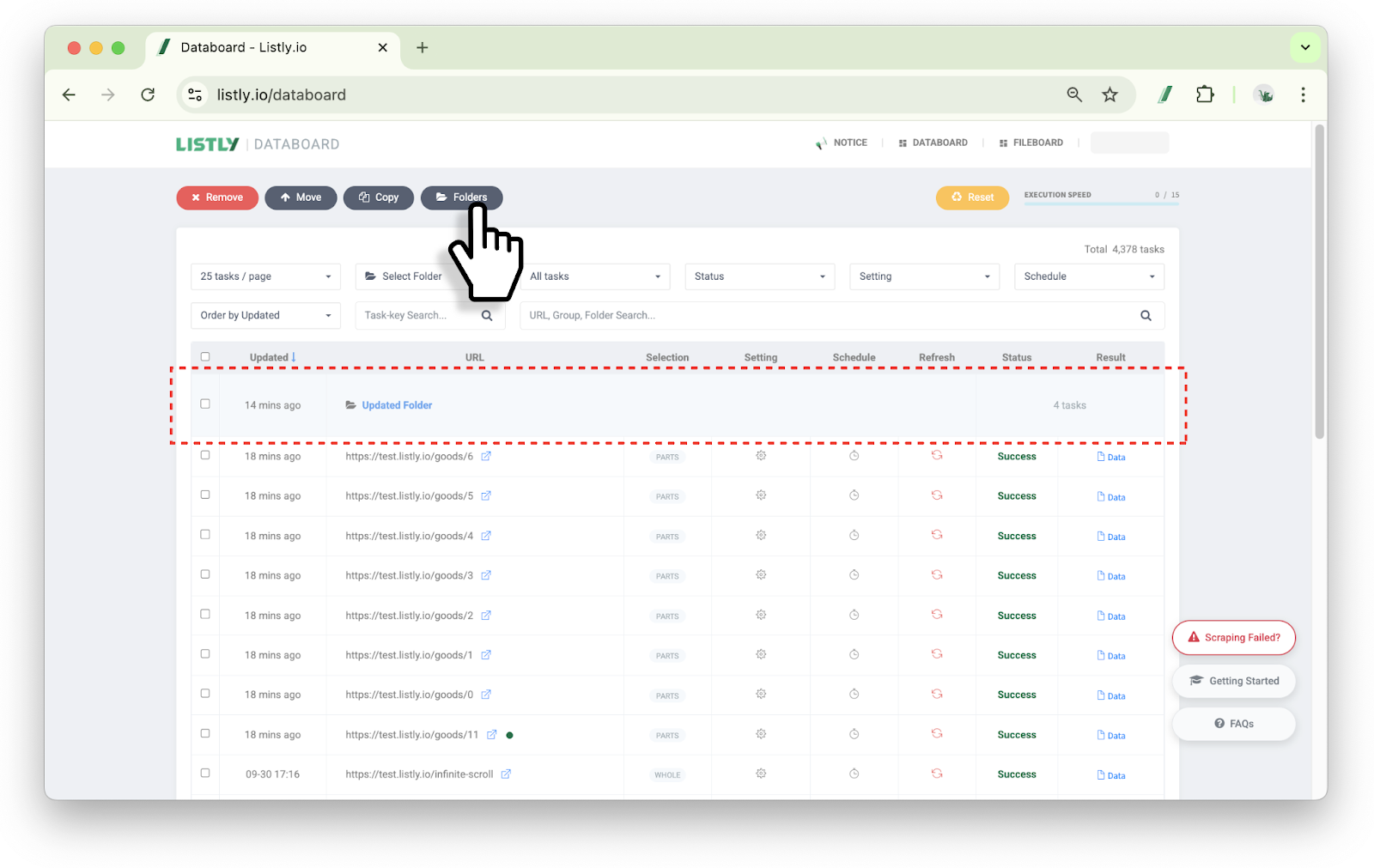
When you execute Tabs extraction, a folder is automatically created, and you can view the list of individual extracted pages within the folder.
folder-group-1
B. Create a Custom Folder
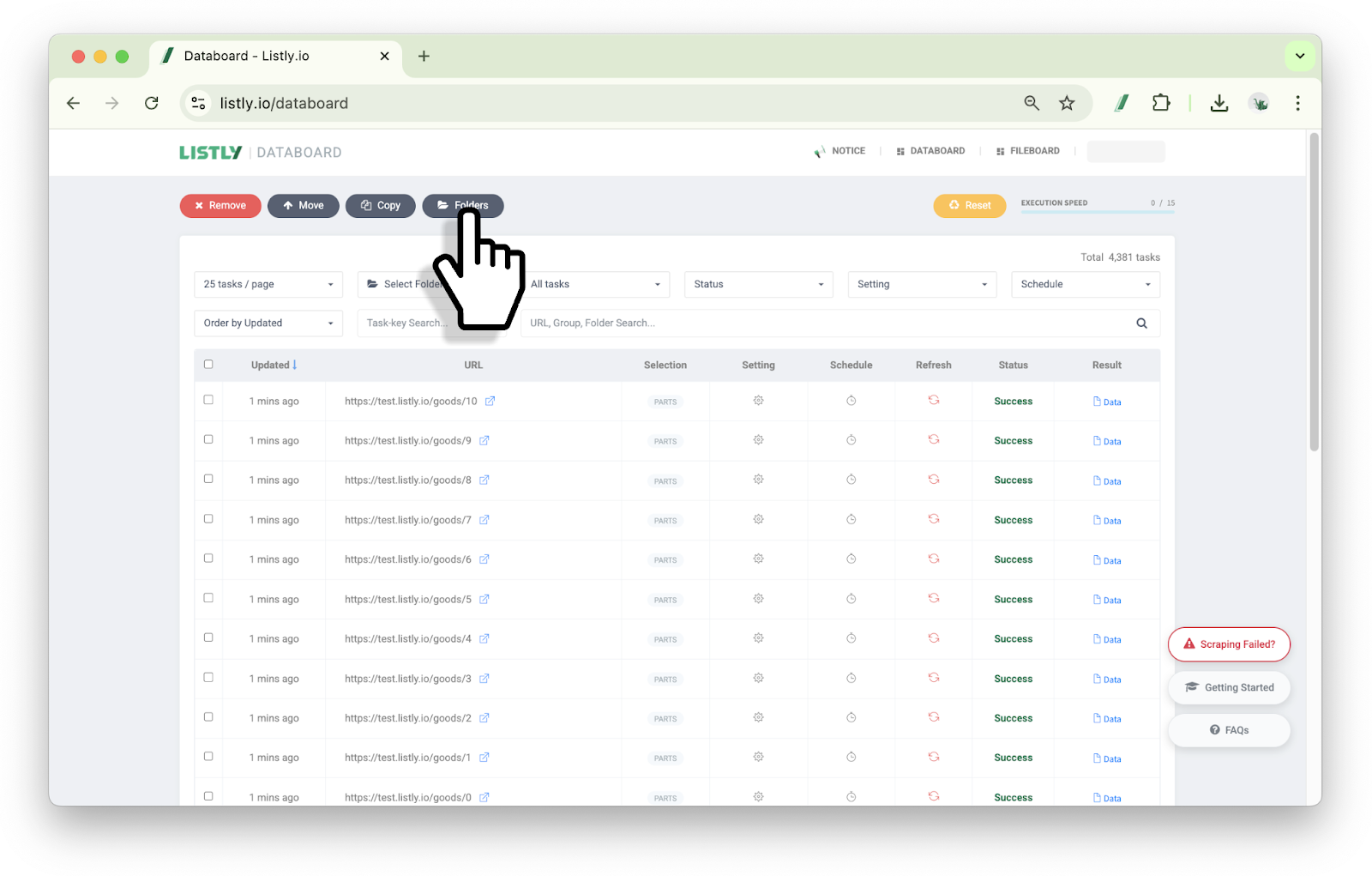
Click [Folder List] at the top of the Databoard.
folder-group-2
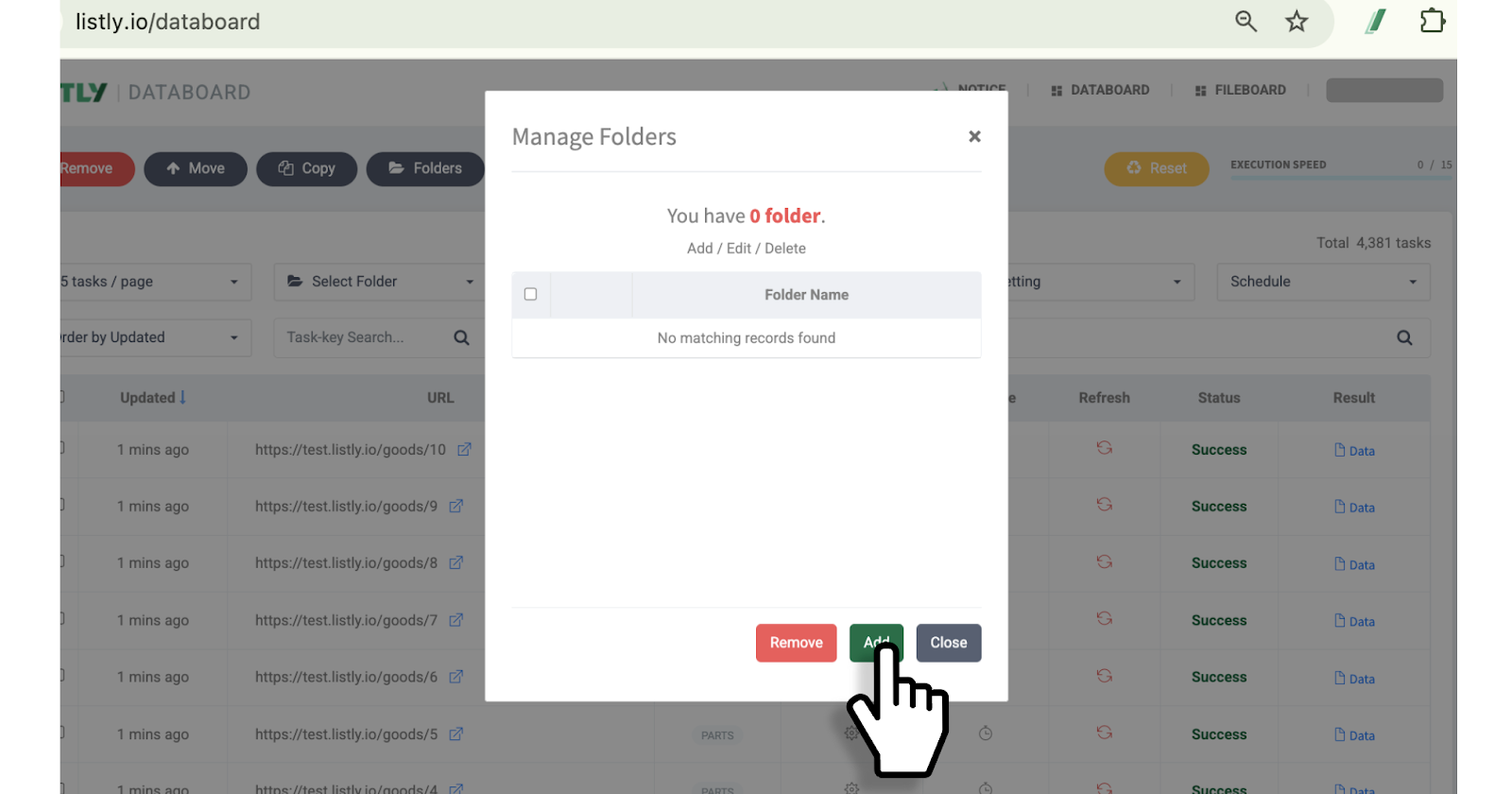
Click [Add].
folder-group-3
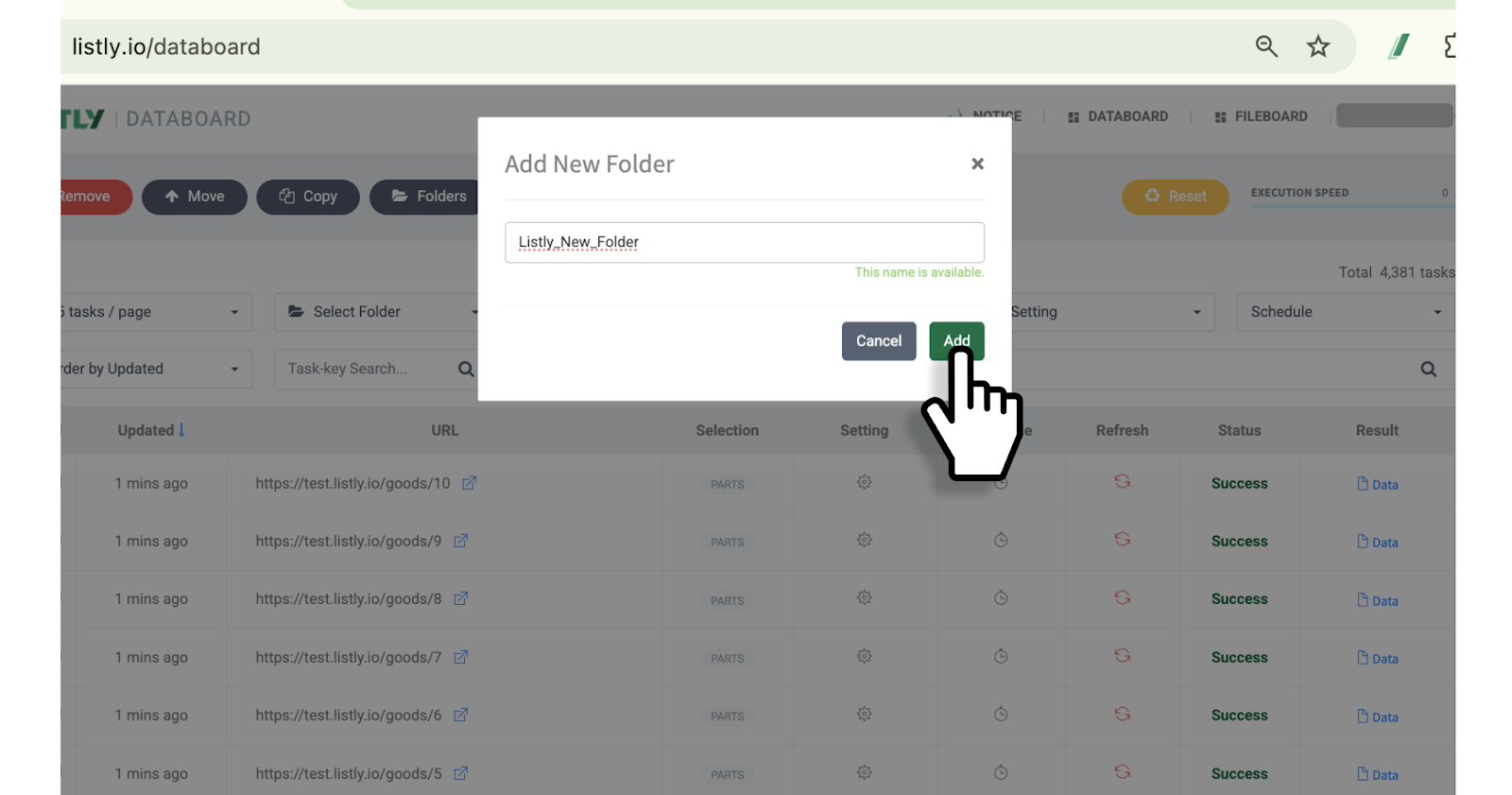
Enter a folder name, then click the [Add] button again.
folder-group-4
New folders won't appear in the Databoard until tasks are added to them. You need to add tasks to the folder for it to appear.
2
Move Tasks
Select the task you want to move to a folder, then click the [Move] button at the top of the Databoard.
folder-5
Select the destination folder, then click the [Move] button.
folder-6
3
Rename a Folder
Click [Folder List] at the top of the Databoard.
folder-7
Hover your mouse over the folder you want to rename and the [Edit] button will appear. Click it.
folder-8
Enter the new name and click the [Confirm] button.
folder-9
4
Delete a Folder
Folders cannot be deleted using the task delete button.
Click [Folder List] at the top of the Databoard.
folder-10
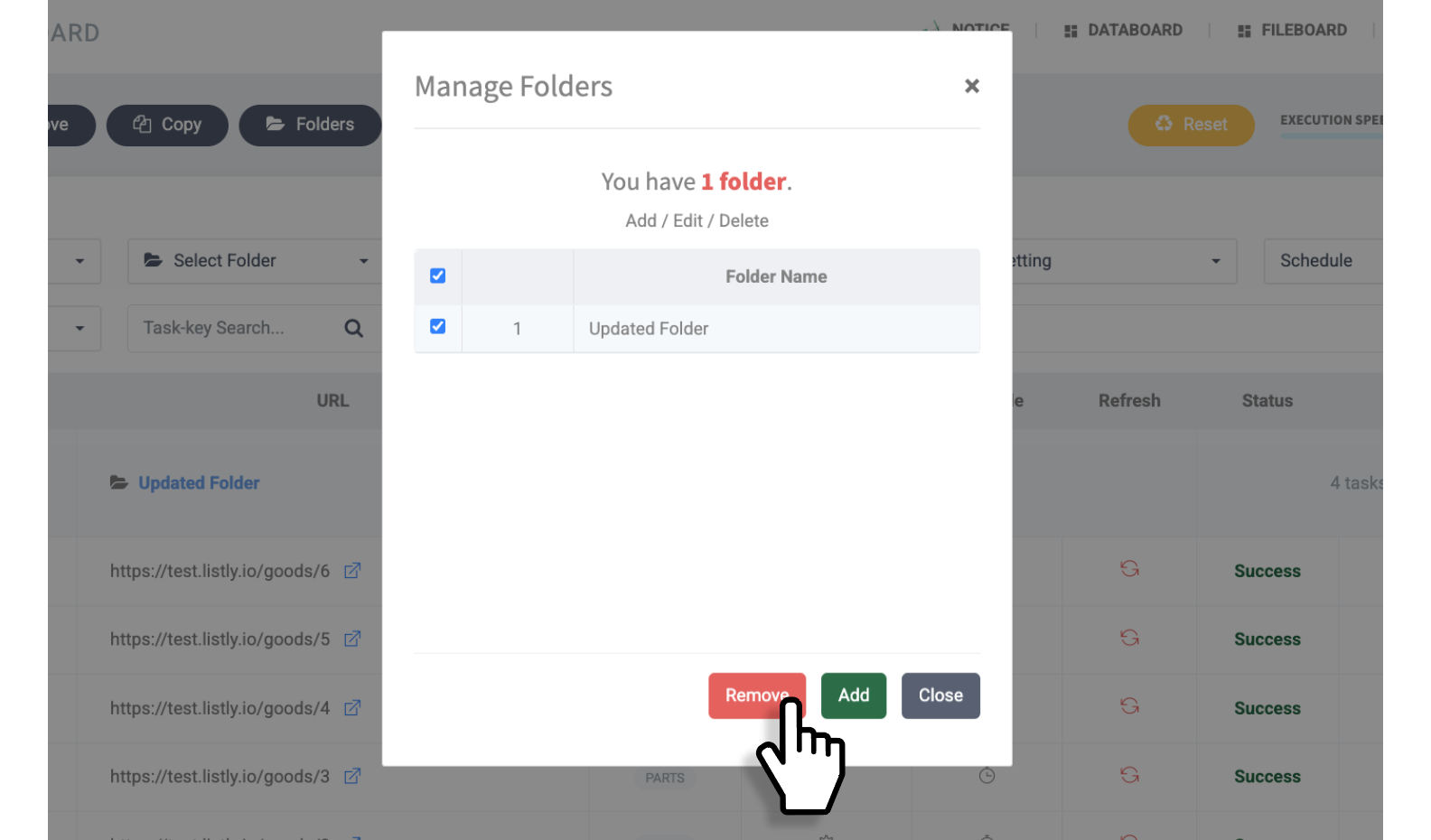
Select the folder you want to delete, then click the [Delete] button at the bottom.
folder-11
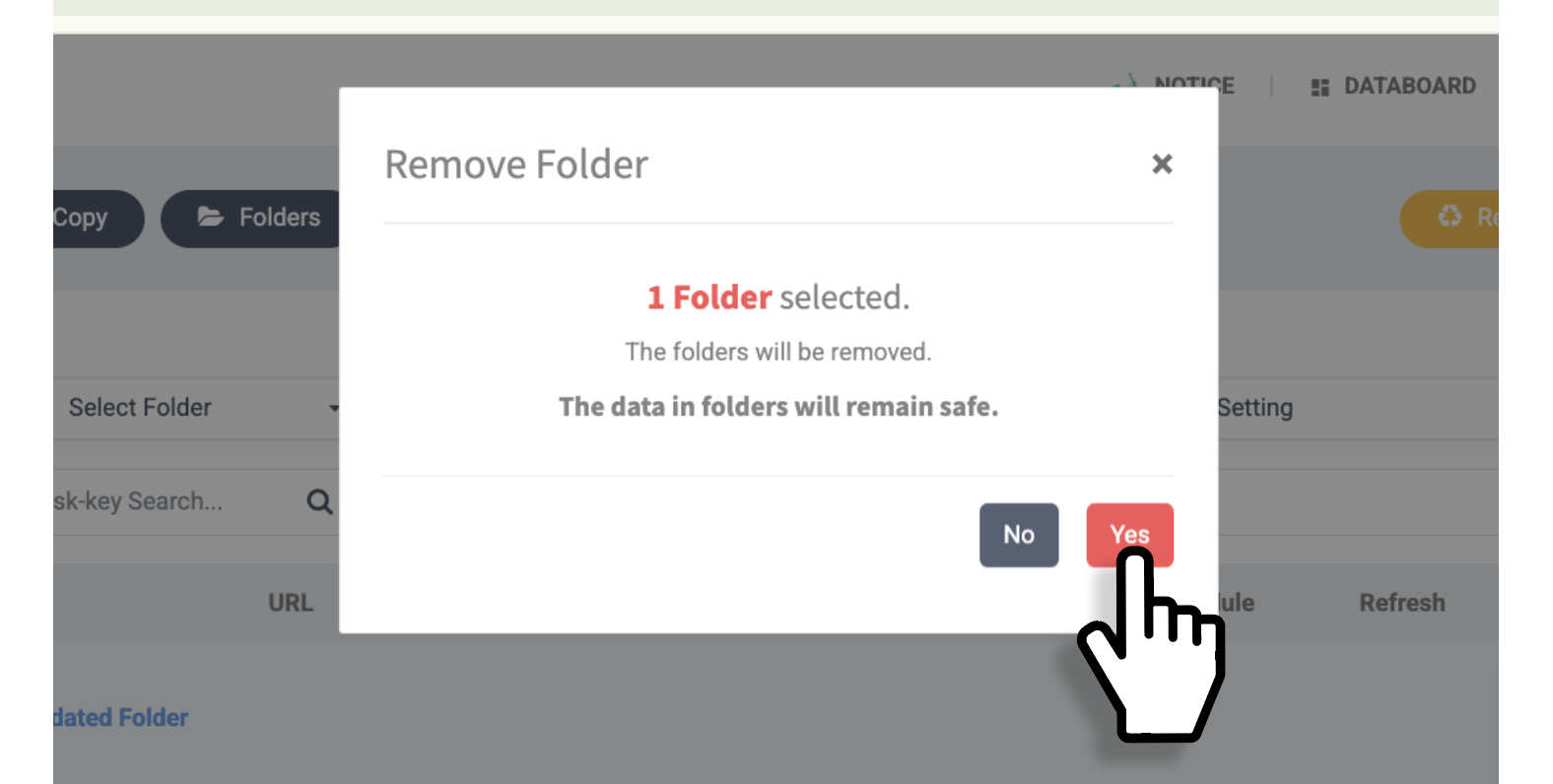
Select [Yes] in the confirmation window to delete the folder.
folder-12
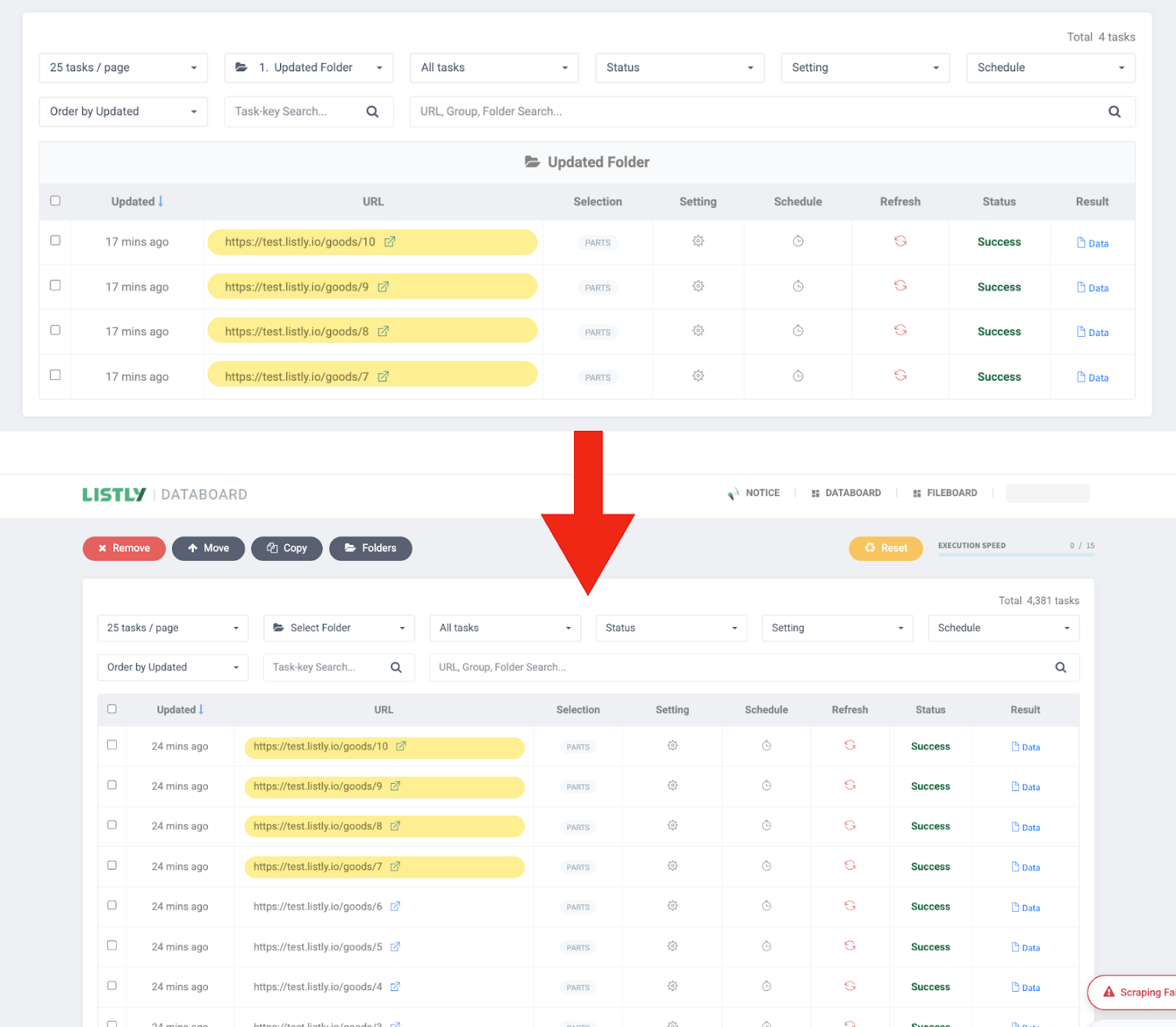
Even when you delete a folder, the tasks inside are not deleted along with it. All tasks are separated as individual tasks and displayed again in the Databoard.