A feature that lets you open multiple pages for extraction as individual tabs at once with simple button and keyboard controls. Using the [Open Multiple Tabs] feature, you can open all links within a dragged area as separate tabs simultaneously.
1
Click the OPEN TABS Button
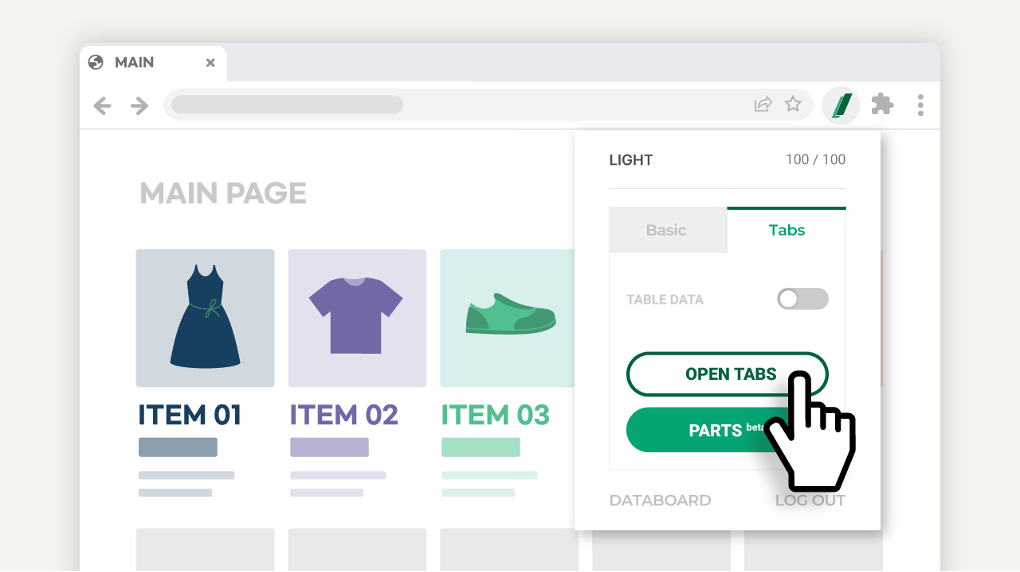
On the parent list page (e.g., shopping mall thumbnail view) of the pages you want to extract, click LISTLY extension → Tabs → OPEN TABS button.
2
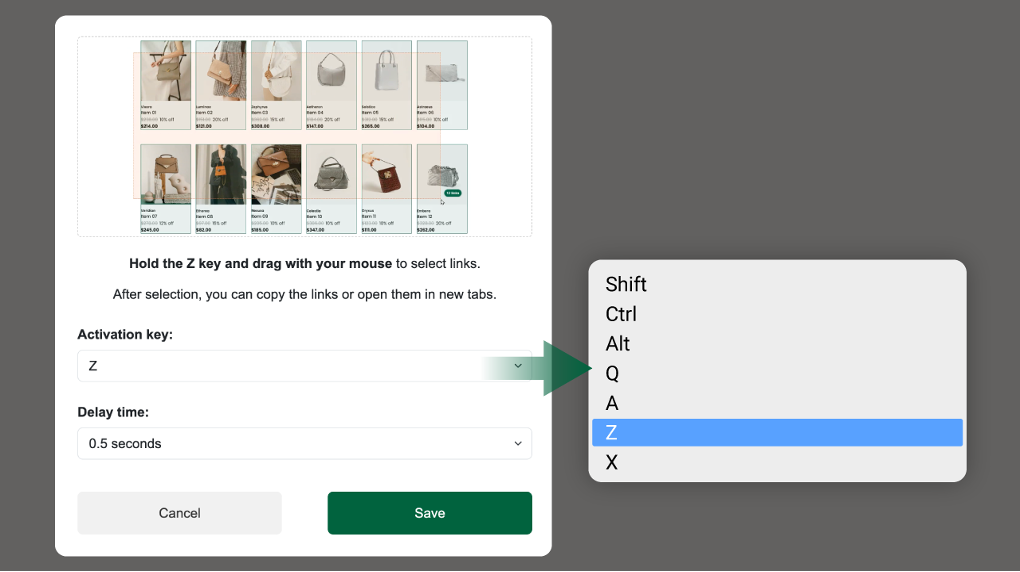
Select Shortcut Key (Activation Key) and Delay Time in the Popup Settings, Then Save
Activation key: The [Open Multiple Tabs] feature is activated while holding down the configured shortcut key.
Delay time: The interval at which each tab opens. If too many tabs open in a short time, some pages may not load properly, so adjust the time appropriately.
3
Open Multiple Tabs
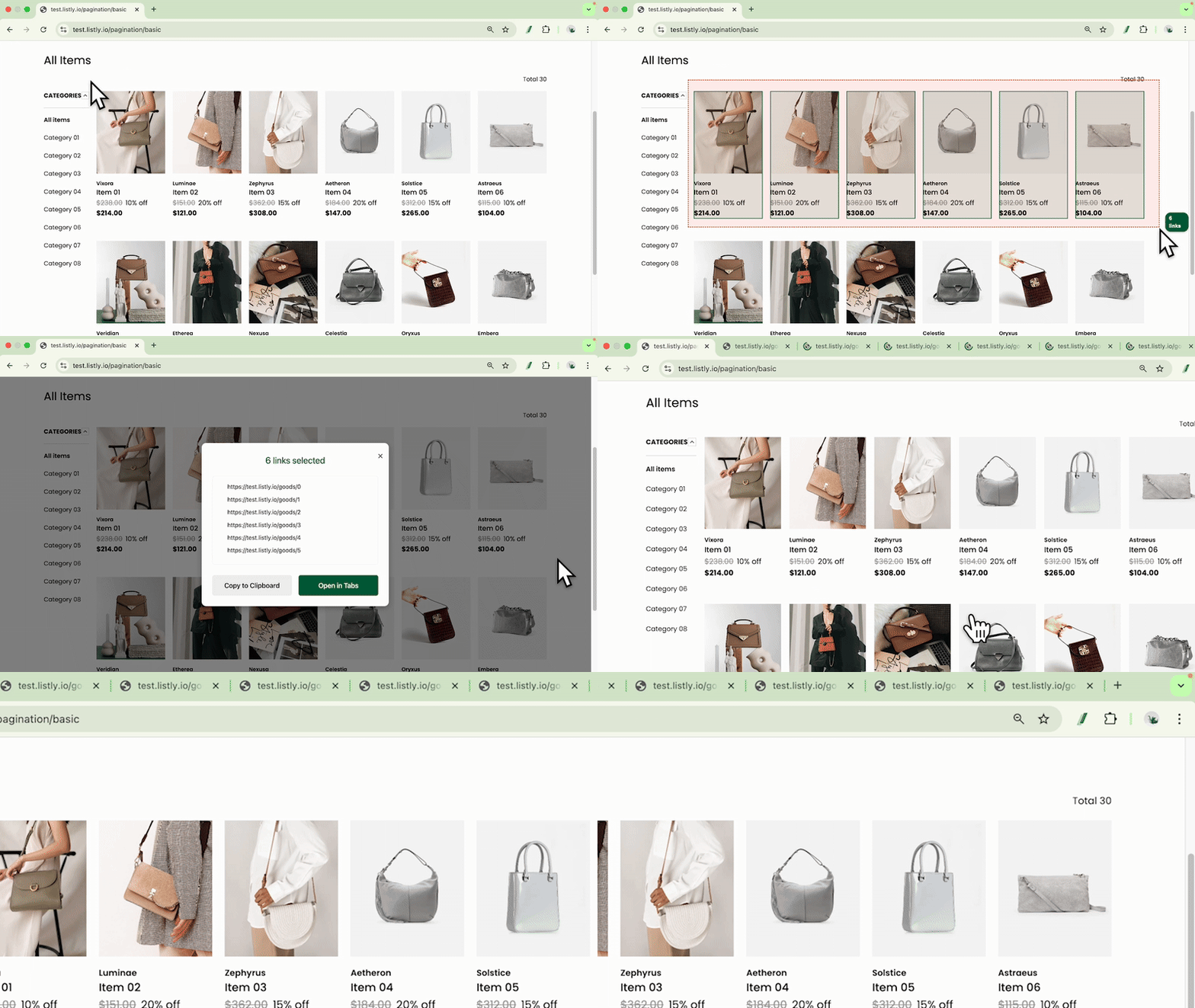
While holding down the shortcut key you set earlier, drag over the area containing the links you want to open. When the popup window appears, click the [Open] button and the links within the dragged area will open as separate new tabs.
Tabs - Open Multiple Tabs FAQ
What methods are available for opening desired pages in multiple tabs?
A1. Use Listly's [Open Multiple Tabs] Feature
Click the [Open Multiple Tabs] button at the bottom of the Tabs tab in the Listly extension to activate the feature, then drag over the area containing links while holding down the configured keyboard shortcut.
How can I open pages one by one easily using the keyboard?
A2. Use the 'Ctrl' Key
Hold down the Ctrl key on your keyboard while clicking links on a web page. Ctrl is a shortcut that opens clicked links in a new tab. You can easily open pages one by one.
Are there other extensions I can use to open multiple URLs at once?
Open Multiple URLs is an extension that opens all entered URLs in new tabs. You can use it by extracting list pages with 'hyperlinks included' using Listly, then copying and pasting those links.
If you enter too many URLs at once, pages may not load properly.
Open Multiple URLs is not a service provided by Listly.