A feature for downloading collected information from multiple extractions (hourly, daily) all at once. Logs are created when you extract the same page more than twice. Use this feature to compile past data into a single Excel sheet.
If blank cells appear during log group extraction, try changing the source and extracting again.
Quick Start
➡️ Select result log in DATABOARD ➡️ Extract with latest data as source ➡️ If blank cells appear
select oldest data as source and extract
I've been collecting data from this page for about 7 months.
Collection period: August 19, 2020 ~ March 8, 2021
Automatic collection every day at 4 PM
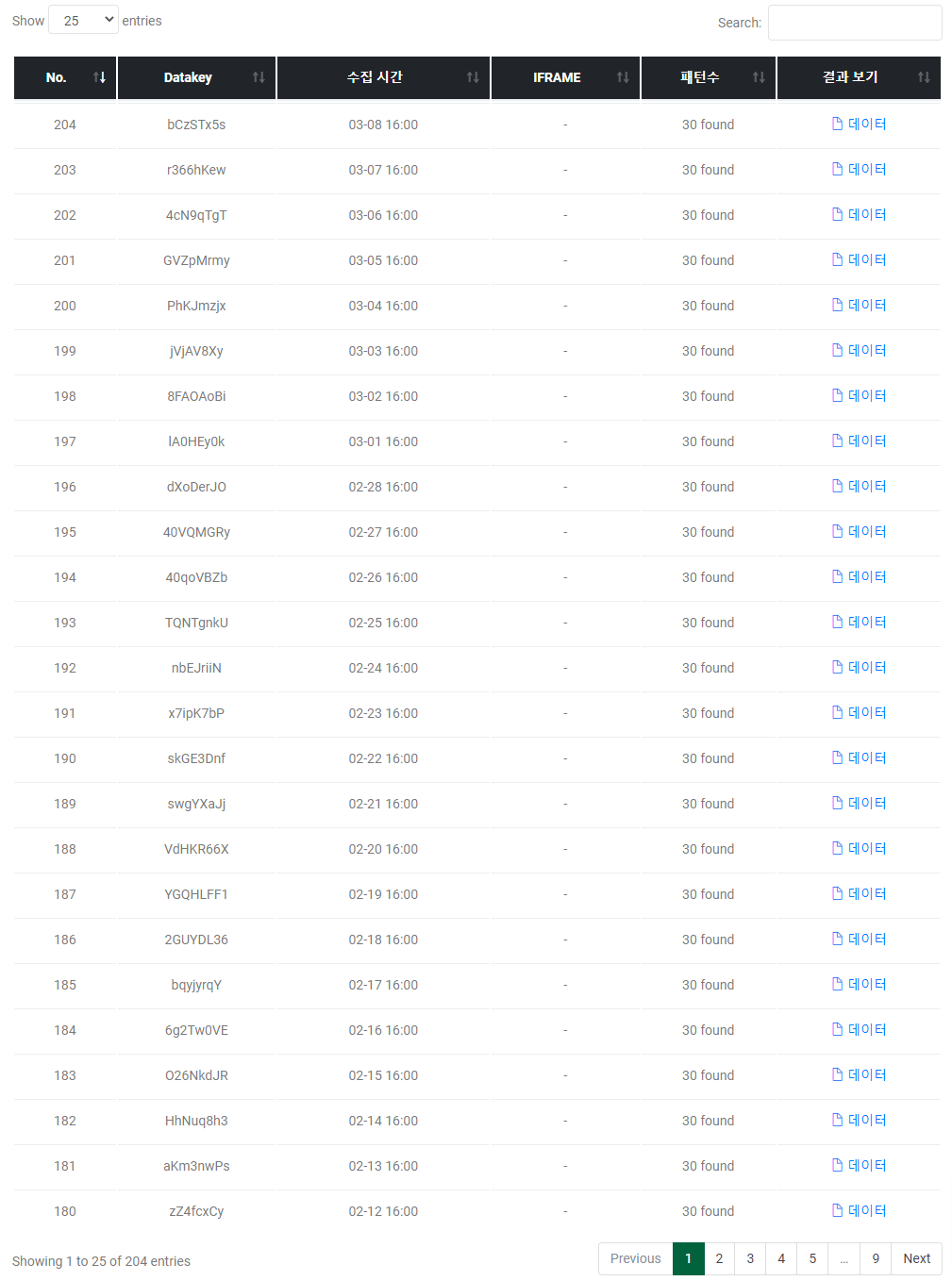
Total of 204 log entries (all successfully extracted from the start until now, 7 months later)
The web page design suddenly changed on November 1, 2020. Please remember this date as it becomes a reference point for extracting log data below.
As of March 8, 2021, I want to compile all past data together. I'll organize everything into a single Excel sheet. This works the same way as group extraction. The Excel output varies depending on which data you select as the source.
Select the data result you want to use as the source from the 204 entries → Download log Excel
Log selection 1
Log selection 2
Log list screenshot
1
Select the Most Recent (204th) Data as Source
I'll use the most recently collected 204th data as the source and extract. The 204th data appears at the top of the Excel, with the rest appearing in ascending order by collection time. Having the 204th data at the top means I used it as the reference to find and organize data with the same pattern.
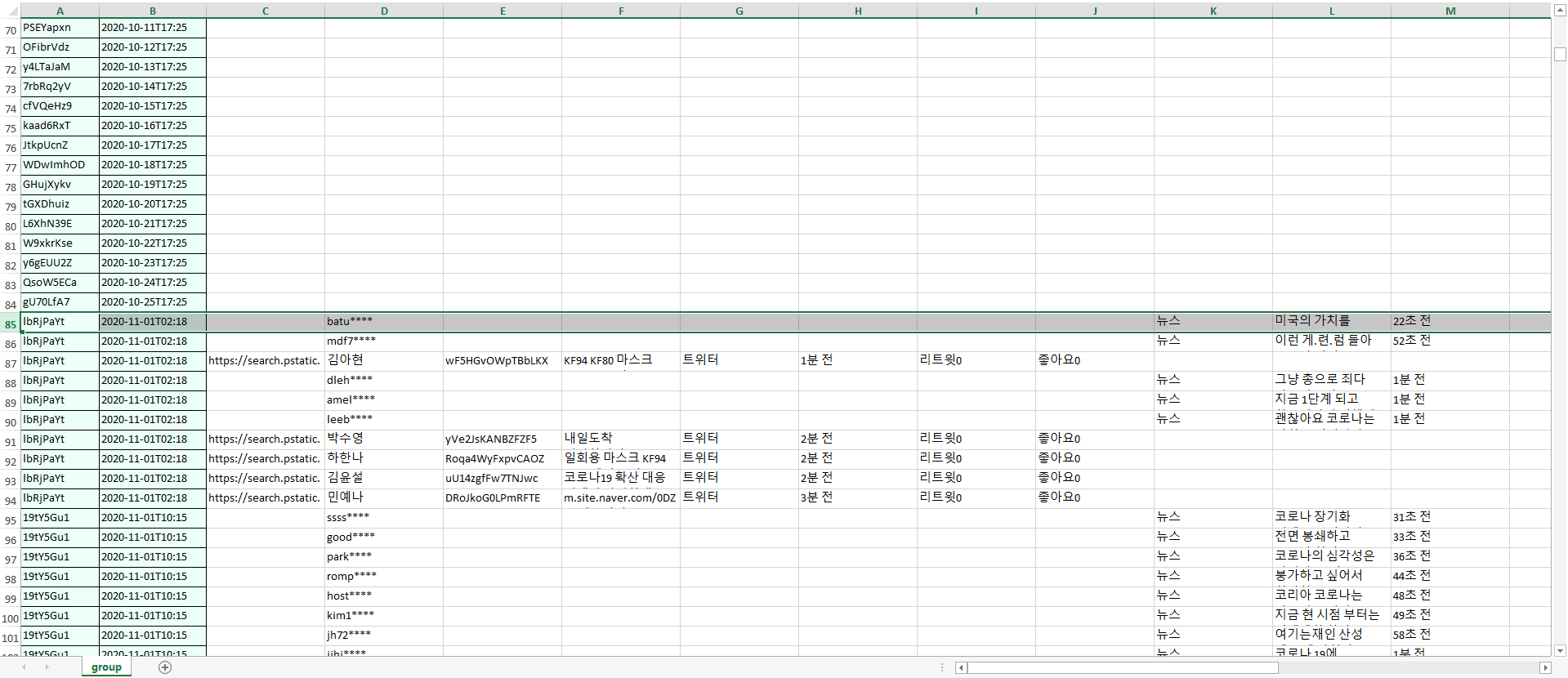
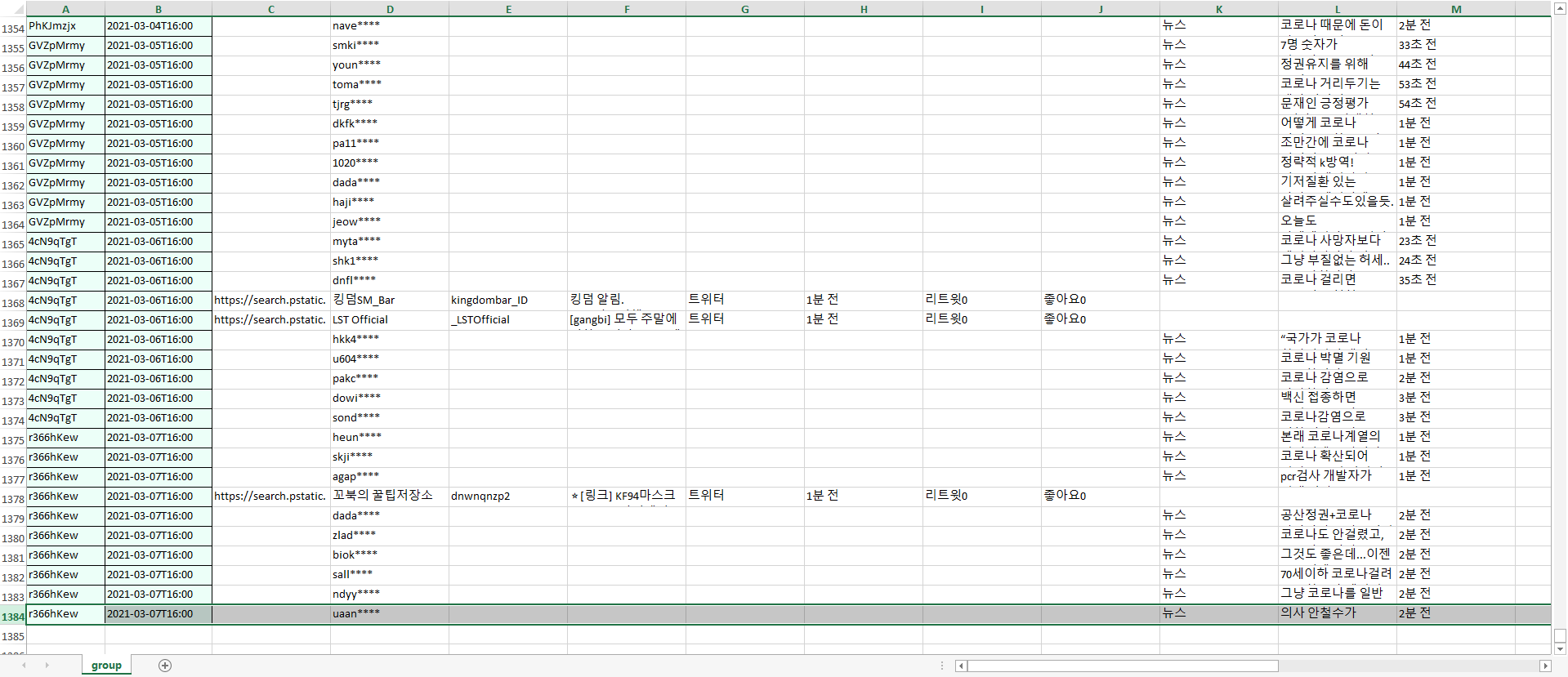
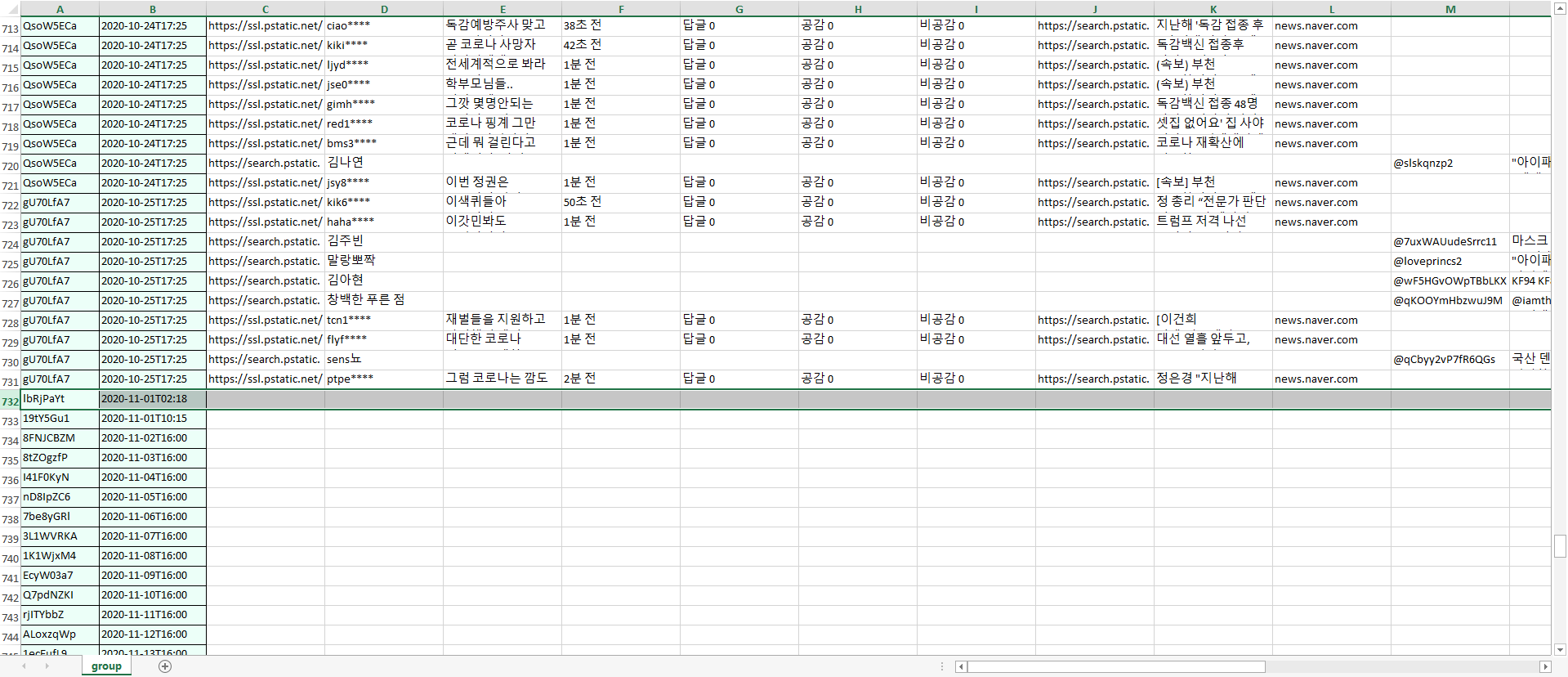
The first image clearly shows many blank cells. The dates with blank cells and dates with data are as follows:
Collection date range with blank cells: August 19, 2020 ~ October 31, 2020
Collection date range with data: November 1, 2020 ~ March 7, 2021
Why? Because as the log group extraction source, the March 8, 2021 data result was selected. This data has the same format as all data collected from November 1, 2020 ~ March 7, 2021 — the web page design was identical throughout this period, so the data formats were also identical.
Result when using recent data as source 1
Result when using recent data as source 2
2
Select the Oldest (1st) Data as Source
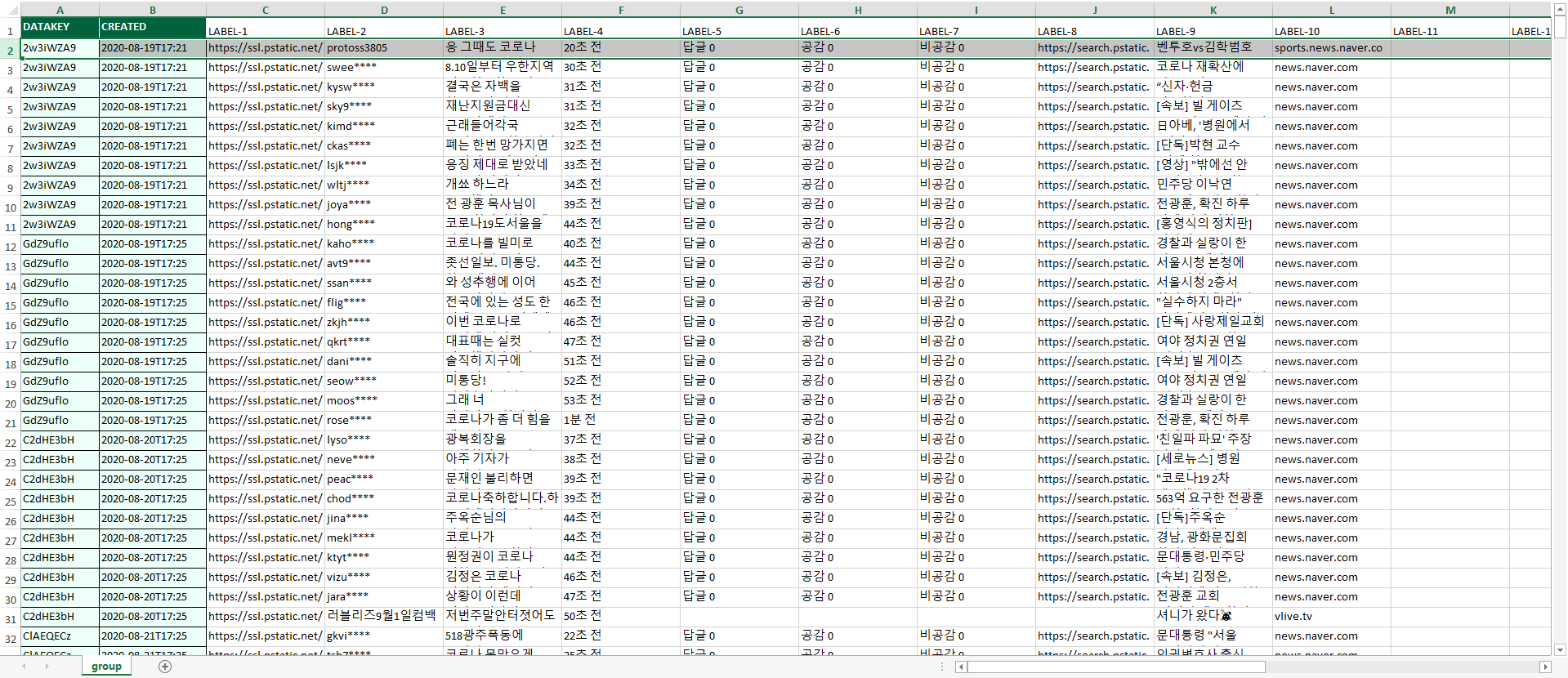
To get the data that appeared as blank cells (August 19, 2020 ~ October 31, 2020), select a data result from that period as the source and download the log Excel. In this example, using the 1st data (collected August 19, 2020) as the source produces the opposite results:
Collection date range with data: August 19, 2020 ~ October 31, 2020
Collection date range with blank cells: November 1, 2020 ~ March 7, 2021