> For the complete documentation index, see [llms.txt](https://help.listly.io/llms.txt). Markdown versions of documentation pages are available by appending `.md` to page URLs; this page is available as [Markdown](https://help.listly.io/about/listly-glossary.md).
# Listly Glossary
{% hint style="success" %}
When navigating data in web browsers, you'll encounter various elements. **Check which elements you need to navigate through to reach your desired data** and use this to find the right template :)
{% endhint %}
## 1. Web Browser & Website Structure
### ① Address Bar
The address bar is an input field that displays the URL (address) of your current location. Usually positioned at the top of the window, the URL changes every time you navigate to a different page on most websites.
### ② Extensions
Web browsers like Chrome, Edge, and Whale allow you to install extensions that add functionality. **Listly is also an extension that extracts data from web pages displayed through your browser.** You need to manually install browser extensions, and installed extensions appear as icons in the upper right corner.
### ③ Header
Refers to the top section of a page. Usually features a logo at the center with menus (navigation) and search bar.
### ④ Section
Refers to the content area of a web document. Most data on a web page is located within this area.
### ⑤ Aside
A sidebar area displayed on the left, right, or bottom of a web document—aside sections aren't essential elements. Used for content that doesn't affect the main content, like ads or general link collections.
### ⑥ iframe
A method of loading external documents into a web document. Not immediately visible to the naked eye, but recognizable when it appears darkened after clicking the Listly icon for data extraction. **Requires a separate extraction process.**
{% hint style="info" %}
Related article: [How to Extract from iframes](https://help.listly.io/docs/ko/getting-started/listly-basics/iframe)
{% endhint %}
### ⑦ Footer
Located at the bottom of web documents, displaying copyright notices, site policies, sitemaps, and contact information. The information displayed doesn't change as you navigate pages, and some web pages don't have a footer at all.
## 2. Mouse Actions
### ① Click
{% columns %}
{% column width="50%" %}
{% endcolumn %}
{% column width="50%" %}
The action of pressing a button to select an object on screen. Pressing the left button is called a click, pressing the right button is called a right-click. Regular information is accessed through clicks, while right-clicks are used to check hidden properties like the source code of specific buttons.
{% endcolumn %}
{% endcolumns %}
### ② Scroll
{% columns %}
{% column valign="middle" %}
{% endcolumn %}
{% column %}
The action of rolling the mouse wheel up and down. In this document, we only mention rolling the wheel downward (Scroll-down).
{% endcolumn %}
{% endcolumns %}
### ③ Rollover, Mouseover
{% columns %}
{% column %}
{% endcolumn %}
{% column %}
An effect where images change or new text information appears when you hover the mouse pointer over an object. Works without clicking.
{% endcolumn %}
{% endcolumns %}
## 3. Information Loading Methods
### ① Infinite Scroll
{% columns %}
{% column %}
{% endcolumn %}
{% column %}
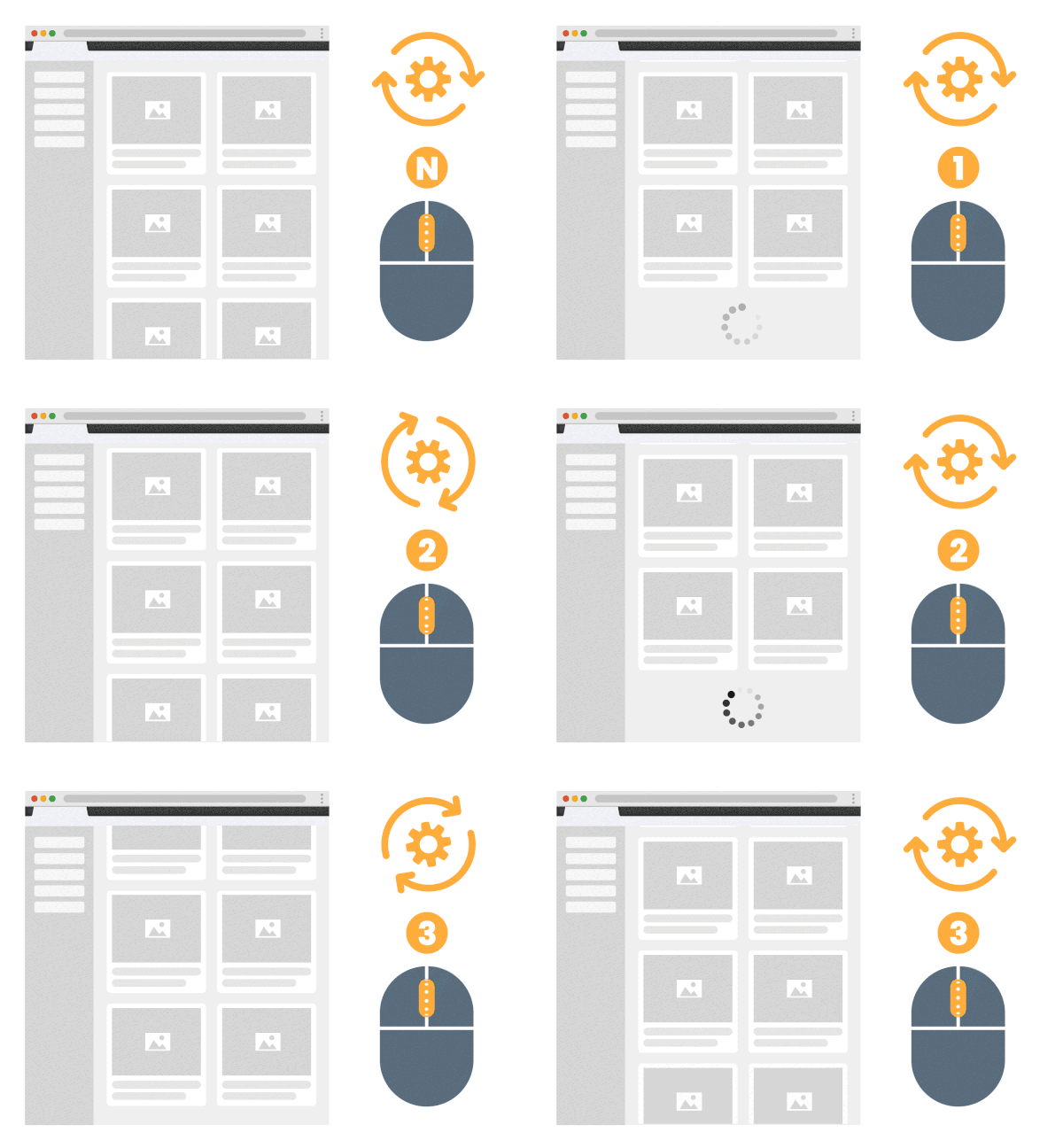
A loading method that fetches the next set of information when you reach the end of prepared content. If you can scroll endlessly without seeing buttons or page numbers to move to the next page, you're on a site using infinite scroll.
⚠️ If you extract without scrolling on pages like this, you won't get enough data because the information hasn't loaded yet. You can extract data more conveniently using the auto-scroll setting in Listly Databoard's 'Setting'.
{% endcolumn %}
{% endcolumns %}
{% hint style="info" %}
Related article: [Auto Scroll](https://app.gitbook.com/o/Uu6AM3fgpZza0EpsJM4N/s/iKxoYELFf9WS8XCvYe6S/getting-started/undefined-2/undefined-4)
{% endhint %}
### ② Load More Button
{% columns %}
{% column %}
{% endcolumn %}
{% column %}
A 'Load More button' is a method where you click a button at the bottom to load additional information. When extracting data from these pages, you can automatically load data by entering the unique attribute value of the load more button in the auto-click setting under 'Setting' in Listly Databoard.
{% endcolumn %}
{% endcolumns %}
{% hint style="info" %}
Related article: [Auto Click](https://app.gitbook.com/o/Uu6AM3fgpZza0EpsJM4N/s/iKxoYELFf9WS8XCvYe6S/getting-started/undefined-2/undefined-6)
{% endhint %}
### ③ Pagination (Pa**gination)**
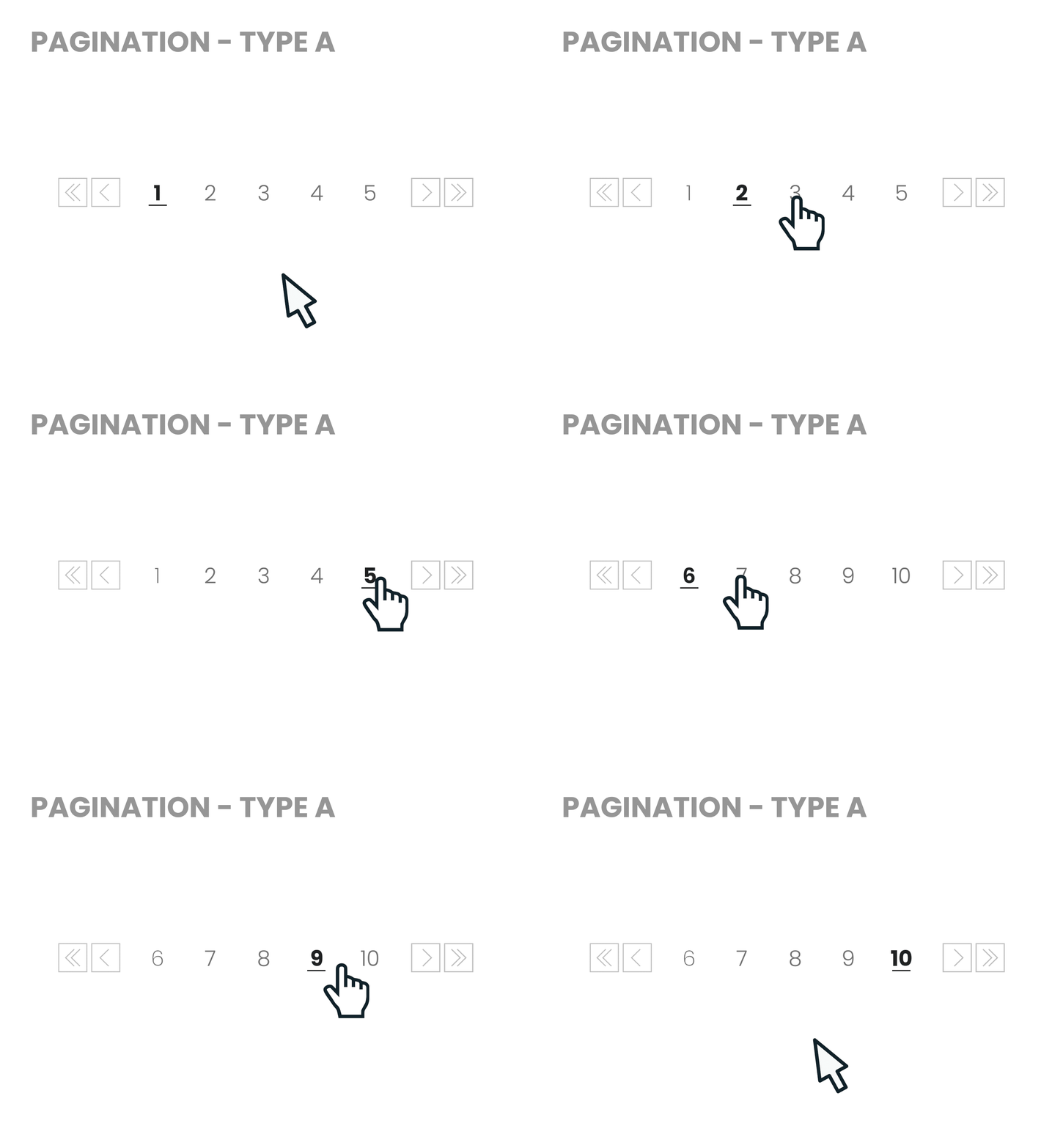
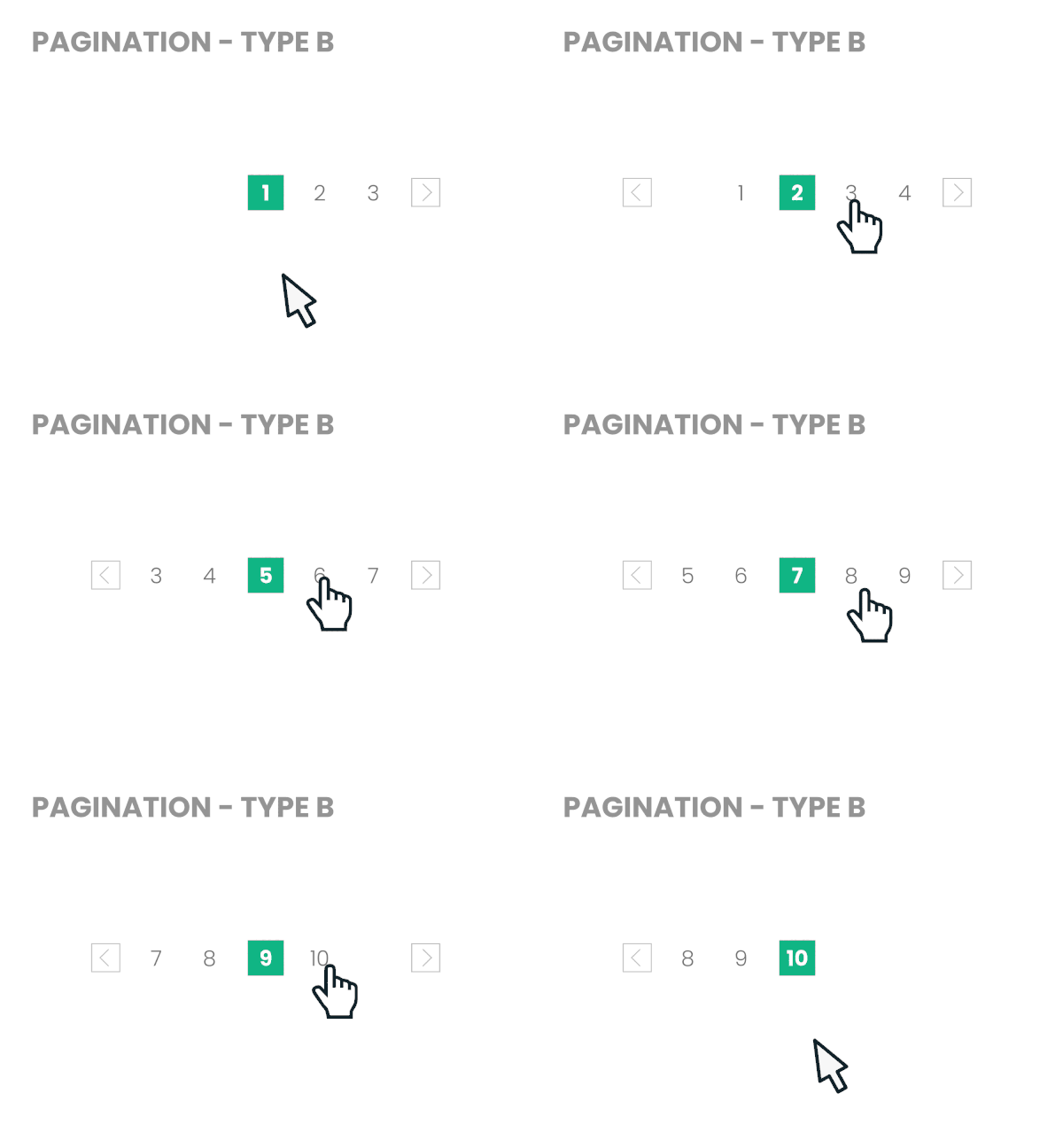
'Pagination' is the most commonly used method for loading new items. Numbered page buttons are arranged at the bottom of the information list, and you click numbers or arrow buttons to move to the next page.
{% columns %}
{% column %}
{% endcolumn %}
{% column %}
{% endcolumn %}
{% endcolumns %}
Pagination is broadly divided into two types:
* A. Static Type: The position of the number list is fixed, allowing you to move pages in groups of the presented numbers.
* B. Dynamic Type: The current page is always positioned at the center of the number list. As you move pages, the number list shifts one position sideways.
Since the action templates you need for continuous extraction vary depending on these two pagination methods, check the pagination method of the web page you're navigating 🙂
{% hint style="info" %}
Related article: [Pagination](https://help.listly.io/docs/ko/getting-started/databoard-features/settings-pagination-templates)
{% endhint %}
## 4. UI Components
### ① Button
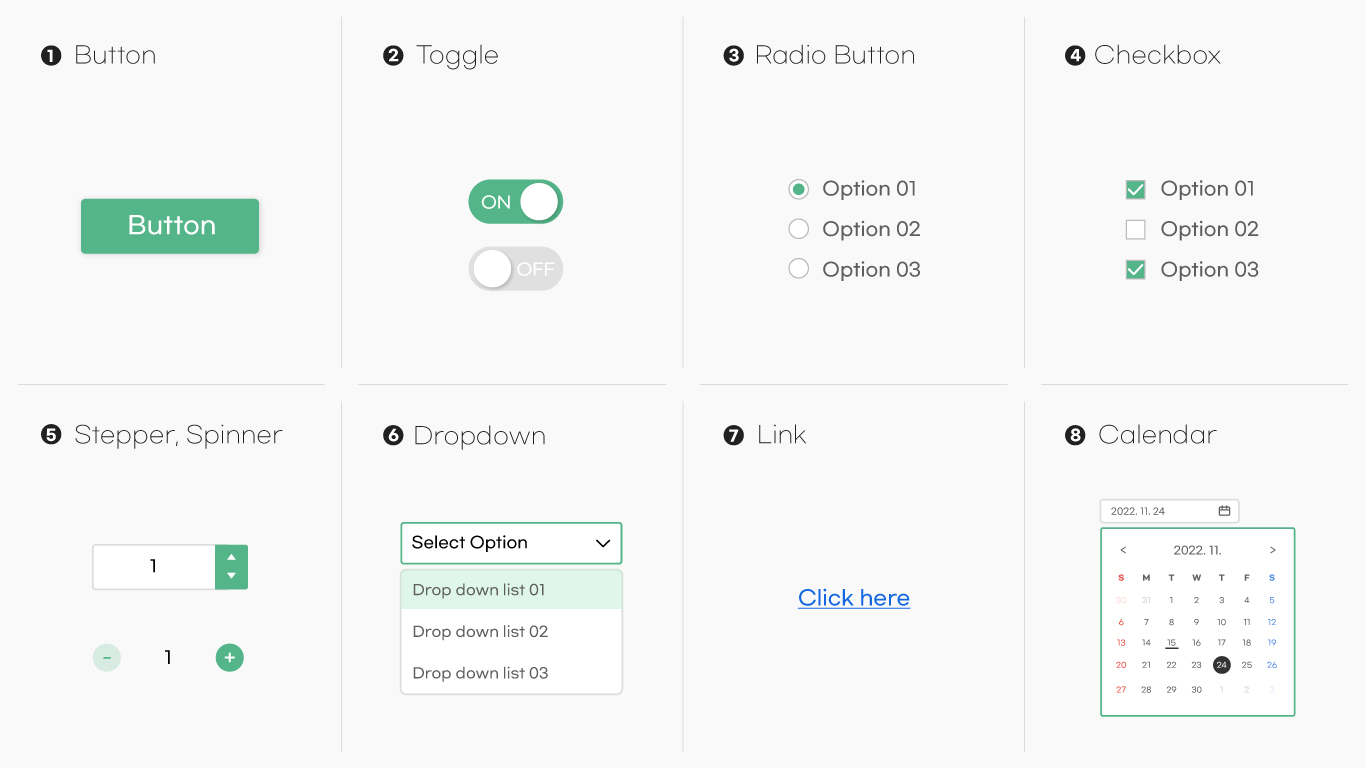
The most common element you click to perform a task. Designs vary widely.
### ② Toggle / Switches
Used to turn a setting on or off, like On/Off, or to select just one of two options.
### ③ Radio Button
A button that lets you select only one item from multiple elements.
### ④ Checkbox
An element that allows selecting multiple items simultaneously.
### ⑤ Stepper, Spinner
Representative numeric input UI element. Features up/down (or left/right) buttons for changing values, and some allow direct number input.
### ⑥ Dropdown
The most commonly adopted method for displaying options in shopping malls. Clicking the arrow button on the box reveals hidden items, which close when you select an item or click outside the dropdown list.
### ⑦ Link
Text, images, or icons that take you to another part of the current page or a completely different page when clicked. Most links in documents are underlined or displayed in a different color from the rest.
### ⑧ Calendar / Date Pickers
UI element for selecting a date or date range.
## 5. Menus
Menus are the most representative way of categorizing content, classified by their position or presentation method on the web page.
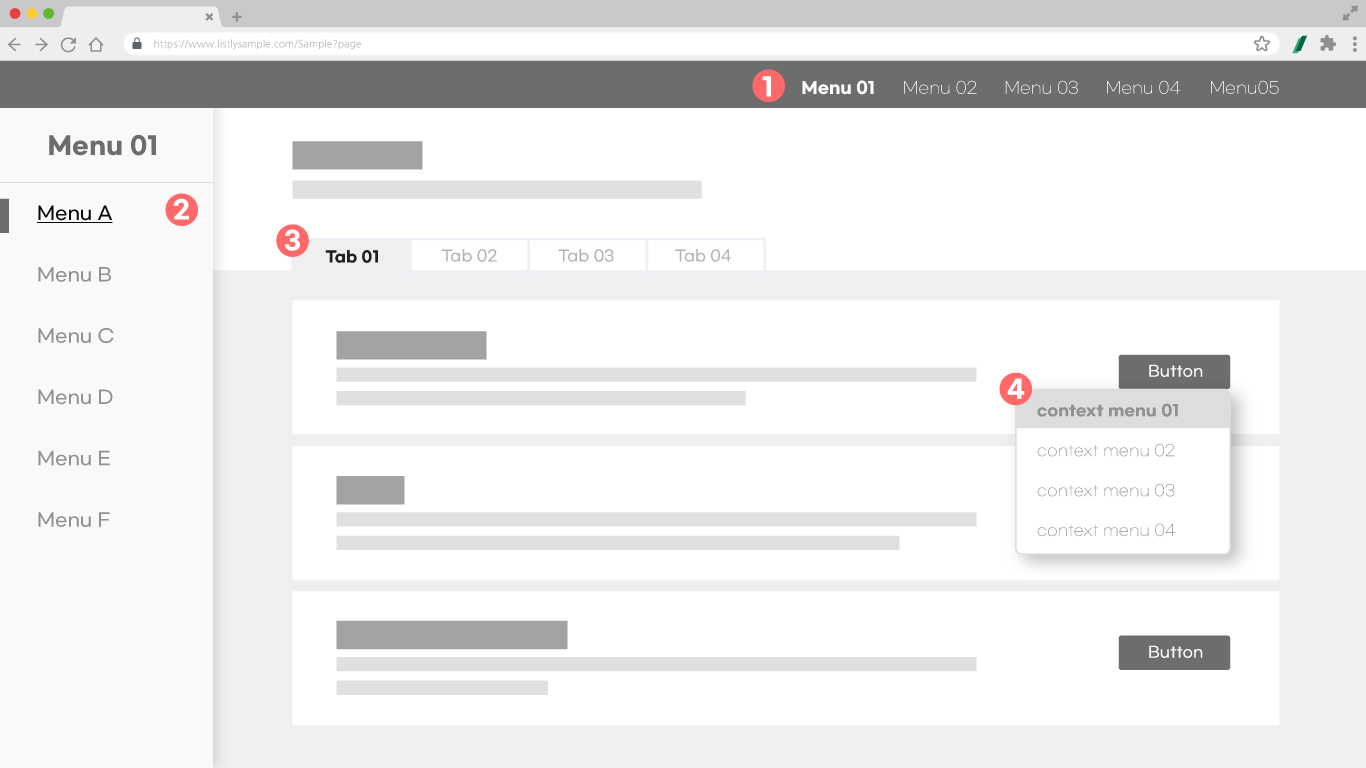
### ① GNB (Global Navigation Bar)
Refers to the collection area of hyperlinks displayed on a web page. Simply put, it's the menu that's always visible on the website, also called 'top menu' or 'main menu'. Usually positioned fixed at the top or left of the website.
### ② LNB (Local Navigation Bar)
Also called a submenu, usually positioned on the left side of the website. The position is fixed, but the items vary depending on the menu you enter.
### ③ Tab
A button that opens a page with related content in the area below or beside it when users click. Usually looks like tabs on document file folders, with several tabs in a row.
### ④ Context menu
A popup format menu that provides options related to the item the user has currently selected. Called when you click or right-click on a specific element.
## 6. Layered Pages
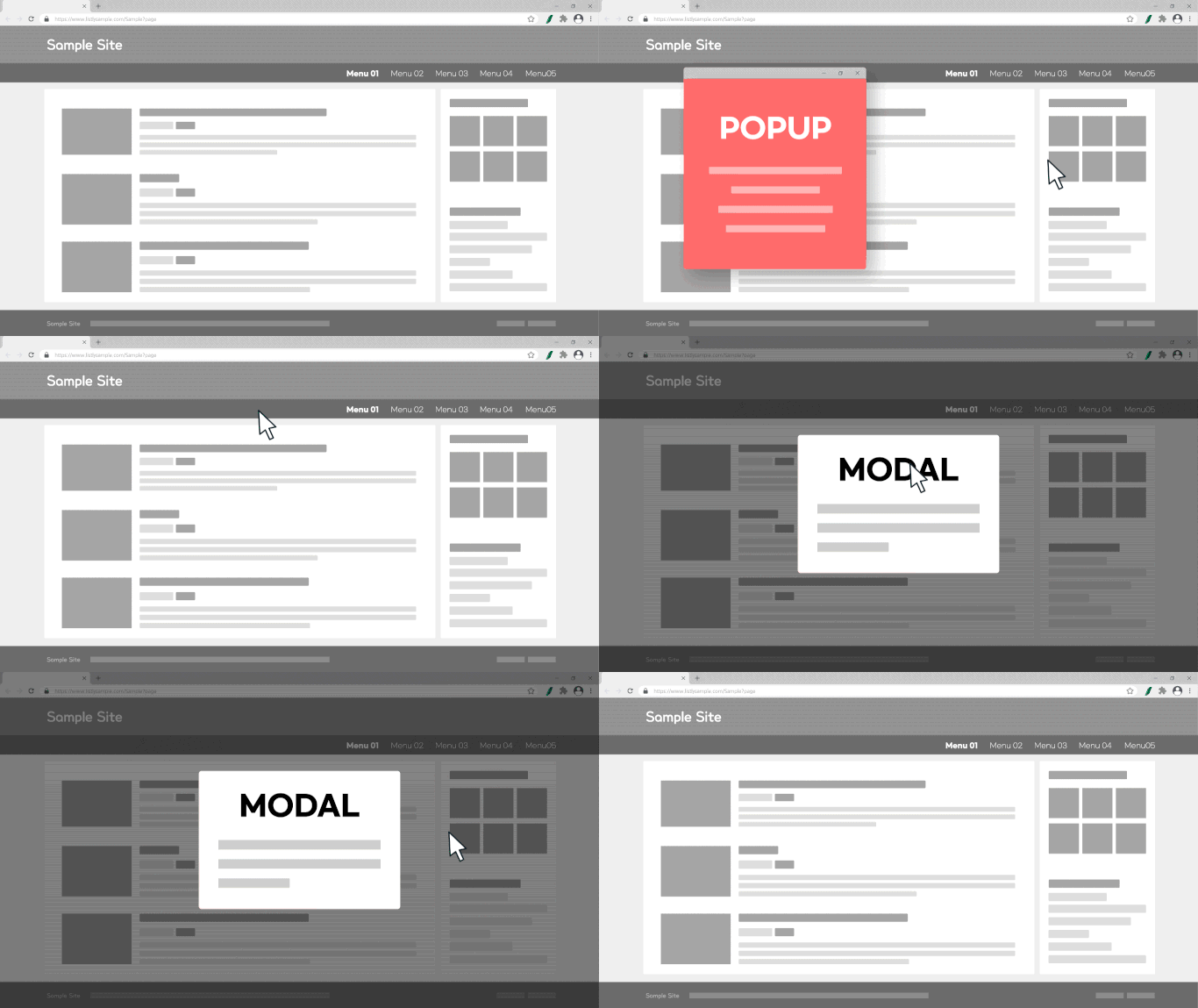
### ① Popup / Dialog Box
A window that appears to pause user progress. Opens as another browser page on top of the currently open browser page, usually appearing to introduce announcements, promotions, or notices. Often appears regardless of user intent or purpose.
Popup windows can be forced to not open through browser options.
### ② Modal
A modal window adds a layer on top of the existing browser page rather than opening a new window. It disappears when you move pages or click surrounding areas, even without clicking the close button in the modal window. Usually appears due to a specific user action.
---
# Agent Instructions
This documentation is published with GitBook. GitBook is the documentation platform designed so that both humans and AI agents can read, navigate, and reason over technical content effectively. Learn more at gitbook.com.
## Querying This Documentation
If you need additional information that is not directly available in this page, you can query the documentation dynamically by asking a question.
Perform an HTTP GET request on the current page URL with the `ask` query parameter, and the optional `goal` query parameter:
```
GET https://help.listly.io/about/listly-glossary.md?ask=&goal=
```
`ask` is the immediate question: it should be specific, self-contained, and written in natural language.
`goal` is optional and describes the broader end goal you are ultimately trying to accomplish on behalf of the user. GitBook uses it to tailor the answer towards what is most useful for that goal.
The response will contain a direct answer to the question and relevant excerpts and sources from the documentation.
Use this mechanism when the answer is not explicitly present in the current page, you need clarification or additional context, or you want to retrieve related documentation sections.
.jpg)
.jpg)