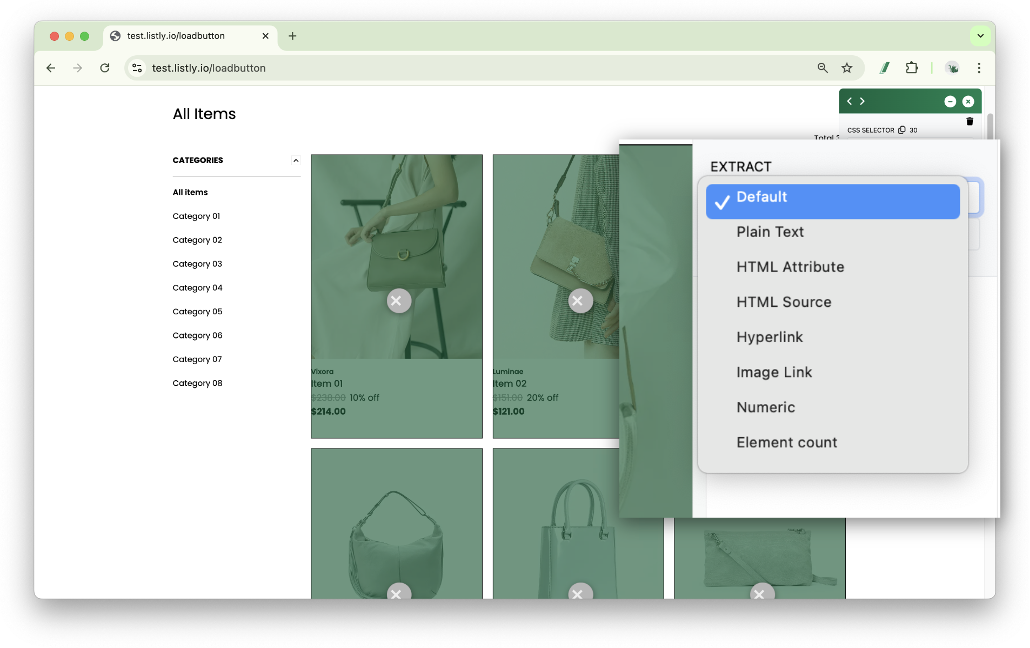
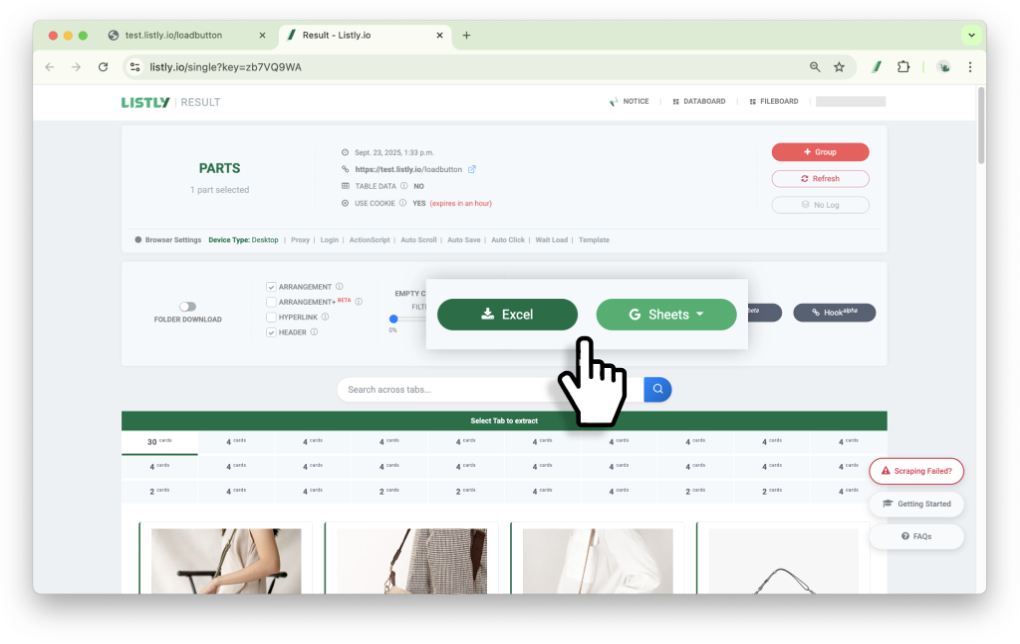
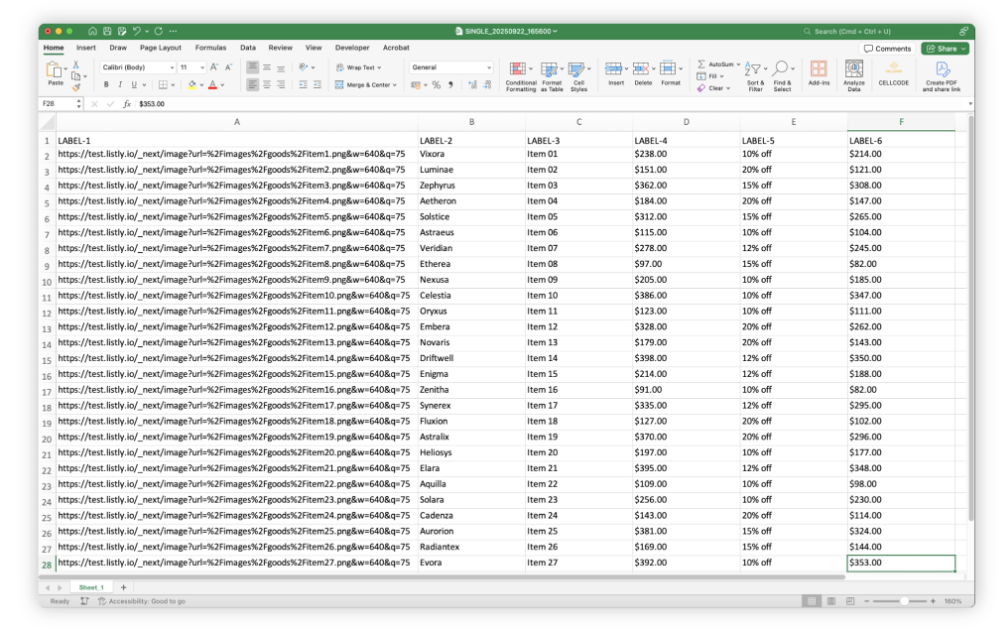
Extract data by selecting only specific areas you want. Use this feature when you want to improve the arrangement and accuracy of extracted data.
Quick Start
➡️ Click Listly icon on desired page ➡️ Select Parts ➡️ Select data extraction areas ➡️ Choose extraction options in panel (optional) ➡️ Click RUN LISTLY ➡️ Select tab for data to extract in results ➡️ Download your data
How to Use
1
Click the Listly Icon on your target website
Navigate to the web page you want to extract data from in your Listly-installed browser and click the Listly icon.
2
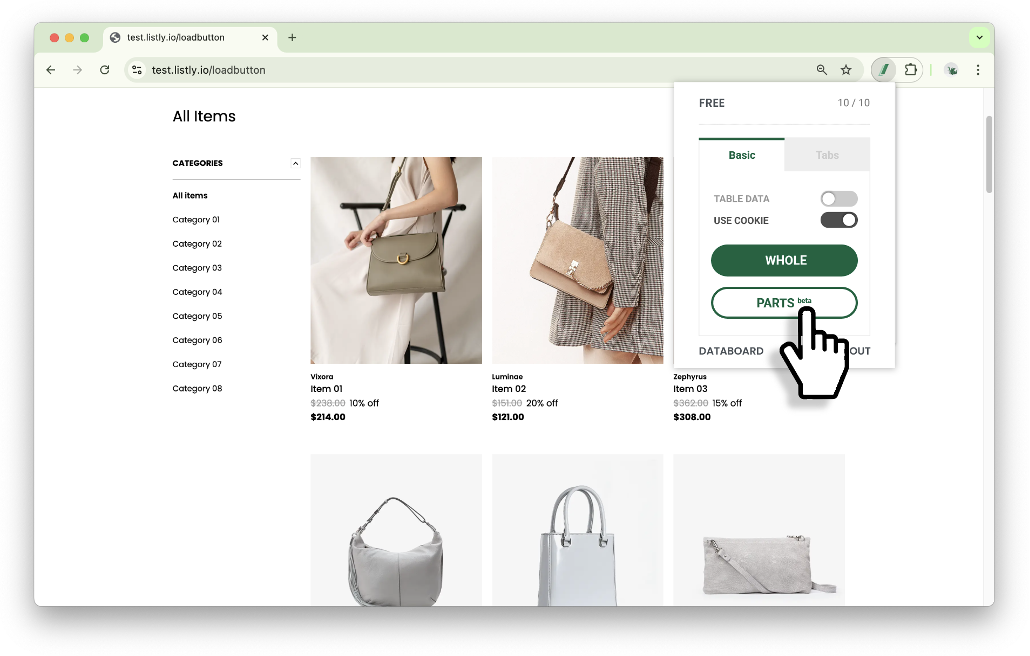
Select PARTS
Select the [PARTS] button in the Listly extension.
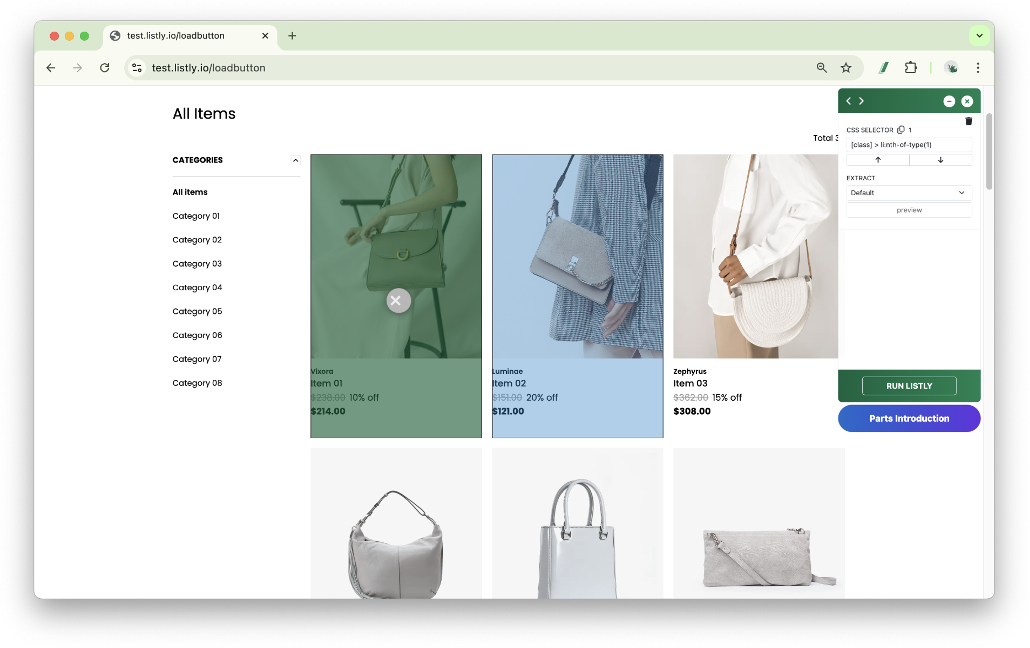
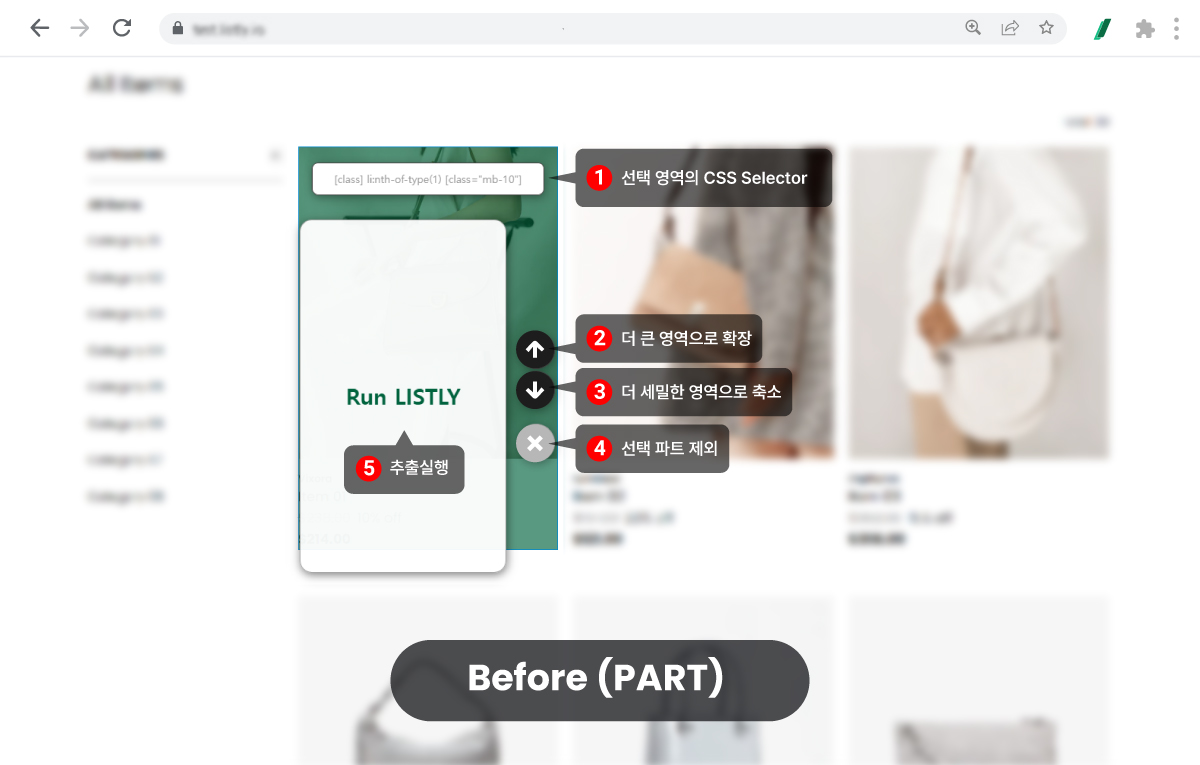
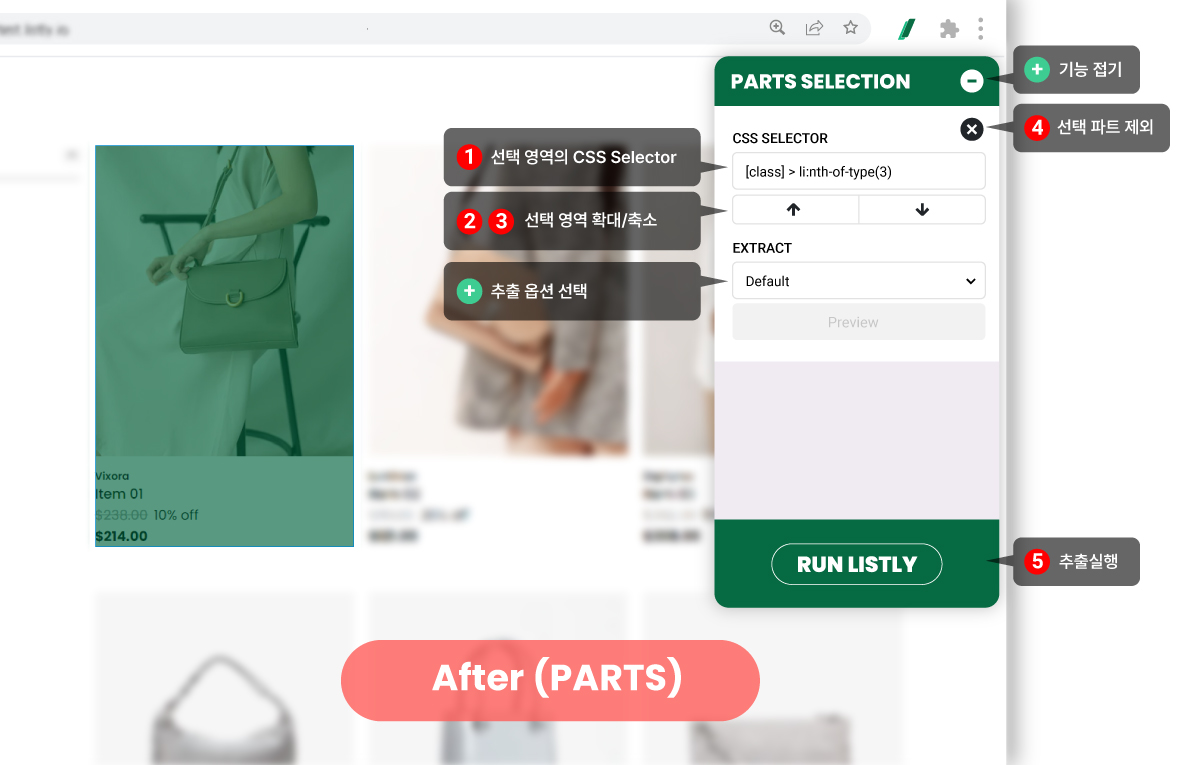
Function buttons that were displayed directly above a single selection area (Before) have moved to a side panel (After) as shown below. Refer to the image for the new locations of each function button changed from the previous UI.
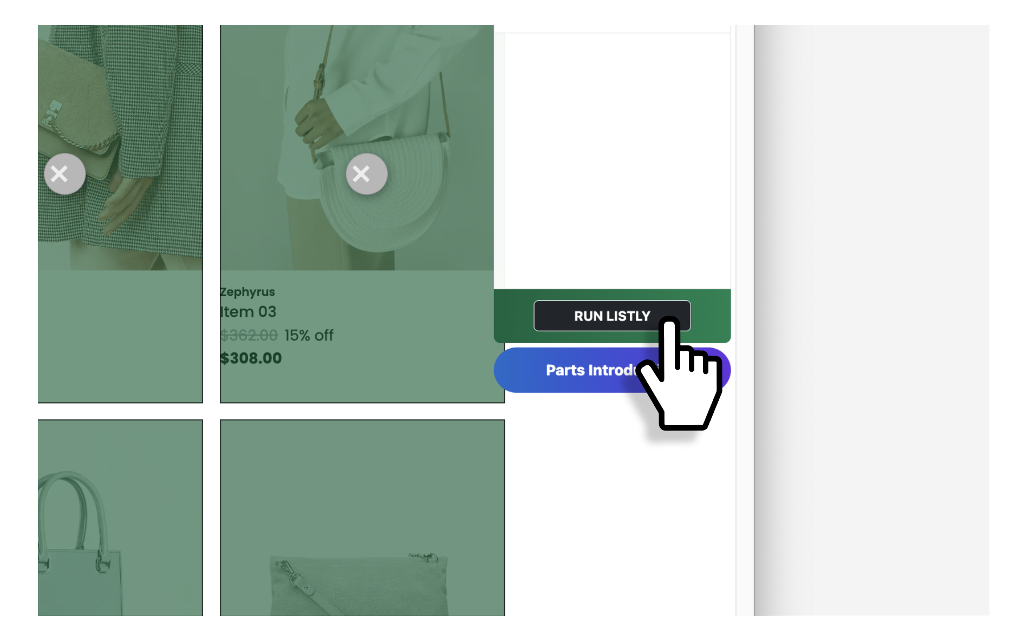
If you want to extract data using the same process as the previous parts selection, refer to the changed button locations, select only a single area, then click the Run Listly button to proceed with extraction.
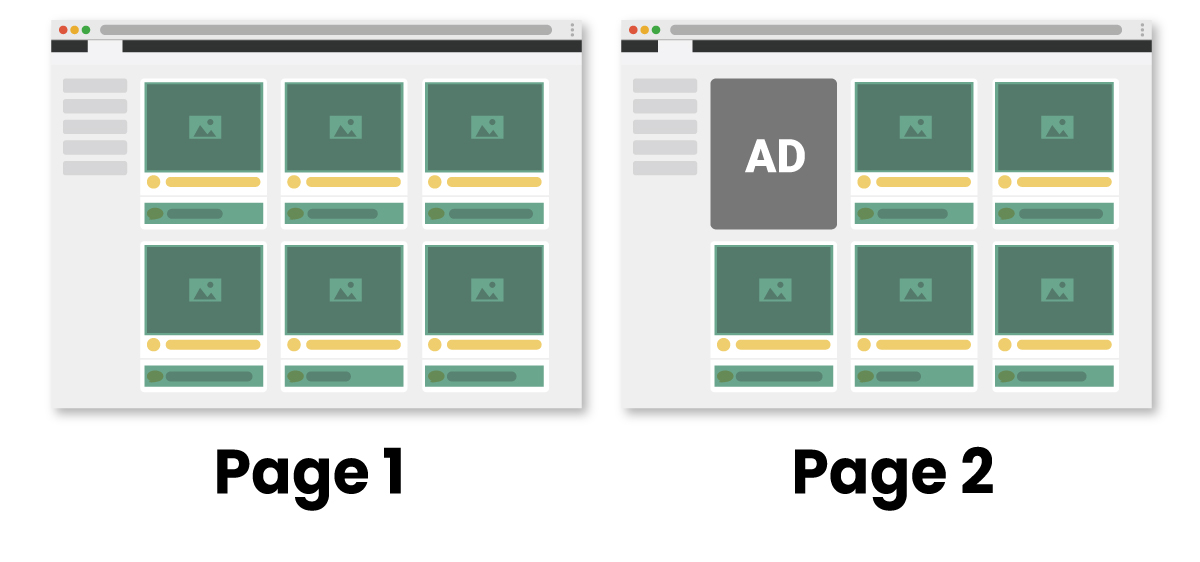
The number of items to extract varies by page. Is group extraction still possible?
Yes, it's possible. For example, as shown in the image above, let's say the first item area on page 1 is replaced by a different element like an advertisement on page 2. (Areas with information you want to extract are marked with green boxes)
Listly's Parts automatically detects data locations with the same structure.
If you extract data on page 1 using the 'automatically select repeating elements (auto-select repeating elements)' method to specify desired areas, then perform group extraction based on that page, data extraction will succeed without failures even if the number of selected areas differs on other web pages.
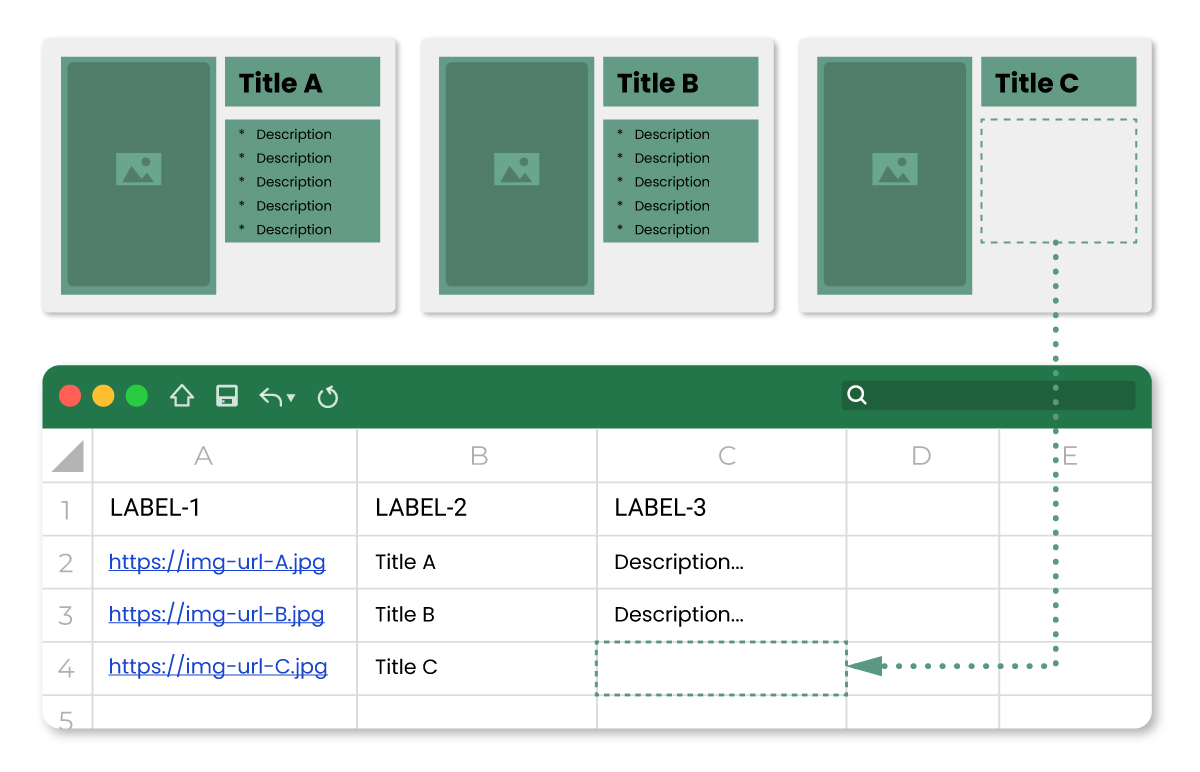
I want to extract a specific page using the 'individually select desired areas' method, then perform group extraction. However, some pages don't have the element I 'individually selected'. What happens in this case?
As shown in the image above, missing information will be extracted as blank cells.
Let's assume you selected image, title, and description areas separately using Parts on page A, extracted the data, then performed group extraction with pages having the same structure.
If page C has an empty description area that you selected on page A, the data in that cell will be extracted as blank, as shown in the image above.
However, like with previous group extraction, if you try to extract web pages with completely different structures from the source page, or if there are no matching areas with page A, it will be processed as a collection failure.
When selecting repeating areas, unnecessary areas are also selected. How can I solve this?
We plan to add a feature that allows you to remove unnecessary areas by clicking for more precise data area selection. Currently, you can resolve this by manually editing the CSS Selector value of that area.