> For the complete documentation index, see [llms.txt](https://help.listly.io/llms.txt). Markdown versions of documentation pages are available by appending `.md` to page URLs; this page is available as [Markdown](https://help.listly.io/getting-started/extension-features/css-selector.md).
# CSS Selector
## What is CSS Selector?
To use features like auto-click, auto-login, and pagination templates, you need Selector values that specify which elements to click. This guide explains how to get those Selector values.
{% hint style="success" %}
**CSS Selector refers to elements where style attributes are applied**. Simply put, websites are fundamentally made up of countless tags, and CSS Selectors are specific values assigned to each element on the web page to apply design on top of the code. When you see CSS Selector mentioned in Listly help documentation, understand it as **the code value a specific element (e.g., button, input field) has**.
{% endhint %}
***
## How to use it
### A1. Getting selector values
{% stepper %}
{% step %}
#### Getting CSS selector values with PARTS
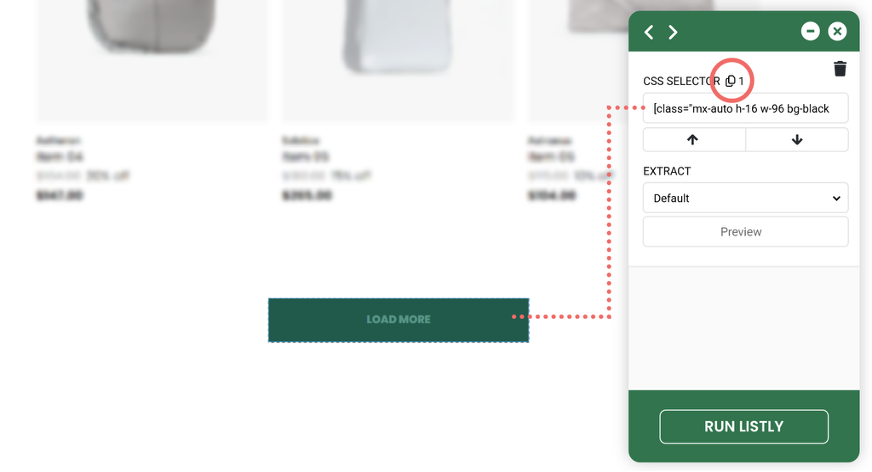
Using Listly PARTS lets you get CSS Selector values quickly and easily.
{% hint style="success" %}
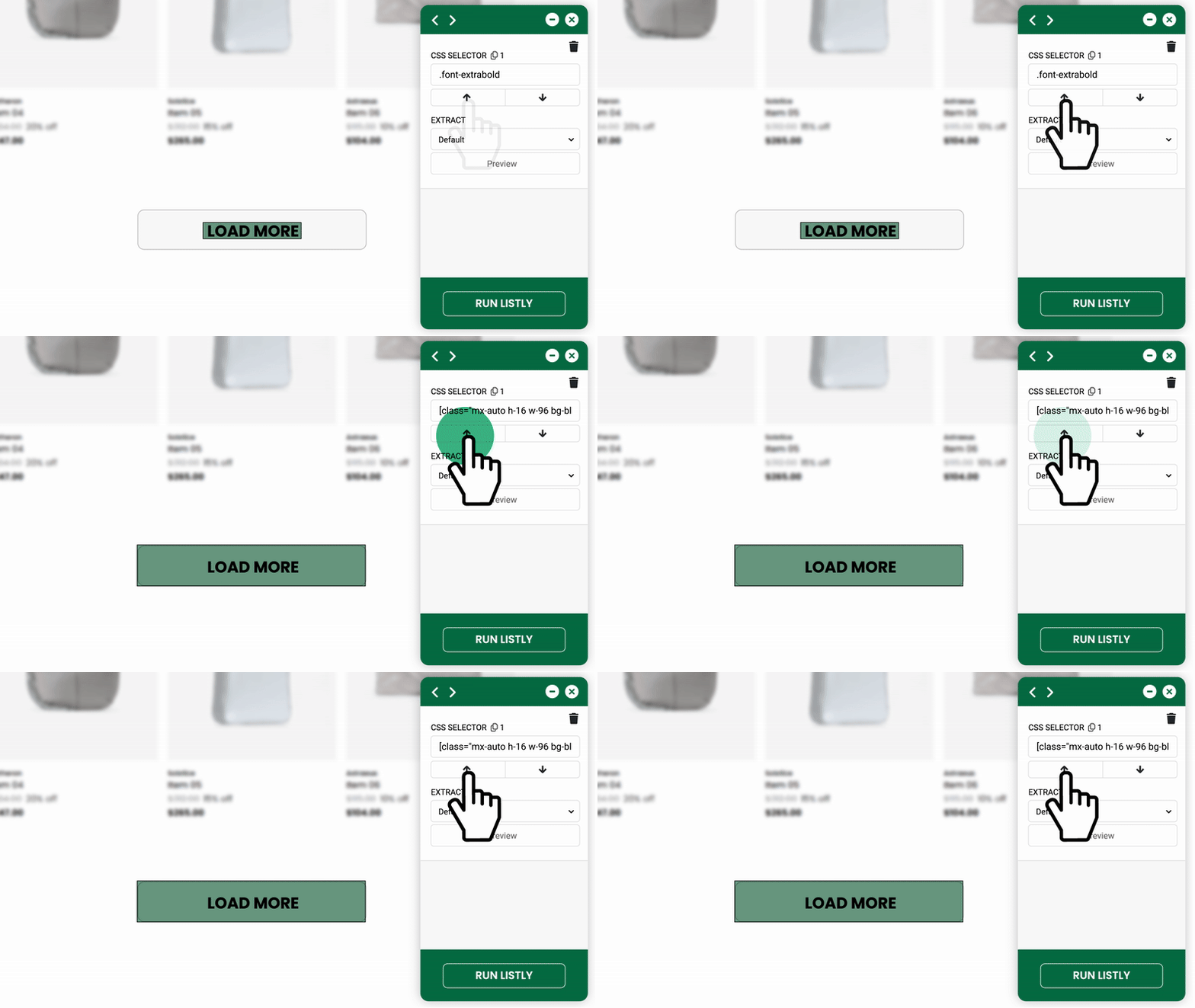
**Click Listly icon** → **Select \[Parts+]** → Click desired element
{% endhint %}
Through this process, you can immediately check the desired element's Selector value in the side panel. Click the **\[Copy icon]** in the CSS Selector field to easily copy that value.
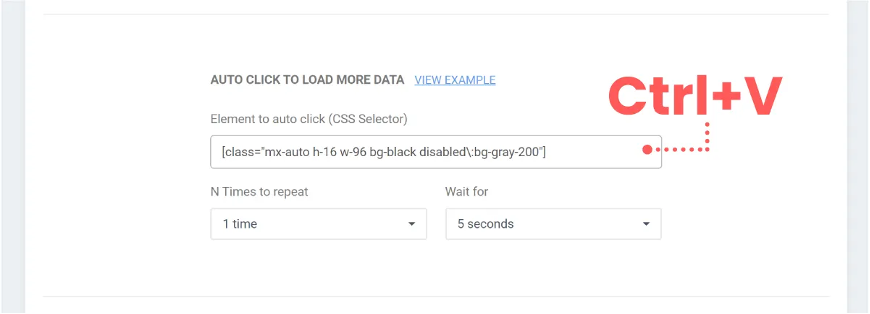
After copying the value, paste it using Ctrl+V into settings fields that need Selector values.
{% endstep %}
{% step %}
#### Getting CSS selector values with developer tools (Legacy)
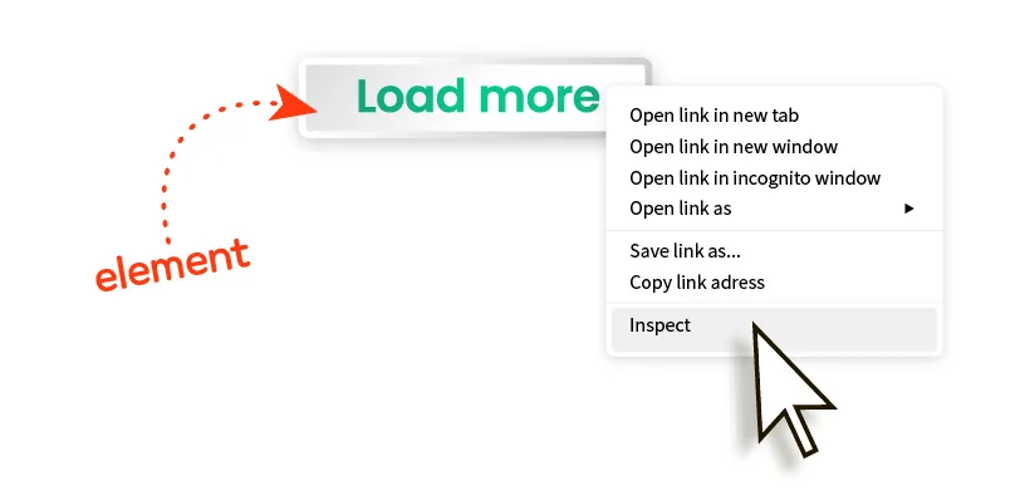
(1) Right-click on an element like a button or input field and select **\[Inspect]**.
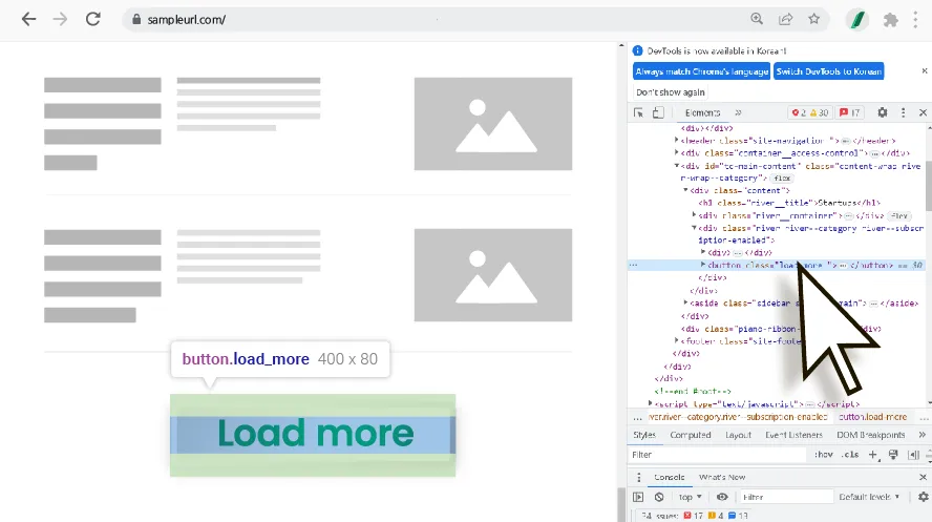
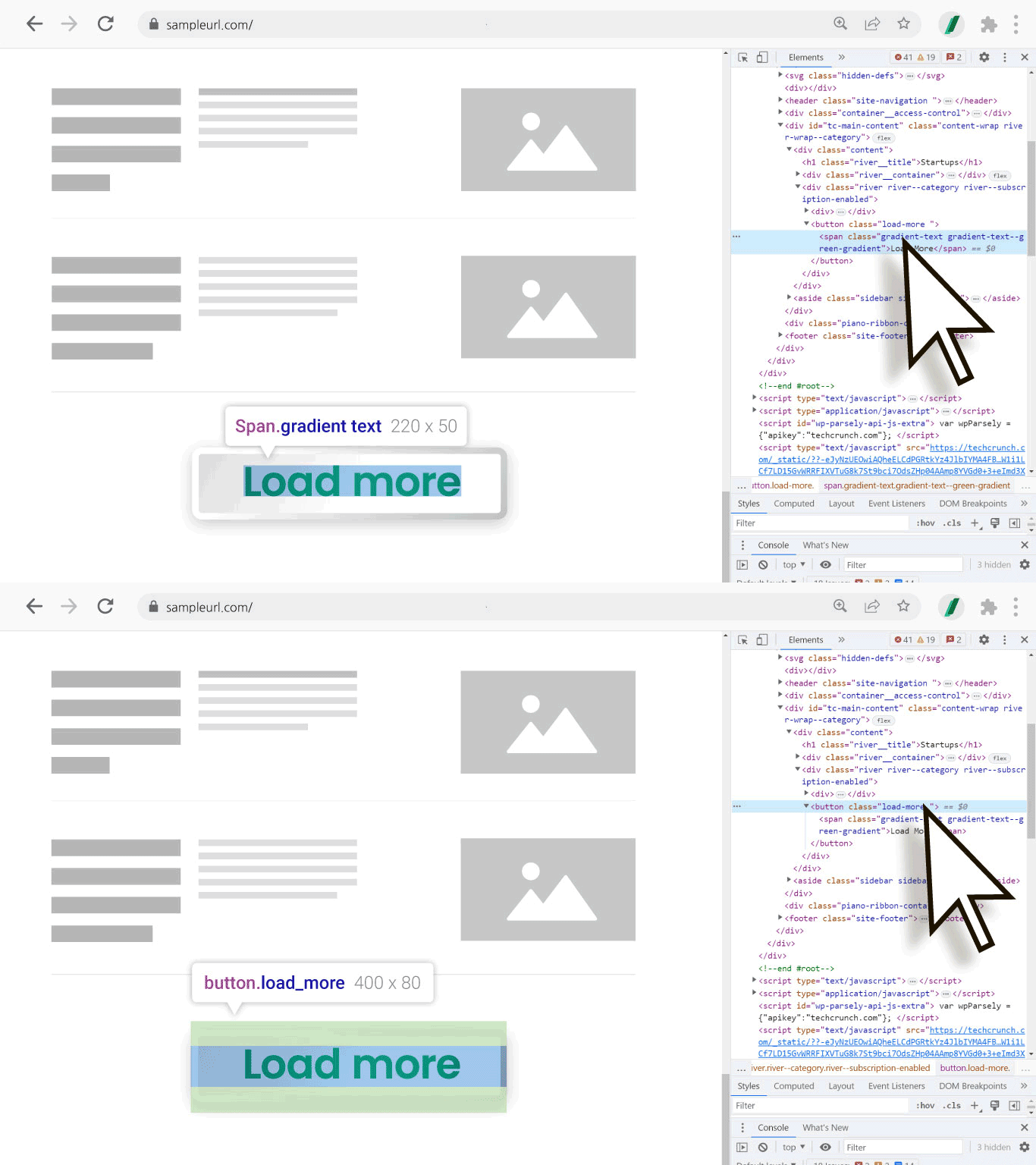
(2) A code window appears on the right or bottom of the screen. The code corresponding to the element you just selected is highlighted in gray, and hovering over the code highlights the corresponding area on screen in color.
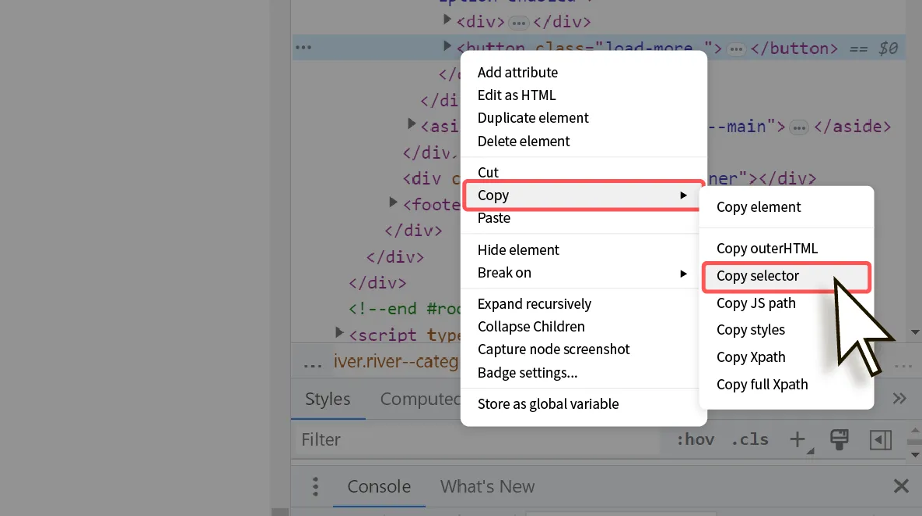
(3) Right-click on the gray-highlighted code and select Copy -> Copy selector to copy that selector's value.
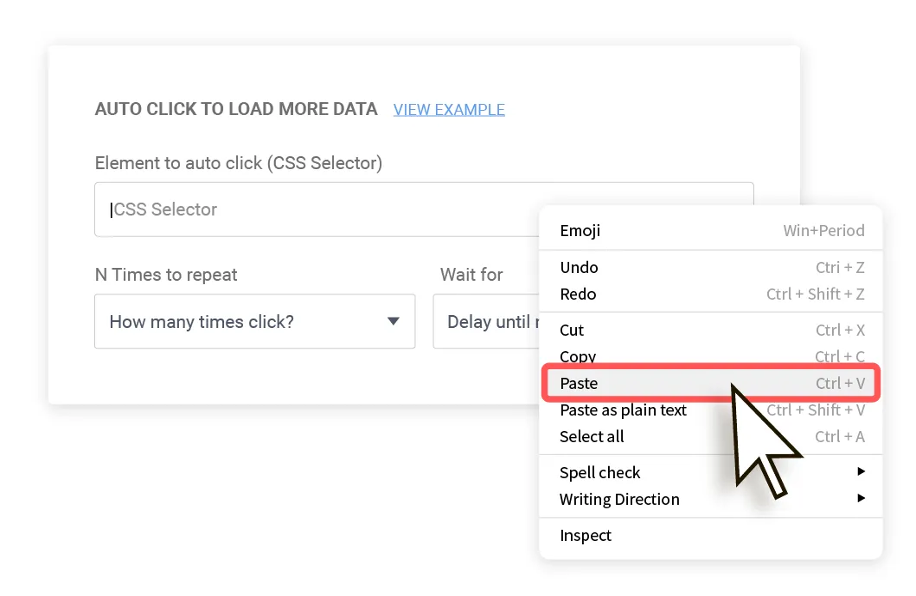
(4) Go to the settings window and paste the copied value by pressing Ctrl+V or right-clicking and selecting 'paste' where the selector value needs to be entered, then save.
{% endstep %}
{% endstepper %}
### A2. When Selector doesn't work properly after entering it
For most websites, entering the Selector value from step 1 works normally. However, if entering the Selector value doesn't give desired results, check these methods:
{% stepper %}
{% step %}
#### Design modification program interference
* **Problem**: **Unnecessary CSS code may have been copied along** due to cursor design, browser theme changes, design correction extensions, etc. Since CSS is code that affects web page design, if related programs are running, turn off settings and copy the Selector value again.
{% endstep %}
{% step %}
#### When necessary info is in parent/adjacent tags
* **Problem**: Key information may be contained in parent tags (parent elements) rather than the initially selected element.
* **Solution-1 (Using Parts)**: Click the **up arrow (↑)** from the initially selected element to adjust the selection area. Expand to **the largest box that doesn't exceed the button area** and use that value.
* **Solution-2 (Using developer tools)**: In developer tools, hovering over code highlights the corresponding element area. Select **the largest box that doesn't exceed the button area** and copy its CSS Selector value.
{% endstep %}
{% endstepper %}
---
# Agent Instructions
This documentation is published with GitBook. GitBook is the documentation platform designed so that both humans and AI agents can read, navigate, and reason over technical content effectively. Learn more at gitbook.com.
## Querying This Documentation
If you need additional information that is not directly available in this page, you can query the documentation dynamically by asking a question.
Perform an HTTP GET request on the current page URL with the `ask` query parameter, and the optional `goal` query parameter:
```
GET https://help.listly.io/getting-started/extension-features/css-selector.md?ask=&goal=
```
`ask` is the immediate question: it should be specific, self-contained, and written in natural language.
`goal` is optional and describes the broader end goal you are ultimately trying to accomplish on behalf of the user. GitBook uses it to tailor the answer towards what is most useful for that goal.
The response will contain a direct answer to the question and relevant excerpts and sources from the documentation.
Use this mechanism when the answer is not explicitly present in the current page, you need clarification or additional context, or you want to retrieve related documentation sections.