> For the complete documentation index, see [llms.txt](https://help.listly.io/llms.txt). Markdown versions of documentation pages are available by appending `.md` to page URLs; this page is available as [Markdown](https://help.listly.io/getting-started/enterprise-solutions/auto-scrape-sub-pages.md).
# Enterprise - Auto-Scrape Sub Pages
## What is Automatic Subpage Collection?
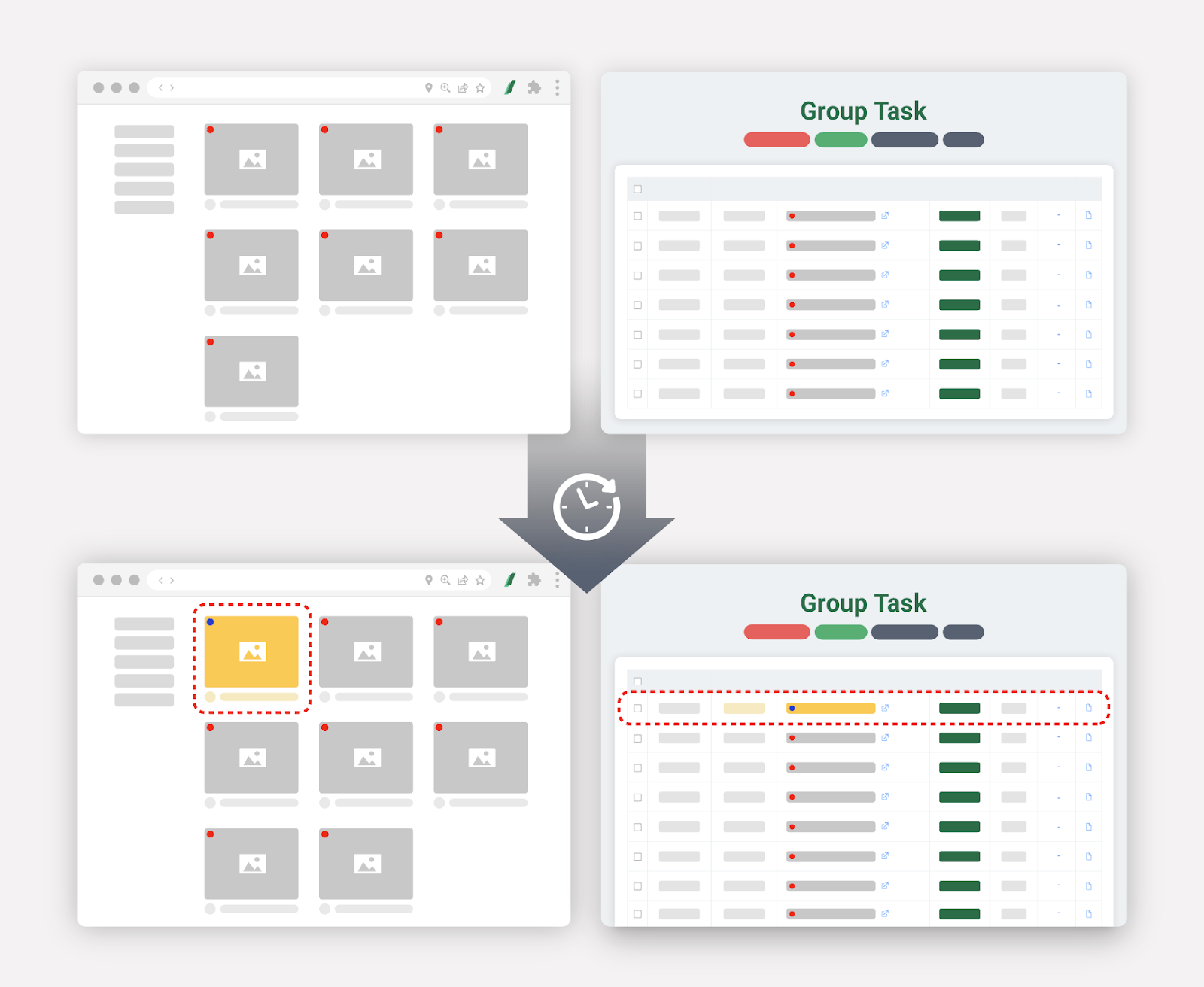
When new posts or products appear on a list page, the subpage URLs are automatically added to the group and extraction proceeds. With automatic subpage collection, you don't need to manually gather or update addresses one by one—you can **automatically detect updated lists and collect new data**.
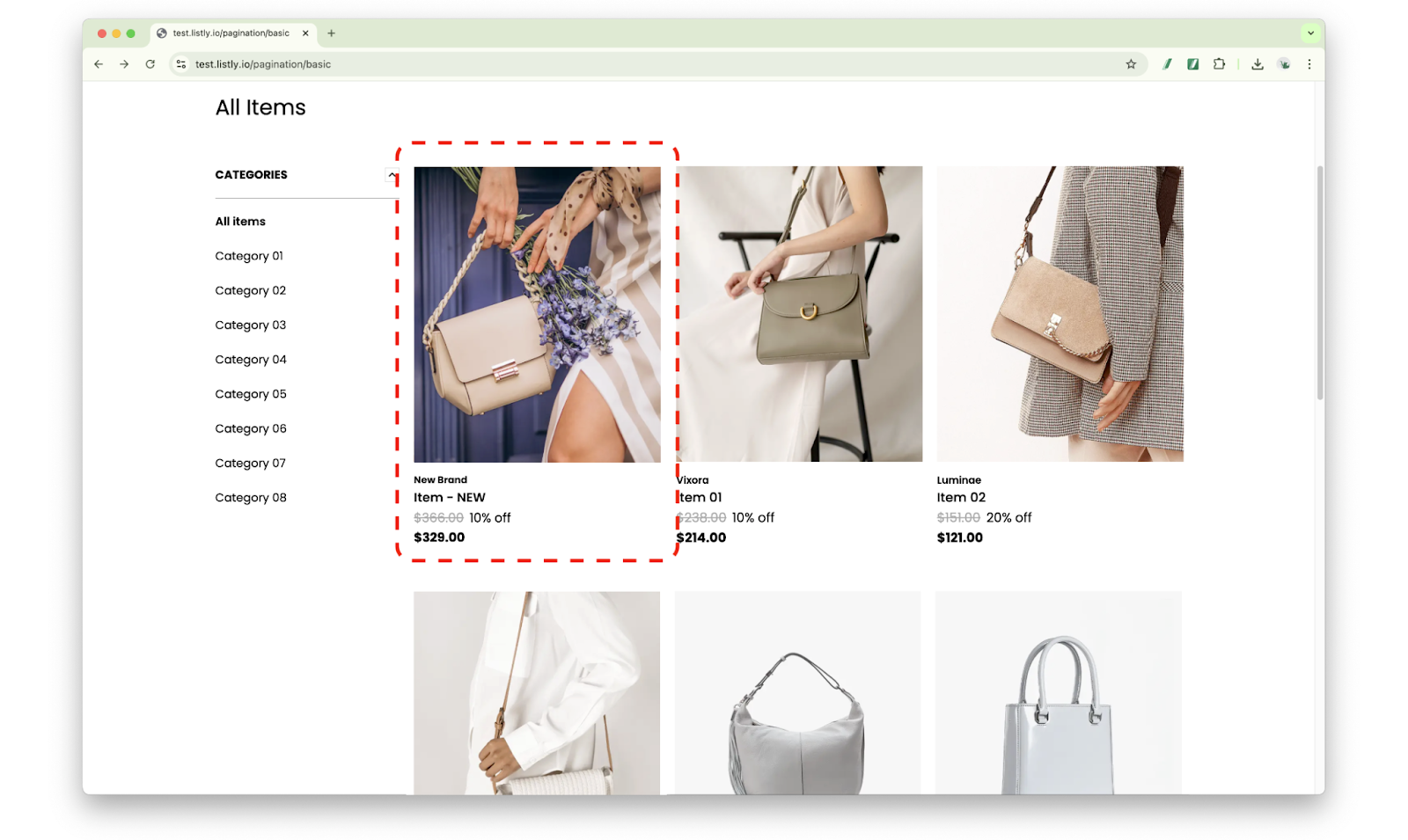
This feature is especially useful when extracting **continuously updated pages like posts or product pages**. For example, if you connect a shopping mall list page where new products are registered daily, new product detail pages will be automatically collected, **maintaining the latest data state**.
{% hint style="success" %}
**What is a Subpage?**
Subpages refer to all subordinate pages excluding the website's main page (homepage).
{% endhint %}
***
## How to Use
{% stepper %}
{% step %}
### Create Parent Task
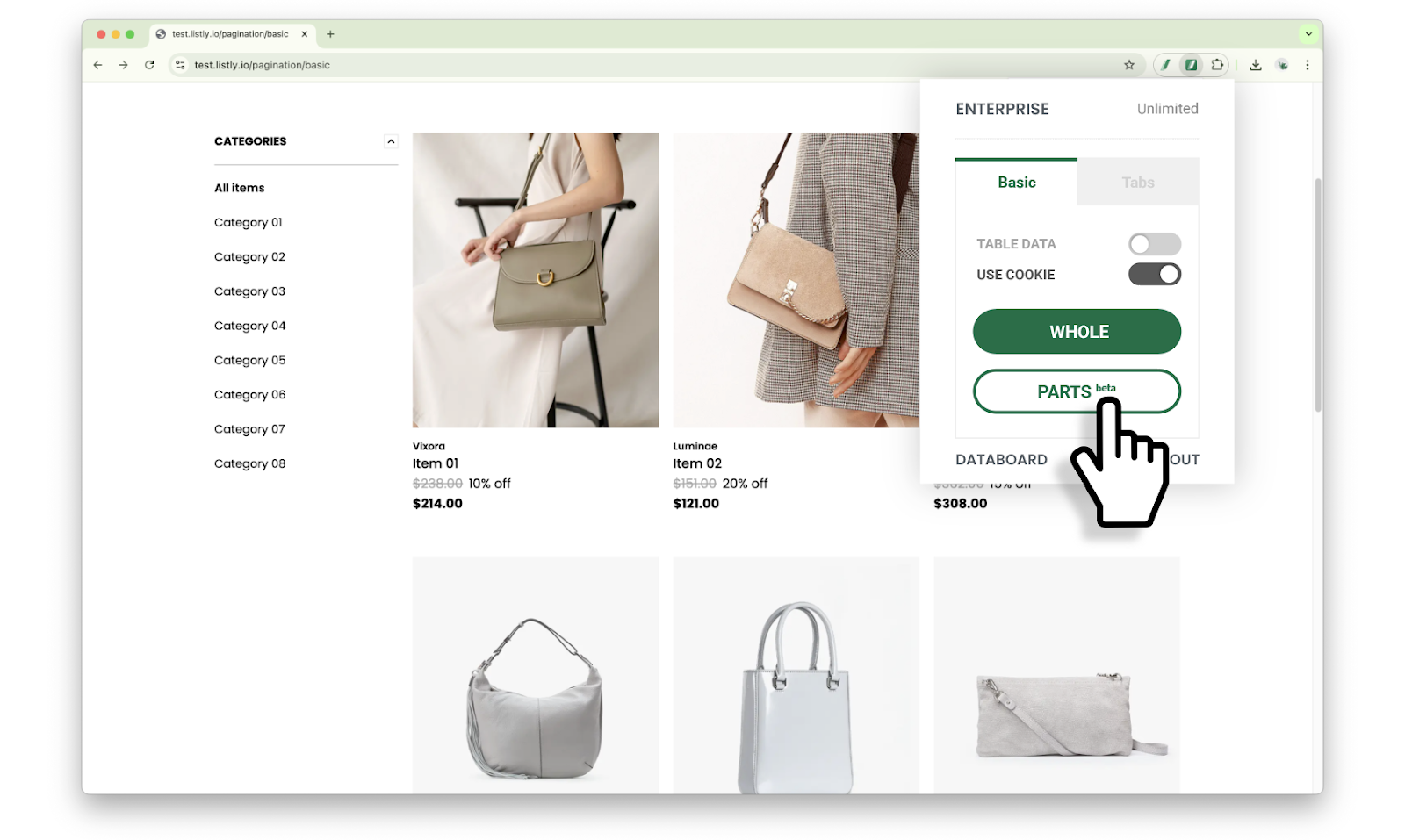
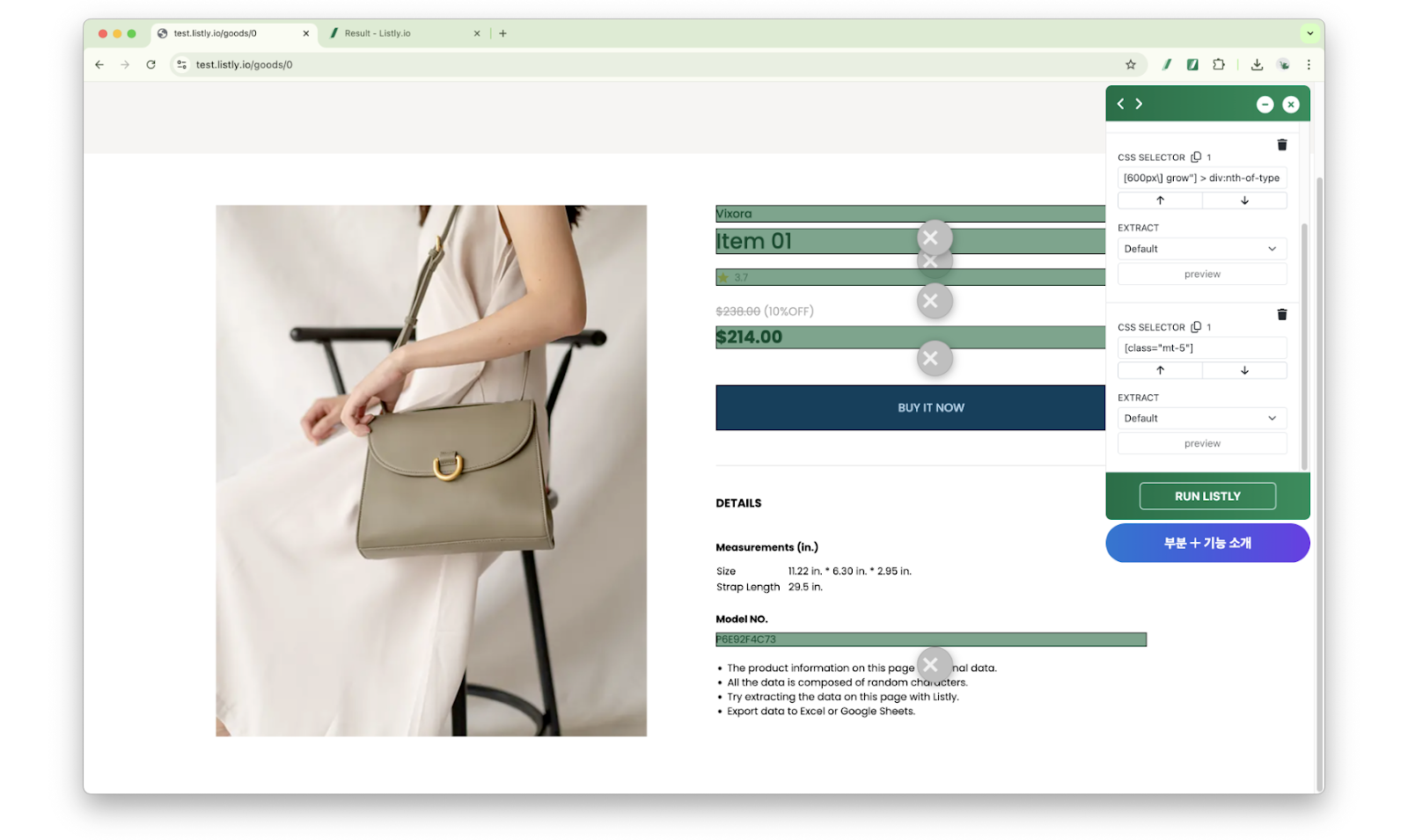
* Run Listly on the list page and click the **\[Parts]** button.
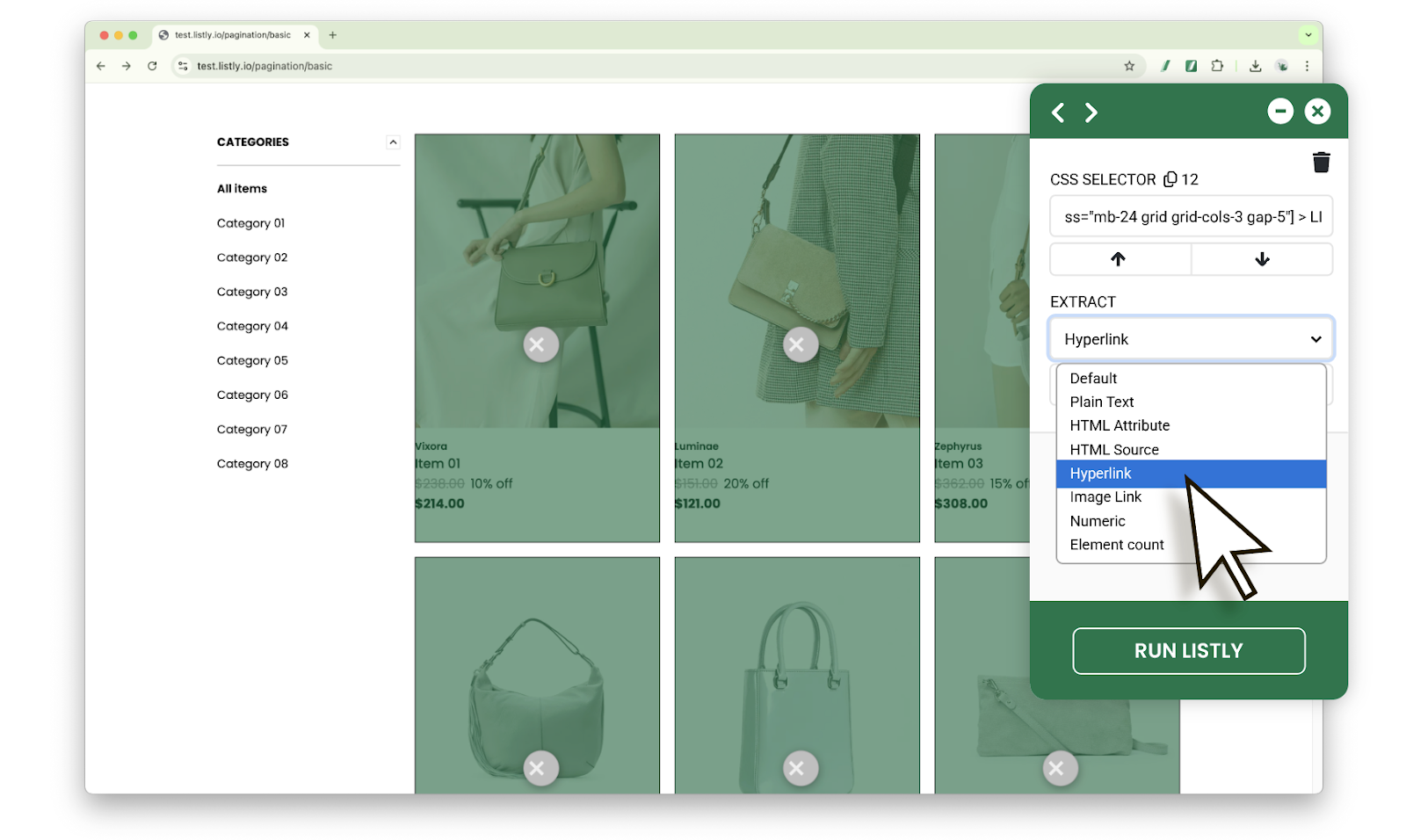
* After selecting the extraction area, choose **'Hyperlink'** in the extraction options to collect only links to each detail page.
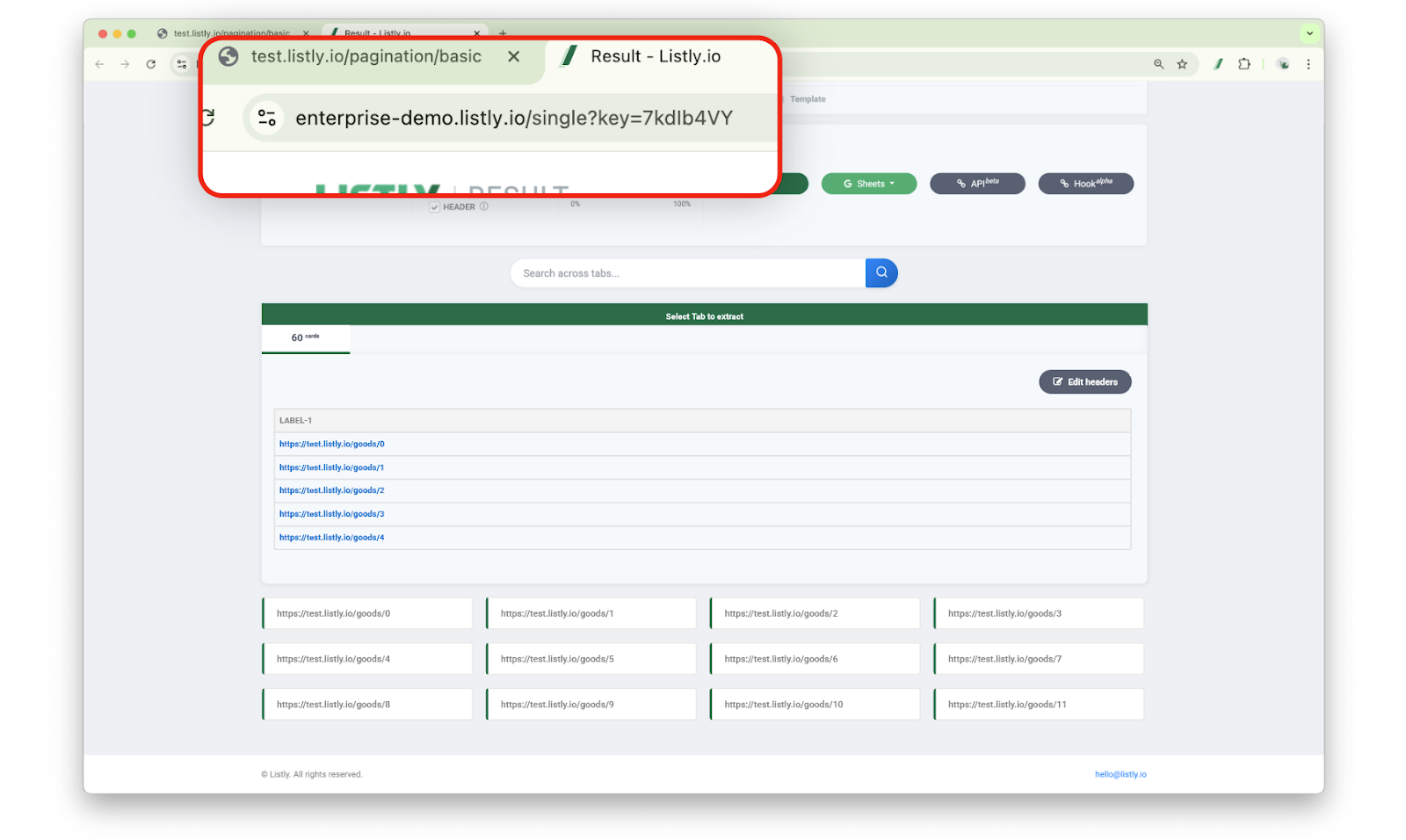
* **This task that collected only detail page hyperlinks is the parent task needed for 'automatic subpage collection'.** The URL of this task will be used later when connecting the child task, so copying it in advance will be convenient.
{% endstep %}
{% step %}
### Create Child Task and Connect to Parent Task
* On the detail page, select the area that will serve as the reference for group extraction and extract data.\
(This process is the same as regular [Group Extraction](/getting-started/result-page-features/group-extraction.md).)
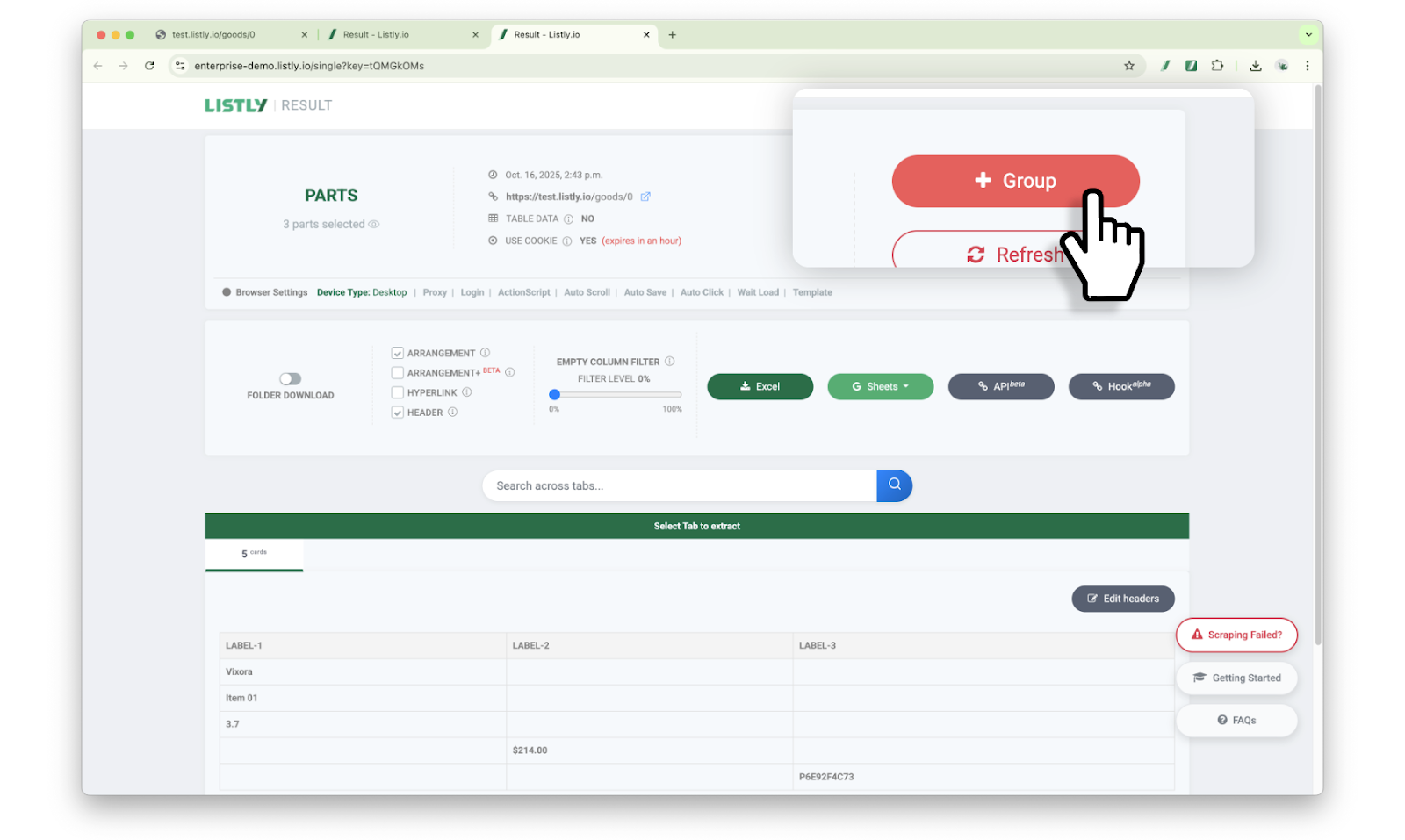
* On the results page, check the tab where the selected data is located, then click the **\[+Group]** button.
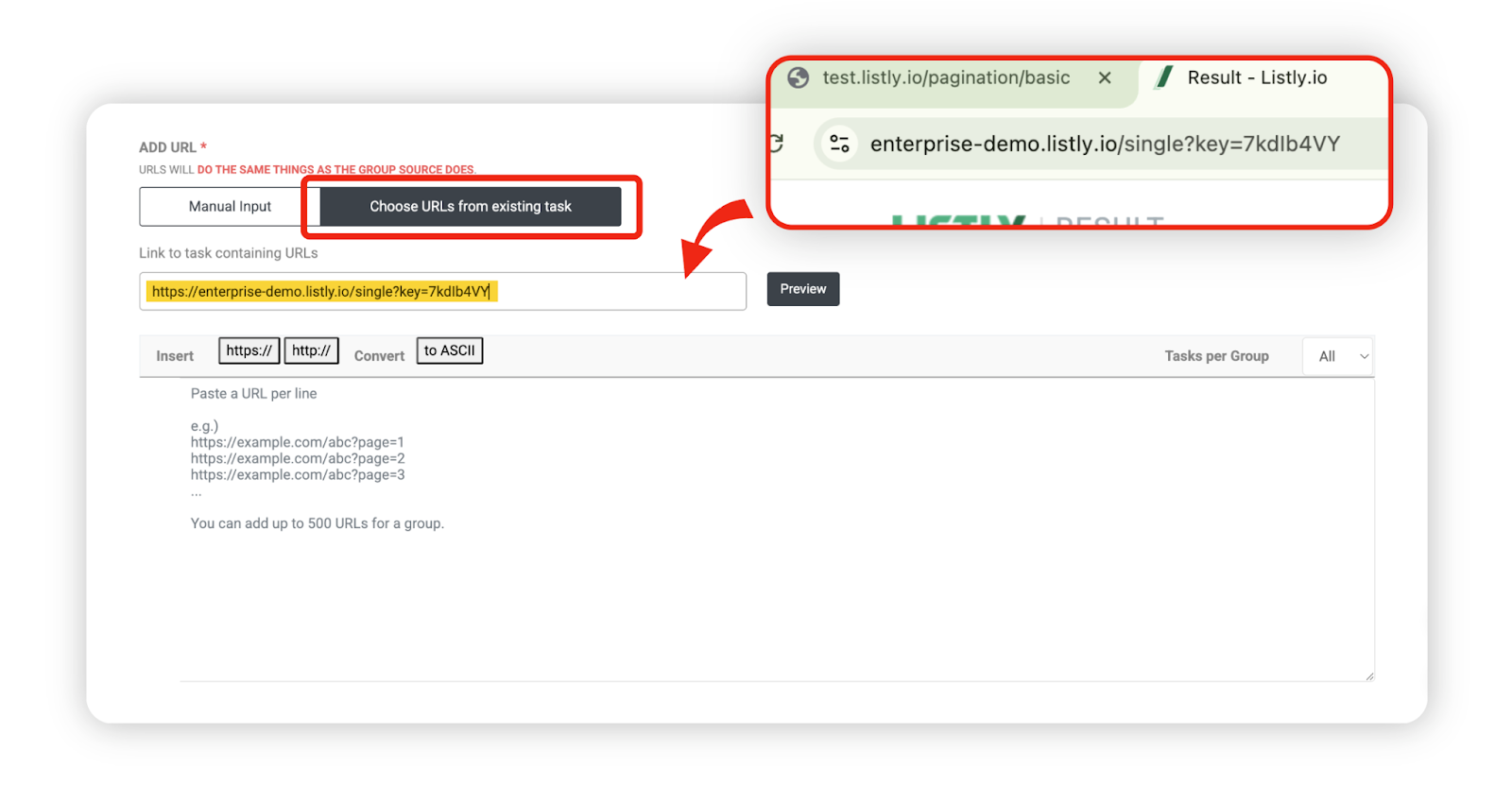
* In the URL input field at the bottom of the group extraction settings window, select **\[Choose URL from existing task]** and paste the URL of the parent task you created earlier.
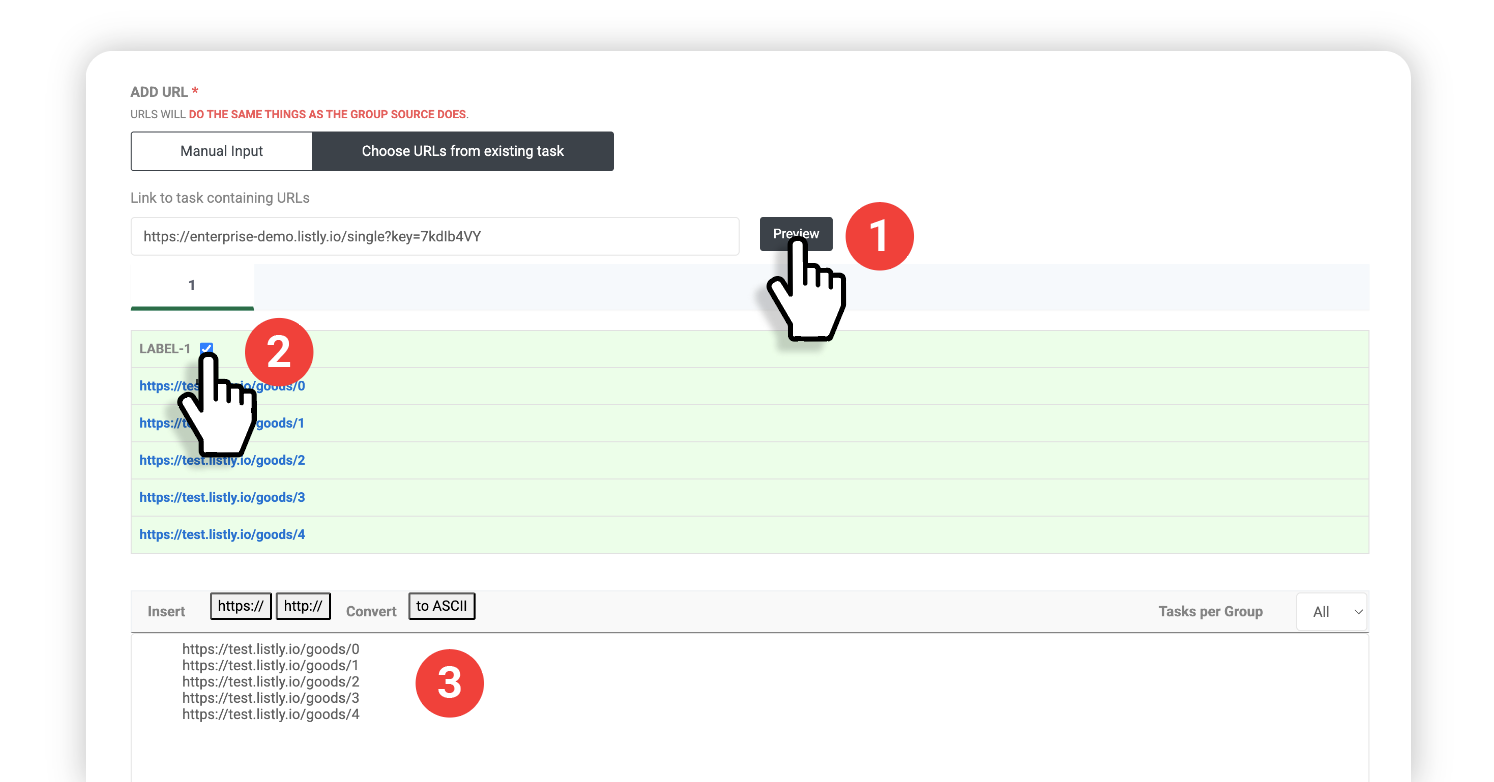
* Click the **\[Preview]** button and select the column containing detail page URLs. If 5 URLs appear in the bottom preview window, it's working correctly. After confirming, click the **\[Done]** button.

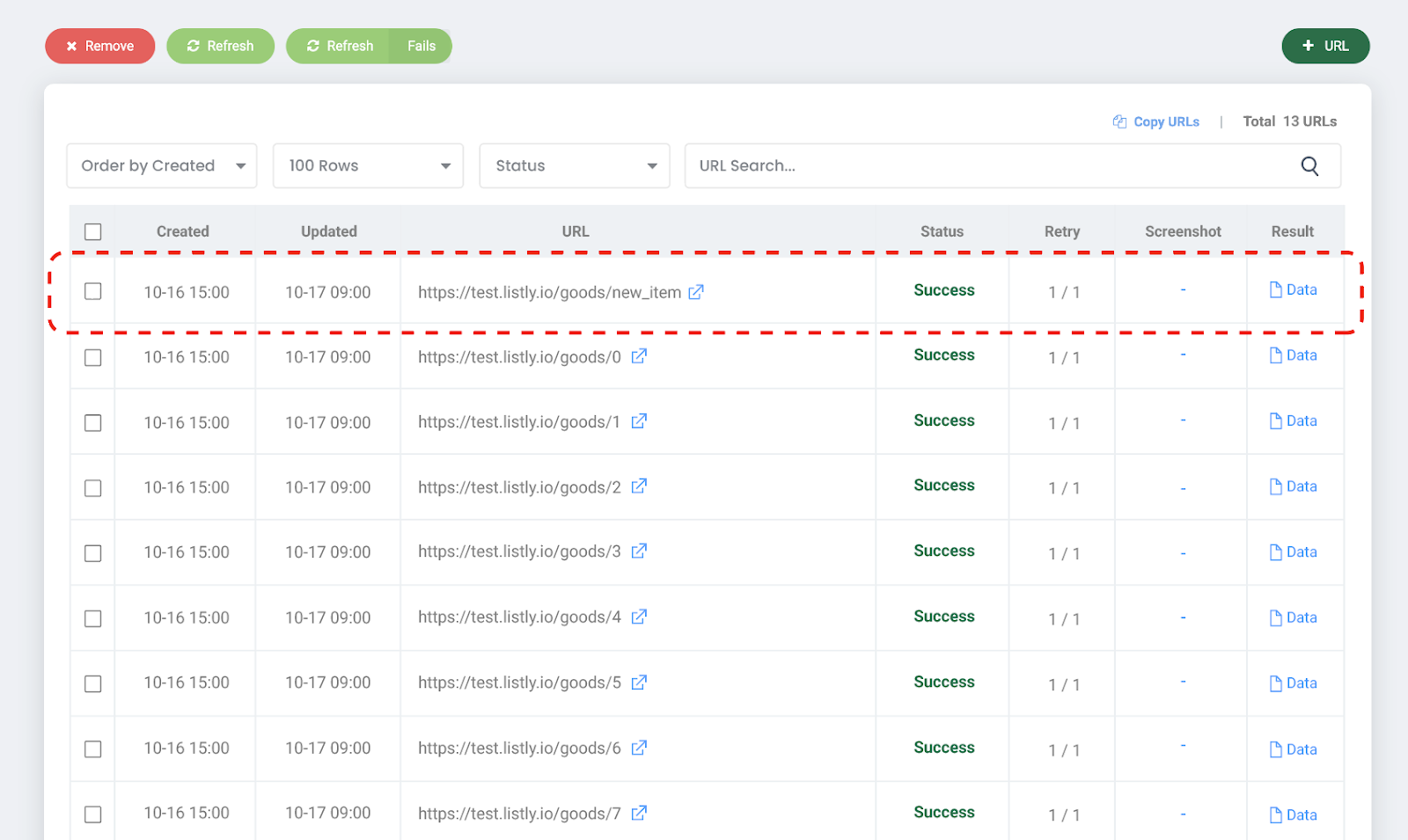
* When you register a group this way, the child task (detail page group extraction task) is connected under the parent task (hyperlink collection task). Whenever the parent task discovers new links, those URLs are automatically added to the child task and collection proceeds. Therefore, set the schedule on the **parent task**.
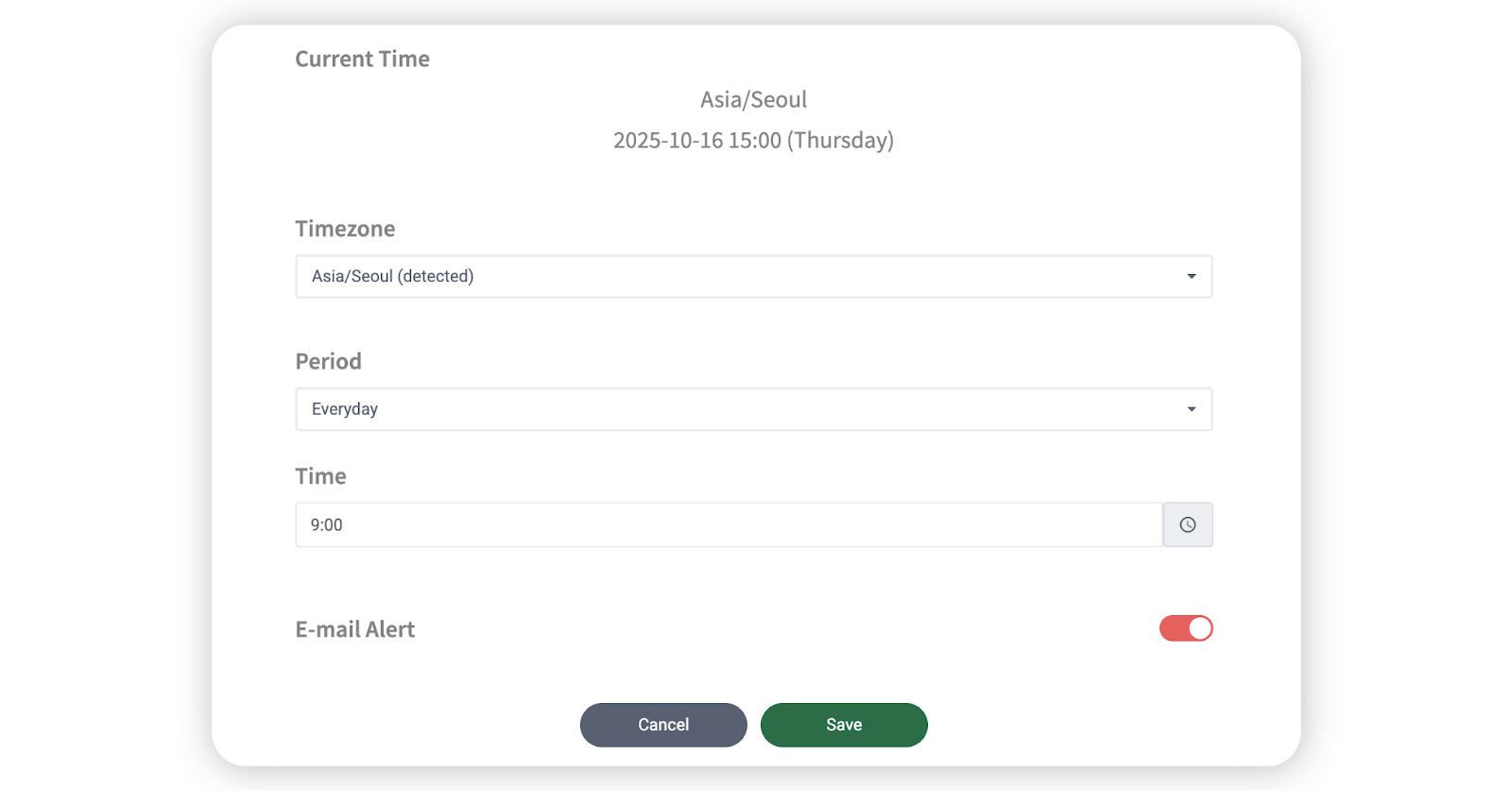
* Set the schedule according to your desired frequency and time period.
* When the parent task runs according to the set schedule, if new items are registered on the list page, those URLs will be automatically updated in the child group.
{% endstep %}
{% endstepper %}
{% hint style="warning" %}
**Important Notice**
The automatic subpage extraction feature is not a new post detection feature, but operates based on **automatic extraction method that runs according to schedules**. When the parent task runs according to the user-registered schedule, if new content is found on the list page, those links are automatically added to the child task and collection proceeds.
{% endhint %}
---
# Agent Instructions
This documentation is published with GitBook. GitBook is the documentation platform designed so that both humans and AI agents can read, navigate, and reason over technical content effectively. Learn more at gitbook.com.
## Querying This Documentation
If you need additional information that is not directly available in this page, you can query the documentation dynamically by asking a question.
Perform an HTTP GET request on the current page URL with the `ask` query parameter, and the optional `goal` query parameter:
```
GET https://help.listly.io/getting-started/enterprise-solutions/auto-scrape-sub-pages.md?ask=&goal=
```
`ask` is the immediate question: it should be specific, self-contained, and written in natural language.
`goal` is optional and describes the broader end goal you are ultimately trying to accomplish on behalf of the user. GitBook uses it to tailor the answer towards what is most useful for that goal.
The response will contain a direct answer to the question and relevant excerpts and sources from the documentation.
Use this mechanism when the answer is not explicitly present in the current page, you need clarification or additional context, or you want to retrieve related documentation sections.