
API (Data)
What is an API?
Short for Application Programming Interface, it's a set of rules or protocols that allow different software programs to exchange data and interact with each other.
Use this in Listly when you want to store extracted data in your own database or integrate it with Google Sheets.
TIP How to integrate with Google Sheets
Reference: Importing Collected Data in Google Sheets (API Integration)
How to check API URL
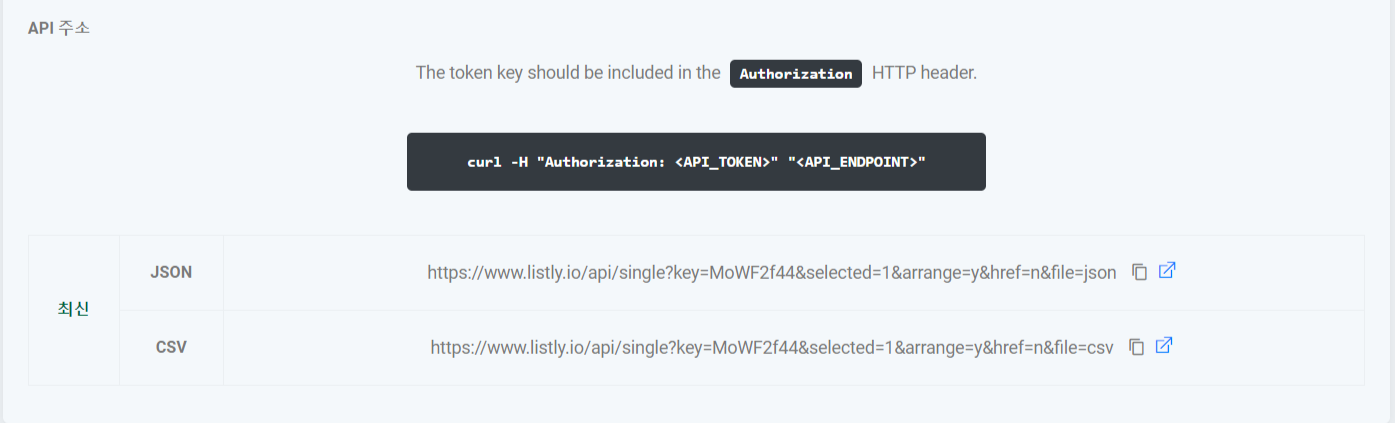
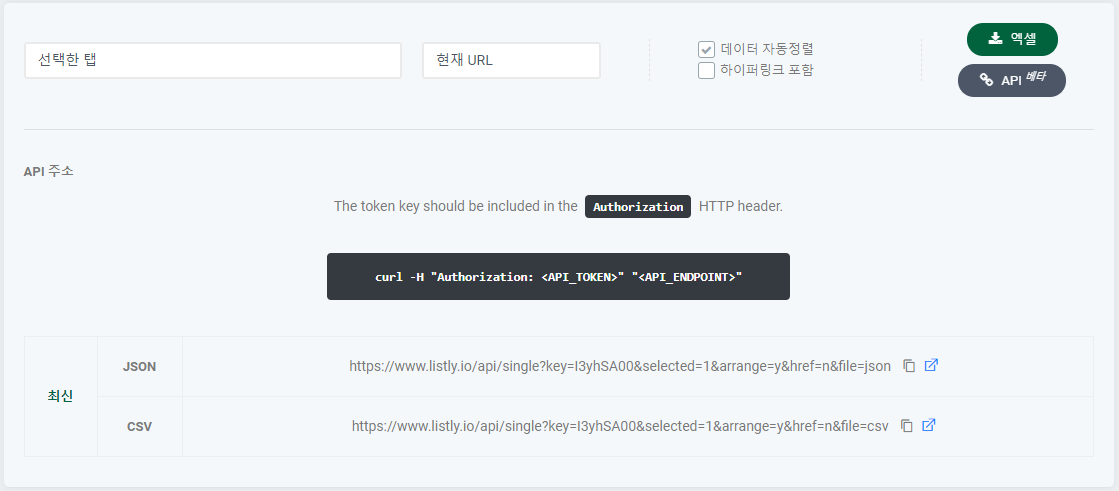
The LISTLY API can be thought of as a data pipeline for delivering extracted data to wherever you want. As shown below, every data result page has an API button, and clicking it reveals the API URL pointing to that result. Accessing that URL shows the same data you'd get in Excel. Using this feature, you can integrate with Google Sheets or write additional code to put data into your own DB.

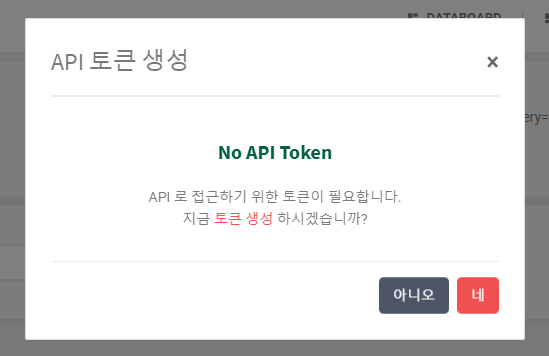
For first-time API button users, a token generation screen appears as shown below. Generate the token with one click, return to the results page, and click the API button again.
If you've already configured it, you can check your API token in account settings.


API URL Types
There are 2 main API URL types:
Latest API: Shows only the latest successfully extracted data.
Log API: Shows all data extracted over time.
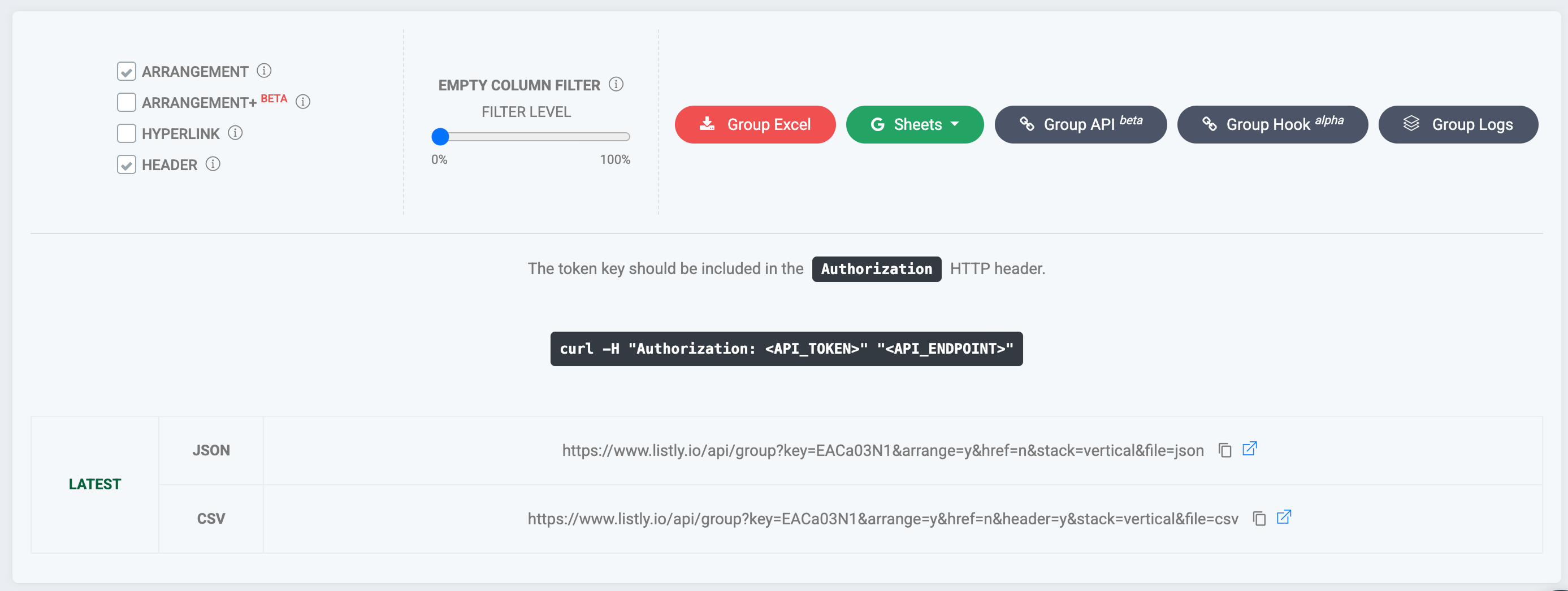
You can use both latest and log APIs on Single and Group extraction result pages. Use the stepper below to see how to check each.
Introducing API Endpoints
All API URLs can be checked on the data extraction result page as shown in the image.

Single (Latest)
www.listly.io/api/single?key=<singlekey>
GET
Shows latest data. Used to receive latest data auto-extracted by scheduler.
Single (Log)
www.listly.io/api/single/data?key=<datakey>
GET
Shows all log data. Used to import and review all accumulated data at once.
Group (Latest)
www.listly.io/api/group?key=<groupkey>
GET
Shows latest group data.
Group (Log)
www.listly.io/api/group/data?key=<datakey>
GET
Shows all data in the batch group containing the selected data. Batch increases by 1 each time new group data accumulates.
Introducing API Parameters
Single (Latest) Data API
www.listly.io/api/single?key=<singlekey>&selected=1&arrange=y&href=n&file=csv
Single (Log) Data API
www.listly.io/api/single?key=<datakey>&selected=1&arrange=y&href=n&stack=vertical&file=csv
<datakey> points to the data result that was open when the user copied the API URL. Based on the tab selected in that data, it fetches the same data from latest or log data.
selected
int
1, 2, 3...
1
Position of selected tab. 1 means 1st, 2 means 2nd.
arrange
string
y, n
y
Data auto-sort option. y auto-sorts. n outputs in order of appearance from left without auto-sorting.
href
string
y, n
n
Hyperlink inclusion option. y includes hyperlinks. n doesn't include them.
stack
string
vertical, horizontal
vertical
How to stack data. vertical stacks top to bottom vertically. horizontal stacks left to right horizontally.
file
string
csv, json
json
Data output format.
from
datetime
2020-11-01T00:00
Can limit data range by datetime. from is the starting point. Expressed as %Y-%m-%dT%H:%M.
to
datetime
2020-11-11T23:59
Can limit data range by datetime. to is the ending point. Expressed as %Y-%m-%dT%H:%M.
TIP If the explanation above isn't clear, try changing option values directly in the actual API URL. You can immediately see how it changes.
Code Samples
Python Code Template
Python Code Actual Example
Last updated
Was this helpful?