> For the complete documentation index, see [llms.txt](https://help.listly.io/llms.txt). Markdown versions of documentation pages are available by appending `.md` to page URLs; this page is available as [Markdown](https://help.listly.io/docs/zh-hant/getting-started/result-page-features-zh-hant/api-data-zh-hant.md).
# API(資料)
## API 是什麼?
應用程式介面(Application Programming Interface)的縮寫,是一系列規則或協定,使不同軟體程式能夠交換資料並相互互動。
當您想**將 Listly 提取的資料存入自己的資料庫(DB)或連動到 Google 試算表時**,可以使用。
{% hint style="info" %}
**超簡單跟著做**
➡️ 選擇想要的資料提取結果 ➡️ 點擊 API 按鈕 ➡️ (首次使用時)生成 Token ➡️ 取得 API Token 和 API 位址
{% endhint %}
***
## 確認 API 位址的方法
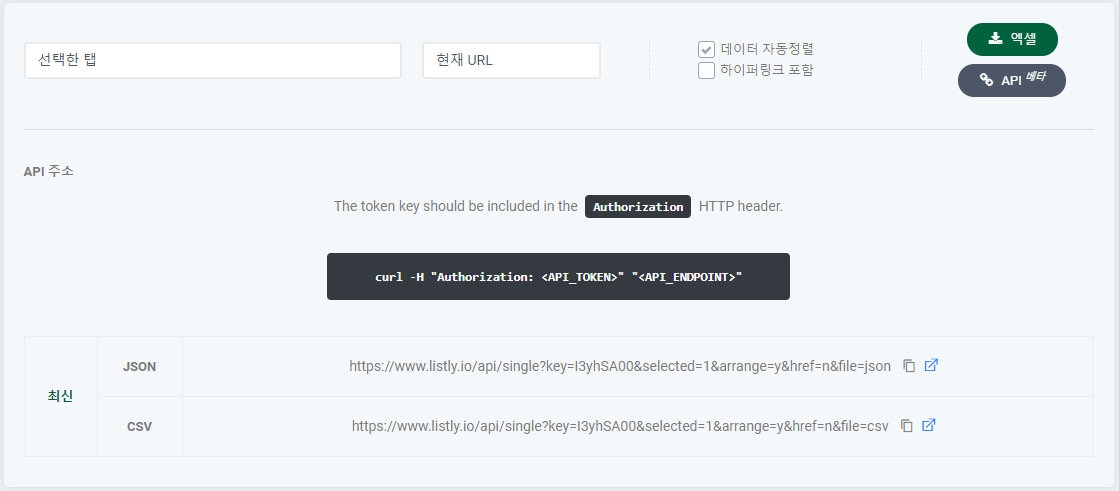
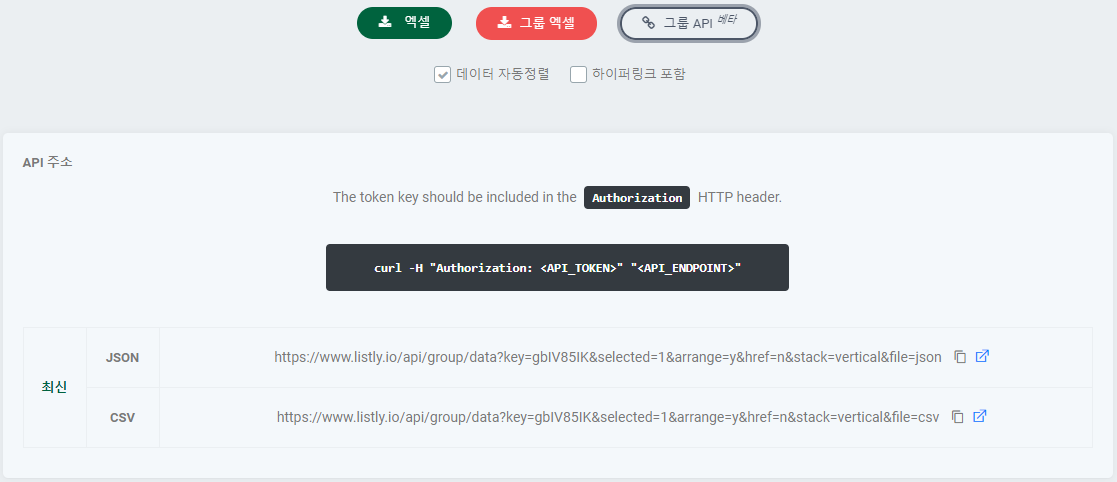
LISTLY API 可以想像成一種將提取的資料傳送到想要的地方的資料連接通道(pipeline)。如下圖所示,所有資料結果頁面都有 API 按鈕,按下 API 按鈕會出現指向該結果的 API 位址。連線到該位址時,會出現與 Excel 收到的資料相同的內容。**可以利用此功能連動到 Google 試算表,或撰寫額外的程式碼將資料放入自己的資料庫。**
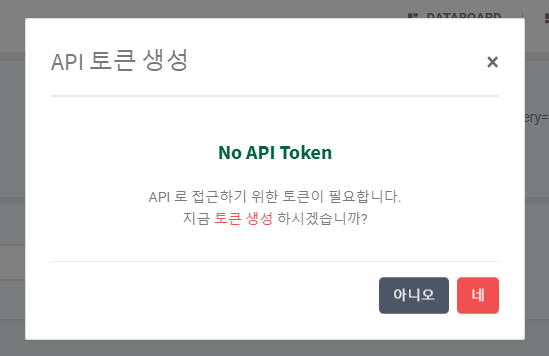
首次使用 API 按鈕的人會如下圖出現 API Token 生成畫面。點擊一次生成 Token,回到結果頁面再按一次 API 按鈕。
如果已經設定過,可以在帳號設定確認 API Token。
***
## API 位址種類
API 位址大致有 2 種。
* 最新 API:只顯示提取成功的最新資料。
* 記錄 API:顯示至今提取的所有資料。
在單一(Single)、群組(Group)提取結果頁面可以使用所有最新、記錄 API。
{% stepper %}
{% step %}
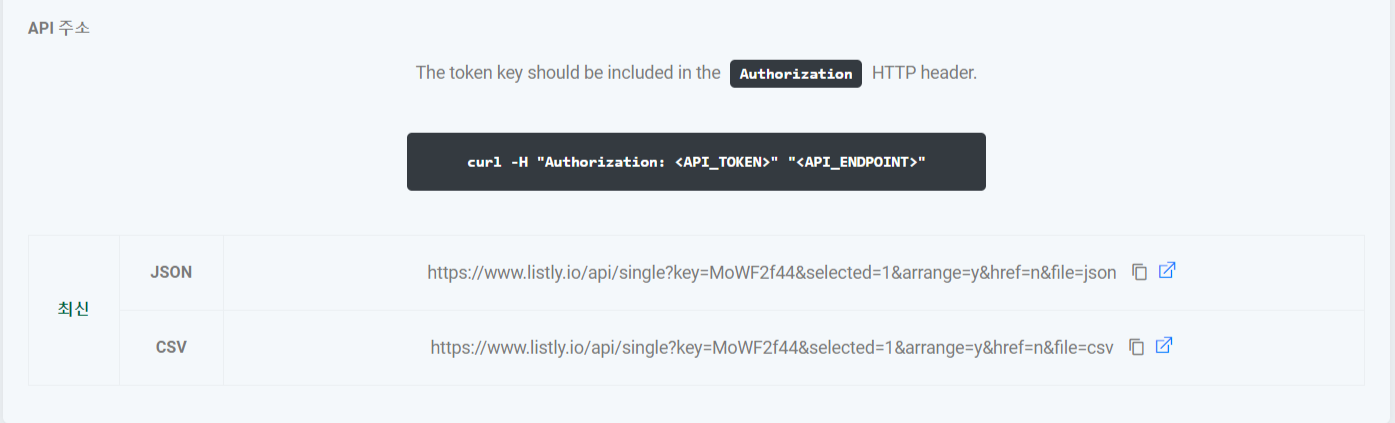
### 單一最新資料(Single Latest)
單一提取最新資料在結果選擇最新後確認 API
{% endstep %}
{% step %}
### 單一記錄資料(Single Logs)
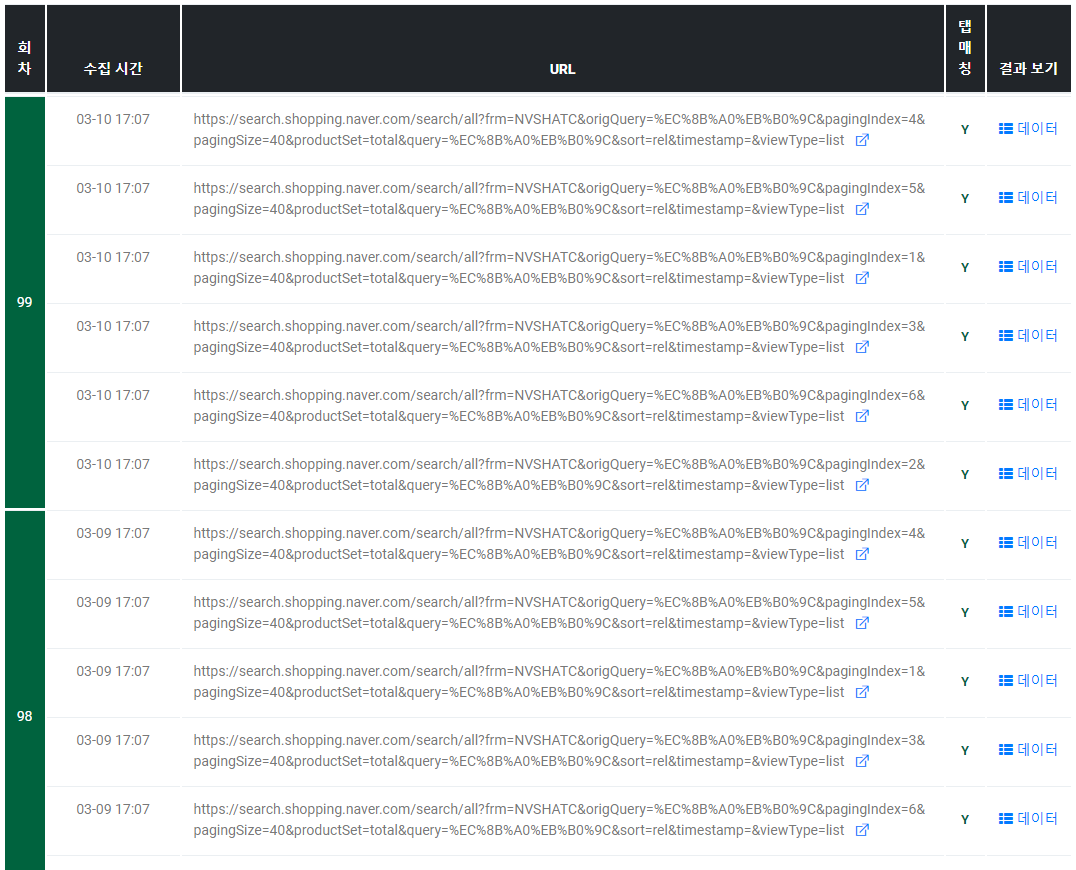
單一提取記錄資料在結果選擇記錄後確認 API
{% endstep %}
{% step %}
### 群組最新資料(Group Latest)
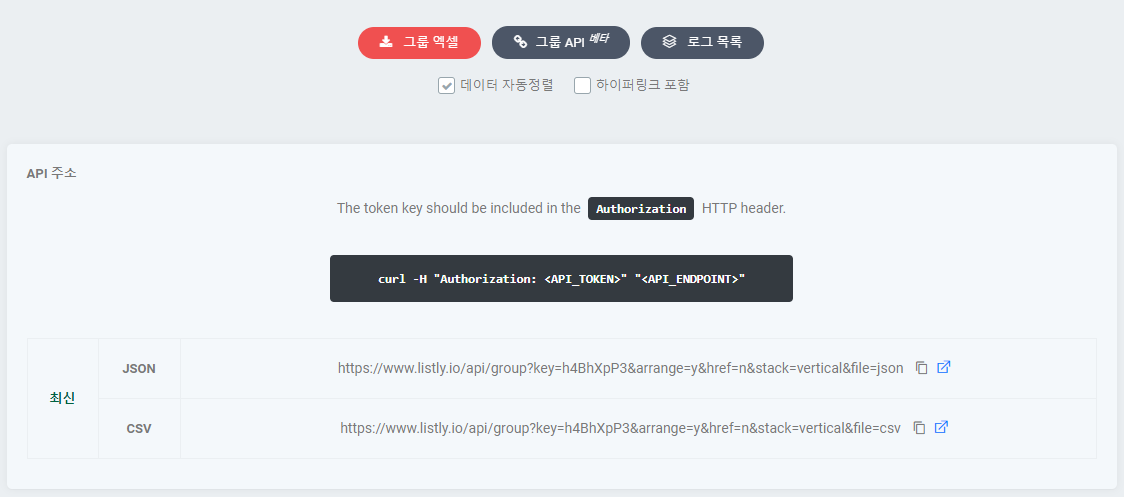
群組提取的最新資料在群組 API 確認
{% endstep %}
{% step %}
### 群組記錄資料(Group Logs)
群組提取記錄資料可以在記錄清單 → 選擇想要的記錄資料 → 在群組 API 確認。
{% endstep %}
{% endstepper %}
最新 API 回應訊息出現 {"message": "Warning! Do not use this API endpoint..."}
此訊息在提取的網頁設計變更時出現。資料提取仍會自動正常進行,但這是一種通知網頁已變更的警告訊息。使用排程器功能自動收集時發生機率較高。
原則上建議在 LISTLY 擴充功能重新提取。因為網頁設計變更了,長期來看建立新基準點較好。重新提取資料建立新起點,再重新設定排程器,從那時起就能穩定使用最新 API。
如果想忽略警告繼續使用現有資料,可以使用上述訊息中 "api\_endpoint" 區域出現的位址。此時會出現提取的最新資料,"api\_endpoint" 出現的位址是現有 API 位址 + 忽略警告訊息的選項(\&ignore\_warning=y)的總和值。
### API Endpoint 介紹
所有 API 位址都可以在圖中所示的資料提取結果頁面確認。
| 種類 | URI | 請求方式 |
| ----------- | ------------------------------------------------------------------------------------------------------------------------ | ---- |
| Single (最新) | [www.listly.io/api/single?key=](http://www.listly.io/api/single?key=)<singlekey> | GET |
| | 顯示最新資料。用於接收排程器自動提取的最新資料。 | |
| Single (記錄) | [www.listly.io/api/single/data?key=](http://www.listly.io/api/single/data?key=)<datakey> | GET |
| | 顯示所有記錄資料。用於一次取得至今累積的所有資料進行檢查。 | |
| Group (最新) | [www.listly.io/api/group?key=](http://www.listly.io/api/group?key=)<groupkey> | GET |
| | 顯示最新群組資料。 | |
| Group (記錄) | [www.listly.io/api/group/data?key=](http://www.listly.io/api/group/data?key=)<datakey> | GET |
| | 顯示選擇的資料所屬批次(batch)群組的所有資料。每累積新群組資料,批次(batch)會增加 1。 | |
### API Parameter 介紹
**Single (最新) 資料 API**
{% hint style="success" %}
[www.listly.io/api/single?key=](http://www.listly.io/api/single?key=)\&**selected**=1&**arrange**=y&**href**=n&**file**=csv
{% endhint %}
**Single (記錄) 資料 API**
{% hint style="success" %}
[www.listly.io/api/single?key=](http://www.listly.io/api/single?key=)\&**selected**=1&**arrange**=y&**href**=n&**stack**=vertical&**file**=csv
{% endhint %}
\ 指使用者複製 API 位址時開啟的資料結果。以該資料選擇的分頁為基準,從最新或記錄資料取得相同資料。
| 名稱 | 資料型別 | 值 | 預設值 | 說明 |
| -------- | -------: | -------------------- | -------- | ------------------------------------------------- |
| selected | int | 1, 2, 3... | 1 | 選擇的分頁位置。 1 表示第 1 個,2 表示第 2 個。 |
| arrange | string | y, n | y | 資料自動排序選項。 y 為自動排序。 n 為無自動排序,按出現順序從左側依序輸出。 |
| href | string | y, n | n | 包含超連結選項。 y 為包含超連結。 n 為不包含。 |
| stack | string | vertical, horizontal | vertical | 資料堆疊方法。 vertical 為從上到下垂直堆疊。 horizontal 為從左到右水平堆疊。 |
| file | string | csv, json | json | 資料輸出格式。 |
| from | datetime | 2020-11-01T00:00 | | 可以用日期時間限制資料範圍。 from 為開始時點。 %Y-%m-%dT%H:%M 表示。 |
| to | datetime | 2020-11-11T23:59 | | 可以用日期時間限制資料範圍。 to 為結束時點。 %Y-%m-%dT%H:%M 表示。 |
{% hint style="success" %}
**TIP** 如果上述說明不易理解,請在實際 API 位址直接更改選項值試試看。可以立即確認如何變更。
{% endhint %}
***
## 程式碼範例
**Python 程式碼格式**
{% code title="download\_csv.py" %}
```python
import requests
import csv
API_URL = "API 位址" # 請輸入收集資料的 'API 位址'
API_TOKEN = "API Token" # 請輸入我的帳號發行的 'API Token'
headers = { "Authorization": API_TOKEN }
# 取得收集的資料
response = requests.get(url=API_URL, headers=headers)
content = response.content
# 儲存為 CSV 檔案
"""
用 API 位址取得的檔案格式如果不是 CSV 而是 JSON
需要使用相應的其他程式碼
"""
with open('./result.csv', 'wb') as f:
f.write(content)
```
{% endcode %}
**Python 程式碼實際範例**
{% code title="example\_download.py" %}
```python
import requests
import csv
API_URL = "https://www.listly.io/api/single?key=CmKQ625S&selected=1&arrange=y&href=n&file=csv"
API_TOKEN = "BC1Sx370Yows25RxaBMuRxTuMKw3Aq0Ks"
headers = { "Authorization": API_TOKEN }
response = requests.get(url=API_URL, headers=headers)
content = response.content
with open('./result.csv', 'wb') as f:
f.write(content)
```
{% endcode %}
---
# Agent Instructions
This documentation is published with GitBook. GitBook is the documentation platform designed so that both humans and AI agents can read, navigate, and reason over technical content effectively. Learn more at gitbook.com.
## Querying This Documentation
If you need additional information that is not directly available in this page, you can query the documentation dynamically by asking a question.
Perform an HTTP GET request on the current page URL with the `ask` query parameter, and the optional `goal` query parameter:
```
GET https://help.listly.io/docs/zh-hant/getting-started/result-page-features-zh-hant/api-data-zh-hant.md?ask=&goal=
```
`ask` is the immediate question: it should be specific, self-contained, and written in natural language.
`goal` is optional and describes the broader end goal you are ultimately trying to accomplish on behalf of the user. GitBook uses it to tailor the answer towards what is most useful for that goal.
The response will contain a direct answer to the question and relevant excerpts and sources from the documentation.
Use this mechanism when the answer is not explicitly present in the current page, you need clarification or additional context, or you want to retrieve related documentation sections.