> For the complete documentation index, see [llms.txt](https://help.listly.io/llms.txt). Markdown versions of documentation pages are available by appending `.md` to page URLs; this page is available as [Markdown](https://help.listly.io/getting-started/databoard-features/settings-actionscript.md).
# Settings - ActionScript
## What is Action Script?
{% hint style="danger" %}
**Action Script service has been reorganized as an Enterprise-only premium option.** We're letting you know that Action Script creation service has been discontinued for Business plan (single-user license). **If you're using the Enterprise product, you can still** [**request for Action Script**](https://www.listly.io/contact)**.**
However, only the development team's script writing service has been discontinued—**the Action Script settings field remains available**. If you've already received code that's working properly or are writing your own code, you can continue using it.
{% endhint %}
Action Script is a feature that replays keyboard/mouse actions needed right before extraction to get the web data you want. It's especially useful in situations like these where **you need to click buttons multiple times on a web page to access specific information**:
{% stepper %}
{% step %}
**When you need to click buttons multiple times to get the info you want, and repeat the process**
'Click → wait for input field → enter zip code → click confirm button → wait for new page to load' repeated
{% endstep %}
{% step %}
**When you want to extract daily information that only appears after clicking a specific button**
Select option value → click search button
{% endstep %}
{% endstepper %}
***
## How to Use
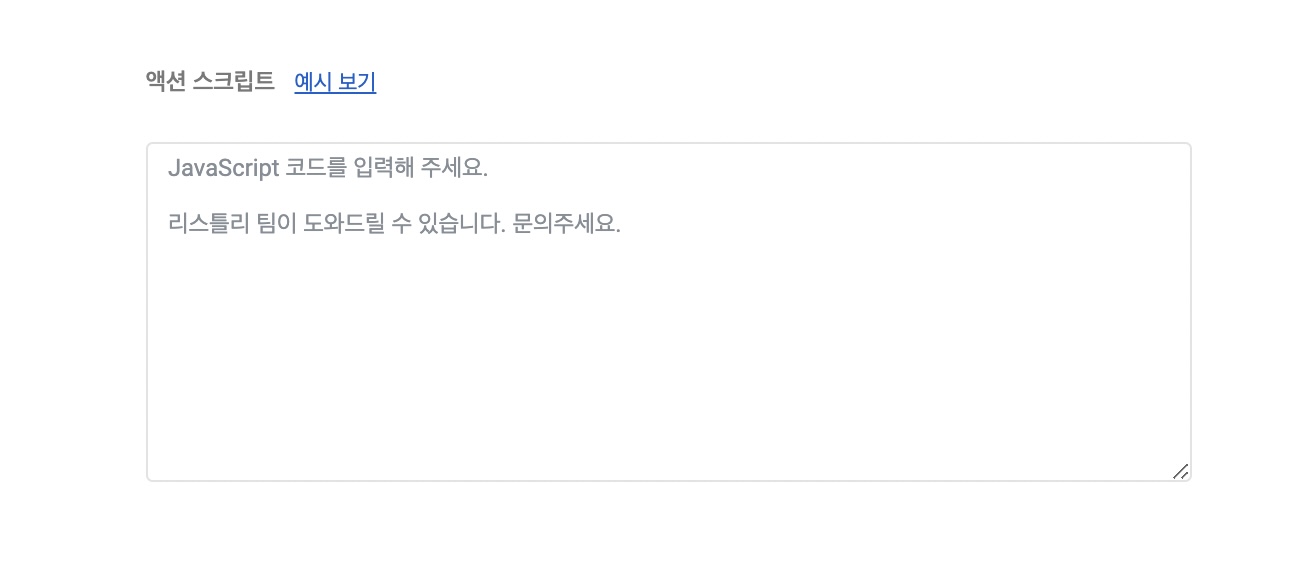
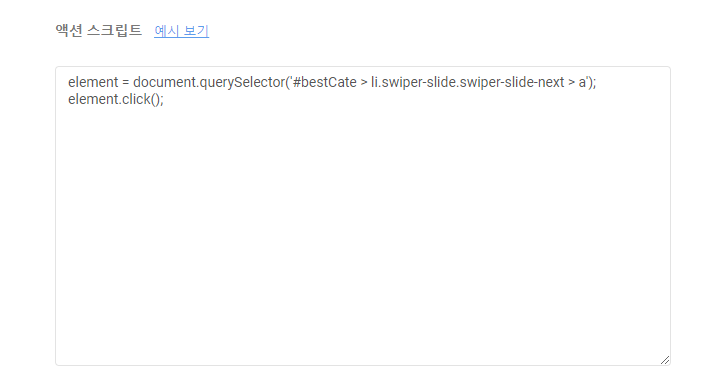
Save the JavaScript code that defines these actions in the Action Script field. Once the code is configured, the actions will automatically execute each time you re-extract.
{% hint style="info" %}
**Quick Start**
➡️ Extract data ➡️ Go to DATABOARD ➡️ Click settings icon ➡️ Enter JavaScript code in Action Script ➡️ Save ➡️ Re-extract
{% endhint %}
***
## Understanding Action Script through examples
{% stepper %}
{% step %}
#### When you need to click buttons multiple times to get the info you want, and repeat the process
**Example 1**
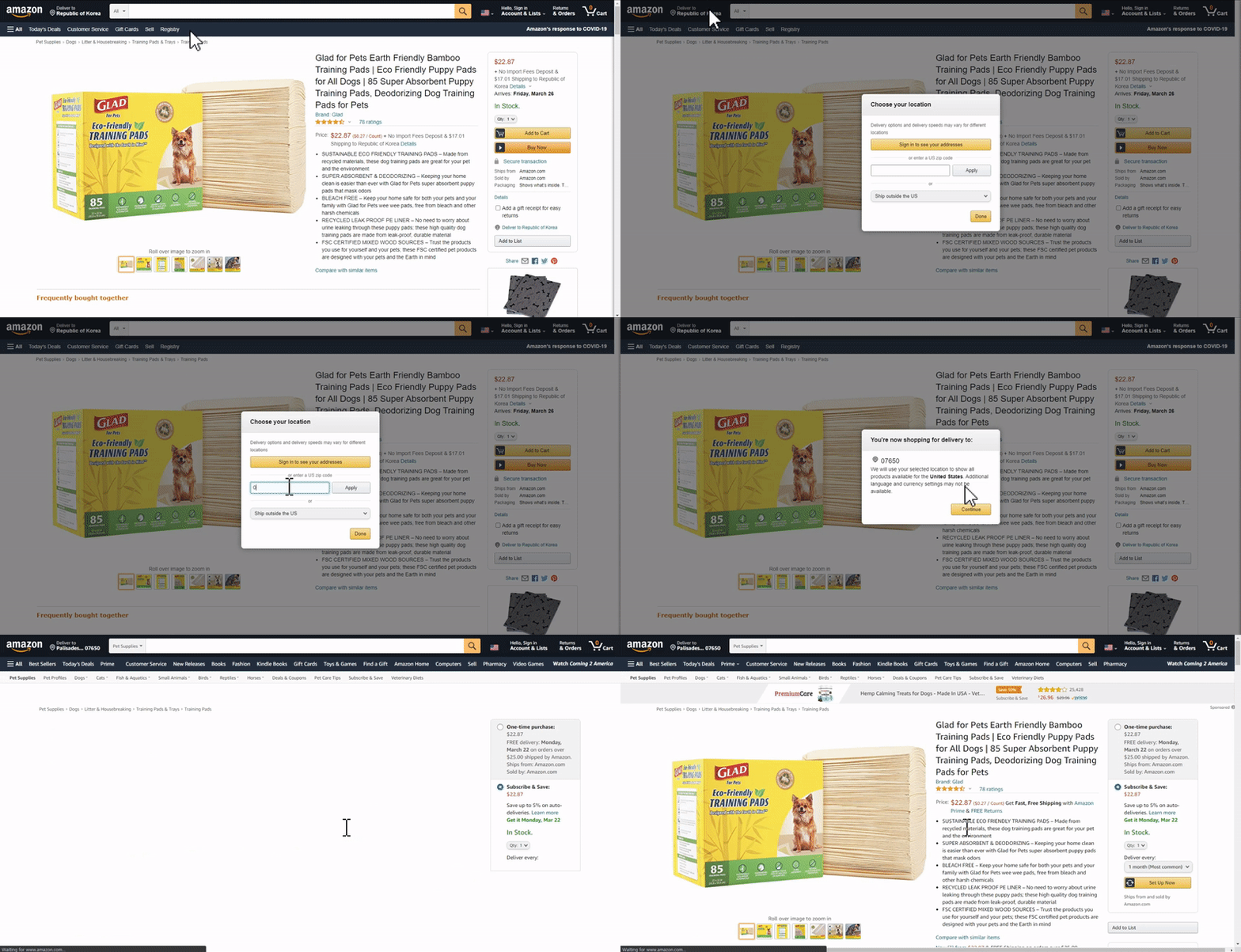
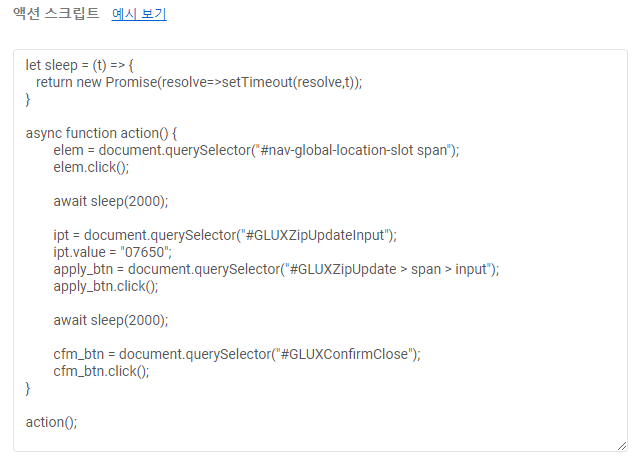
This is an actual case from a Korean user. It configures shipping address changes in a shopping mall. Multiple actions are needed: **click → wait for input field → enter zip code → click confirm button → wait for new page to load**, etc. Since product details (price, options, etc.) also change depending on the shipping address, these actions need to be applied to all products being collected. LISTLY TEAM wrote the code below and provided it to the user, who just needed to paste it into group settings → action script to apply it all at once.
**Example 2**
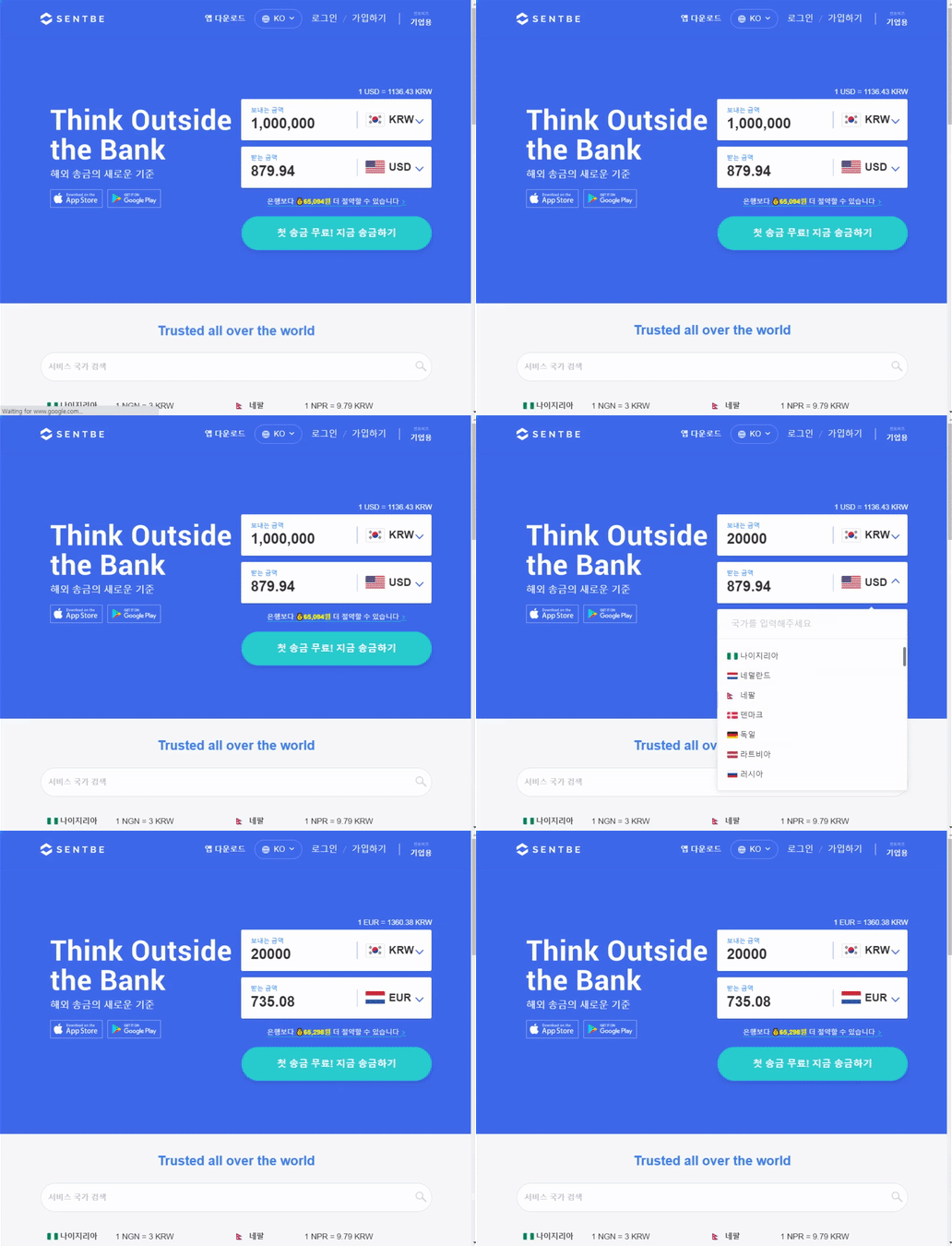
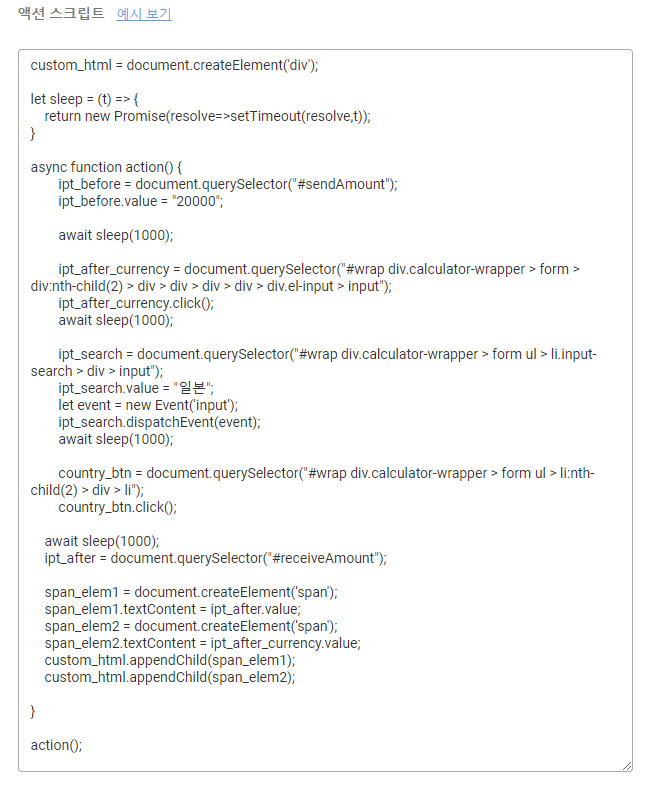
This is an actual case from a Korean user. To monitor real-time exchange rate information, they enter the exchange amount → select country to collect the final amount. The Action Script used here is a bit different. Using a variable called custom\_html, they directly selected and configured the information to extract, setting it up to extract exactly the desired information as shown in the third image.
{% endstep %}
{% step %}
#### When you want to extract daily information that only appears after clicking a specific button
**Example 3**
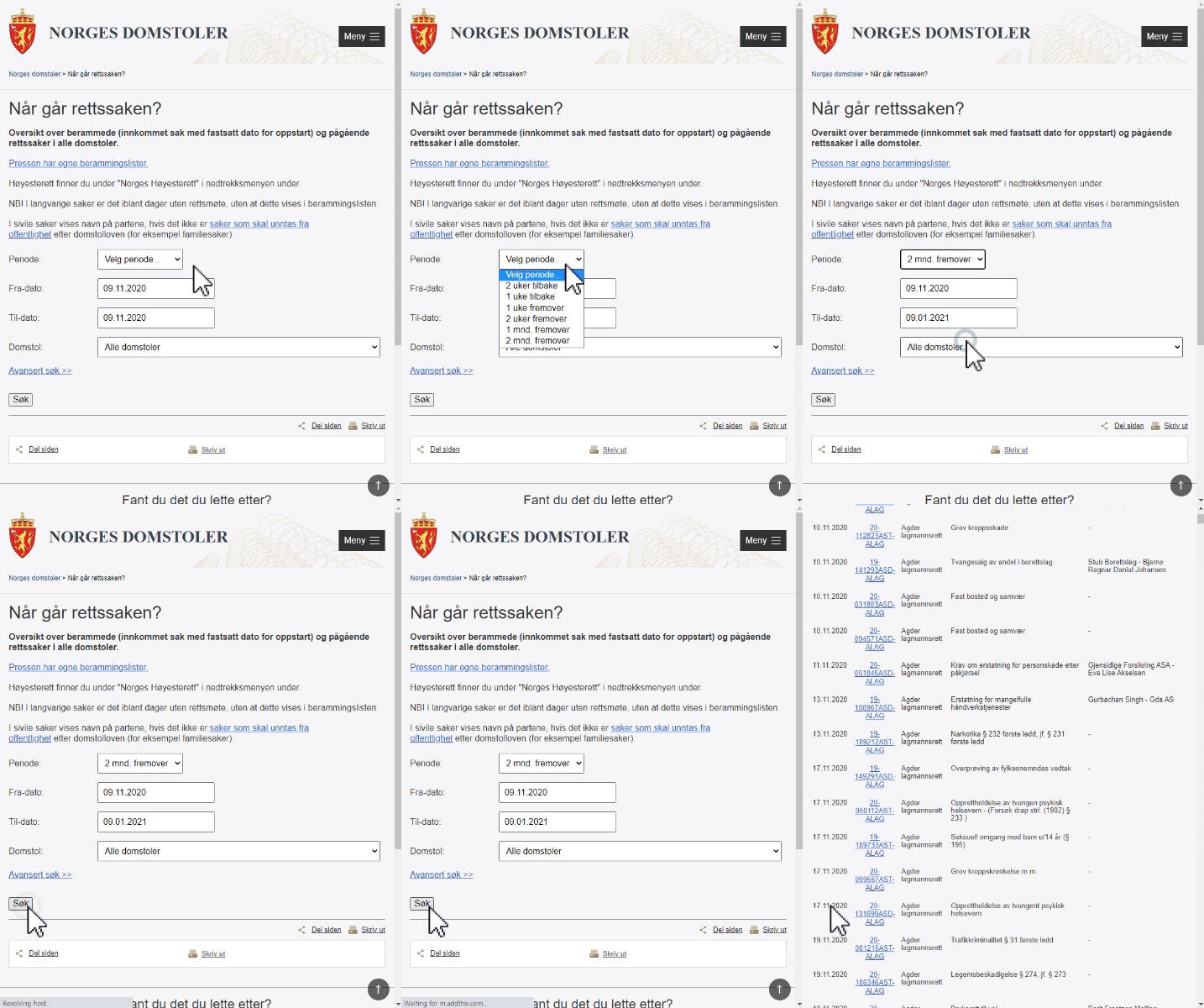
This is an actual case from an international user. To get search results for the last 2 months on a Norwegian court site, they needed to **select an option value (2 mnd. fremover)** and **click the search button (Søk)**. **Once search results appear, extract with LISTLY Whole**, and they're automating this work with LISTLY to collect data daily.
You can define this in Settings → Action Script with JavaScript code. Since it's difficult for general users to set up directly, LISTLY TEAM helps with the configuration.
For developers, you can test your own code by running it in browser developer tools → Console on the extraction target page to visually confirm if it works properly.
**Example 4**
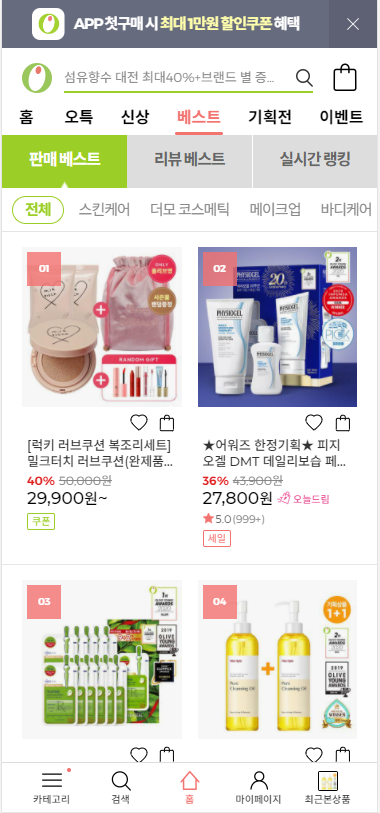
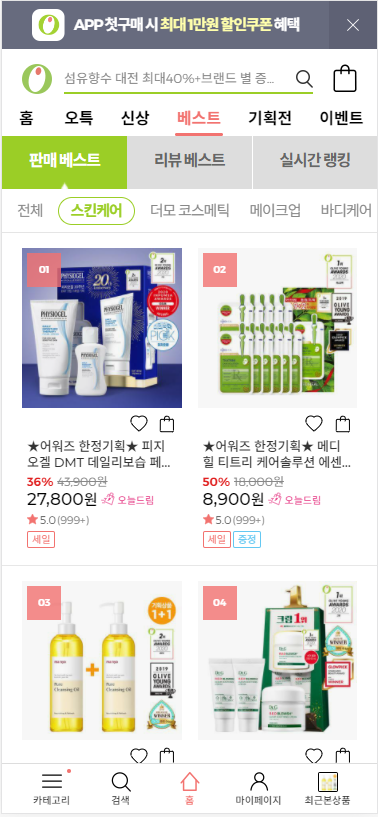
This is an actual case from a Korean user. The user wanted to extract content that appears when clicking the "Skincare" category as shown in the right image, but the default view when first accessing the page shows "All" category products as shown in the left image.
Initial screen
Screen user wants to extract
In this case too, save the JavaScript code defining those actions in the Action Script. Once the code is configured, those actions will automatically execute each time you re-extract.
{% endstep %}
{% endstepper %}
---
# Agent Instructions
This documentation is published with GitBook. GitBook is the documentation platform designed so that both humans and AI agents can read, navigate, and reason over technical content effectively. Learn more at gitbook.com.
## Querying This Documentation
If you need additional information that is not directly available in this page, you can query the documentation dynamically by asking a question.
Perform an HTTP GET request on the current page URL with the `ask` query parameter, and the optional `goal` query parameter:
```
GET https://help.listly.io/getting-started/databoard-features/settings-actionscript.md?ask=&goal=
```
`ask` is the immediate question: it should be specific, self-contained, and written in natural language.
`goal` is optional and describes the broader end goal you are ultimately trying to accomplish on behalf of the user. GitBook uses it to tailor the answer towards what is most useful for that goal.
The response will contain a direct answer to the question and relevant excerpts and sources from the documentation.
Use this mechanism when the answer is not explicitly present in the current page, you need clarification or additional context, or you want to retrieve related documentation sections.