> For the complete documentation index, see [llms.txt](https://help.listly.io/llms.txt). Markdown versions of documentation pages are available by appending `.md` to page URLs; this page is available as [Markdown](https://help.listly.io/getting-started/databoard-features/settings-pagination-templates.md).
# Settings - Pagination Templates
## What are Pagination Templates?

* A feature that can replicate mouse and keyboard actions.
* Works on all sites once you configure a few values.
* New templates will be continuously added.
{% hint style="success" %}
### What is Pagination?
The most common way to load next page data. It consists of page buttons displayed as numbers (or characters), and you move to the next page by clicking the number or specific button.
If each page can be accessed directly via an independent URL, you can use the [**Group Extraction**](/getting-started/result-page-features/group-extraction.md) feature. However,
**1. When the URL doesn't change even when moving between pages**
**2. When accessing a specific page's URL automatically redirects to the first page**
In environments like these, try solving the problem with **Pagination Templates** 🙂
{% endhint %}
{% hint style="warning" %}
Pagination templates are settings that can be applied to individual tasks, and **each individual task has approximately a 10-minute collection time limit**. Due to this limit, if you enter too many pages, extraction may stop partway through. Also, the number of pages that can be extracted within the collection time using pagination varies depending on the amount of data per page.
* For example, on Site A with many images, only up to 24 pages could be extracted within the execution time.
* Conversely, on text-heavy Site B, up to 110 pages were successfully extracted.
In other words, the extractable range varies depending on the data volume and structure per page. Generally, pagination templates are suitable for scales around 100 pages.
[**Q. Why is there a 10-minute collection time limit?**](https://help.listly.io/docs/ko/support/faq/and/10)
{% endhint %}
***
## How to Use
{% stepper %}
{% step %}
#### Check Pagination Type
Refer to the type classification below to identify the pagination characteristics of the web page you want to extract.
Check whether there's a 'next page' button represented by an arrow (▶️) or 'Next' text, and how the page moves when clicking that button. Identify by function, not design!
***
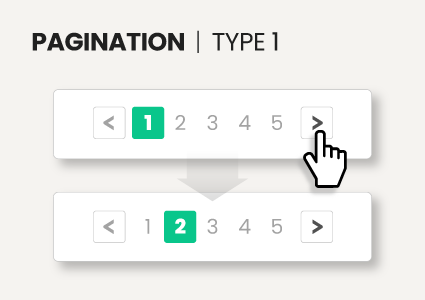
TYPE 1. Button that **moves directly to next page (1→2) when clicked** exists
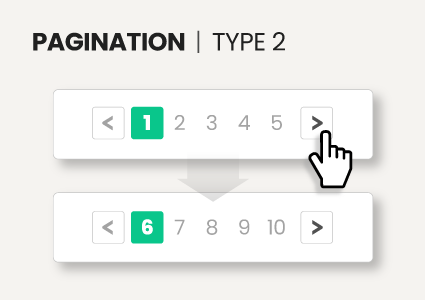
TYPE 2. **No** button to move directly to next page, only button to **move to next group (1→N)** exists
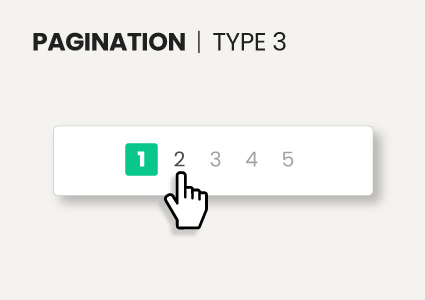
TYPE 3. No buttons to move to next page or group **except page numbers**
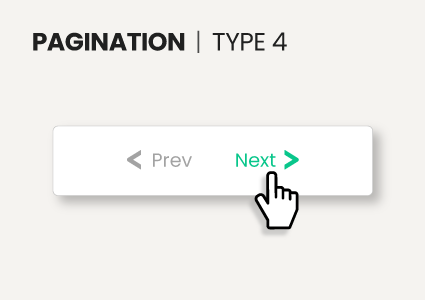
TYPE 4. **Only previous/next page buttons** exist without page numbers
***
**Let's review the steps using Site A as an example.**

When clicking the 'Next' button in the pagination at the bottom of the page, it moved from page 1 directly to page 11—in other words, to the next group. We can identify that this page corresponds to **TYPE 2** from the above items.
{% endstep %}
{% step %}
#### Extract the First Page

Extract page 1 where pagination begins.
{% hint style="success" %}
Here's a tip! You can choose either WHOLE or PARTS, but selecting **'PARTS'** can improve accuracy when extracting multiple pages at once. 🙂
{% endhint %}
{% endstep %}
{% step %}
#### Navigate to Task Settings

Check the extracted data in the results page. Site A has 80 data items per page. Click Browser Settings at the top to navigate to that task's settings page.
{% endstep %}
{% step %}
#### Configure Template Settings

**A) Add Action Template** At the bottom of settings in **ACTION TEMPLATE**, click the **+ADD** button. The display and design of this setting may change in the future, but the application method remains the same.

**B) Select Pagination Type** Refer to step 1 explanation to select the template to apply. Site A's case was **Pagination Type2**.

**C) Enter Variables** Fill in items ①, ②, ③ in the image.
* ① How many times to repeat this template's action\
If you enter 5, it repeats the next page action 5 times, extracting up to page 6. If you want to extract up to page 10, enter 9.
* ② CSS selector value for current page number\
As shown in the marked area in the image, right-click the 'current page' number in the website's pagination and select it, then refer to [Copy & Paste CSS Selector](/getting-started/extension-features/css-selector.md) to enter that value.
* ③ CSS selector value for 'Next' button\
As shown in the marked area in the image, right-click the 'Next' button in the website's pagination and select it, then refer to [Copy & Paste CSS Selector](/getting-started/extension-features/css-selector.md) to enter that value.
After entering all items, click `Add` → `Save` to save settings.
Other pagination types work the same way. Check the pagination type for each situation, then copy and paste CSS selector values.
{% endstep %}
{% step %}
#### Click Re-extract and Check Data

After saving settings, **be sure to click the re-extract button** to extract again with the applied settings.

A total of 480 data items were extracted—80 from each of 6 pages.
Use templates to efficiently extract information spread across multiple pages 😊
{% endstep %}
{% endstepper %}
---
# Agent Instructions
This documentation is published with GitBook. GitBook is the documentation platform designed so that both humans and AI agents can read, navigate, and reason over technical content effectively. Learn more at gitbook.com.
## Querying This Documentation
If you need additional information that is not directly available in this page, you can query the documentation dynamically by asking a question.
Perform an HTTP GET request on the current page URL with the `ask` query parameter, and the optional `goal` query parameter:
```
GET https://help.listly.io/getting-started/databoard-features/settings-pagination-templates.md?ask=&goal=
```
`ask` is the immediate question: it should be specific, self-contained, and written in natural language.
`goal` is optional and describes the broader end goal you are ultimately trying to accomplish on behalf of the user. GitBook uses it to tailor the answer towards what is most useful for that goal.
The response will contain a direct answer to the question and relevant excerpts and sources from the documentation.
Use this mechanism when the answer is not explicitly present in the current page, you need clarification or additional context, or you want to retrieve related documentation sections.