
Settings - Auto Login (Beta)
What is Auto Login?
An experimental beta feature using advanced encryption to automatically save login credentials. When configured, it stores your login info for any website, letting you extract data requiring authentication without manual login steps.
How to Use
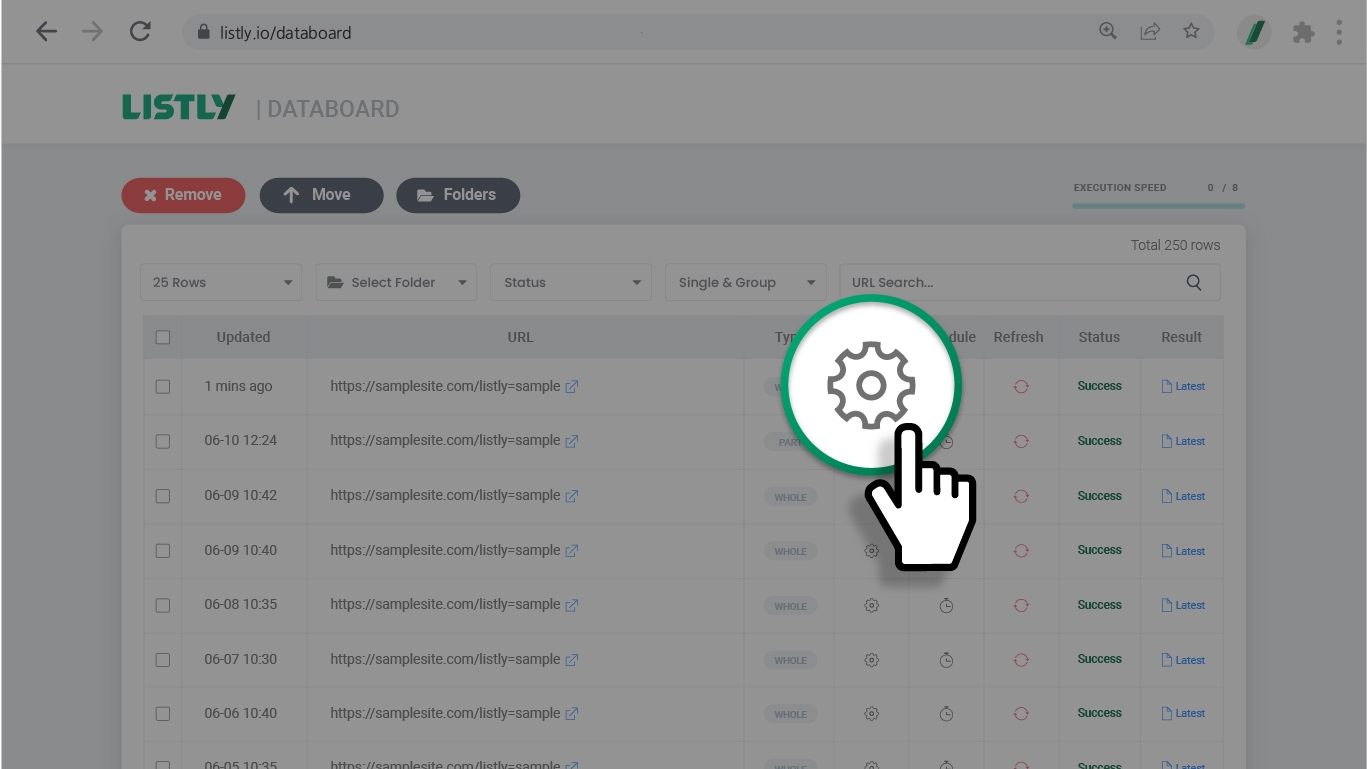
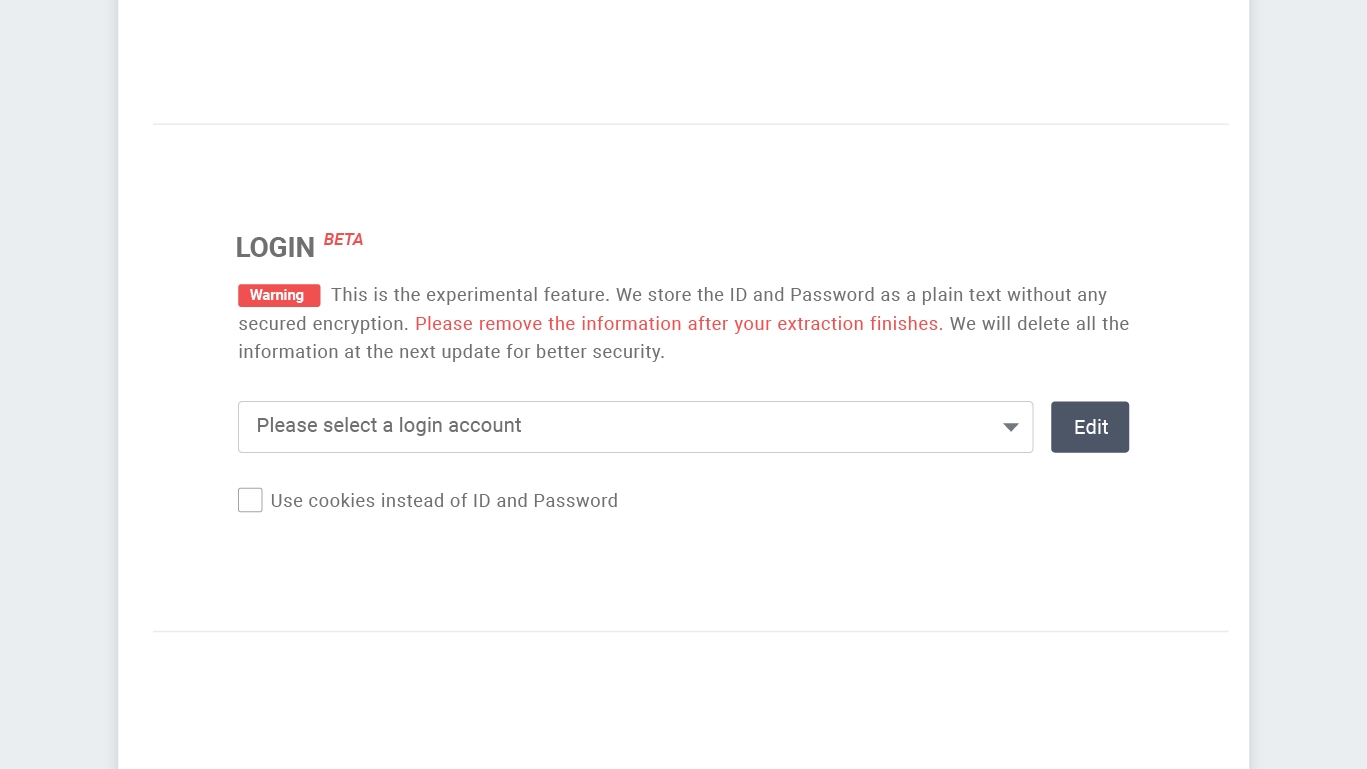
Enter your auto login information
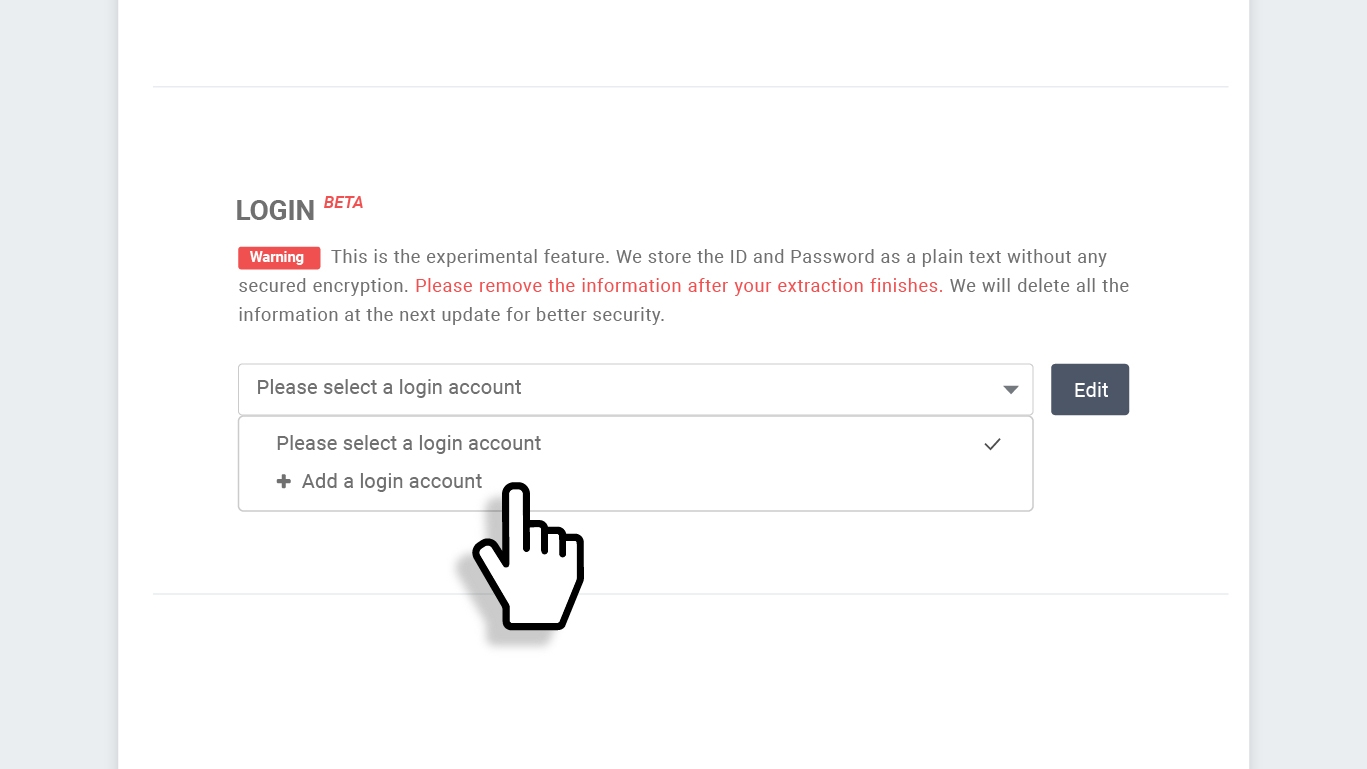
Click the dropdown menu, then select + Add a login account.
Here's what to enter in the popup:
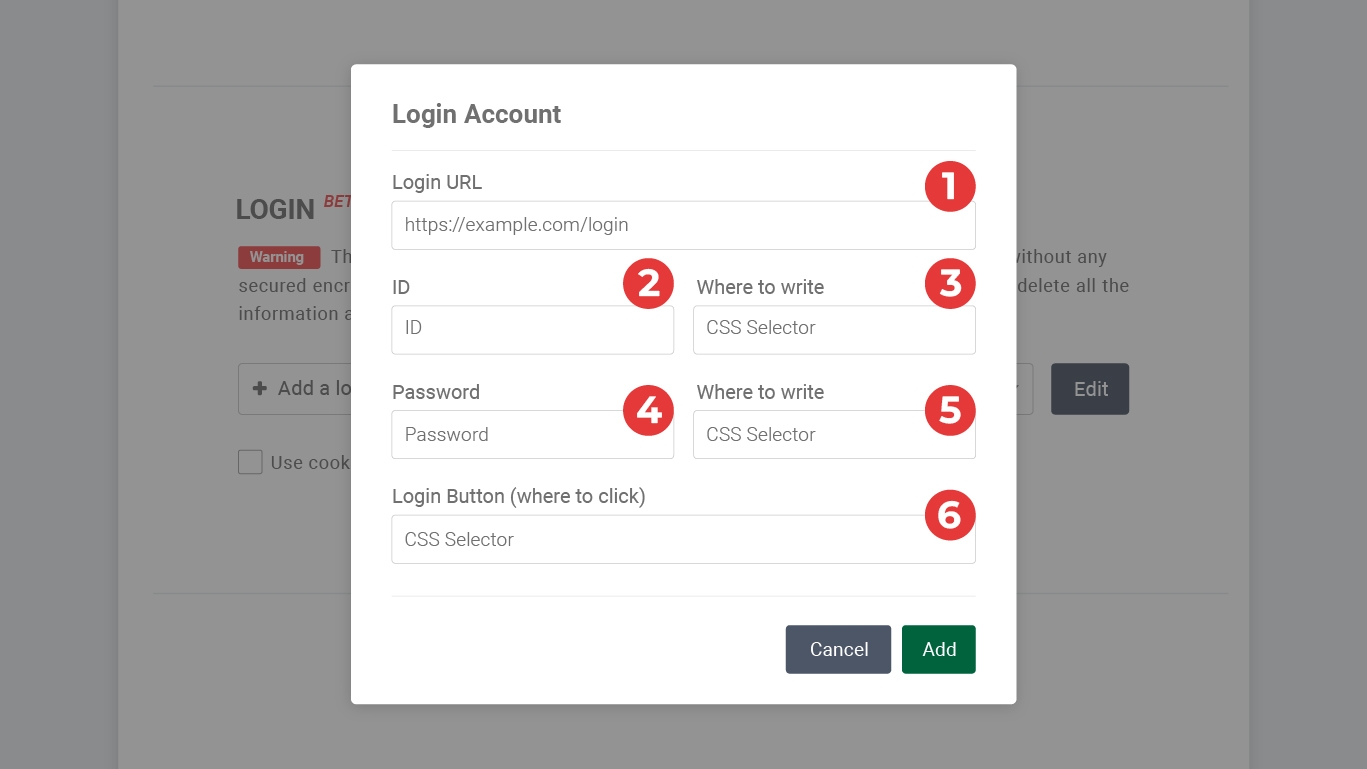
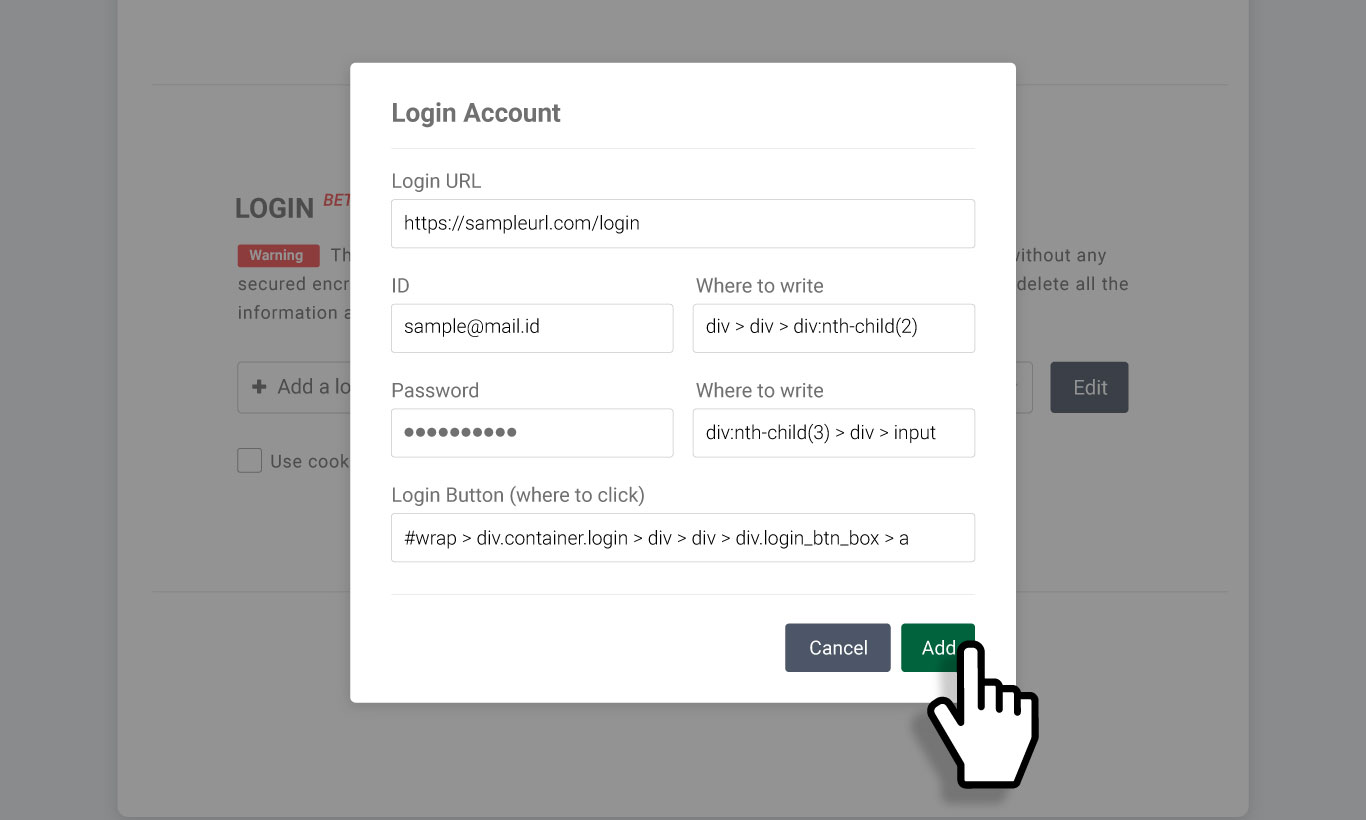
① URL of the login page ② Your site ID ③ Selector value for the ID input field ④ Your site password ⑤ Selector value for the password input field ⑥ Selector value for the login (submit) button
Reference: CSS Selector
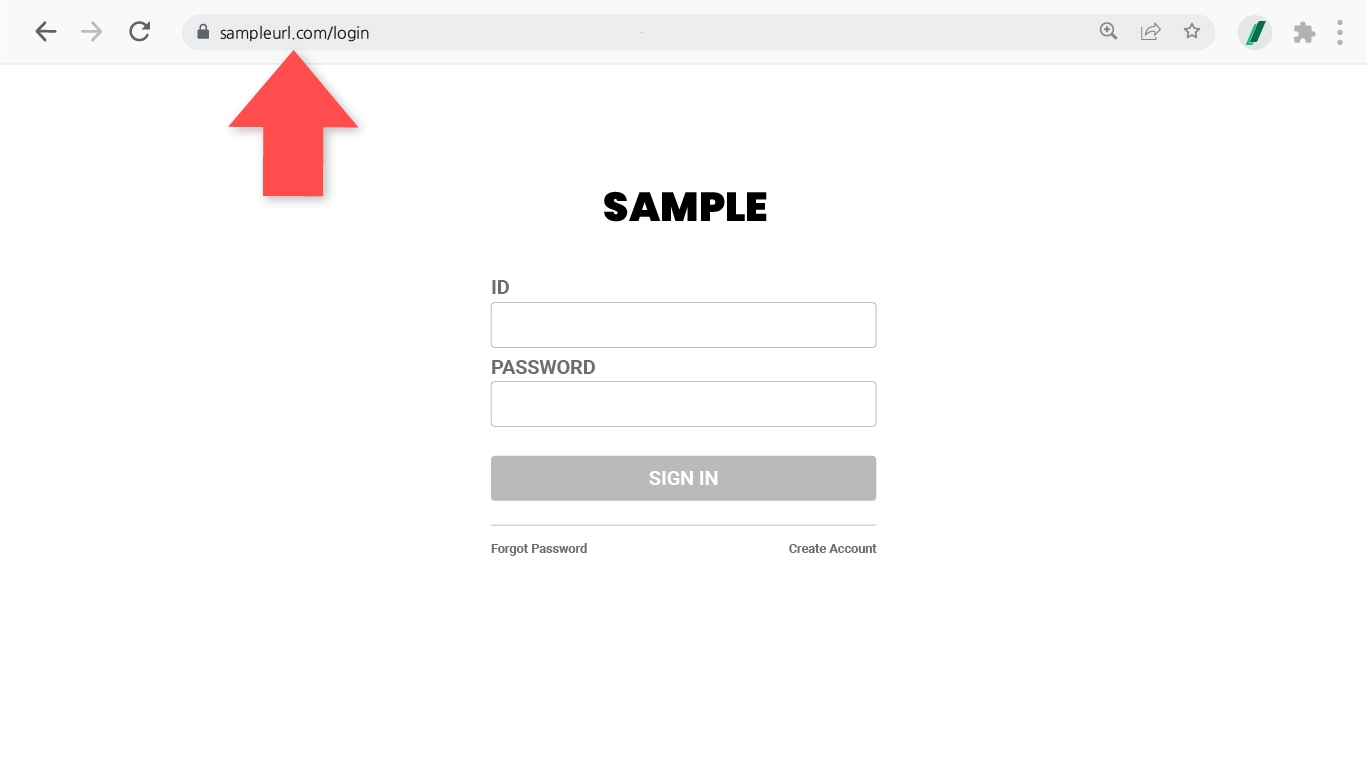
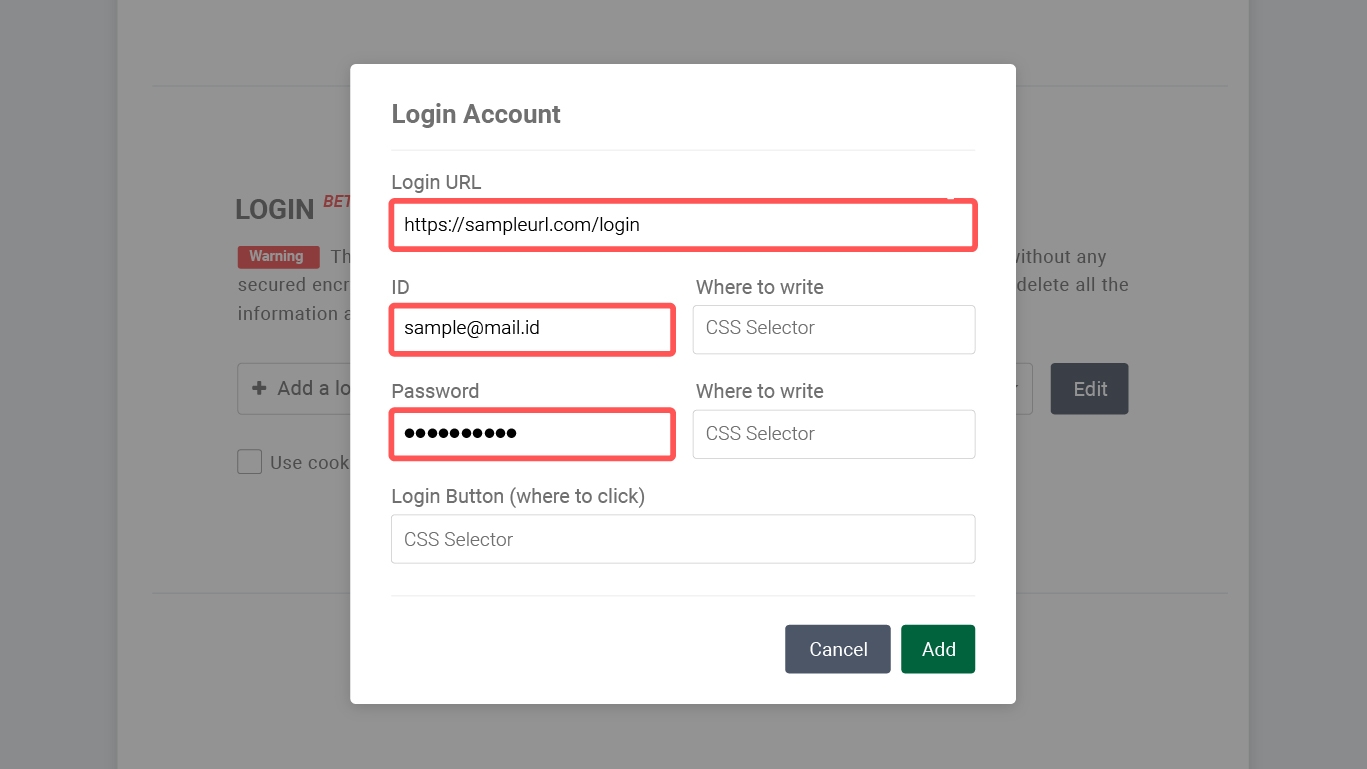
How to copy and paste CSS selectors
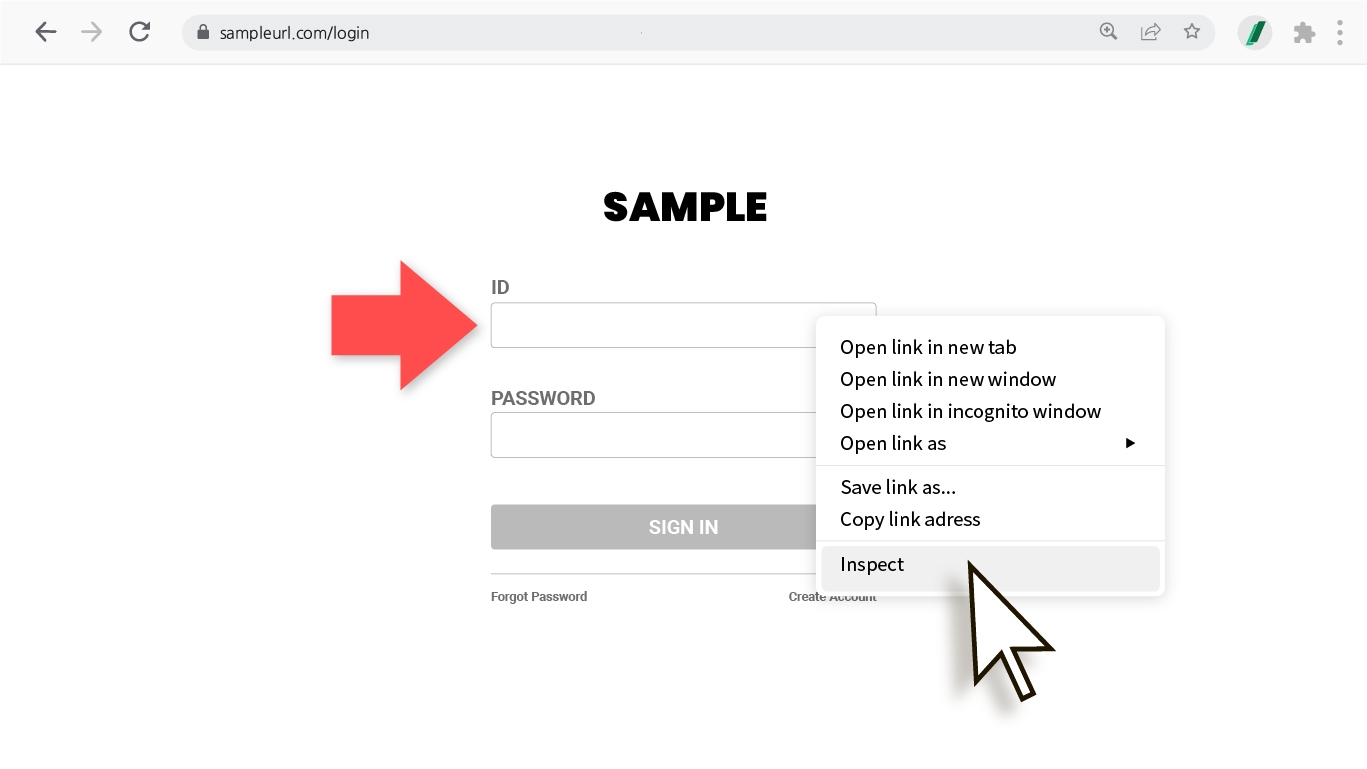
Right-click on the ID input field and select Inspect.
A window full of code will appear on the right or bottom of the screen—don't worry! :) The code for the field you just selected is highlighted in gray, and hovering over it will highlight the corresponding location on the page.
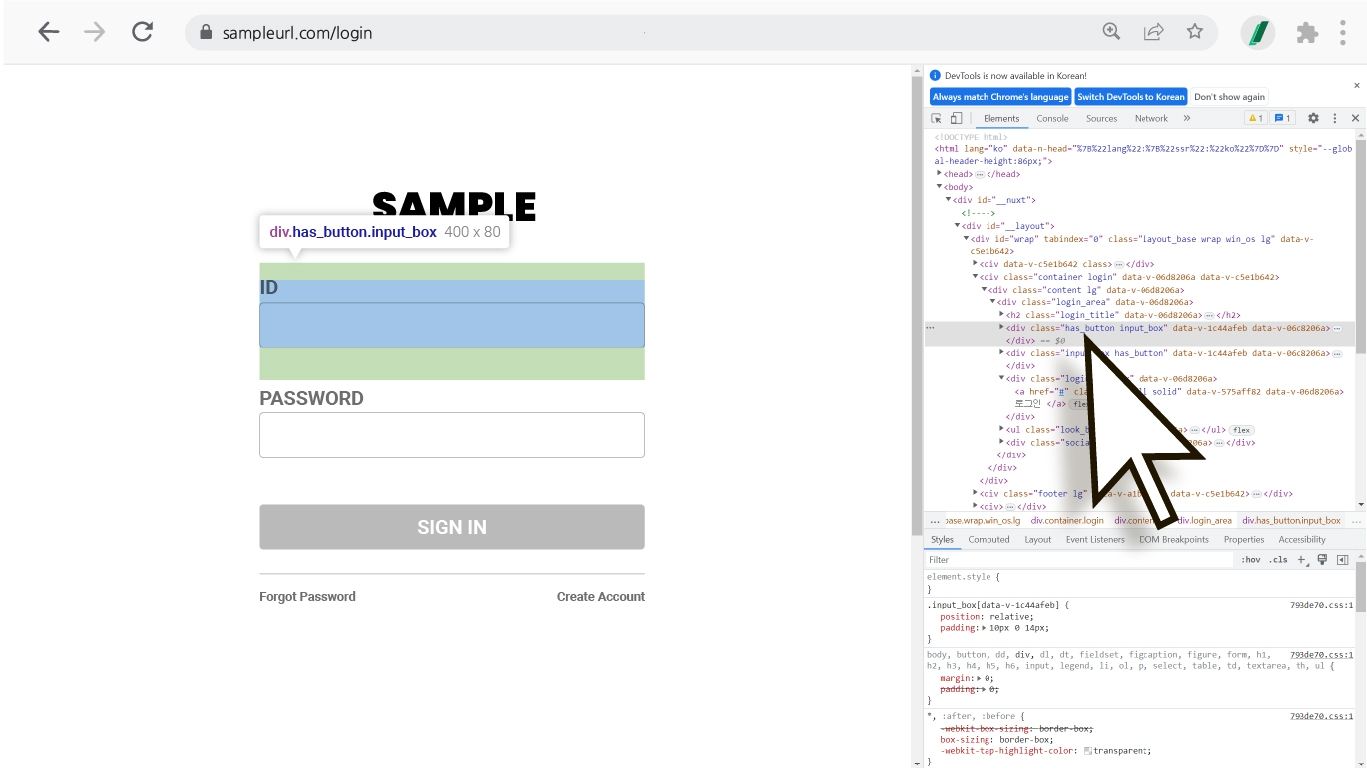
Right-click on the gray-highlighted code and select Copy -> Copy selector to automatically copy that selector's value.
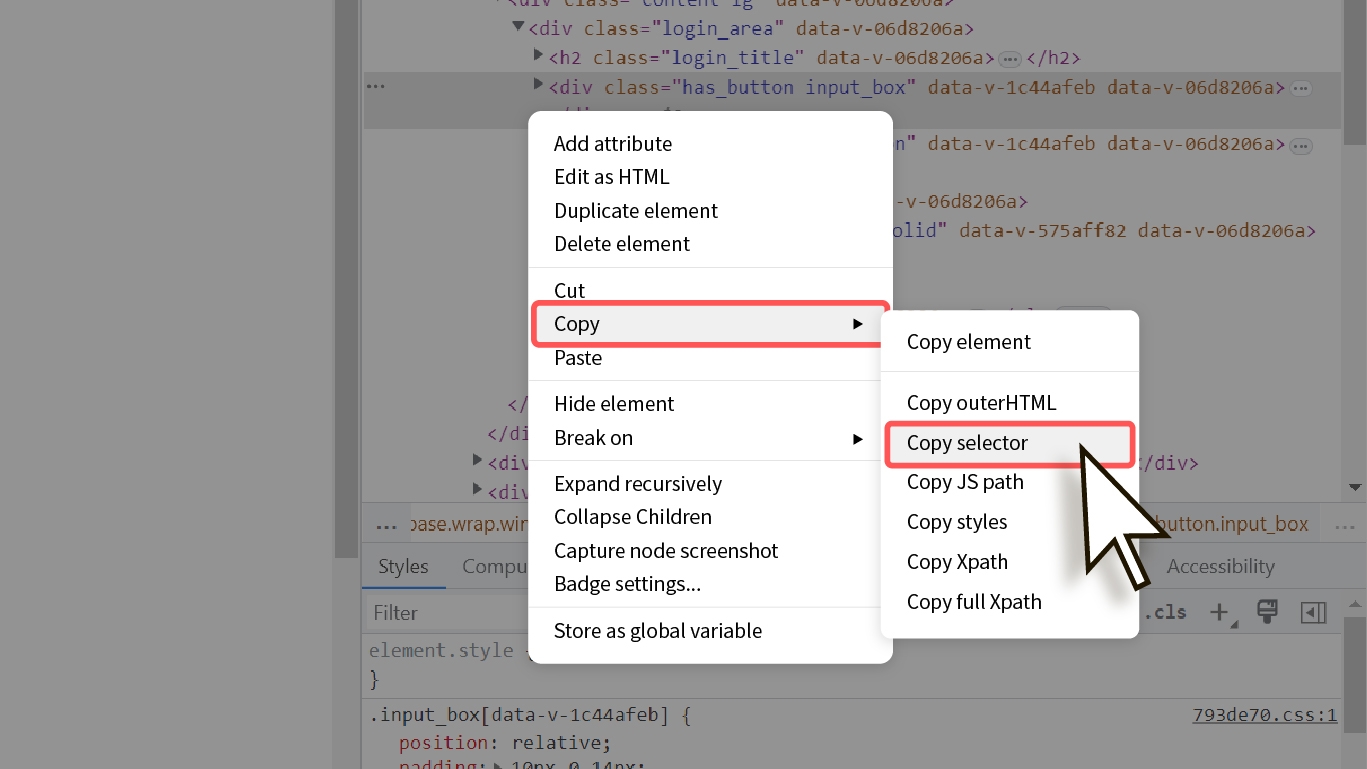
Return to the login info input window, place your cursor in the appropriate field, and press Ctrl + V to paste.
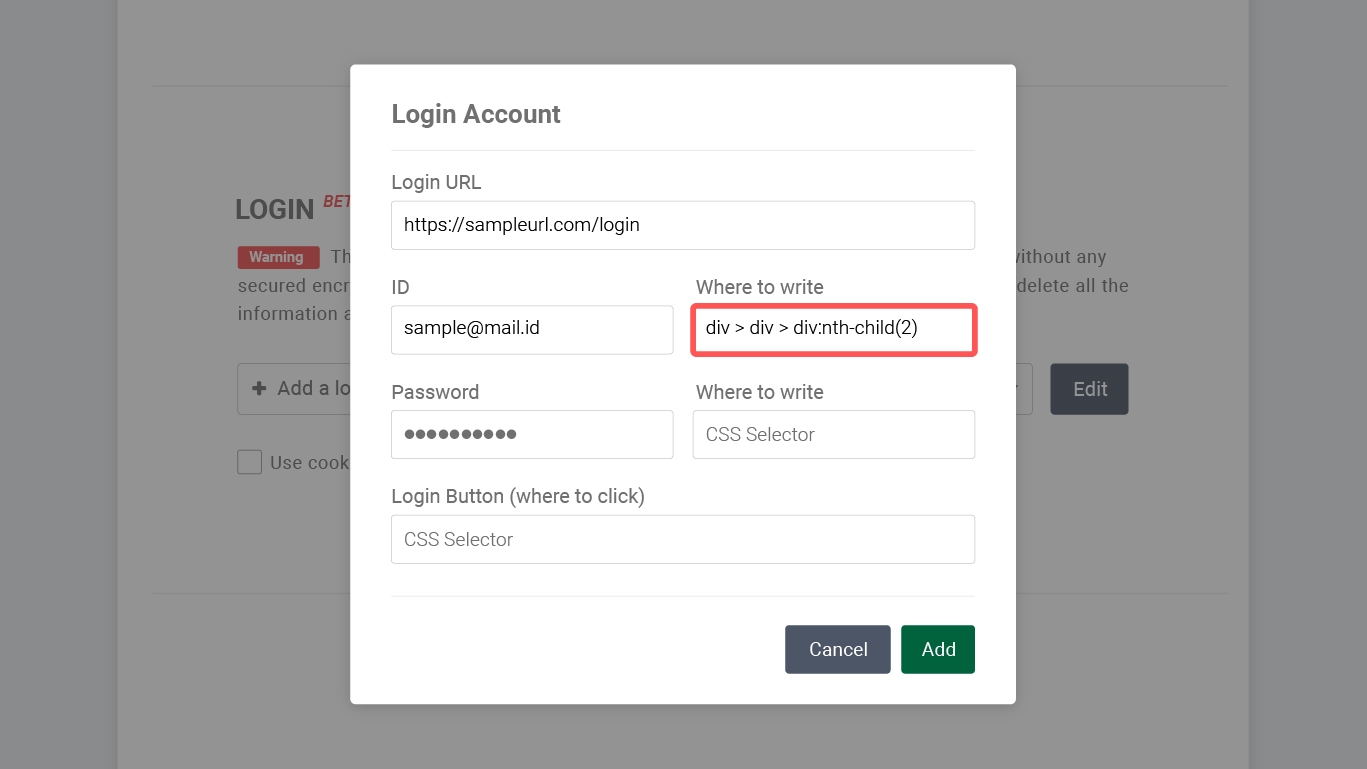
Fill in the remaining info (repeat step 3's selector paste process)
Once all information is entered, click the Add button, then click the Save button at the bottom of the settings page to save your login configuration.
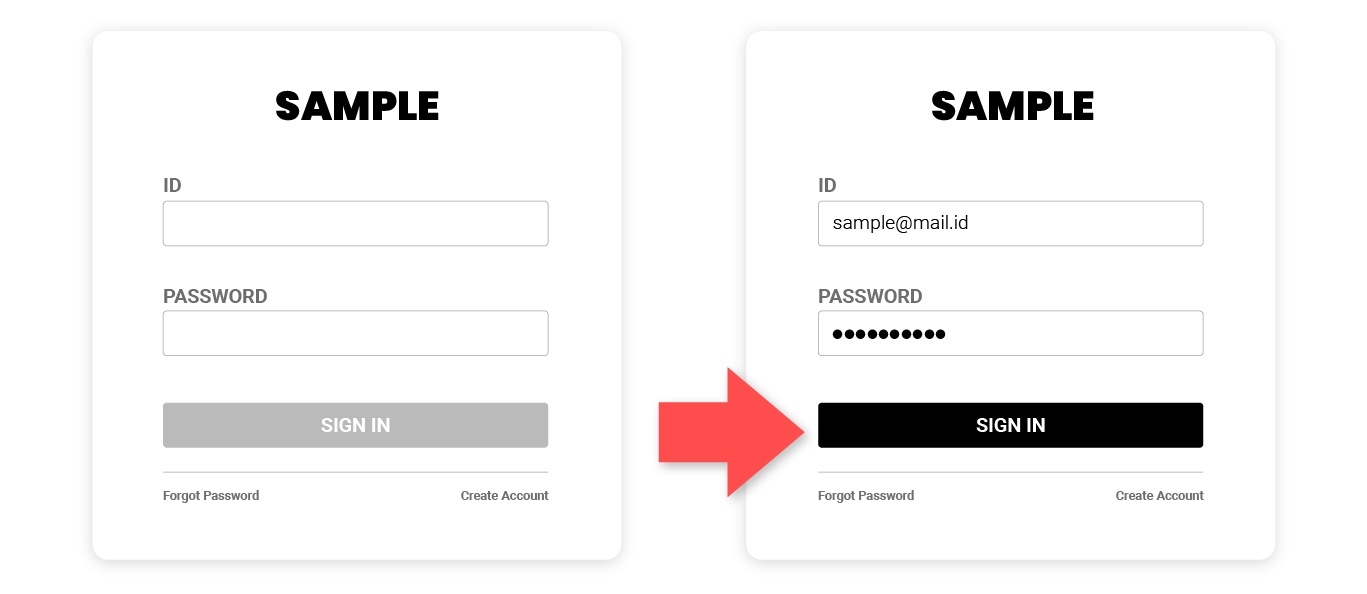
TIP Some websites only activate the login button after you enter credentials. When copying the selector value for the [Login button], make sure the button is activated (as shown below) before right-clicking → Inspect to get a more stable selector value.
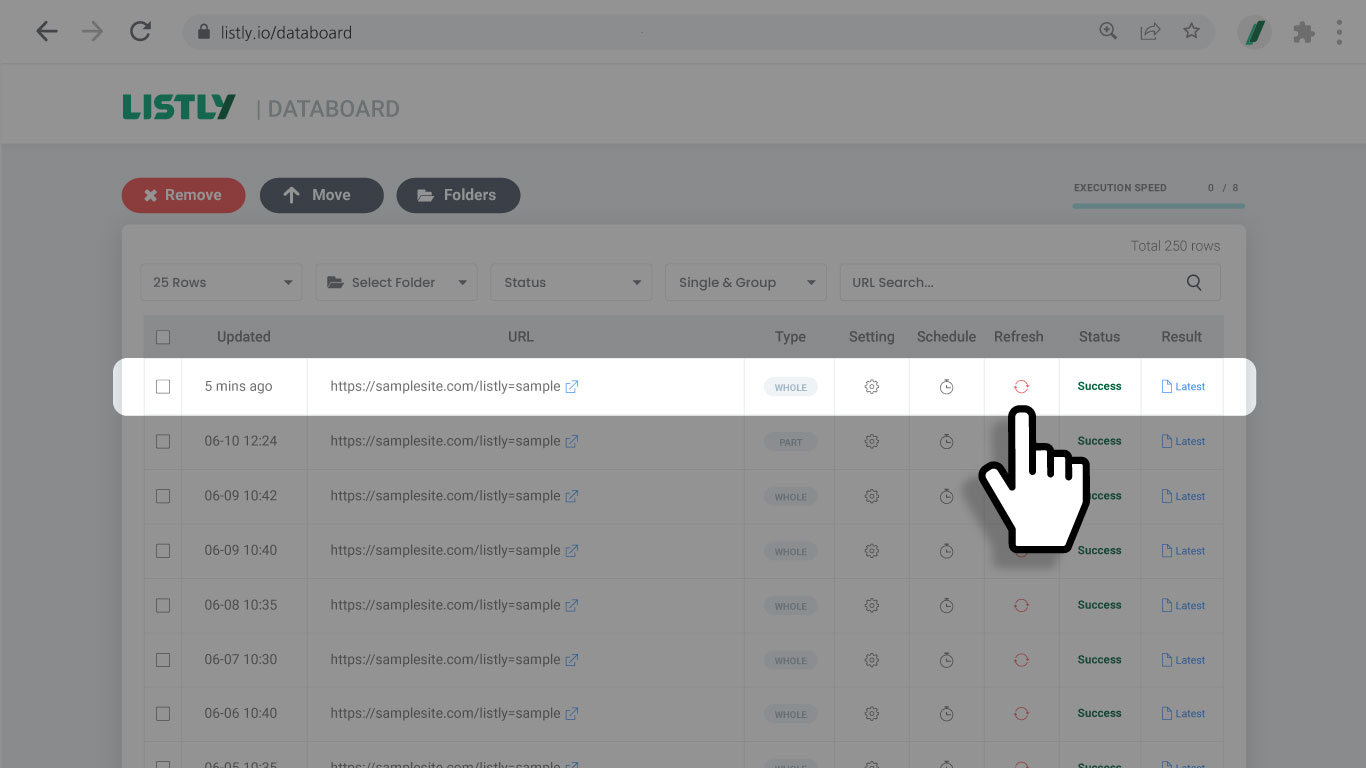
Return to Databoard and click the Refresh (re-extract) icon to verify that the task with login info works correctly.
Important notes when using auto login
Auto login is a beta service. Configuration and application may not be possible depending on each site's security policies and login screen structure. In these situations, use the 'Folder Download' feature to extract your desired data or contact the Listly team:
Websites with strong security (e.g., device authentication only, 2FA required, blocking overseas access—most email services included)
Sites where ID, password fields, and login button aren't all on one page
Websites with modal popup login pages (URL verification impossible)
Login pages with random strings (mixed letters+numbers+special characters) in the URL
Last updated
Was this helpful?